

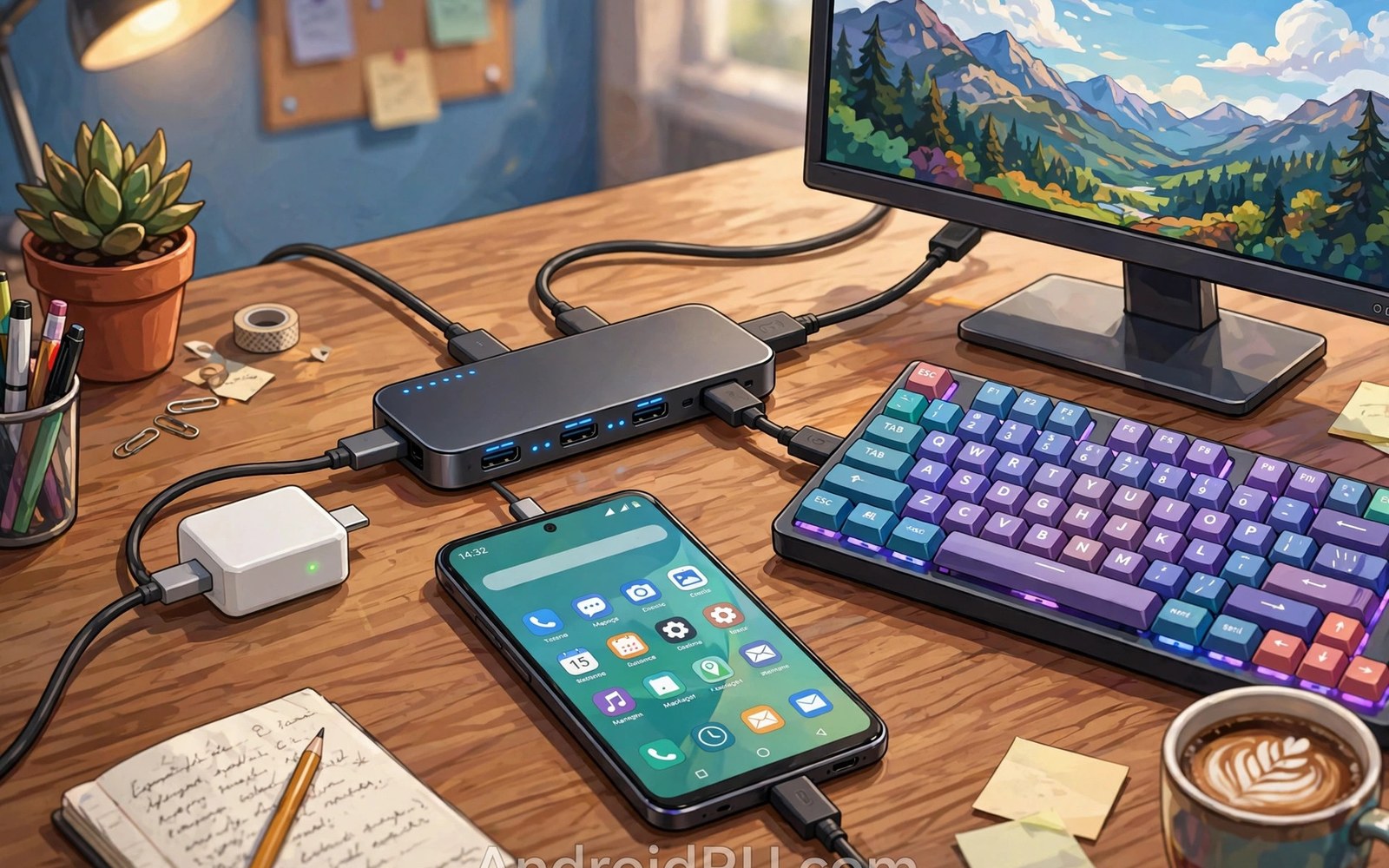
A multi-port hub turns one phone port into many ports. It adds USB ports and a video port and a charging port. It lets a phone drive a desk setup. A keyboard and a mouse can join the setup. A monitor can show the phone screen large. A charger can power the phone at the same time. That combination feels like a small computer. It uses the phone you already carry. It avoids buying a separate laptop for light work. Students and travellers benefit most from this trick. A hub fits in a pocket. A monitor and keyboard stay at the desk. The phone links them together.
Hub quality varies widely across the market. A good hub runs cool and stable. A poor hub drops connections or overheats. A poor hub may also charge slowly. The difference comes from internal chips and power design. A hub needs power for itself and for its ports. It draws that power from the charger or the phone. A hub without its own power input drains the phone fast. A hub with power input keeps the phone charged. That feature is called pass through charging. It is essential for long desk sessions. Without it the phone battery falls during work. With it the phone stays charged all day. Readers planning a monitor setup should also see connecting Android devices to external monitors via DisplayPort Alt Mode for video rules.
How a Hub Shares One Port
A phone USB-C port carries many signals at once. It carries power and data and video lanes. A hub splits those signals into separate ports. A controller chip manages the split. The chip must handle the total bandwidth. Data ports share the available bandwidth. Video uses its own lanes in many designs. Power flows through a separate path. A good chip balances those flows without drops. A weak chip may stall when several devices run together. That stall shows as a frozen mouse or a flickering screen. It may also show as a slow file copy. The chip quality rarely appears on the box. Reviews and trusted brands help here. A hub from a known maker usually uses a better chip.
Bandwidth sharing affects file transfers most. A hub with several active devices splits data capacity. A flash drive copy may slow when a keyboard and a drive run together. The slowdown is usually modest. It becomes noticeable with large files. Video output rarely suffers from data sharing. Video uses separate lanes in a well designed hub. A poor design may still share lanes badly. Test the hub with your real workload. Copy a large file while using the keyboard. Watch the monitor for flicker. Note any drop in speed. A hub that passes that test suits daily work. A hub that fails should be returned early. Early testing prevents frustration later.
Power sharing needs equal care. Each USB port can supply limited power. A hub must divide power among its ports. A hard drive needs more power than a mouse. A keyboard needs very little power. A hub with a charger input can supply more total power. A hub without charger input relies on the phone. The phone cannot supply much power. A hard drive may fail to spin up on such a hub. A powered hub solves that problem. It draws power from the wall charger. It then feeds the phone and the accessories. That design keeps every device stable. Always prefer a powered hub for desk use.
Keyboards and Mice on a Phone
Most USB keyboards work on Android without extra software. Plug the keyboard into the hub. Android detects it within seconds. A cursor appears for a mouse. Typing works in documents and browsers. Special keys may behave differently across apps. Media keys often work in music apps. Function keys may need app support. Test your main apps after connecting. A wireless keyboard with a USB receiver also works. Plug the receiver into the hub. The phone treats it like a wired keyboard. Bluetooth keyboards are another option. They skip the hub port entirely. They use battery power instead. Both routes suit desk work well.
Layout settings matter for comfortable typing. Android lets you choose a keyboard layout. The setting lives in the language and input section. Set it to match your physical keyboard. A mismatched layout swaps some symbols. That swap confuses typing at first. Fixing the layout takes less than a minute. Mouse speed also has a setting. Adjust it until the cursor feels natural. A fast cursor suits a large monitor. A slow cursor suits precise work. These small tweaks make a phone desk feel polished. They turn a novelty into a real workspace. Try them before judging the setup.
Shortcuts boost productivity on a phone desk. Copy and paste shortcuts work in most apps. Alt and tab style switching may vary by app. Some apps support desktop style shortcuts fully. Others support only basic shortcuts. Learn the shortcuts for your main apps. A physical keyboard also helps with long writing. Typing a report on a real keyboard beats typing on glass. Editing text with arrow keys feels precise. Selecting text with shift and arrows is quick. These gains make a hub setup worthwhile for writers. They also help students who write essays on a phone.
HDMI Video from a Hub
HDMI output lets the phone screen fill a monitor. The hub converts the phone video signal to HDMI. The phone must support video output for this to work. Not every phone supports it. Check the phone spec sheet first. A phone without video support cannot drive a monitor through any hub. No hub can add a missing phone feature. A phone with support shows the screen at once. Some phones offer a desktop mode on the monitor. Desktop mode shows windows and a taskbar. Other phones simply mirror the phone screen. Mirroring still suits video and presentations. It feels less like a computer. It remains useful for watching and sharing.
Resolution and refresh rate depend on the phone and the hub. Many setups reach full high definition smoothly. Some reach higher resolutions. The monitor must support the chosen resolution. The cable must also support it. A poor HDMI cable can cause flicker. Use the cable supplied with the hub when possible. Test at the monitor native resolution first. Lower the resolution if flicker appears. A stable lower resolution beats an unstable higher one. Check the hub spec for its maximum output. A hub limited to a lower resolution caps the result. That cap applies even with a capable phone and monitor.
Audio over HDMI follows the video signal. Monitor speakers play phone audio when connected. A monitor without speakers stays silent. In that case use phone speakers or a separate audio device. Some hubs add a headphone jack for audio. That jack gives a simple audio route. Bluetooth audio is another option. It adds slight delay for video. Wired audio avoids that delay. Choose wired audio for video calls and games. Choose Bluetooth audio for music only. The best route depends on the task. Test audio early in the setup. A silent monitor surprises users who expect sound.
Power and Charging Through a Hub
Pass through charging keeps the phone powered during desk work. Plug the charger into the hub power port. Plug the hub into the phone. Power flows to the phone and to the accessories. The phone should show a charging icon. The charging speed may be lower than direct charging. The hub consumes some power itself. Accessories consume power too. The remaining power charges the phone. A strong charger offsets that loss. Use a charger rated above the phone need. A 45 watt charger suits many phone hub setups. A weaker charger may barely hold the battery level. It may still work for light tasks. It will struggle during heavy use.
Heat rises when a hub charges and drives video together. Warmth is normal for an active hub. Excess heat signals a poor design or a weak charger. Place the hub on a hard surface with airflow. Avoid covering it with papers or cloth. Let air move around the metal case. Metal cases spread heat better than plastic cases. A hub that stays merely warm is fine. A hub that becomes too hot to touch needs attention. Disconnect accessories one by one to find the load causing heat. Reduce the load or use a stronger charger. Never ignore a very hot hub. Heat shortens the life of internal chips. Readers who worry about warmth can also read USB-C hub heat and whether warm operating temperature is normal for guidance.
Charging while using a hub can also affect battery health over time. Heat is the main factor in battery wear. A cool setup protects the battery better. Keep the phone out of direct sunlight on the desk. Avoid running heavy games while docked for hours. Heavy load plus charging creates extra heat. Light office work creates far less heat. The phone battery management system also helps. It slows charging when the battery gets hot. Trust that protection and give the setup airflow. Good habits keep the phone healthy for years. They cost nothing beyond a little desk care.
Choosing the Right Hub
List the ports you truly need before shopping. A hub with too many ports costs more and runs hotter. A hub with too few ports forces extra adapters. Count your keyboard and mouse and monitor and drive needs. Add one spare USB port for a flash drive. That spare port proves handy for quick transfers. Check the hub video spec against your monitor. Check the power spec against your charger. Check the USB speed for file work. A hub for video only can use slower USB ports. A hub for file work needs faster USB ports. Match the hub to the job rather than buying the largest hub.
Build quality shows in the case and the cable. A metal case spreads heat well. A short thick built in cable lasts longer than a thin one. A detachable cable offers easy replacement. Either design works when built well. Check the plug fit in the phone port. A firm fit prevents disconnects. A loose fit causes random drops. Read reviews that test with Android phones. Some hubs are tuned for laptops only. They may still work with phones. They may also lack phone specific features. A review with a phone test gives better guidance. Price alone does not guarantee phone compatibility. For a full desk transformation see docking stations for turning Android phones into full desktop workstations as a next step.
- Choose a hub with pass through charging for long sessions.
- Check phone video support before buying an HDMI hub.
- Use a charger stronger than the phone need alone.
- Test keyboard and monitor and file copy together.
- Keep the hub on a hard surface with good airflow.
Hub setup checklist:
1. Phone video support: yes or no
2. Ports needed: keyboard mouse monitor drive
3. Charger watts: above phone need
4. Cable: hub cable plus HDMI cable
5. Test: type and move mouse and copy file
6. Check: charging icon and screen stability
7. Heat: warm is fine and hot is a fail
Troubleshooting Hub Problems
A monitor that stays dark often means missing phone support. Check the phone spec sheet again. Try another monitor and another HDMI cable. Try the hub on a laptop if possible. A hub that works on a laptop but not on a phone points to phone support. A hub that fails everywhere points to the hub. Swap the charger as well. A weak charger can stop video output. Video needs power as well as signal. A strong charger may restore the picture. Work through one swap at a time. Random swaps waste time and confuse the result.
Random disconnects often come from a loose plug or a weak charger. Push the hub plug fully into the phone port. Clean lint from the port if the plug feels shallow. Try a stronger charger for stability. Remove one accessory at a time to find an overload. A hard drive that draws too much power can destabilise the hub. Use a powered drive or a powered hub for such drives. Update the phone system software too. Software updates sometimes fix hub compatibility. A hub that worked before an update may need a new update. Check maker notes for known issues. A known issue saves hours of blind testing.
Slow file copies through a hub point to bandwidth sharing or a slow port. Test the drive directly on the computer first. That test proves the drive speed. Test the drive on the hub with no other devices. That test proves the hub port speed. Add devices back one by one. Note when speed drops. The device that causes the drop shares bandwidth heavily. Move that device to another port if possible. Use the fastest hub port for the drive. Keep slower devices on slower ports. That arrangement gives the drive the best chance. It also keeps the keyboard responsive.
Final Thoughts on Hubs
A good hub unlocks a surprising amount of power from a phone. It adds a real keyboard and a large screen. It keeps the phone charged while you work. It turns a pocket device into a desk tool. The key is matching the hub to the phone. Video support must exist in the phone. Power must come from a strong charger. Ports must match the accessories you own. A careful purchase avoids most disappointment. A quick test on arrival confirms the setup. The setup then serves daily work with little fuss.
Start with a simple test before building a full desk. Connect the hub and a monitor and a keyboard. Type a short document and watch the screen. Copy a file and check the speed. Note the charging icon and the hub temperature. Keep the hub if every test passes. Return it if video or charging fails. The steps above follow the approach described in the official developer documentation for accessory connections and power management. That approach stresses testing each link in the chain before relying on the whole setup. Follow it and your phone desk will feel steady and practical.

