

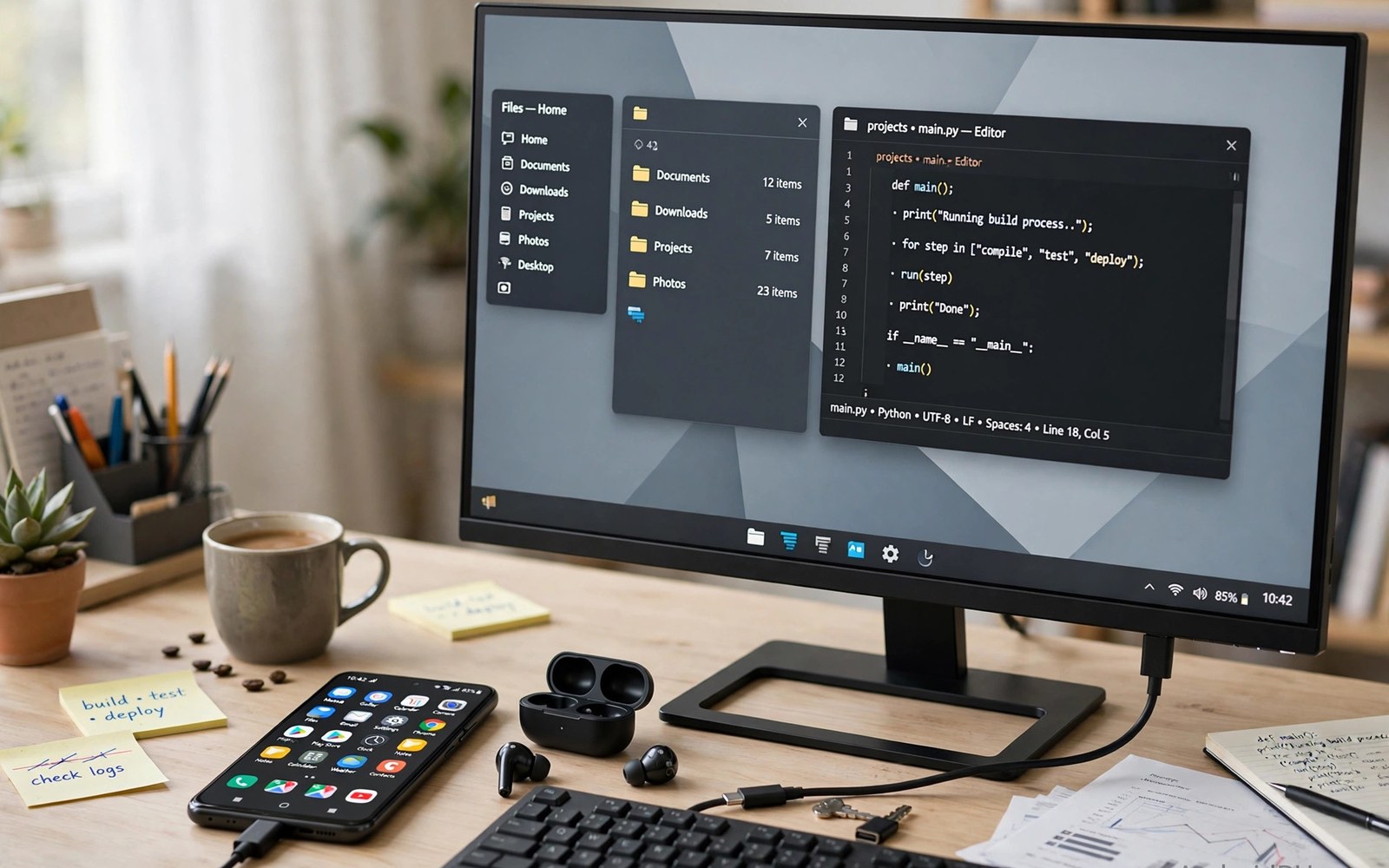
DisplayPort Alt Mode lets a USB-C port carry video. The port uses some of its internal lanes for a display signal. The rest of the port can still carry data and power. That trick turns a phone into a video source. A monitor can then show the phone screen large. A television can show it too with the right adapter. The feature needs support in the phone hardware. It also needs a cable or adapter that carries the video lanes. Both parts must align. A cable alone cannot add support to a phone that lacks it. A phone with support still needs a proper cable. This guide explains the feature in plain terms. It shows how to check support and build a working setup.
People use external monitors for many reasons. A large screen helps with documents and spreadsheets. It helps with presentations in a meeting room. It helps with video watching on a bigger display. It helps with photo editing where detail matters. A phone screen is too small for those tasks. A monitor solves the size problem at low cost. The phone already holds the files and the apps. The monitor simply shows them larger. No new computer is needed for light work. That saving appeals to students and travellers. A single cable can link the two devices. Readers building a desk setup may also enjoy multi-port hubs that connect keyboards and power to phones for extra ports.
How DisplayPort Alt Mode Works
A USB-C connector holds many small pins inside. Some pins carry USB data. Other pins can carry video instead. Alt Mode reassigns those pins for display use. The phone sends a display signal through the reassigned pins. The monitor receives that signal and shows the picture. The reassignment happens during connection negotiation. The phone and the monitor agree on the mode first. If either side lacks support the video link fails. The port then falls back to data and charging only. That fallback is silent. The user sees no error message. The monitor simply stays dark. That silence confuses many first time users. They assume the cable is faulty. The real cause is often missing phone support.
Video lanes carry the picture data at high speed. Four lanes can carry a high resolution picture. Two lanes can carry a lower resolution picture. The remaining lanes can carry USB data. That split allows data and video together. A setup with four video lanes gives the sharpest picture. It leaves less room for fast data. A setup with two video lanes gives a good picture. It leaves more room for data. The system chooses the split based on the monitor need. A high resolution monitor needs more lanes. A standard monitor needs fewer lanes. The user rarely controls this split directly. The devices negotiate it automatically. A good cable must carry all the lanes well. A poor cable may drop lanes and cause flicker.
DisplayPort Alt Mode differs from simple USB video adapters. Some cheap adapters use compressed video over USB data. Those adapters need special software on the phone. They often add delay and lower quality. Alt Mode sends a native display signal. It needs no special app on the phone. It gives lower delay and sharper quality. That difference matters for video and games. It matters less for static documents. Check the adapter description for Alt Mode support. A listing that omits Alt Mode may use compression instead. Compression adapters can still work. They simply feel less smooth. A native Alt Mode link feels like a direct monitor link.
Checking Phone Support Before Buying
Phone support is the first thing to check. Search the phone model and the phrase video output. Look for a spec sheet from the maker. The sheet may list display output or video output. It may list a desktop mode as well. A desktop mode strongly suggests video support. A spec sheet without any video mention suggests no support. Some phones support video only through a dock. Others support it through any proper cable. The distinction matters for buying. A dock only phone needs that specific dock. A general support phone works with many adapters. Read user reports for your exact model. Reports from owners give practical proof. A spec sheet alone can be vague.
Testing with a borrowed cable saves money. Borrow a known good cable from a friend. Connect the phone to a monitor. Watch for a picture within seconds. A picture proves support at once. No picture does not fully prove absence. The cable or monitor could be at fault. Test with a second cable when possible. Test with a second monitor too. Each test removes one doubt. A phone that shows a picture on any test supports video. A phone that fails every test likely lacks support. Do not buy an expensive dock before this test. A cheap cable test gives the same answer. It also avoids a costly return.
Software settings can also block video output. Some phones need a setting enabled for desktop mode. Look in the display settings for a desktop or external display option. Enable it before connecting. Some phones ask for permission on first connection. Accept the prompt to allow display output. A dismissed prompt may block later attempts. Reconnect the cable to trigger the prompt again. Restart the phone if the prompt does not return. Software blocks are easy to miss. They look like hardware failures. A quick settings check prevents a wrong conclusion. It also saves a needless cable purchase.
Cables and Adapters That Carry Video
A USB-C to DisplayPort cable suits a monitor with a DisplayPort input. Plug one end into the phone. Plug the other end into the monitor. The link should work at once when support exists. A USB-C to HDMI cable suits a monitor with an HDMI input. That cable converts the signal inside the plug. The conversion chip needs power from the phone. It usually draws little power. A hub with HDMI output suits a full desk. The hub adds USB ports and charging. It also converts video to HDMI. Choose the form that fits your monitor. A direct cable is simplest for one monitor. A hub is better for a full desk.
Cable quality affects picture stability. A well shielded cable holds a sharp picture. A poorly shielded cable may flicker. Flicker often appears at high resolution first. Lowering the resolution may stabilise a poor cable. That fix hides the cable weakness. A better cable restores full resolution. Check the cable rating for resolution and refresh rate. A cable rated for high resolution at a short length is a safe choice. Very long video cables risk signal loss. Keep video cables short when possible. A one metre cable suits most desks. A two metre cable should come from a trusted maker. The maker should state the resolution at that length.
Adapters that need external power deserve care. Some HDMI adapters need a charger connected. The adapter draws power for its conversion chip. Without power the picture may fail. Connect the charger before judging the adapter. Use the charger recommended by the adapter maker. A weak charger may cause flicker. A strong charger keeps the conversion stable. Powered adapters also charge the phone in many designs. That bonus suits long sessions. It keeps the battery level steady during a presentation. Check the adapter spec for charging support. A powered adapter costs more. It often proves more reliable than an unpowered one.
Setting Up the Monitor Picture
Connect the cable with the monitor powered on. Select the correct input on the monitor. The monitor input menu lists DisplayPort and HDMI options. Choose the input that matches the cable. The phone should detect the monitor within seconds. A picture appears in mirror mode on many phones. Mirror mode shows the same screen on both displays. Desktop mode shows a separate workspace on the monitor. The phone screen may stay usable in desktop mode. That split lets you control the monitor from the phone. It feels like a small computer. Explore the mode that your phone offers. Each mode suits different tasks.
Resolution settings live in the phone display section on many models. Some phones set resolution automatically. Others let you choose a resolution. Choose the monitor native resolution for the sharpest text. A lower resolution makes text look soft. A higher resolution than the monitor supports causes a blank screen. If the screen goes blank then disconnect and reconnect. The phone should fall back to a safe resolution. Try a lower resolution next. Note the setting that works. Keep that setting for future sessions. A stable setting beats a sharper unstable one. Text clarity matters more than a headline number.
Refresh rate affects motion smoothness. A higher refresh rate makes scrolling look smoother. It also makes video look smoother. Not every phone and monitor pair supports high refresh rates. Start at the standard rate for stability. Raise the rate only if the picture stays stable. Watch for flicker during scrolling. Flicker signals a cable or bandwidth limit. Lower the rate again if flicker appears. A stable standard rate suits work tasks well. A high rate suits games and video. Choose the rate for the task at hand. A monitor that flickers distracts from any task.
Desktop Mode and Daily Work
Desktop mode changes how apps appear on the monitor. Apps open in windows that can be resized. A taskbar shows running apps. A mouse pointer moves across the screen. A keyboard types into the active window. That layout feels familiar to computer users. It suits document editing and web research. It suits spreadsheets where many columns matter. It suits presentations where slides need a large view. Not every app supports window resizing well. Some apps stay in a fixed phone shape. Those apps still work. They simply use less of the monitor width. The limitation comes from the app design. It does not mean the setup failed.
Audio routing needs attention in desktop mode. Sound may play from the monitor speakers. It may play from the phone speakers instead. Check the audio output setting after connecting. Choose the device that fits the room. A meeting room needs monitor or room speakers. A quiet desk may suit phone speakers. Headphones give a private option. Wired headphones avoid delay. Bluetooth headphones add slight delay. Delay matters for video calls. It matters less for music. Set audio before starting a call. A mid call audio switch disrupts the conversation. For a complete desk see docking stations for turning Android phones into full desktop workstations for a fixed setup.
- Check phone video support before buying any video cable.
- Use a short well shielded cable for a stable picture.
- Select the correct monitor input after connecting.
- Set resolution to the monitor native value for sharp text.
- Test audio output before starting a call or presentation.
Monitor setup checklist:
1. Phone video support: confirmed or not
2. Monitor input: DisplayPort or HDMI
3. Cable type: direct cable or hub
4. Power: charger connected if adapter needs it
5. Picture test: mirror or desktop mode
6. Resolution: monitor native value
7. Audio: monitor phone or headphones
Troubleshooting a Dark Monitor
A dark monitor has several possible causes. Start with the monitor input selection. A wrong input shows no picture even when the link works. Next check the cable seating at both ends. Push each plug fully into its port. Clean lint from the phone port if seating feels shallow. Try another cable to rule out cable failure. Try another monitor to rule out monitor failure. Try the setup on a laptop to test the cable and monitor. Each swap narrows the cause. A systematic swap beats random guessing. It also prevents buying a replacement for a working part.
Power issues can also darken the screen. Some adapters need charger power to convert video. Connect a charger and test again. Use a stronger charger if the picture flickers. A weak charger may start video then drop it. Heat can cause a similar drop. A hot adapter may shut down video to protect itself. Let it cool and improve airflow. Place the adapter on a hard surface. Avoid covering it during use. If cooling fixes the picture then heat was the cause. A better adapter or a cooler desk layout solves it. Never ignore repeated heat shutdowns. They signal a design limit.
Software can block video after a system update. An update may reset display settings. Check the display settings again after updating. Reconnect the cable to trigger permission prompts. Restart the phone if the monitor still stays dark. A restart clears a stuck display service. Check maker forums for update related reports. A widespread report suggests a software bug. A bug fix may arrive in a later update. In that case a temporary workaround may help. Lowering resolution sometimes restores a picture after a buggy update. Keep the workaround until the fix arrives. Report the bug through the phone feedback tool when possible.
Final Thoughts on Monitor Connections
DisplayPort Alt Mode turns a phone into a flexible video source. It needs phone support and a proper cable. It needs the correct monitor input. It rewards a short quality cable. It opens a large screen for work and media. A desk setup built on it feels practical. A presentation setup built on it feels professional. The cost stays low compared with a new computer. The phone remains the computer. The monitor simply shows its screen larger. That simplicity is the main appeal.
Readers may also find USB-C cable ratings for 60W and 100W and 240W power useful for a related setup.
Check support first and test with a borrowed cable when possible. Choose a cable that matches your monitor input. Set resolution to the native value. Test audio before important calls. Keep the setup cool and the cable short. The steps above follow the approach described in the official developer documentation for display output and accessory negotiation. That approach stresses confirming device support before buying accessories. Follow it and your monitor connection should work on the first proper try.

