

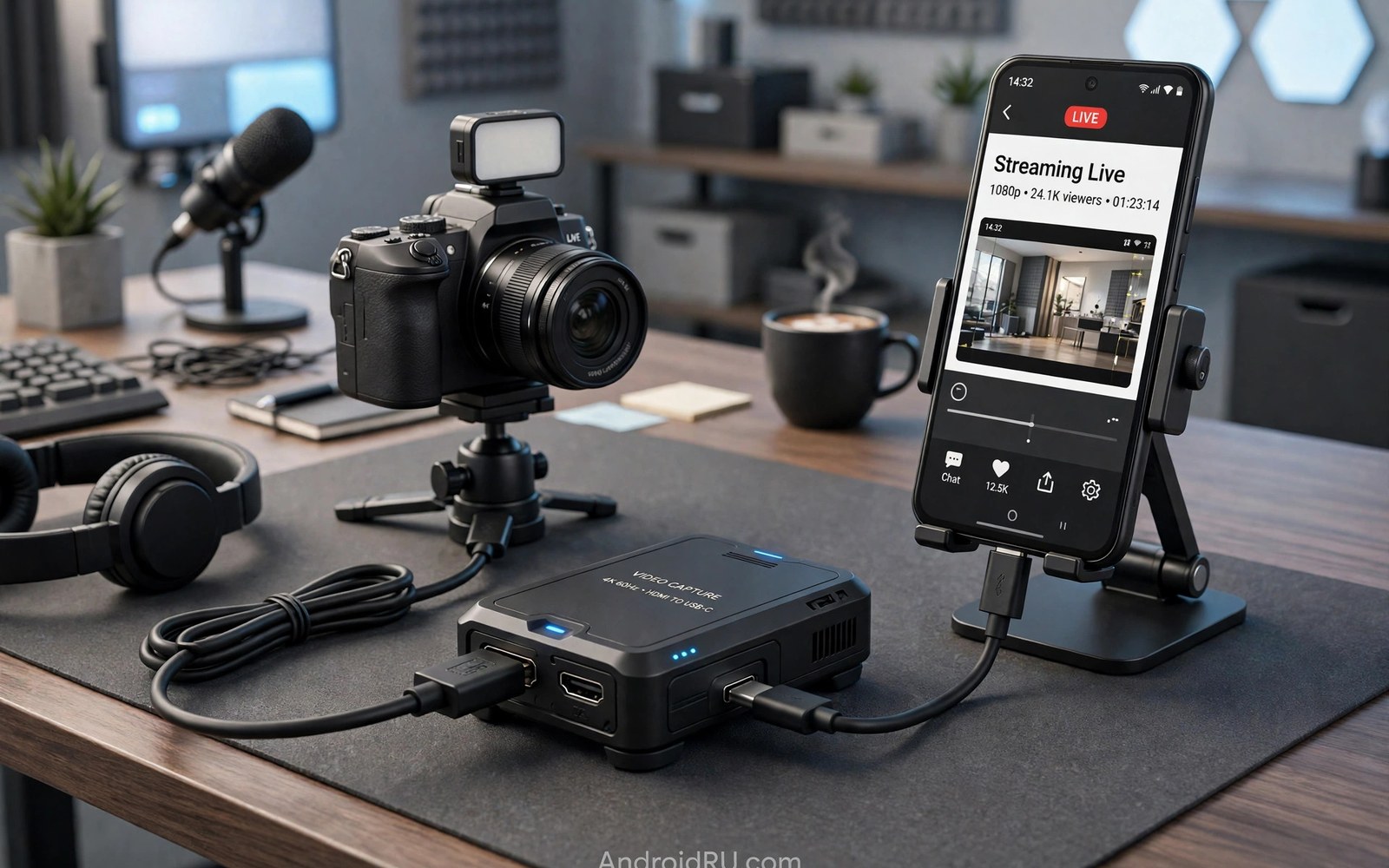
A capture card brings a camera feed into a phone. The camera outputs video over HDMI. The capture card converts that video to USB. The phone receives it as a video source. A streaming app broadcasts it live. That chain turns a phone into a portable studio. It suits creators streaming events. It suits gamers streaming console play. It suits teachers streaming demonstrations. This guide explains capture cards in plain terms. It covers card types and app setup. It covers latency and power. It helps you stream reliably from a phone.
Phone cameras are good but limited. A dedicated camera offers better lenses. It offers better low light performance. It offers optical zoom. A capture card unlocks those advantages for streaming. The phone handles encoding and network. The camera handles image capture. Each device does what it does best. That division improves stream quality greatly. A phone alone cannot match a dedicated camera image. A camera alone cannot stream without extra gear. Together they form a strong mobile studio. The capture card is the bridge between them.
How Capture Cards Work with Phones
A capture card accepts HDMI video from a camera. It converts the video into a USB video stream. The phone sees the card as a USB camera device. Android supports standard USB video devices. A standard card works without special drivers. A non standard card may need maker software. Maker software rarely exists for Android. Check for standard USB video support before buying. The spec should state it. Owner reports from Android users confirm it. A card with many Android success reports is safe. A card with only computer reports is risky. Standard support is the key compatibility factor.
Resolution and frame rate define card capability. A basic card captures high definition at thirty frames per second. A better card captures high definition at sixty frames per second. A high end card captures ultra high definition. Phone streaming rarely needs ultra high definition. Network upload limits usually cap stream quality below that. A high definition sixty frame card suits most mobile streams. It gives smooth motion. It also keeps file sizes manageable. A higher resolution card costs more. It also needs more phone processing. A phone that struggles with ultra high definition will drop frames. Match card capability to phone power and network upload.
Latency measures delay from camera to phone screen. Low latency keeps the streamer in sync with the scene. High latency creates a noticeable lag. A lag between action and stream preview confuses the streamer. It also desyncs audio when audio comes from another source. Capture cards add some latency by design. Conversion takes time. A good card adds only a small delay. A poor card adds a large delay. Card specs rarely state latency clearly. Reviews from streamers reveal real latency. Look for reviews that measure preview delay. A card with low preview delay suits live interaction. A card with high delay suits recorded content better.
Choosing a Capture Card
Choose a compact card for mobile use. A pocket sized card travels easily. A large desktop card needs a desk and extra power. Mobile streaming favours compact form. A compact card usually draws power from the phone. That draw is modest. A large card may need its own power supply. Power supply adds bulk. It also adds a cable to manage. A compact card with standard support is the mobile sweet spot. It fits in a camera bag pocket. It connects with one cable. It streams within minutes. That simplicity matters in the field. Field setups must work quickly.
Check input and output ports carefully. The card input should match the camera output. Most cameras output HDMI. Some output other formats. A mismatch needs an extra converter. Extra converters add latency and failure points. Avoid them when possible. The card output should be USB-C for modern phones. A USB-A output needs an adapter. Adapters add bulk and risk. A direct USB-C output is tidiest. Check cable length as well. A short cable keeps the setup compact. A long cable allows camera distance. Balance compactness against camera placement. A medium cable suits most field setups.
Pass through output is a useful feature. A card with pass through sends video to a monitor as well as the phone. The streamer can watch a large monitor while streaming. A monitor preview helps framing. It also helps focus checks. A card without pass through forces preview on the phone screen. A phone screen is small for framing. A monitor preview improves quality. Pass through adds cost and bulk. It pays off for professional streams. Casual streams may not need it. Decide based on stream importance. A casual stream suits phone preview. A professional stream benefits from monitor preview.
Connecting Camera and Phone
Connect the camera HDMI output to the card input. Connect the card USB output to the phone. Power the camera with its battery or a power supply. A camera battery drains during long streams. A power supply or a dummy battery extends stream time. Dummy batteries replace the camera battery with a mains powered unit. They suit long fixed streams. They add a cable to manage. A fully charged battery suits short streams. Plan power for the stream length. A dead camera mid stream ends the broadcast. A powered camera avoids that embarrassment. Test power before going live.
Open a camera app that supports USB video input. Not every camera app supports it. Streaming apps often support USB video sources. Check app settings for a video source option. Select the capture card as the source. A preview should appear within seconds. If no preview appears then check connections. Reseat the HDMI cable. Reseat the USB cable. Restart the app. Try another app to isolate an app issue. A card that works in one app but not another points to app support. A card that fails in every app points to the card or connection. Systematic swaps find the cause.
Set camera output resolution to match the card. A camera output above card capability may fail. A camera output below card capability wastes quality. Set the camera to the card maximum supported resolution. Set frame rate to match the stream target. A sixty frame camera output for a thirty frame stream wastes processing. The phone must drop frames. Dropping frames adds load. Set camera output to the stream frame rate directly. That matching reduces phone load. It also reduces latency. A matched setup runs smoother. It also runs cooler. Cooler operation sustains longer streams.
Audio for a Stream
Audio quality decides stream success as much as video. Viewers forgive soft video sooner than poor audio. Capture cards often carry HDMI audio from the camera. Camera microphones pick up room sound. Room sound may include echo and noise. A dedicated microphone improves clarity greatly. Connect a microphone to the camera when possible. Camera microphone input gives synced audio. Synced audio avoids lip sync issues. A microphone connected to the phone separately may drift out of sync. Drift grows over a long stream. Camera connected audio stays synced because video and audio travel together through HDMI.
Monitor audio during the stream with headphones. Headphones connected to the phone let the streamer hear the broadcast mix. A mix that sounds clear in headphones will sound clear to viewers. A mix with echo or noise reveals problems early. Fix audio problems before they reach viewers. Adjust microphone gain for a clean level. Avoid clipping on loud sounds. Clipping distorts audio harshly. Viewers leave a stream with distorted audio quickly. A clean audio level keeps them watching. Audio monitoring is a professional habit. It costs only a headphone connection. It pays off in audience retention.
Separate audio sources need sync care. A microphone on the phone plus video from the card may drift. Test sync before going live. Clap once on camera. Watch the preview for lip sync. A clap that sounds late points to delay. Adjust app audio delay settings when available. Some apps offer a delay slider. Use it to align audio and video. A small delay adjustment fixes most drift. A large drift may need a different audio route. Camera connected audio avoids drift entirely. Prefer it when possible. It is the simplest sync solution. For audio interface options see connecting MIDI keyboards and audio interfaces to Android via USB for input devices.
Streaming Apps and Settings
Choose a streaming app that supports USB video input. Some apps support it natively. Others need a camera app to feed them. Test the full chain before a live event. A test stream to a private channel reveals issues safely. Check video smoothness during the test. Check audio clarity. Check chat interaction delay. A test stream is a rehearsal. It prevents live embarrassment. It also reveals network limits. A network that struggles in test will struggle live. Fix network issues before the real stream. A private test costs little time. It saves reputation.
Set stream bitrate to match network upload. A bitrate above upload capacity causes dropped frames. Viewers see freezing video. A bitrate below capacity wastes quality. Test upload speed at the venue. Set bitrate to about seventy percent of measured upload. That margin absorbs fluctuations. A wired network gives steadier upload than wireless. Use wired when a venue offers it. A wired link through an adapter stabilises upload. Wireless upload fluctuates with crowd size. A crowded venue wireless may collapse. A wired link holds steady. Plan network before the event. A network plan is as important as a camera plan.
Frame rate and resolution settings interact with bitrate. Higher resolution needs higher bitrate for clean quality. A high resolution stream at low bitrate looks blocky. A lower resolution stream at the same bitrate looks cleaner. Prefer a clean lower resolution over a blocky higher resolution. Viewers prefer smooth clean video. They rarely complain about resolution when motion is smooth. Set resolution and bitrate together. A high definition stream at a moderate bitrate suits most mobile networks. An ultra high definition stream needs a strong wired network. Most mobile venues lack that. Be realistic about venue network.
Power and Heat During Streams
Streaming drains a phone battery quickly. Encoding video uses the processor heavily. Network upload uses the radio heavily. Screen preview adds more drain. A phone may last only an hour or two streaming. Use a powered hub or a charger during streams. A charger connected through a hub keeps the phone powered. The hub must support data and charging together. A simple splitter may block data. A hub with power input handles both. Test the hub chain before the event. A hub that blocks video fails the stream. A hub that passes video and power succeeds. That test is essential.
Heat during streaming can throttle the phone. A hot phone slows its processor to protect itself. Slowing causes dropped frames. Dropped frames degrade the stream. Keep the phone cool during streams. Place it on a hard surface with airflow. Avoid direct sunlight. Sunlight heats the phone quickly. A shade or a cover helps outdoors. A small fan helps indoors. Pause between stream segments to cool when possible. A cooled phone streams better than a hot phone. Heat management is a streaming skill. It matters as much as camera skill. A cool setup sustains quality for hours.
- Choose a standard USB video capture card for Android.
- Match camera output to card capability and stream target.
- Use camera connected microphones for synced audio.
- Test stream privately before any live event.
- Power the phone through a hub during long streams.
Streaming setup checklist:
1. Card type: standard USB video support
2. Camera output: matches card input
3. Phone input: card selected in app
4. Audio: camera microphone and level set
5. Network: bitrate at 70 percent of upload
6. Power: hub charging during stream
7. Test: private stream before going live
Troubleshooting Capture Problems
No preview often means a connection or app support issue. Reseat every cable first. Restart the app next. Try another app to test support. Try the card on a computer if possible. A computer test proves card function. A card that works on a computer but not a phone points to phone support. A card that fails everywhere points to the card. Check camera output settings too. A camera in playback mode outputs no live video. Set the camera to live output mode. A camera that sleeps during inactivity stops output. Disable camera sleep for streaming. Those camera settings are easy to miss. They look like card failures.
Choppy video often means overload. Lower stream resolution first. Lower frame rate next. Lower bitrate if network is the limit. Each reduction lowers phone load. Note which reduction fixes choppiness. That reduction identifies the bottleneck. A resolution fix points to processing load. A bitrate fix points to network load. A frame rate fix points to either. Close background apps to free processing. A phone with free processing streams smoother. A phone running many apps drops frames. A dedicated streaming phone performs best. It runs only the stream app. That focus maximises quality.
Audio drift during long streams points to separate audio routing. Switch to camera connected audio when possible. Camera audio travels with video through HDMI. That path stays synced. Adjust app audio delay when camera audio is unavailable. A small delay tweak aligns most drift. Test sync with a clap before going live. Recheck sync after an hour. Drift can grow slowly. A mid stream sync check catches growth early. For photo transfer workflows see SD card reader adapters for transferring camera photos to phone storage for card handling after a shoot.
Final Thoughts on Mobile Streaming Capture
A capture card unlocks professional camera quality for phone streaming. It needs standard USB video support. It needs matched resolution and frame rate. It needs synced audio from the camera. It needs a realistic bitrate for the venue network. It needs power and cooling for long sessions. A private test stream reveals every weakness before viewers see it. That rehearsal habit separates reliable streamers from frustrated ones. A reliable setup feels effortless live. An untested setup fails at the worst moment.
Readers may also find connecting Android devices to external monitors via DisplayPort Alt Mode useful for a related setup.
Start with a compact standard capture card and a camera you know well. Match output settings to the card and the stream. Use camera audio for sync. Test privately on the venue network. Power the phone through a hub. The steps above follow the approach described in the official developer documentation for USB video devices and streaming performance. That approach stresses testing the full chain under real conditions before broadcasting. Follow it and your mobile streams will look and sound professional.

