

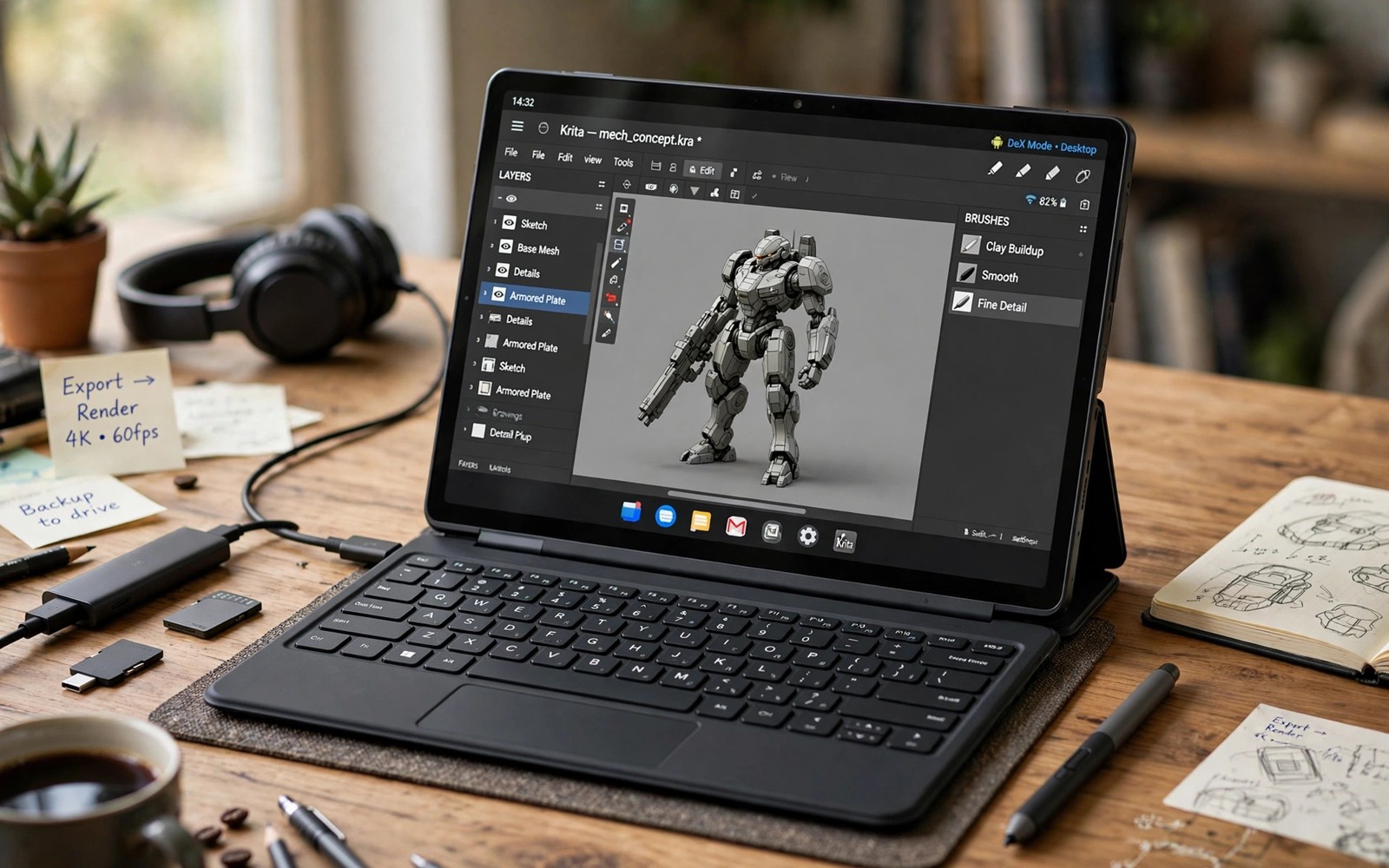
An Android tablet cloud gaming workstation sounds bold at first. It is also practical today. Cloud gaming removes the need for heavy local hardware. A tablet plus a controller plus a keyboard can play big titles and handle work tasks. The whole kit fits in a small bag. This article shows how to build that setup step by step.
A tablet offers a bigger screen than a phone. That size reveals game detail and eases eye strain. It also gives room for multitasking. You can game and chat and browse guides side by side. Add a controller and a stand and the tablet becomes a true portable station. Add a keyboard and it doubles for work.
Pick the right tablet for cloud play
Screen quality matters most for cloud gaming. Look for a bright display with good color. Resolution above 1080p helps on large tablets. Refresh rate matters too. A 90Hz or 120Hz screen shows smoother motion when the stream supports it. Battery size matters for long sessions away from power.
Processor power matters less than for native gaming. Video decoding is light work for modern tablet chips. Even mid range tablets decode streams well. Spend on screen and battery rather than the fastest chip. Storage also matters less because games stream rather than install.
Wi-Fi quality deserves attention. A tablet with strong Wi-Fi holds streams better at range. Check reviews for wireless performance. A tablet with weak Wi-Fi will frustrate you no matter how good the screen looks. Test the tablet on your home network before you commit.
Controllers and stands for tablet play
Full size Bluetooth controllers suit tablets best. Telescopic pads fit phones rather than tablets. A good controller plus a tablet stand forms a comfortable station. The stand holds the tablet at eye level. Your hands rest naturally on the controller. Neck strain drops a lot compared to holding a tablet flat.
Pick a folding stand for travel. It packs flat and sets up in seconds. Adjustable angle matters for different chairs and desks. A stand with a solid base resists bumps. Cheap flimsy stands topple at the worst moment. Spend a little more for stability.
For players choosing a pad for this setup, the roundup of best gamepads for cloud streaming covers comfort and latency for longer tablet sessions. A pad that feels good for an hour on a phone may tire your hands faster on a bigger screen setup.
Keyboard and mouse for hybrid use
A compact Bluetooth keyboard turns the tablet into a work machine between games. Many cloud games also accept keyboard input on Android. A small mouse helps for strategy titles and menus. Keep both in your bag. The added weight is small and the flexibility is large.
Pair devices once in Android settings. They reconnect automatically after that. A keyboard case combines protection and typing in one item. It adds bulk though. A separate folding keyboard packs smaller and suits travelers who value light bags.
Learn Android shortcuts for window switching. Quick switching between game and guide and chat saves time. Split screen mode helps too. Run a guide on one side and the game on the other during story games. This hybrid flow is where tablets beat phones clearly.
Display and audio upgrades
A portable USB-C monitor can extend the station further. Connect the tablet to a larger display at a desk or hotel. The tablet then acts as the computer while the monitor shows the game big. This setup suits players who want a desktop feel without carrying a laptop.
Audio matters for immersion. Tablet speakers sound thin in noisy places. Good earbuds or a small speaker improve the experience a lot. Low latency audio modes help sync sound with action. Test audio delay in a menu before a long session. Small delays annoy over hours.
Power planning completes the station. A USB-C power bank keeps the tablet and controller charged. A multi port charger tops up everything overnight. A single cable kit reduces clutter. Pack one cable type when possible to keep the bag simple.
A script to check tablet stream readiness
The script below estimates whether your link supports tablet quality streams. Run it from a computer on the same network as your tablet.
import subprocess
import re
import statistics

host = "8.8.8.8"
proc = subprocess.run(
    ["ping", "-c", "40", host],
    capture_output=True, text=True
)
times = [float(x) for x in re.findall(r"time=([0-9.]+)", proc.stdout)]
if times:
    mean = statistics.mean(times)
    jitter = statistics.pstdev(times)
    print("Mean ms:", round(mean, 1))
    print("Jitter ms:", round(jitter, 1))
    if mean < 35 and jitter < 10:
        print("Tablet stream ready at high quality")
    elif mean < 60:
        print("Tablet stream ready at medium quality")
    else:
        print("Fix the link before tablet sessions")
else:
    print("Ping failed. Check the network first")
This snippet is an original adaptation of a common ping test pattern. It is included here so you can judge your link for the bigger tablet screen where flaws show more.
Common mistakes
Many players buy a tablet for chip power they do not need. Cloud play needs screen and battery and Wi-Fi most. Spend there first. Another mistake is holding the tablet by hand for hours. Hands cramp and necks ache. A stand is not optional for long sessions.
Some players skip controller pairing and suffer touch controls on a big screen. Touch on a tablet feels worse than on a phone because buttons sit far apart. Pair a controller before your first session. Others forget power planning. A tablet plus controller plus earbuds drain together. Pack a power bank for any trip over two hours.
A final mistake is treating the tablet as a phone with a bigger screen. Use split screen and keyboards and external displays. The workstation value comes from the full kit working together. A tablet alone is just a big phone.
Desk ergonomics for tablet stations
Ergonomics decide whether a tablet station stays comfortable past the first hour, because a screen placed too low forces neck strain that builds slowly. Raise the tablet to eye level with a sturdy stand, and keep the screen about an arm length away for natural focus. Your controller should rest in your lap or on a low surface so shoulders stay relaxed. Small adjustments like these prevent the headaches and stiff necks that many players blame on the game itself. Comfort is a setup problem before it is a health problem, and setup fixes cost little.
Lighting around the desk matters just as much as screen height, because glare forces squinting and eye fatigue during long sessions. Place the desk so windows sit to the side rather than behind the screen. A soft desk lamp behind the tablet reduces contrast strain in evening play. Avoid playing in a dark room with a bright screen, because the contrast tires eyes faster than most players realize. Balanced room lighting keeps sessions comfortable for hours.
Seating completes the ergonomic picture, because a poor chair ruins even a perfect screen setup. Choose a chair with lower back support and sit with feet flat on the floor. Take a five minute break each hour to stand and stretch. Stretch wrists and shoulders deliberately during breaks, because gaming tension concentrates in those areas. A short break routine protects your body and refreshes focus for the next session.
Travel kit packing list
A complete tablet gaming kit packs into a small bag when you choose compact gear deliberately. Start with the tablet and a folding stand and a compact controller. Add a short USB-C cable and a small power bank for charging on the move. Include earbuds in a hard case so they survive bag pressure. A microfiber cloth keeps the screen clean on dusty trips. Each item earns its place by serving play directly, and anything that serves no purpose stays home.
Cable management keeps the kit usable rather than tangled. Use a small pouch for cables and adapters, and coil each cable loosely rather than wrapping it tightly around devices. Tight wraps damage cable ends over time and cause intermittent charging faults. Label cables when you carry several similar ones, because hunting for the right cable wastes time at stations and airports. A tidy kit unpacks in under a minute and repacks just as fast.
Security for the kit deserves thought on public trips, because tablets attract attention in crowded places. Keep the tablet in a padded sleeve inside your main bag rather than in an outer pocket. Use a screen lock and device tracking features before travel day. Back up saves to the cloud so a lost tablet costs hardware only, not progress. A prepared traveler enjoys the trip while an unprepared traveler worries about gear.
Weight budgeting finishes the packing plan, because a heavy bag tires you before play begins. Weigh the full kit at home and remove the heaviest non essential item first. A large power bank often tops the weight list, so size it to your real session length rather than worst case fears. Two hours of play needs a modest bank. A full travel day needs a larger one. Match gear to the trip and your shoulders will thank you.
Tablet stations for work and play balance
A tablet station that serves both work and play needs clear boundaries, because mixed use blurs focus and steals leisure time. Set a simple rule for yourself, such as work apps close when the controller comes out. Separate home screens or profiles help enforce the boundary without willpower. When play time starts, hide work notifications so messages do not interrupt matches. Boundaries protect both productivity and relaxation.
Shared family tablets need profiles even more than personal tablets, because mixed accounts blend saves and purchases. Create one profile per family member with appropriate content filters. Each profile keeps its own game saves and app layout. Switching profiles takes seconds and prevents accidental purchases on the wrong account. Families that set profiles early avoid arguments about lost progress later.
Evening wind down routines help tablet stations serve sleep as well as play. Dim the screen an hour before bed and switch to slower games that relax rather than excite. Competitive matches late at night raise alertness and delay sleep. Story games and puzzles wind the mind down gently. A station that respects sleep serves you better across weeks than one that steals rest nightly.
FAQ
Can a mid range tablet handle AAA cloud games?
Yes. Cloud servers do the heavy work. The tablet only decodes video. Screen quality and Wi-Fi strength matter more than chip speed for streamed games.
Do I need a special tablet for cloud gaming?
No special model is required. Any recent tablet with a good screen and solid Wi-Fi works. A controller and a stand complete the setup for most players.
Can a tablet replace a laptop for gaming trips?
For cloud gaming yes in many cases. Add a keyboard for work tasks. Heavy local PC games still need a real computer. Streamed games run fine on the tablet station.
A tablet station also benefits from display and controller choices made for larger screens. The desktop displays for cloud gaming streamers guide covers wired links to monitors. The notes on best gamepads for cloud streaming compare pads for long sessions. The GeForce Now on Android guide shows how owned PC games look on a bigger tablet screen.
Conclusion
Turning your Android tablet into a AAA portable workstation is a practical project. Pick a tablet for screen and battery and Wi-Fi. Add a controller and a folding stand. Add a keyboard for hybrid use. Plan power for long trips. Your next step is concrete. Gather the gear you already own tonight. Then run one full cloud session on your tablet with a stand and controller. That single session will show you what else your station still needs.

