

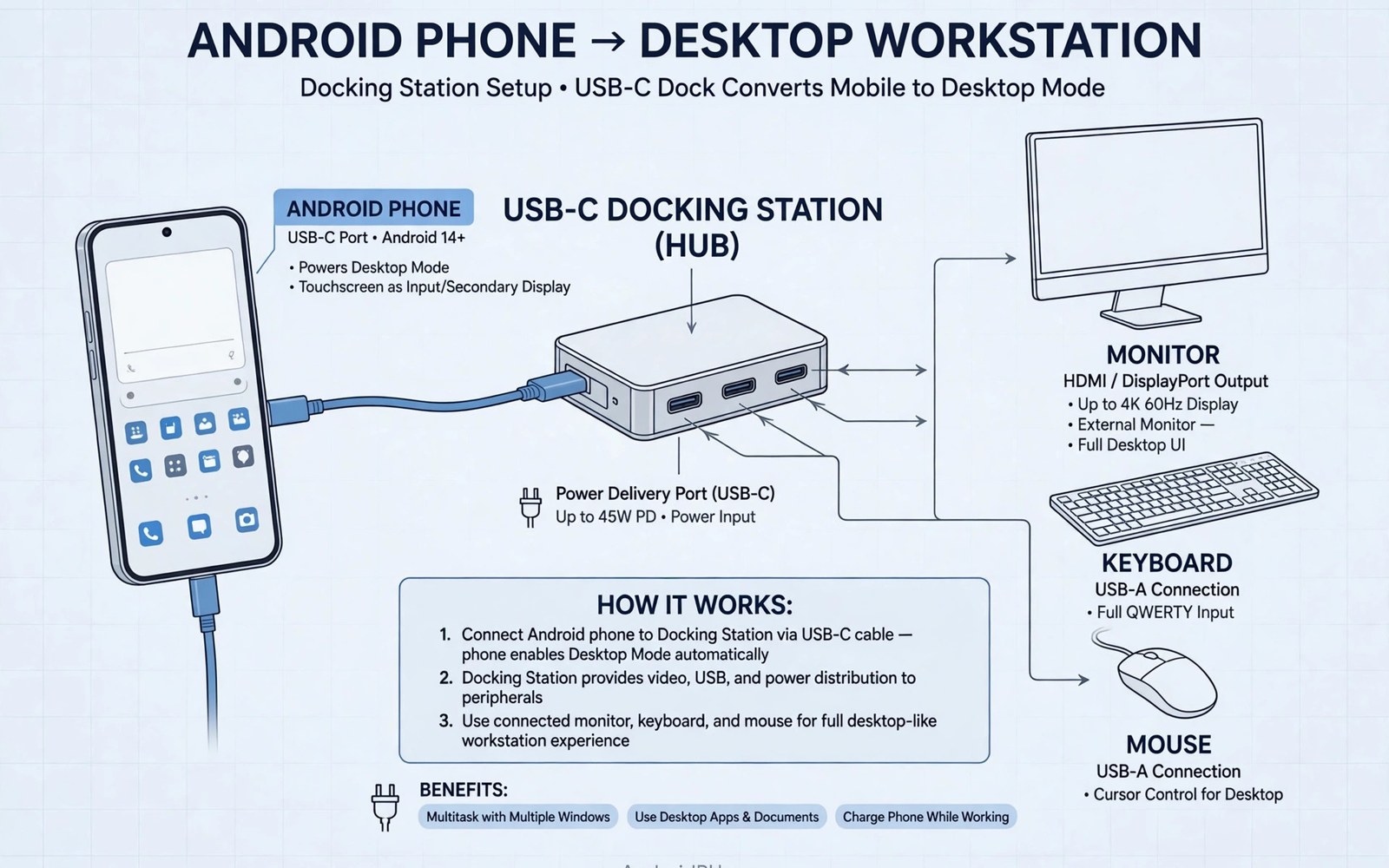
A docking station turns a phone into a desktop computer. Dock the phone with one cable. A monitor lights up. A keyboard and mouse respond. Storage and network join the setup. The phone powers the whole workspace. Undock the phone and the workspace travels in a pocket. That flexibility appeals to many workers. It suits hot desking in offices. It suits students with limited space. It suits travellers who work from hotels. This guide explains docking stations in plain terms. It covers monitor and input setup. It covers power and storage. It helps you build a reliable phone desk.
Docking stations differ from simple hubs. A hub adds ports. A dock adds a fixed cradle and stronger power. A dock often includes its own power supply. That supply charges the phone and powers accessories. A dock may include network and audio ports. It may include card readers and extra USB ports. A dock sits permanently on a desk. Cables stay connected to the dock. The phone connects with one motion. That single motion convenience is the main appeal. A hub needs several cable connections each time. A dock needs one. That saving matters daily. It turns docking into a habit rather than a chore.
How a Dock Connects to a Phone
Most docks connect through the phone USB-C port. A cable runs from the dock to the phone. Some docks use a cradle that aligns the plug. The cradle guides the phone into place. The plug seats without fumbling. Other docks use a loose cable. The user plugs the cable manually. A cradle suits a fixed desk. A loose cable suits a shared desk. Shared desks serve several phone models. A loose cable adapts to different port positions. A cradle fits only specific models. Check cradle compatibility before buying. A cradle that misaligns the plug stresses the port. A loose cable avoids that risk. It sacrifices one motion convenience.
The dock negotiates video and data and power with the phone. Video goes to the monitor. Data goes to USB devices. Power flows to the phone. The dock chip manages those flows. A good chip keeps video stable while data moves. A poor chip may drop video during large file copies. Test the dock with a realistic workload. Copy a file while using the monitor. Watch for flicker or disconnects. A dock that passes that test suits daily work. A dock that fails should be returned early. Early testing prevents a desk that frustrates daily. It also reveals power limits quickly.
Phone desktop mode shapes the dock experience. Some phones offer a full desktop mode. Windows resize and a taskbar appears. Other phones mirror the screen only. Mirroring still shows apps large. It feels less like a computer. It remains useful for video and presentations. Check phone desktop mode support before buying a dock. A dock cannot add desktop mode to a phone that lacks it. It can only display what the phone offers. A phone with desktop mode plus a dock feels like a real computer for light work. A phone without it plus a dock feels like a large phone screen. Both can be useful. Expectations must match the phone.
Monitor Keyboard and Mouse Setup
Connect the monitor to the dock video output. The output may be HDMI or DisplayPort. Choose the output that matches the monitor. Set the monitor input to that port. Dock the phone. The picture should appear within seconds. Set resolution to the monitor native value. A native resolution gives sharp text. A lower resolution looks soft. A higher resolution than supported gives a blank screen. Disconnect and reconnect to recover from a blank screen. Try a lower resolution next. Note the working setting. Keep it for future sessions. A stable setting beats a sharper unstable one.
Connect a USB keyboard and mouse to the dock USB ports. Most keyboards and mice work at once. Android detects them within seconds. Set keyboard layout to match the physical keyboard. Set mouse speed to a comfortable level. Test shortcuts in your main apps. Copy and paste shortcuts work in most apps. Window management shortcuts vary by phone desktop mode. Learn the shortcuts for your mode. A keyboard transforms long writing tasks. A mouse transforms precise selection tasks. Together they make phone work feel like computer work. That transformation is the dock promise. It holds for document and web tasks especially.
Wireless keyboards and mice also work with a dock. A USB receiver plugs into a dock port. The receiver links the wireless devices. Bluetooth devices pair directly with the phone. Bluetooth skips dock ports entirely. It uses battery power. Wired devices need no batteries. They also need no pairing. Choose wired for a fixed desk. Choose wireless for a tidy desk. Wireless leaves no cables on the desk surface. Wired leaves a cable per device. Both routes work well. A fixed desk often mixes both. A wired keyboard plus a wireless mouse is a common mix. That mix balances tidiness and reliability.
Power and Charging on a Dock
A dock with its own power supply charges the phone while docked. The supply should exceed phone need plus accessory need. A strong supply keeps the phone charged during heavy work. A weak supply may let the battery fall during video work. Check dock power rating before buying. Match it to the phone charger rating or exceed it. A dock rated below the phone charger caps charging speed. That cap matters for all day use. A phone that loses charge during work will die before the day ends. A strong dock supply prevents that. It also powers accessories without draining the phone. That power margin is essential for a desk.
Heat on a dock deserves attention. A dock handling video and charging warms up. Warmth is normal under load. Excess heat signals overload or poor design. Place the dock on a hard surface with airflow. Do not cover it with papers. Let air move around the case. A metal dock spreads heat better than plastic. A dock that becomes too hot to touch needs load reduction. Disconnect a power hungry drive. Use a lower monitor resolution for a test. If heat falls then load was the cause. If heat persists at low load then the dock may be faulty. Replace a persistently hot dock. Heat shortens dock life and risks connected devices.
Battery health during all day docking needs care. A phone docked for eight hours stays at full charge for hours. Full charge plus heat accelerates battery wear. Some phones offer a battery protection setting. The setting caps charge below full. Enable it for docked use when available. A cap at eighty percent reduces wear greatly. The phone still works docked. It simply stops charging at the cap. That trade extends battery life over years. It costs a little unplugged runtime. A docked phone rarely needs full unplugged runtime. The cap is a sensible trade for desk workers. Enable it and forget it.
Storage Network and Audio on a Dock
Dock USB ports accept flash drives and hard drives. A flash drive works easily. A hard drive may need dock power. A dock with a strong supply powers most drives. Test drive access after docking. Copy a file to confirm speed. A slow copy may point to a slow dock port. Use the fastest dock port for drives. Keep slower ports for keyboards and mice. That arrangement gives drives the best speed. It also keeps input devices responsive. A dock with a card reader adds camera workflow. A photographer can copy photos directly at the desk. That convenience suits a photo desk well.
Dock network ports give wired internet stability. A wired link avoids wireless congestion. It gives steady speeds for calls. Connect a network cable to the dock. The phone should detect the wired link. Disable wireless for a guaranteed wired session. A wired link suits video calls especially. Calls stay smooth during wireless congestion. A dock network port thus improves work calls. It also improves large downloads. Downloads hold speed steadily. A wireless link may fluctuate. A wired dock link removes that fluctuation. Office workers benefit most from this stability.
Dock audio ports give simple speaker and headphone options. A headphone jack on the dock suits private listening. Monitor speakers suit shared listening. Bluetooth audio suits wireless listening. Choose the route for the room. A quiet office needs headphones. A meeting room needs speakers. Test audio routing after docking. Sound may default to the phone speaker. Change the output setting to the dock or monitor. A wrong audio route surprises during calls. Set it before important meetings. A quick test prevents embarrassment. For monitor video rules see connecting Android devices to external monitors via DisplayPort Alt Mode for display details.
Choosing the Right Dock
List desk needs before shopping. Count monitor and keyboard and mouse and drive needs. Add network and audio needs. Add charging power need. A dock that covers every need costs more. A dock that misses one need forces extra adapters. Extra adapters defeat dock simplicity. Choose a dock that covers the full list. Check video output type and resolution. Check USB port count and speed. Check network port speed. Check power supply rating. A dock that passes every check suits the desk. A dock that fails one check may still work with a workaround. Workarounds add daily friction. Avoid them when possible.
Build quality shows in the case and the cradle. A metal case spreads heat well. A sturdy cradle holds the phone firmly. A flimsy cradle wobbles during typing. Wobble stresses the phone port. Test cradle firmness on arrival. Dock and undock several times. The motion should feel smooth and firm. A gritty or loose motion signals poor build. A dock that rocks on the desk needs a better base. A stable dock stays put during use. Stability matters for typing. A dock that slides while typing frustrates. A rubber base prevents sliding. Check base grip before committing.
- Check phone desktop mode support before buying a dock.
- Choose a dock power supply above total device need.
- Use the fastest dock port for storage drives.
- Set monitor resolution to the native value.
- Enable battery charge capping for all day docking.
Dock setup checklist:
1. Phone desktop mode: supported or mirror only
2. Monitor: input and native resolution
3. Inputs: keyboard and mouse tested
4. Power: dock supply above phone need
5. Storage: drive copy speed tested
6. Network: wired link confirmed
7. Audio: output route set before calls
Troubleshooting Dock Problems
A dark monitor on a dock often means a phone support or input issue. Check monitor input selection first. Check cable seating at dock and monitor. Try another monitor cable. Try the dock on another phone if possible. A dock that works on another phone points to phone support. A dock that fails everywhere points to the dock. Try a stronger power supply. A weak supply can stop video output. Video needs power as well as signal. Work through swaps one at a time. Systematic swaps find the cause quickly. Random swaps waste time.
Random disconnects often come from a loose phone plug or an overloaded dock. Push the phone fully into the cradle. Clean lint from the port if seating feels shallow. Reduce accessories to find an overload. A hard drive that draws too much power can destabilise a dock. Use a powered drive or a stronger dock supply. Update phone software. Updates sometimes fix dock compatibility. Check dock maker notes for known issues. A known issue saves blind testing. A dock that worked before an update may need a new update. Patience plus maker notes solves many dock mysteries.
Slow file copies through a dock point to port speed or sharing. Test the drive directly on a computer first. That test proves drive speed. Test the drive on the dock with no other devices. That test proves dock port speed. Add devices back one by one. Note when speed drops. The device that causes the drop shares bandwidth heavily. Move that device to a slower port. Keep the drive on the fastest port. That arrangement maximises drive speed. It also keeps input devices responsive. For hub warmth guidance see USB-C hub heat and whether warm operating temperature is normal for heat checks.
Final Thoughts on Docking Stations
A docking station makes a phone desk feel like a computer desk. One motion connects monitor and inputs and storage and network. Power keeps the phone charged all day. Desktop mode shapes the experience. A phone with desktop mode feels most computer like. A phone without it still benefits from a large screen. A careful dock choice covers every desk need. A quick realistic test confirms the setup. The result serves daily work with little fuss. Undocking returns the computer to a pocket.
Readers may also find multi-port hubs that connect keyboards and power to phones useful for a related setup.
Start by checking phone desktop mode support. List every desk device you need. Choose a dock with strong power and matching video output. Test monitor and inputs and storage together. Enable battery charge capping for all day use. The steps above follow the approach described in the official developer documentation for desktop mode and accessory connections. That approach stresses testing the full workload before relying on a setup. Follow it and your phone dock will feel like a true workstation.

