

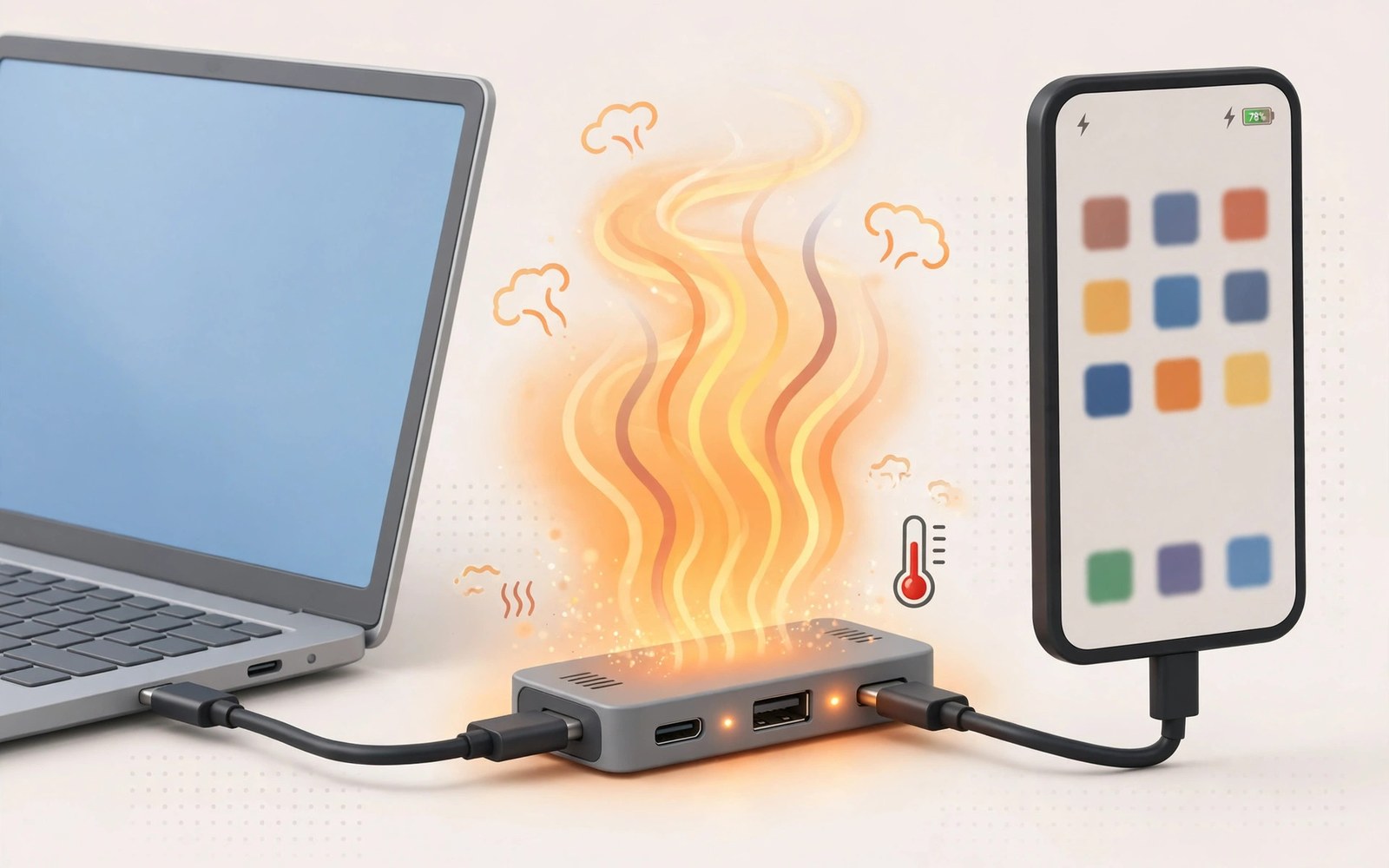
A hub that feels warm surprises many users. They expect electronics to stay cool. A warm hub often signals normal work. It does not always signal danger. Heat comes from power conversion and data processing. A hub converts power for the phone and accessories. It processes data for drives and video. Both jobs generate heat. The amount of heat depends on load. A hub with one mouse stays cool. A hub with a monitor and a drive warms up. That difference is normal. This guide explains normal warmth. It explains warning heat. It helps you judge your hub.
Heat is a byproduct of electrical work. No conversion is perfectly efficient. Some energy always becomes heat. A hub that charges a phone converts power. Conversion losses become heat in the hub case. A hub that drives video processes high speed signals. Signal processing also generates heat. A hub that copies files moves data through chips. Those chips warm up under load. Combined loads add heat together. A hub doing three jobs warms more than a hub doing one job. That scaling is expected. A hub that stays cold under heavy load would be suspicious. It might not be working at full speed. Warmth under load is a sign of activity.
Why Hubs Generate Heat
Power conversion is the largest heat source in most hubs. A charger delivers power at one voltage. The phone needs power at another voltage. The hub converts between them. Conversion circuits use transistors that switch rapidly. Switching losses become heat. Higher power means higher losses. A hub passing 60 watts generates more heat than a hub passing 15 watts. That relationship is direct. A hub with pass through charging thus warms more than a hub without charging. The warmth concentrates near the power circuit. Touching that area feels warmer than other areas. Uneven warmth across the case is normal. It reflects circuit layout inside.
Video processing adds a second heat source. A hub that converts video signals uses a dedicated chip. That chip works at high speed. High speed work generates heat. Higher resolution means more work. A high resolution monitor thus warms a hub more than a standard monitor. Refresh rate also matters. A high refresh rate means more frames per second. More frames mean more chip work. More work means more heat. A hub driving a high resolution high refresh monitor will feel warm. That warmth is the price of sharp smooth video. A cooler hub would need a larger case or a fan. Most hubs use passive cooling through the case.
Data chips add a third heat source. A fast drive copy pushes data through a hub chip. The chip works continuously during copying. Continuous work warms the chip. A large copy warms the hub more than a small copy. A drive that draws power adds heat too. Power for the drive flows through the hub. That power flow warms the power circuit. Combined data and power loads warm the hub most. A hub copying files to a powered drive while charging a phone handles three loads. It will feel warm. That warmth reflects real work. It does not automatically mean a fault.
What Counts as Normal Warmth
Normal warmth feels like a warm cup left for a while. You can hold the hub comfortably. You can keep your hand on it without discomfort. The case feels warm but not painful. That level is safe for most hubs. It indicates active work within design limits. A hub at this level needs no action. It can run for hours at this level. The internal chips stay within their rated range. The case spreads heat to the air. Airflow around the hub keeps the temperature stable. A hub on a hard surface stays at this level. A hub on a soft surface may warm a little more. Soft surfaces block airflow underneath.
Warmth that prevents comfortable holding deserves attention. A hub too hot to hold for more than a few seconds is too hot. A hub that smells of hot plastic is too hot. A hub that discolours its case is too hot. Those signs exceed normal warmth. They suggest a fault or an overload. Disconnect accessories to reduce load. Let the hub cool fully. Test with a single accessory after cooling. A hub that stays cool with one accessory but overheats with several may be overloaded. Reduce the load permanently. Use a powered hub for heavy loads. A powered hub handles power better. It also spreads heat across a larger design.
Temperature numbers help users who own a thermometer. A case temperature below about 45 degrees Celsius is usually comfortable. A case temperature above about 60 degrees Celsius deserves action. Those numbers are guides rather than strict limits. Different hub designs tolerate different temperatures. Metal cases feel hotter than plastic at the same internal temperature. Metal conducts heat to the hand efficiently. Plastic insulates the hand from internal heat. A metal hub may feel hot while its chips stay safe. A plastic hub may feel cool while its chips run hot. Feel alone misleads across materials. Combine feel with performance. A hub that throttles or disconnects is overheating regardless of feel.
Factors That Increase Hub Heat
Ambient temperature affects hub temperature directly. A hub in a hot room runs hotter than a hub in a cool room. Summer heat adds to hub heat. A hub in direct sunlight runs hotter still. Sunlight heats the case from outside. Internal heat adds to solar heat. The combination can push a hub over safe limits. Keep hubs out of direct sunlight. Keep them in a ventilated room. A small fan near a desk helps in hot weather. It moves air across the hub case. Moving air carries heat away faster. That simple airflow can drop case temperature noticeably. It costs little and helps greatly.
Covering a hub traps heat. Papers on top of a hub block airflow. Cloth under a hub blocks airflow underneath. A hub inside a closed drawer overheats quickly. A drawer traps heat with no escape. Always place a hub on an open hard surface. Leave space around all sides. Do not stack items on top of it. Do not place it against a wall that blocks vents. Some hubs have vent slots. Those slots need clear air. Blocked vents force heat to build inside. A hub with blocked vents may throttle or shut down. That shutdown protects the chips. It also interrupts work. Clear vents prevent that interruption.
Overloading a hub with power hungry devices raises heat sharply. A hard drive and a monitor and charging together strain a small hub. The hub power circuit works near its limit. Near limit work generates more heat per watt. Efficiency drops near the limit. That drop creates extra heat. A larger hub handles the same load with margin. Margin keeps efficiency higher. Heat stays lower. Match hub capacity to load. A hub rated for heavy loads suits a full desk. A small travel hub suits light loads only. Using a travel hub as a full desk hub invites overheating. Choose capacity for the real load.
Cooling Habits That Help
Place the hub on a metal surface when possible. Metal surfaces draw heat away from the hub case. A metal desk or a metal tray acts as a heat sink. It spreads hub heat over a larger area. That spreading lowers hub temperature. A wooden desk insulates more than metal. A plastic desk mat insulates even more. A simple metal plate under a hub helps on a wooden desk. The plate need not be fancy. A baking tray works in a pinch. The goal is conduction away from the hub. Conduction plus airflow gives the best passive cooling. Both are free and easy.
Reduce load during heat waves or long sessions. Disconnect a drive when copying finishes. Disconnect a monitor when video work ends. Each disconnected device lowers hub heat. A hub that cools after load reduction was simply busy. A hub that stays hot after load reduction may be faulty. That test distinguishes load heat from fault heat. Use it before replacing a hub. A hub that cools quickly is healthy. A hub that stays hot for a long time after disconnecting needs inspection. Check for dust in vents. Dust blocks airflow and traps heat. Clean vents gently with a dry brush. Never use liquid inside vents.
Use a stronger charger to reduce conversion strain. A weak charger forces the hub to work harder to supply devices. A strong charger supplies power with margin. Margin improves efficiency. Improved efficiency lowers heat. A charger rated above total device need is ideal. It should exceed phone need plus accessory need. That margin keeps the hub power circuit comfortable. It also keeps charging speed steady. A charger at its limit runs hot itself. A hot charger plus a hot hub compounds desk heat. A strong charger keeps both cooler. For hub selection see multi-port hubs that connect keyboards and power to phones for capacity guidance.
When Heat Signals a Fault
Sudden heat increase signals a fault. A hub that ran cool for months then runs hot has changed. Something inside degraded. A capacitor may be failing. A chip may be developing a short. A cable may be damaged and drawing excess current. Investigate a sudden change promptly. Test with different cables and accessories. A heat change that follows one accessory points to that accessory. A heat change that follows one cable points to that cable. A heat change that persists across all accessories points to the hub. Replace a hub that overheats with every accessory. Continued use risks damage to connected devices.
Disconnects that coincide with heat signal throttling or protection shutdown. A monitor that flickers when the hub gets hot points to video chip throttling. A drive that disconnects when the hub gets hot points to data chip protection. A phone that stops charging when the hub gets hot points to power protection. Those protections prevent damage. They also interrupt work. Repeated protection trips mean the load exceeds hub capacity or the hub is failing. Reduce load first. If trips persist at low load then replace the hub. A hub that trips protections often will fail soon. Replace it before it damages a device.
Smell is a serious warning sign. A smell of burning plastic means material is overheating. Stop using the hub at once. Disconnect it from power and from the phone. Let it cool in a safe place. Inspect it for melted areas or discolouration. Do not reuse a hub with melted areas. A melted hub can short connected devices. Dispose of it safely. A burning smell never counts as normal warmth. It always deserves immediate action. Do not dismiss it as new electronics smell after weeks of use. New smell fades quickly. Persistent smell signals damage.
- Warm to hold comfortably is normal under load.
- Too hot to hold signals overload or fault.
- Keep hubs on open hard surfaces with airflow.
- Reduce load when heat rises during long sessions.
- Stop using any hub that smells of burning plastic.
Hub heat checklist:
1. Feel test: comfortable to hold or too hot
2. Load: count active devices
3. Surface: open hard surface with airflow
4. Sunlight: hub out of direct sun
5. Vents: clear of dust and papers
6. Cool test: hub cools after load drops
7. Fault signs: smell disconnects or melting
Hub Materials and Cooling Design
Metal hubs spread heat well. Aluminium cases conduct heat to the air efficiently. A metal hub feels warm quickly because it transfers heat to the hand. That warmth does not mean it runs hotter inside. It means it cools efficiently. Plastic hubs insulate heat inside. A plastic hub feels cooler while its chips run hotter. That insulation can trap heat. Plastic hubs need vent slots to compensate. Vent slots let hot air escape. A plastic hub without vents overheats more easily. Choose metal for heavy loads. Choose plastic only for light loads. Material choice affects long term reliability.
Some hubs include internal heat spreaders. A spreader is a metal plate inside the case. It moves heat from chips to the case. That movement prevents hot spots. Hot spots damage chips over time. A hub without a spreader may develop a hot spot near the power chip. That spot ages faster. The hub may fail earlier. Spreaders add cost and weight. They improve reliability for heavy use. A hub marketed for desktop use likely includes a spreader. A hub marketed for travel may omit it to save weight. Match material and spreader to use. Heavy desk use deserves metal and a spreader.
Fan cooled hubs exist for extreme loads. A small fan moves air across internal chips. Fan cooling keeps temperatures low under heavy load. Fans add noise and bulk. They also add a moving part that can fail. Most users need no fan. Passive cooling suffices for normal hub loads. Fan hubs suit video production desks with several high speed devices. They suit server style setups. A normal phone desk needs no fan. A fan hub for a phone desk adds noise without benefit. Choose passive cooling unless loads are extreme. For docking alternatives see docking stations for turning Android phones into full desktop workstations for larger cooled designs.
Final Thoughts on Hub Heat
Warmth is a normal part of hub work. Power conversion and video and data all generate heat. Load level decides warmth level. A warm hub that holds comfortably is healthy. A hot hub that cannot be held needs action. Airflow and surface and load control keep warmth normal. Sudden heat or smell or disconnects signal fault. Those signs deserve immediate attention. A careful user can enjoy a hub for years. A careless user may overheat a hub quickly. The difference is placement and load awareness.
Readers may also find how cable length affects power delivery and charging speeds useful for a related setup.
Place your hub on an open hard surface. Keep it out of sunlight. Match its capacity to your devices. Reduce load when it gets hot. Stop using it when smell or melting appears. The steps above follow the approach described in the official developer documentation for accessory power and thermal management. That approach stresses airflow and load limits for reliable operation. Follow it and a warm hub will remain a normal sign of work rather than a warning of failure.

