

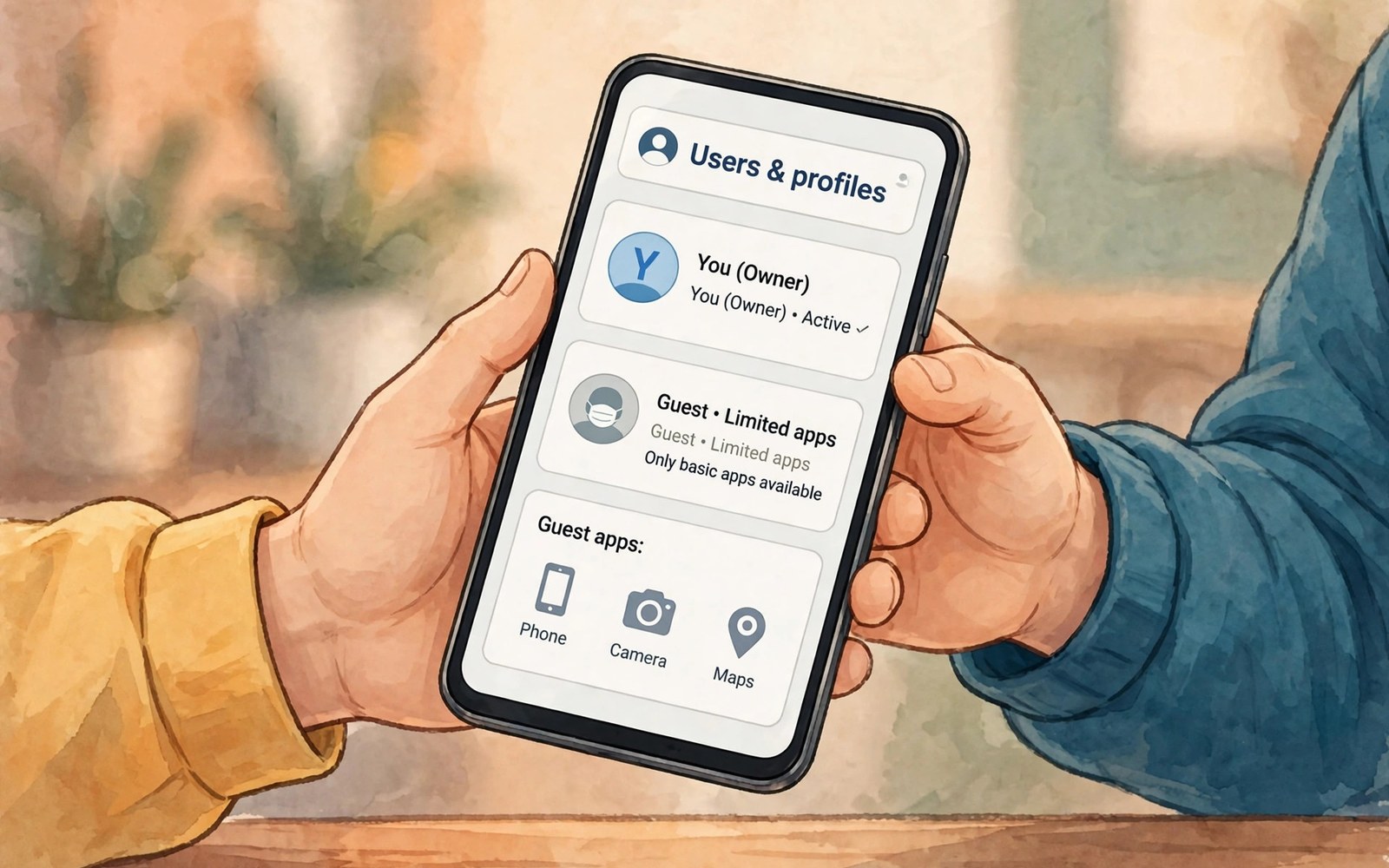
Guest mode lets someone use your phone without seeing your data. A guest gets a clean profile with limited apps. Your messages and photos stay hidden. Your accounts stay signed out in guest mode. This guide shows how to set it up.
Sharing a phone feels risky without guest mode. A friend may open the wrong app by accident. A child may change settings or buy items. Guest mode prevents those accidents. It creates a safe sandbox for short term use.
Not every phone offers full guest mode. Some offer a simpler guest profile or app pinning instead. This guide covers guest users first. It also covers alternatives when guest mode is missing. The goal stays the same safe sharing.
Check Guest Mode Support
Open Settings and search for Users or Multiple users. The page lists your profile and any guest options. Some phones hide this under System settings. Others place it under Security. Use search to find the page fast.
If no users page exists then your phone may lack guest mode. Check the phone model support pages for confirmation. App pinning can serve as a partial alternative. A locked folder can protect sensitive files too. Combine alternatives when full guest mode is absent.
Create a Guest Profile
Open the users page and tap Add guest. The phone creates a fresh guest profile. The guest setup takes a moment. A clean home screen appears for the guest. Default apps are available while your apps stay hidden.
Switch to guest mode from the quick settings user icon. Tap the user icon and choose Guest. The phone switches profiles without a restart. Your profile stays untouched in the background. Switching back takes only a few taps.
adb shell pm list users
# guest users appear in the user list on supported phones
Limit What Guests Can Do
Guest profiles start with limited access by design. Guests cannot see your accounts or files. They can browse and use basic apps. They cannot install apps that affect your profile in most cases. Check guest settings for extra controls when offered.
Turn off phone calls for guests if you share with children. Calls from a guest profile could reach your contacts in some setups. Review call settings before handing the phone over. A quick review prevents surprise calls and charges.
Hand Over the Phone Safely
Switch to guest mode before handing the phone over. Confirm the guest home screen appears. Open the app the guest needs first. That step saves the guest from exploring settings. Take the phone back and switch to your profile at once.
Tell the guest which apps they may use. Clear rules avoid awkward moments. Set a time limit for longer loans. A time limit protects battery and data. Retrieve the phone personally rather than asking for a remote handover.
Remove Guest Data After Use
Guest data can linger after a session ends. Open the users page and remove the guest profile. Removing deletes guest downloads and browsing history. It also clears any accounts the guest signed into. A fresh guest starts clean next time.
Some phones offer a remove guest option in quick settings. Use it immediately after each loan. A clean guest profile protects the next guest too. Old guest data could expose the previous guest. Regular cleanup keeps sharing safe for everyone.
Use App Pinning as an Alternative
App pinning locks the phone to one app. Open the app and open recent apps. Tap the pin icon on the app card. The guest cannot leave that app without your PIN. This method suits a single game or video for a child.
Turn on app pinning in security settings first. The setting sits under Screen pinning or App pinning. Enable the lock before exit option. That option asks for your PIN to unpin. Without it a guest can leave the pinned app easily.
Protect Accounts Before Sharing
Sign out of sensitive apps before sharing without guest mode. Banking and email apps deserve special care. Lock those apps with a fingerprint lock when offered. App locks add a layer even in your own profile. They help when guest mode is unavailable.
Turn off notifications with sensitive previews before sharing. A message preview can appear over a guest app. Hide sensitive content on the lock screen as well. These steps protect privacy even during a short loan. Review them before each handover.
Guest Mode for Children and Visitors
Guest mode suits children who want games on your phone. It keeps purchases and settings out of reach. It also keeps your work apps hidden. Set a time limit and check on play regularly. Guest mode is not a full parental control system for long use.
Visitors benefit from guest mode for maps and browsing. A visitor can check directions without seeing your photos. A clean profile feels welcoming rather than restrictive. Explain the guest setup briefly. Most visitors appreciate the privacy boundary.
History of Multi-User Phones
Multi-user support came from tablets shared by families. Phones adopted it later for similar sharing needs. Early versions offered limited separation. Modern versions separate apps and data more cleanly. Sharing evolved from risky to routine.
Work profiles extended multi-user ideas for business. Work apps stay separate from personal apps. Employers manage work profiles remotely. Guest mode remains simpler for casual sharing. Each model suits a different sharing scenario.
Guest Mode Versus Work Profiles
Guest mode suits short casual loans. Work profiles suit long term business separation. Guest data deletes easily after a session. Work data persists under employer management. Choose the model that matches the sharing duration.
A guest profile cannot access your personal accounts. A work profile can access employer accounts by design. That difference matters for privacy expectations. Guests expect no access to owner data. Employees expect employer access to work data.
Sharing Phones With Elderly Relatives
Elderly relatives may need help with a phone task. Guest mode lets them try without risk. They can browse and call without changing settings. A helper can guide them safely. Confidence grows when mistakes carry no consequences.
Set up a guest profile before a teaching session. Let relatives explore freely in guest mode. Switch back to owner mode afterwards. Teaching in a sandbox reduces anxiety for learners. Patience plus guest mode makes learning pleasant.
Guest Mode and App Purchases
Guest profiles cannot buy apps with owner payment methods. Payment details stay hidden from guests. That protection prevents accidental purchases. Children cannot buy games in guest mode easily. Parents gain peace of mind from separation.
Guests can still browse free content in guest mode. Free apps already installed remain available. New installs may require owner approval depending on setup. Check install permissions before lending to children. Clear rules prevent purchase surprises.
Cleaning Up After Guest Sessions
Cleanup goes beyond deleting the guest profile. Check downloads folders for leftover files. Guest browsers may save files outside the profile in some setups. Review storage after a session for stray files. A quick storage check completes cleanup.
Check Wi-Fi and account settings after guest use. Guests may have joined new networks. New networks could auto connect later. Remove unfamiliar networks from saved lists. A tidy network list protects future privacy.
When Guest Mode Is Not Available
Some phones omit guest mode for simplicity. App pinning plus app locks can approximate it. Lock sensitive apps individually with fingerprints. Pin a single app for children. Combined controls cover most sharing needs.
Consider a cheap second phone for frequent sharing. A dedicated shared phone avoids all owner risk. It costs less than a data breach recovery. Frequent borrowers justify a separate device. Occasional borrowers suit guest mode fine.
Guest Mode for Repair Shops
Repair shops need phone access for testing. Guest mode is unsuitable for repair testing alone. Technicians need owner mode to test hardware fully. Back up data before any repair visit. Remove sensitive accounts when possible before handing over.
Use a screen lock and document the phone condition. Photograph the phone before repair. A condition record prevents disputes about damage. Ask the shop about data handling policies. Reputable shops explain their process clearly.
Guest Mode Versus Screen Lock Alone
Screen lock alone does not protect data after unlocking. Once unlocked a borrower sees everything. Guest mode separates data before unlocking. Separation is the key advantage over a lock alone. Locks protect against strangers while guest mode protects against borrowers.
Combine guest mode with a strong screen lock. The lock protects the owner profile first. Guest mode protects data during sharing second. Two layers beat either layer alone. Layered protection suits both theft and sharing scenarios.
Guest Mode and Device Encryption
Guest separation relies on device encryption underneath. Encryption scrambles owner data so guest profiles cannot read it. Modern Android phones encrypt storage by default. A strong lock screen password protects encryption keys. Weak passwords weaken the whole guest separation model.
Check that your phone uses a secure lock method before sharing. Pattern locks offer less protection than long PINs. Biometrics add convenience without weakening encryption much. A strong fallback PIN remains essential. Encryption plus guest mode gives genuine separation rather than cosmetic hiding.
Safe Sharing Checklist
Follow this list before lending your phone.
- Switch to guest mode before handing it over.
- Confirm your apps and photos stay hidden.
- Open the needed app for the guest first.
- Set a time limit for longer loans.
- Remove the guest profile after the session.
- Use app pinning when guest mode is missing.
This checklist makes sharing stress free. It protects your data and the guest privacy. Repeat it for every loan no matter how short.
Guest mode works best with strong call controls. Learn how to block spam calls and texts automatically to keep the phone quiet for guests too.
For related privacy steps see how to change default app assignments for calls and messages and how to customize lock screen widgets and notifications.
The steps above follow the approach described in the official developer documentation for Android devices. The documentation covers multi-user behaviour and profile separation in general terms. Phone brands add their own user menus on top of that shared system.
Guest mode turns sharing from risky to routine. Create a guest profile and switch before handing the phone over. Remove guest data after each session. Use app pinning when guest mode is missing. With those habits you can share confidently.

