

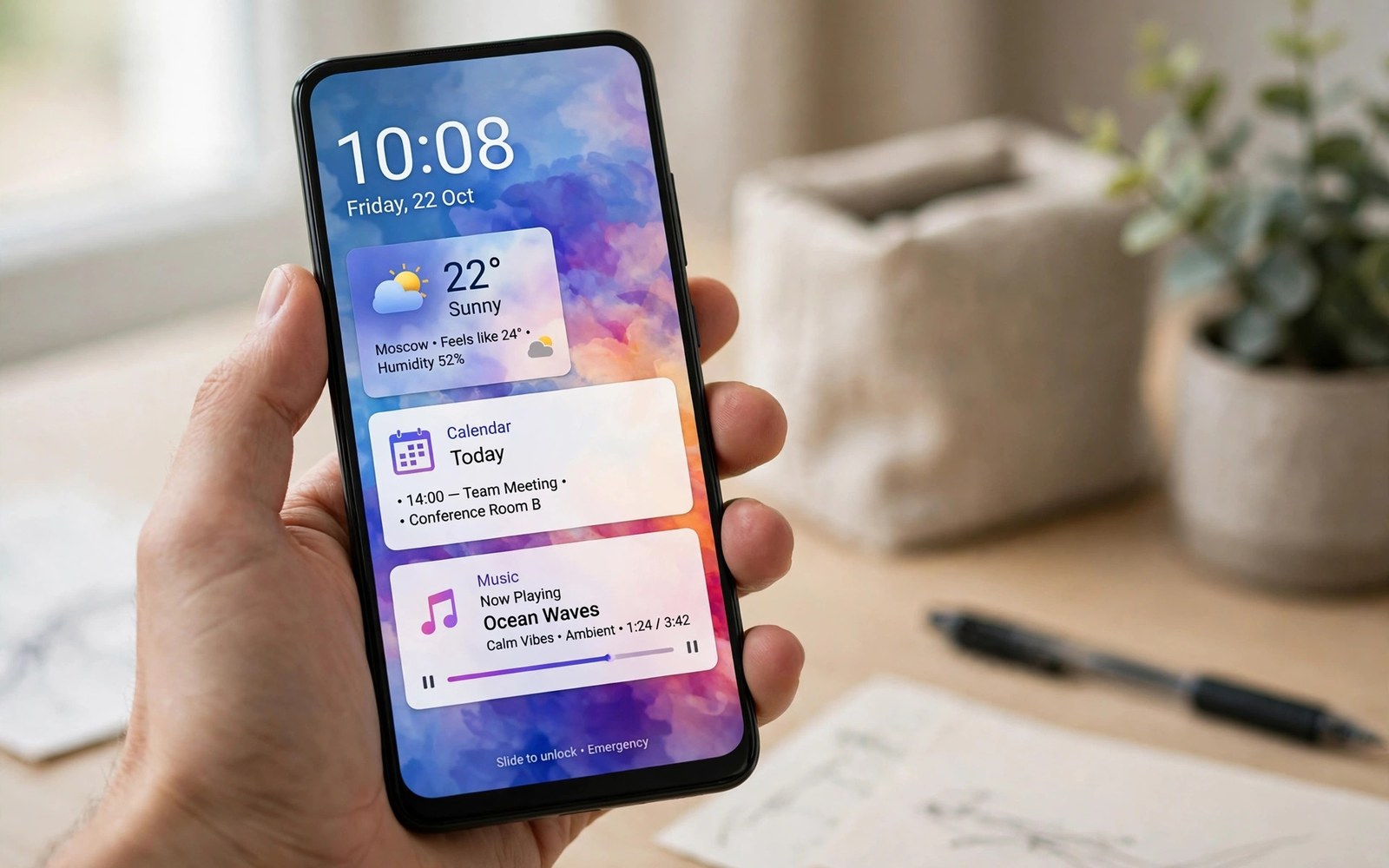
Your lock screen is the first thing you see when you pick up your phone. Widgets turn it into a useful glanceable panel. Weather and calendar widgets show what matters without unlocking. Music controls let you pause a song from the lock screen. This guide shows how to set it up cleanly.
Lock screen options differ widely by brand. Some phones offer rich widget panels. Others offer only a clock and a few shortcuts. The steps below cover the common paths. You will learn where to look when a setting hides under a different name. You will also learn how to protect private notifications.
Good lock screen design balances usefulness and privacy. Too many widgets clutter the screen and drain attention. Sensitive message previews can expose private details to anyone nearby. A thoughtful setup shows helpful info and hides the rest. This guide helps you find that balance.
Open Lock Screen Settings
Open Settings and look for Lock screen or Display. Some phones group lock screen options under Wallpaper and style. Others place them under Security and privacy. Use the Settings search box if the path is unclear. Type lock screen and tap the most relevant result.
The lock screen settings page lists clock style and widget options. It also lists shortcut controls for the bottom corners. Take time to explore each row before changing anything. A quick tour prevents accidental changes. Note the current setup so you can restore it later.
Add Widgets to the Lock Screen
On phones that support lock screen widgets long press the lock screen. Tap the customise option that appears. A widget panel or edit mode opens. Choose a widget such as weather or calendar. Drag it into place or tap to add it to the panel.
Some phones limit widgets to a single panel you swipe to reveal. Others allow widgets directly on the main lock screen. Check how many slots your phone offers. Fill only the slots you will actually use. Empty space looks calmer than a crowded panel full of stale info.
settings put secure lock_screen_show_notifications 1
# 0 hides notifications, 1 shows them
Change Clock Style and Colours
Clock style controls the largest element on most lock screens. Open the clock settings from the lock screen edit mode. Choose a font and layout that stays readable at a glance. Large bold numbers work well outdoors. Thin elegant fonts suit a minimal wallpaper.
Colour choice affects readability more than style alone. A light clock vanishes on a bright photo wallpaper. A dark clock vanishes on a dark image. Pick a colour with strong contrast against your wallpaper. Test the result in daylight before settling on a final look.
Set Lock Screen Shortcuts
Shortcuts sit in the bottom corners of many lock screens. They open the camera or a chosen app without unlocking. Open shortcut settings and pick apps you use often. A torch shortcut helps in dark rooms. A camera shortcut catches quick moments.
Avoid shortcuts to sensitive apps on the lock screen. A wallet or banking shortcut invites misuse if the phone is lost. Keep shortcuts to low risk tools. You can still open sensitive apps after unlocking. That small delay protects your data.
Control Notification Display
Notification settings decide what appears on the lock screen. Open Settings and then Notifications. Look for the lock screen notification option. You can show full content or hide sensitive content. Hiding sensitive content shows the app name without the message text.
This control matters most for messaging and email apps. Full previews help you triage messages fast. Hidden previews protect privacy in public places. Some phones let you set this per app. Use per app control for a mix of public and private apps.
Choose Wallpaper That Suits Widgets
Wallpaper and widgets compete for attention on the lock screen. A busy photo makes small widget text hard to read. A calm gradient or simple photo works better. Choose an image with a quiet area for the clock. The clock and widgets then stand out clearly.
Live wallpapers add motion but can distract from widgets. They also use more battery than still images. Try a still wallpaper first and judge readability. Change the wallpaper if widgets blend into the background. Small changes often fix a cluttered look.
Fix Missing or Frozen Widgets
A widget may vanish after a system update or a launcher change. Remove the widget and add it again from the edit panel. Check that the source app has permission to run in the background. Battery optimisation can freeze widgets that need fresh data. Exempt trusted widget apps from aggressive optimisation.
If the lock screen edit mode never appears then your phone may not support that feature. Check the phone model and system version online through official support pages. Some features arrive only on newer system versions. A launcher app can add lock screen features on some phones. Test one launcher at a time.
Balance Style With Battery and Privacy
Widgets that refresh often use data and battery. Weather and news widgets update on a schedule. Reduce refresh frequency if battery drops faster than usual. Remove widgets you rarely glance at. Fewer widgets mean fewer background updates and a calmer screen.
Review lock screen privacy once a month. New apps may request notification access after install. Check which apps can show content on the lock screen. Remove access for apps you no longer trust. A monthly check keeps the setup tidy and safe.
Why Lock Screens Changed Over Time
Early lock screens showed only time and a unlock pattern. Modern lock screens show widgets and rich notifications. The change reflects how often people glance at phones. A glance now answers many questions without unlocking. Widgets turned a barrier into a dashboard.
Privacy controls grew alongside widget richness. Sensitive previews can now hide by default. Users choose what strangers may see. That balance took years of design iteration. Modern lock screens reflect both convenience and caution.
Matching Lock Screen to Wallpaper Themes
A lock screen theme should match the home screen style. Mismatched styles feel jarring when unlocking. Choose colours that appear in both places. A shared palette ties the two screens together. Consistency makes the phone feel designed rather than random.
Seasonal wallpapers offer a fun way to refresh the look. Change wallpaper with seasons or holidays. Keep widget layout stable during wallpaper changes. Stable layout preserves muscle memory. Fresh images plus stable layout give novelty without confusion.
Lock Screen for Accessibility
Large clock fonts help users with low vision. High contrast colours improve readability outdoors. Voice shortcuts help users who struggle with touch. Check accessibility settings alongside lock screen settings. Small changes can transform daily usability.
Test lock screen readability with sunglasses on. Sunglasses dim the screen and reduce contrast. A setup that passes that test works in bright light. Ask a family member to read the clock from arm length. Real world tests beat showroom impressions.
Notifications From Work Versus Personal Apps
Work notifications deserve different lock screen treatment than personal ones. Work messages may contain sensitive project details. Personal messages may contain private family news. Both deserve hidden previews in public places. Per app controls let you separate them.
Review notification categories inside each app. A single app may send several notification types. Marketing alerts can stay hidden while direct messages show previews. Fine grained control beats an all or nothing approach. It keeps useful alerts visible and noise hidden.
Lock Screen Security Basics
A lock screen is only secure with a strong unlock method. A simple swipe offers no protection at all. A PIN or pattern adds a basic barrier. Biometrics add convenience on top of a PIN. Use biometrics plus a strong fallback PIN together.
Set the phone to lock quickly after sleep. A long delay leaves the phone open on a table. Thirty seconds suits most users well. Shorter delays suit high risk environments. Balance security with the annoyance of frequent unlocking.
Refreshing the Lock Screen Seasonally
Refresh lock screen widgets every few months. Needs change with work and hobbies. A fitness widget may matter in summer. A calendar widget may matter during a busy term. Swap widgets to match current priorities.
Remove widgets tied to finished projects. Stale widgets clutter the screen and waste battery. A seasonal review takes five minutes. It keeps the lock screen relevant all year. Treat the lock screen as a living dashboard rather than a fixed poster.
Always-On Display Versus Lock Widgets
Always-on display shows time without waking the phone fully. Lock widgets appear after waking the screen. Always-on display uses a small amount of battery constantly. Lock widgets use battery only when the screen wakes. Choose based on how often you glance at time.
Some users prefer always-on display for clock alone. Others prefer rich lock widgets for weather and calendar. Both can coexist on many phones. Always-on shows minimal info while asleep. Lock widgets show richer info after a tap. Together they cover glance and detail needs.
Fingerprint Shortcuts on the Lock Screen
Fingerprint sensors can launch actions beyond unlocking. Some phones open apps with a fingerprint gesture. Others use sensor swipes for notifications. Check fingerprint gesture settings on your phone. Gestures turn unlocking into a shortcut system.
Keep fingerprint gestures simple to avoid accidental launches. One gesture for notifications suffices for most users. Complex gesture sets cause confusion under time pressure. Test gestures for a week before adding more. Simplicity keeps shortcuts useful rather than gimmicky.
Lock Screen Setup Checklist
Use this list for a clean and private lock screen.
- Pick a readable clock style and colour.
- Add only widgets you check every day.
- Set shortcuts to low risk apps only.
- Hide sensitive notification content.
- Choose a calm wallpaper with good contrast.
- Review widget permissions once a month.
This checklist keeps the lock screen useful without clutter. It also protects messages from curious eyes. Revisit it after major system updates.
A matching home screen theme completes the look. Learn how to enable dark mode across the system and supported apps for a consistent style day and night.
For quieter days explore how to silence your phone automatically during calendar meetings and how to set up guest mode to share your phone safely.
The steps above follow the approach described in the official developer documentation for Android devices. The documentation covers lock screen behaviour and notification visibility in general terms. Brand interfaces add their own widget panels on top of that shared system.
A good lock screen shows the right info at a glance and nothing more. Pick a readable clock and a few trusted widgets. Hide sensitive previews and keep shortcuts low risk. Review the setup after updates and it will stay both beautiful and private.

