

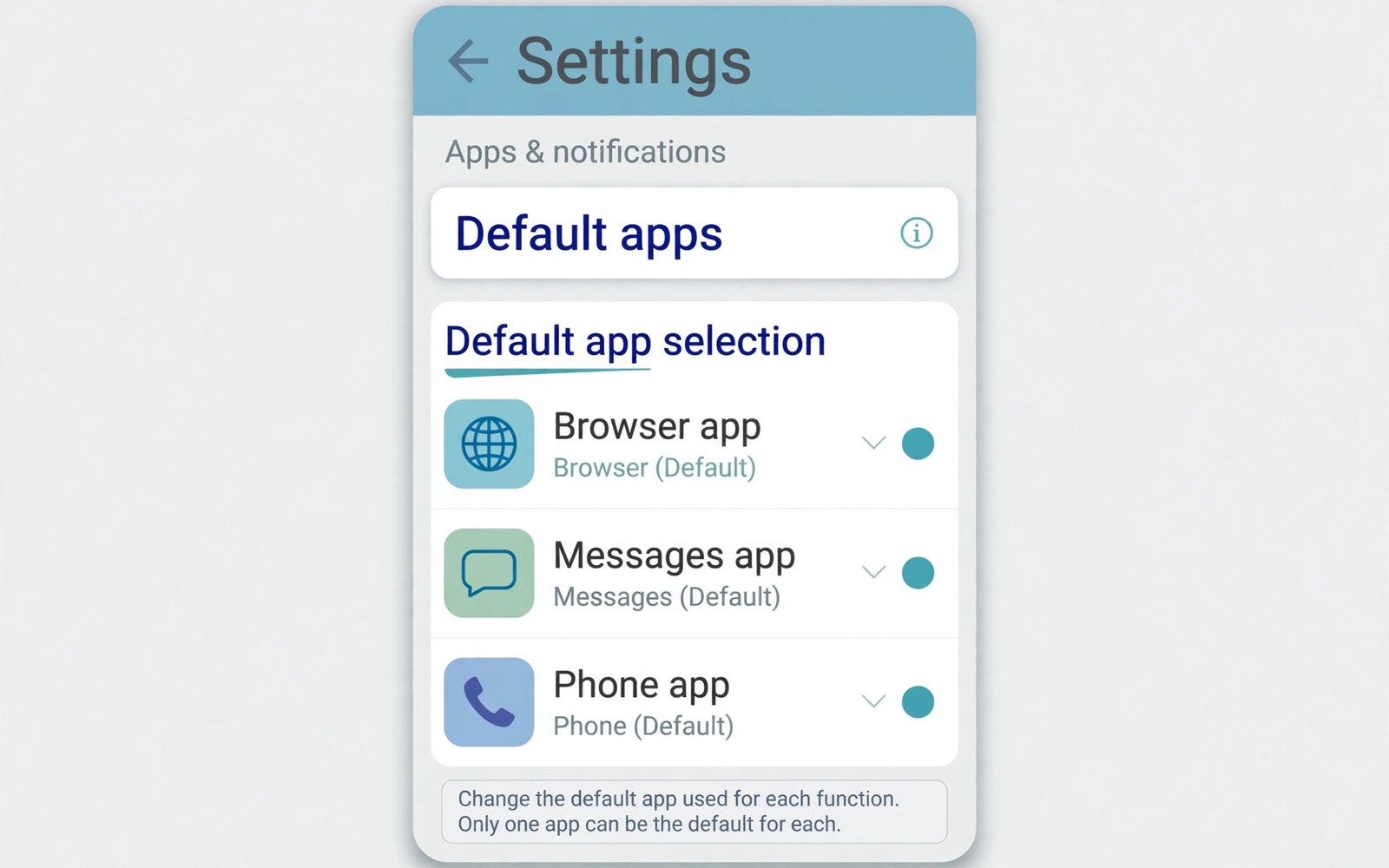
Default apps open automatically for common tasks. Your browser opens web links. Your messaging app opens text chats. Your phone app handles calls. Changing defaults puts your favourite apps in charge. This guide shows how to change each assignment.
Android lets you set defaults per task rather than per app only. A link can open in one browser while maps open in another app. That flexibility confuses some users at first. The settings page groups defaults by role. Once you learn the layout changes take seconds.
Wrong defaults cause daily friction. Links may open in an app you rarely use. Messages may land in a neglected inbox. Calls may route through an app you dislike. Fixing defaults once removes that friction for months. This guide covers web and calls plus messaging.
Open Default App Settings
Open Settings and search for Default apps. The page lists roles such as Browser and Phone. Tap a role to see apps that can fill it. Select your preferred app from the list. The change applies immediately without a restart.
Some phones place default apps under Apps settings. Open Apps and look for Default apps near the top. The search box in Settings finds the page fast. Brand menus rename the path but the role list stays similar. Use search when the path differs.
Change the Default Browser
Tap Browser on the default apps page. Choose the browser you trust and use most. Links from other apps will now open there. Test the change by tapping a link in an email. The chosen browser should open at once.
If a link still opens elsewhere then check in-app browser settings. Some apps open links inside their own viewer. Turn off in-app browsing in that app when offered. The system default then takes over. A restart of the app may be needed after the change.
adb shell cmd role get-role-holders android.app.role.BROWSER
# lists the current default browser role holder
Change the Default Messaging App
Tap SMS app on the default apps page. Choose the messaging app you want for texts. Only one app can hold the SMS role at a time. The new app imports existing messages when possible. Some apps need a short sync after the switch.
Check notification settings after changing the messaging app. The old app may still show notifications for a while. Turn off its notifications if duplicates appear. Keep only the new app notification on. That step stops double alerts for each message.
Change the Default Phone App
Tap Phone app on the default apps page. Choose the dialer you prefer for calls. The new app handles incoming and outgoing calls. It also manages the call history display. Test with a call to a trusted number after switching.
Some phone apps need extra permissions for spam blocking. Grant permissions the app requests during setup. Check that emergency calling still works after a switch. Test the dialer interface before relying on it daily. A familiar dialer reduces dialling mistakes.
Set Defaults for Links and Files
Android also sets defaults for opening links per app. Open an app info page and look for Open by default. Add or remove supported links there. Clearing a link default lets Android ask again next time. That prompt helps when you want to choose per link.
File defaults work in a similar way. Open a file and choose an app once or always. Choosing always sets that app for the file type. Choosing once keeps the choice flexible. Clear the default from app info when you want to change it later.
Reset All Defaults at Once
Resetting defaults helps when many assignments feel wrong. Open the default apps page and look for a reset option. Some phones offer reset under the three dot menu. Reset clears every role assignment at once. Android will ask again the next time a task needs an app.
Reset does not delete apps or their data. It only clears which app handles each role. Reassign roles one by one after a reset. Start with browser and messaging. Add other roles as prompts appear during daily use.
Fix Links Opening the Wrong App
A link may open a shopping app instead of the browser. That happens because the app claimed that link domain. Open the app info page for the unwanted app. Remove its supported links under Open by default. The browser should handle those links afterwards.
If the problem persists then clear defaults for both apps. Open each app info page and clear its defaults. Tap the link again and choose the correct app. Select Always only when you are sure. A careful choice avoids repeating the fix.
Defaults for Digital Assistants and More
Digital assistant is another default role on Android. Tap the assistant role and choose your preferred assistant. The assistant responds to voice and gesture triggers. Check assistant permissions after switching. An assistant needs microphone access for voice commands.
Other roles include launcher and payment apps. A launcher change reshapes the home screen completely. Test a new launcher for a day before committing. Payment defaults matter for tap to pay. Choose a payment app you trust and keep its security settings on.
How Android Chooses a Default
Android assigns defaults through role holders in the system. Each role has one holder at a time. The browser role holder opens web links. The SMS role holder handles texts. Roles keep tasks consistent across apps.
When no holder exists Android asks you to choose. That prompt appears on first use of a task. Choosing Always sets the holder permanently. Choosing Once leaves the choice open. Prompts teach the system your preference gradually.
Defaults and App Updates
App updates rarely change your default choices. A major update may reset a role in rare cases. Check defaults after a major app redesign. A reset prompt will appear on next use if it happened. Reassign the role quickly to restore habit.
Uninstalling a default app clears its roles automatically. Android asks again when a task needs an app. Install a replacement before the next urgent task. A missing default causes delays at bad moments. Plan replacements before uninstalling favourites.
Defaults for Email and Calendar
Email defaults matter for mailto links in browsers. Tap an email address and the chosen app should open. Set the email app in default settings when offered. Some phones lack a dedicated email role. App link settings handle email links instead.
Calendar defaults affect event links and invites. A calendar app should open invite files. Check Open by default for the calendar app. Add supported link types for invites. A correct setup saves manual importing of events.
Defaults for Maps and Navigation
Map links should open in your preferred navigation app. Address taps in messages trigger map defaults. Set the map app through link settings. Open the map app info and add supported links. Test with an address from a message.
Navigation defaults affect driving directions most. A wrong map app can send you on unfamiliar routes. Test navigation before a long drive. Familiar maps reduce driving stress. Defaults matter most when you cannot fiddle while driving.
Defaults for Media Playback
Audio and video files open in default media apps. Set a music app for audio files. Set a video app for video files. File defaults live in app info pages. Clear a default when a file opens in the wrong player.
Streaming links behave differently from local files. A streaming link may open a dedicated app instead of a browser. Manage streaming links in app link settings. Remove unwanted link claims from apps. Browser playback returns when claims clear.
Teaching Family Members About Defaults
Family members often accept the first prompt without reading. Teach them to pause at default prompts. Explain Always versus Once in plain words. Always means every future task uses this app. Once means only this single time.
Show them where default settings live. A short lesson prevents years of wrong app openings. Write the steps on a note for reference. Family tech support becomes easier with shared knowledge. Defaults are a small lesson with lasting benefit.
Defaults for Voice Assistants
Voice assistant defaults decide which assistant answers. A long press or gesture triggers the default assistant. Choose the assistant whose services you use most. Each assistant integrates with different smart home systems. Matching assistant to home devices matters.
Test voice commands after switching assistants. Wake phrases differ between assistants. Retrain voice match when the app requests it. Voice match prevents strangers from triggering your assistant. A short setup ensures reliable hands free use.
Defaults After a Factory Reset
A factory reset clears all default app choices. The phone asks again on first use of each task. Reassign browser and messaging first after reset. Other roles can wait for natural prompts. A reset offers a clean slate for defaults.
Back up app lists before a factory reset. A list helps reinstall favourites quickly. Defaults return faster when apps reinstall promptly. Note preferred apps in a simple text file. Preparation turns reset recovery from chaos into routine.
Default App Quick Guide
Use this list to set the three core defaults fast.
- Open Settings and search for Default apps.
- Set Browser to your most trusted browser.
- Set SMS app to your daily messaging app.
- Set Phone app to your preferred dialer.
- Test each change with a real link or call.
- Clear a wrong default from app info when needed.
These six steps cover the defaults most people change. Other roles can wait until a prompt appears. A tidy default setup removes daily friction.
Defaults shape how calls and messages reach you. Learn how to block spam calls and text messages automatically to cut unwanted contact too.
For safer sharing see how to set up guest mode to share your phone safely and how to enable developer options and USB debugging.
The steps above follow the approach described in the official developer documentation for Android devices. The documentation covers default roles and link handling in general terms. Phone brands add their own settings layouts on top of that shared system.
Default apps should match your daily habits. Set browser and messaging and phone roles once. Clear a wrong default when a link misbehaves. Reset all defaults if the setup feels tangled. A few minutes here saves taps every day.

