

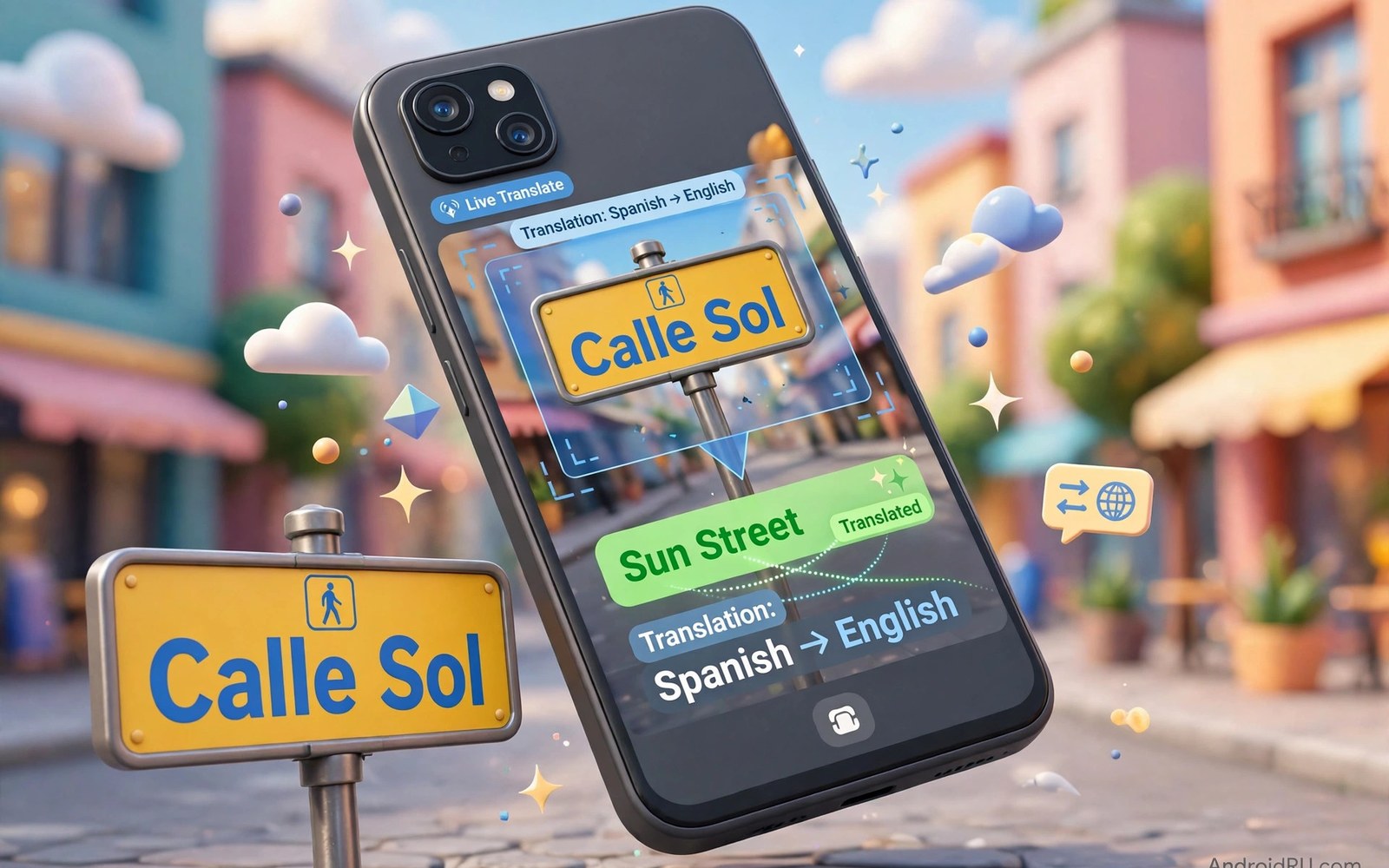
Camera translation reads foreign text and shows it in your language. Point the phone at a sign or menu. Translated text appears over the original words. This tool helps travellers and language learners daily. This guide shows how to use it well.
Built-in camera tools handle translation without a separate app on many phones. The camera app may include a translate mode. A lens style tool offers the same feature from the gallery. Both use the camera to capture text. The result appears in seconds.
Translation quality depends on light and text clarity. Clear printed text translates best. Handwriting and stylised fonts challenge the system. This guide covers framing and language setup. It also covers offline packs for travel without data.
Open Camera Translation
Open the camera app and look for a translate mode. Some phones place it under More modes. Others show a lens icon near the shutter button. Tap the mode and point the camera at foreign text. The phone detects the source language automatically in many cases.
If the camera lacks a translate mode then open the lens tool from the gallery. Open a photo and tap the lens icon. Choose Translate from the options. The tool reads text from the saved photo. This method works for photos you took earlier.
Set Source and Target Languages
Confirm the source language before translating a long passage. Automatic detection works for common languages. Manual selection helps for similar languages that confuse detection. Set your own language as the target. Save frequent pairs for faster future use.
Download language packs for offline translation before travel. Open translation settings and download the languages you need. Offline packs work without mobile data. They also work faster in weak signal areas. Delete packs you no longer need to free space.
adb shell pm list packages | grep translate
# camera translation lives in the camera or lens tool
Translate Signs and Menus Live
Hold the phone steady and frame the whole sign. The translation overlays on the live view. Move slowly across a long menu. The system needs a moment to read each section. Pause on each dish or paragraph for a clear result.
Tap the translated text to copy it when offered. Copying helps for addresses and dish names. Save a screenshot of a translated menu for later reference. A screenshot preserves the translation even offline. It also helps when you show it to staff.
Translate Text in Saved Photos
Open a photo with foreign text in the gallery. Tap the lens or translate option. The tool highlights detected text blocks. Tap a block to see its translation. This method suits documents and screenshots from other people.
Saved photo translation helps when live translation feels rushed. You can zoom into small text before translating. Cropping the photo to the text area improves accuracy. A tight crop removes distracting background text. Review the result before sharing it.
Translate Documents and Books
Place a book page flat and photograph it in good light. Open the photo in the translate tool. Select the paragraph you need. The tool translates the selected text. Long pages may need splitting into sections for best accuracy.
Check proper names and numbers carefully in translations. Names may translate oddly across languages. Numbers and dates usually survive translation well. Compare the original when a result looks strange. Human judgment beats blind trust in machine translation.
Fix Poor Translation Results
Poor results often come from blurry or angled photos. Retake the photo straight and in bright light. Move closer to small text. Remove glare from glossy pages by changing angle. A clean capture improves translation dramatically.
If one language pair fails then try a different target language you know. Some pairs translate better through a major language. Simplify the source by cropping to one sentence. Short clear sentences translate more reliably than dense paragraphs.
Translate Conversations With the Camera
Camera translation also helps in live conversations. Point the camera at a written note from the other person. Read the translation aloud to confirm meaning. Use voice translation for spoken exchanges when offered. Combining camera and voice covers most travel situations.
Be polite when pointing a camera at someone else writing. Explain what the tool does first. Ask permission before photographing personal notes. Respect privacy in sensitive settings like clinics. A short explanation avoids misunderstandings.
Use Translation Offline While Travelling
Offline packs cover common travel needs without data costs. Download packs for your destination before departure. Test offline translation at home first. Confirm the needed language pair works offline. Pack a portable charger for long translation days.
Offline translation may lack the newest improvements. Online translation usually gives slightly better results. Use online mode when Wi-Fi is available. Switch to offline mode on the street. Both modes share the same basic framing habits.
How Camera Translation Works
Camera translation combines text recognition and machine translation. The camera first finds text shapes in the image. Recognition turns shapes into digital characters. Translation converts characters into the target language. Overlay places translated text back on the view.
Each step can introduce errors. Poor light hurts recognition first. Unusual fonts hurt recognition next. Idioms hurt translation last. Understanding the pipeline explains most failures. Fixing the earliest step helps most.
Translation for Travel Emergencies
Travel emergencies need fast translation of signs and instructions. Medical signs and exit signs matter most. Point the camera steadily and read the overlay aloud. Confirm critical meanings with a second method when possible. Emergency translation demands extra verification.
Save offline packs for emergency languages before travel. Emergencies often occur without data access. Offline packs work in tunnels and rural areas. Test emergency phrases at home first. Preparation turns panic into action.
Translation Accuracy Across Languages
Translation accuracy varies by language pair. Major languages enjoy large training data. Minor languages receive less training data. Results for minor pairs may sound awkward. Awkward does not always mean wrong for basic meaning.
Use simple sentences for minor language pairs. Simple input gives the system less room for error. Avoid slang and complex grammar. Plain language translates most reliably. Clarity in input creates clarity in output.
Translating Handwriting With a Camera
Handwriting challenges camera translation systems. Cursive script confuses character recognition. Print handwriting fares better than cursive. Ask writers to print clearly when possible. Neat print dramatically improves results.
Photograph handwriting straight and close for best results. Avoid shadows across the writing. Crop to a single line when lines crowd together. Single lines reduce recognition confusion. Patience with framing pays off for handwritten notes.
Privacy When Translating Documents
Translating sensitive documents raises privacy questions. Online translation sends text to remote servers. Avoid translating passports and contracts online. Use offline packs for sensitive material. Offline processing keeps text on the device.
Delete translation history after sensitive sessions. History may store translated snippets. Check app settings for history controls. Clear history regularly as a habit. Privacy habits protect documents as much as locked folders.
Learning a Language With Camera Translation
Camera translation doubles as a learning aid. Compare original and translated words side by side. Notice repeated words on signs and menus. Repetition builds vocabulary naturally. Real world text teaches faster than lists alone.
Use translation to check your own guesses first. Guess the meaning before revealing translation. Guessing activates memory better than passive reading. Correct guesses build confidence quickly. Wrong guesses highlight words to study next.
Translating Restaurant Menus
Restaurant menus challenge translation with dish names. Dish names often carry cultural meaning beyond ingredients. Translation may render a dish name literally and oddly. Ask staff about unfamiliar dishes after translating. Staff explanations complement machine translation well.
Translate ingredient lists carefully for allergies. Allergy words matter more than dish names. Learn allergy terms in the local language before travel. Show the translated allergy note to staff directly. Direct communication prevents dangerous misunderstandings.
Translating Product Labels in Shops
Product labels hide ingredients and warnings in small print. Camera translation reads labels without buying first. Check allergen warnings before purchasing food abroad. Translate usage instructions for medicines carefully. Medicine instructions deserve extra verification from a pharmacist.
Photograph labels in shops only where photography is allowed. Some shops restrict photography for privacy reasons. Ask staff permission when unsure. Respectful translation use avoids conflicts. Permission takes seconds and preserves goodwill.
Camera Translation Checklist
Follow this list for clear translations.
- Set the correct source and target languages.
- Download offline packs before travel.
- Frame the whole text in bright light.
- Hold the phone steady and straight.
- Crop to the text area for small print.
- Check names and numbers before trusting results.
This routine improves accuracy on signs and menus. It also saves data while travelling. Repeat it for each new language pair.
Translated documents often start as scans. Learn how to scan documents to PDF using built-in camera tools for clean source images.
For other camera uses see how to record your screen with crisp internal audio and how to print documents wirelessly from your phone.
The steps above follow the approach described in the official developer documentation for Android devices. The documentation covers camera and text recognition behaviour in general terms. Phone brands add their own translate modes on top of that shared system.
Camera translation turns foreign text into readable help in seconds. Set languages and download offline packs first. Frame text clearly in good light. Check names and numbers before acting on a result. With those habits travel and reading become far easier.

