

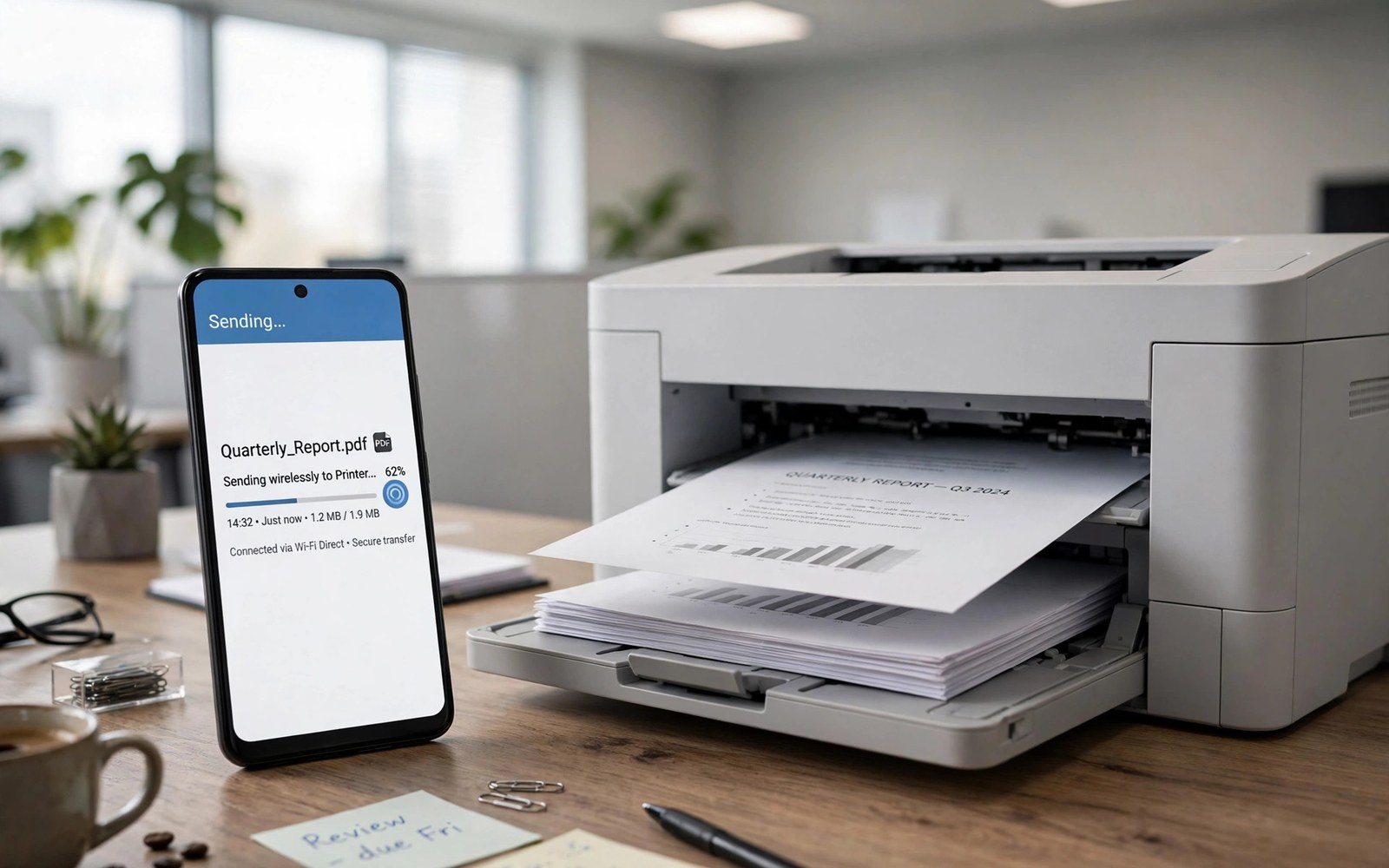
Wireless printing sends documents from your phone to a printer. No cable or computer is needed in between. Photos and PDFs print straight from apps. This guide covers Wi-Fi printers and setup steps. It also covers fixes when a printer never appears.
Most modern printers support wireless printing from phones. The phone and printer must share the same Wi-Fi network. A print service on the phone finds the printer automatically. Some printer brands offer their own app for extra features. Built-in printing covers most daily needs.
Print quality depends on the file and printer settings. A PDF usually prints more reliably than a photo of a document. Colour settings affect ink use a lot. This guide shows how to pick sensible defaults. It also shows how to save ink on drafts.
Check Printer Wireless Support
Look for Wi-Fi or wireless printing on the printer panel. The printer manual lists supported phone printing methods. Many printers show a wireless icon when connected. Connect the printer to your home Wi-Fi first. A printer on a different network will not appear on the phone.
If the printer lacks Wi-Fi then a cable or shared computer may help. A printer connected to a computer can sometimes share over the network. Check computer sharing settings for that option. A wireless adapter can add Wi-Fi to some older printers. Confirm compatibility before buying one.
Turn On the Print Service
Open Settings and search for Printing. Open Default Print Service and turn it on. The phone scans the network for printers. Your printer should appear within seconds. Tap it to add it to the available list.
Some printer brands need their own print service app. Install the brand app only when the default service fails. The brand app adds features like ink levels. It may also add unwanted notifications. Use the default service first for simplicity.
adb shell dumpsys print
# printer services appear in Settings under Printing
Print a Document From an App
Open the document or photo you want to print. Tap Share or the three dot menu. Choose Print from the menu. Select your printer from the list. Adjust copies and page range before tapping Print.
Check the preview before printing a long document. The preview shows page order and margins. Fix orientation in the preview when needed. A quick preview prevents wasted paper. Print one test page for a critical document first.
Print Photos With Good Quality
Photos need higher quality settings than text drafts. Choose photo paper in the print dialog when offered. Set quality to high for final prints. Use standard quality for test prints. High quality uses more ink and time.
Check photo resolution before printing large sizes. A small social photo looks blurry at large print sizes. Use the original camera file rather than a compressed copy. Original files hold more detail. Crop the photo before printing rather than after.
Print PDFs and Web Pages
PDF files print reliably because layout stays fixed. Open the PDF and choose Print from the menu. Select page range for long files. Print double sided when the printer supports it. Double sided printing saves paper on long documents.
Web pages print with extra headers and ads sometimes. Use a reader view or save as PDF first. A saved PDF gives a cleaner print. Remove blank pages from the range when they appear. A clean PDF beats a messy direct web print.
Fix a Printer That Never Appears
A missing printer often means a network mismatch. Confirm both devices use the same Wi-Fi network. Restart the printer and the phone Wi-Fi. Move the printer closer to the router if signal is weak. A weak signal hides printers from scans.
Check that the print service is turned on in Settings. Reinstall the brand print service if it stopped working. Restart the router if several devices miss the printer. A router restart clears stale network entries. Test printing again after each step.
Save Ink and Paper
Draft mode saves ink for internal documents. Use it for notes and test prints. Reserve high quality for final copies and photos. Print double sided for multi-page files. Use grayscale for text that does not need colour.
Preview each job to avoid blank pages. Remove blank pages from the range. Print only the pages you need rather than whole files. Small choices add up over a year. They also reduce trips to buy ink and paper.
Print Securely on Shared Networks
Shared office printers need extra care for sensitive files. Collect prints immediately after sending them. Do not leave confidential pages in the output tray. Use a printer PIN when the printer offers secure print. A PIN holds the job until you enter it at the printer.
Remove old printers from the phone list when you change jobs. A stale printer entry could send files to the wrong place. Check the print service list monthly. Delete printers you no longer use. A tidy list prevents costly mistakes.
How Wireless Printing Works
Wireless printing sends a print job over Wi-Fi. The phone formats the document for the printer. The printer receives data and renders pages. Rendering turns digital layout into ink patterns. The whole chain takes seconds for text pages.
Print services translate app output into printer language. Different printers use different languages. The service handles translation automatically. Users see only a simple print dialog. Hidden complexity makes printing feel effortless.
Choosing a Printer for Phone Printing
Phone friendly printers support wireless printing natively. Check for phone printing support before buying. Look for Wi-Fi direct as a bonus feature. Wi-Fi direct prints without a router. That feature helps in offices with strict networks.
Consider ink costs over the printer lifetime. Cheap printers often use expensive ink. Calculate cost per page from cartridge yields. A slightly dearer printer may save money yearly. Lifetime cost beats purchase price for heavy users.
Printing From Cloud Storage
Cloud files print directly from storage apps. Open the file in the cloud app first. Choose Print from the share menu. The phone downloads a temporary copy for printing. The temporary copy deletes after the job in most cases.
Check that the cloud file downloaded fully before printing. A partial download prints blank pages. Wait for the download indicator to finish. Large PDFs need a moment on slow Wi-Fi. Patience prevents wasted paper.
Printing Labels and Envelopes
Labels need correct paper size settings. Set the paper size in the print dialog. Use the manual feed tray when offered. Manual feed handles thick label sheets better. Test one label sheet before a large batch.
Envelopes need orientation checks before printing. Print a test envelope with sample text. Adjust orientation if text appears sideways. Envelope printing wastes fewer envelopes with a test first. A test envelope costs little and saves many.
Printer Maintenance Basics
Printers need occasional cleaning for sharp output. Run the cleaning cycle from printer settings. Cleaning uses some ink each time. Run it only when prints look streaky. Frequent cleaning wastes ink needlessly.
Keep paper dry and flat for reliable feeding. Damp paper jams more often. Store paper in its wrapper until use. Replace worn rollers when jams become frequent. Basic care extends printer life noticeably.
Printing While Travelling
Travelling printers are rare but hotel printers help. Ask hotel staff about guest printing options. Email to print services exist in many hotels. Send the file to the hotel print address. Collect prints from reception afterwards.
Carry documents as PDFs for travel printing. PDFs preserve layout across devices. Other formats may reflow on different systems. A PDF prints identically almost everywhere. Format choice matters most away from home.
Printing From Email Attachments
Email attachments print directly from mail apps. Open the attachment preview first. Check pages and layout in preview. Choose Print from the attachment menu. Printing from preview avoids saving files unnecessarily.
Large attachments may download slowly on weak Wi-Fi. Wait for full download before printing. Partial downloads print blank pages. Check attachment size before starting. A short wait prevents wasted paper and frustration.
Printing Boarding Passes and Tickets
Boarding passes print best as PDFs from airline apps. Save the pass as PDF before printing. A PDF preserves barcode sharpness. Blurry barcodes fail at scanners. Print at normal quality or higher for barcodes.
Print a backup copy for important travel. Keep one copy in luggage and one in hand. Digital passes can fail when phones die. Paper backups rescue travel plans. A printed pass costs little and saves much stress.
Printing With a Shared Office Printer
Shared office printers queue jobs from many people. Your job may wait behind large jobs from colleagues. Check the queue in the print dialog when waiting. Cancel and retry if a job appears stuck. A stuck job blocks everyone behind it in the queue.
Collect office prints promptly to avoid mix-ups. Colleagues may accidentally take your pages. Sensitive pages left in trays risk exposure. Walk to the printer as soon as you send a job. Prompt collection is simple office courtesy and security.
Wireless Printing Checklist
Use this list for a smooth first print.
- Connect printer and phone to the same Wi-Fi.
- Turn on Default Print Service in Settings.
- Open the file and choose Print.
- Check preview for pages and orientation.
- Set quality to match the job type.
- Collect prints promptly from shared printers.
This checklist covers the most common setup steps. It prevents wasted paper and missing printers. Repeat it when you add a new printer.
Printed files often start as phone scans. Learn how to scan documents to PDF using built-in camera tools for clean printable files.
For moving files to a computer first see how to transfer files between Android and PC wirelessly and how to translate on-screen text instantly using camera tools.
The steps above follow the approach described in the official developer documentation for Android devices. The documentation covers print service behaviour and network discovery in general terms. Printer brands add their own service apps on top of that shared system.
Wireless printing is simple once the printer joins your network. Turn on the default print service and check the preview. Use draft mode for everyday pages and high quality for photos. Collect shared prints promptly. With those habits phone printing feels effortless.

