

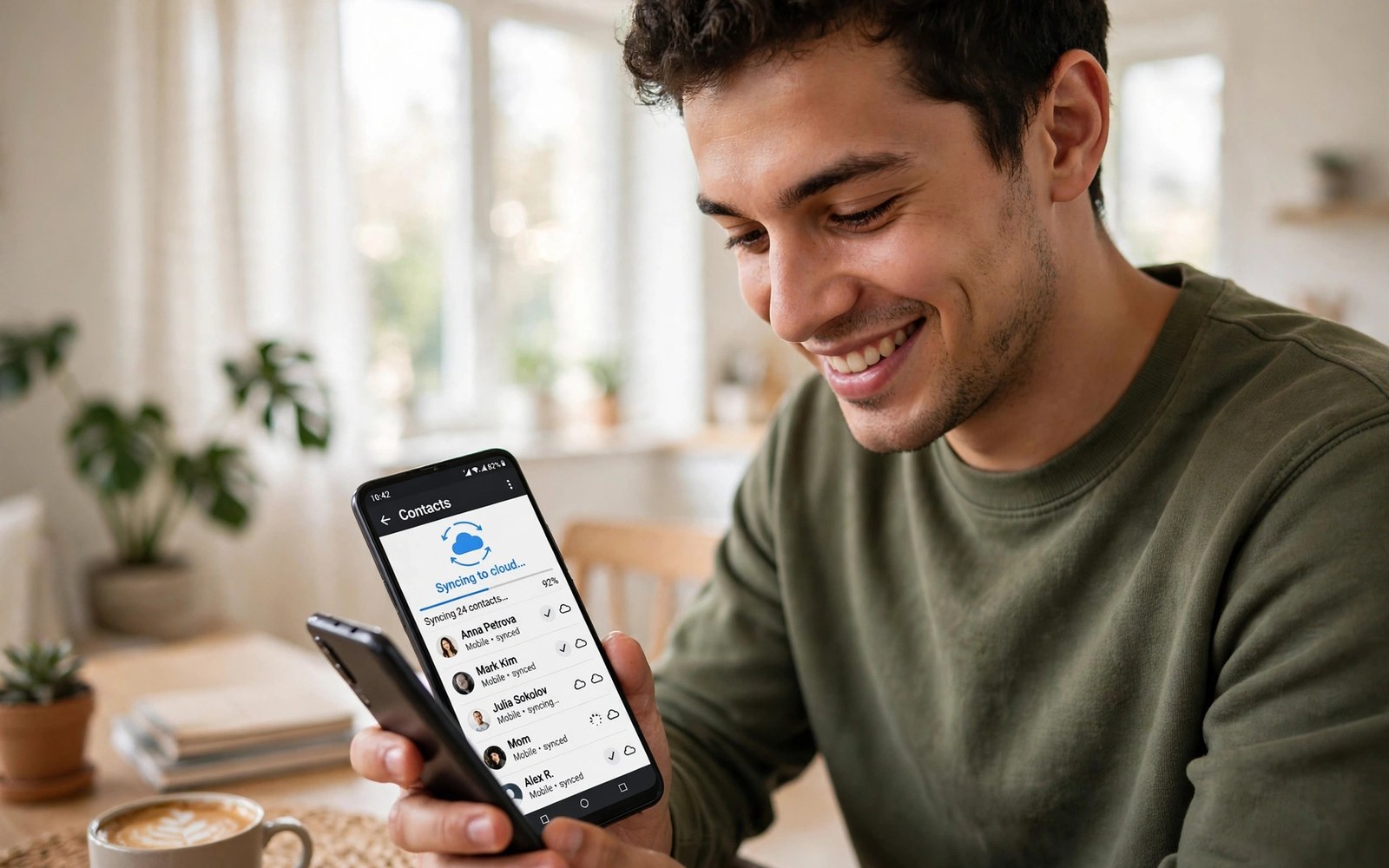
Automatic Contact Syncing: Ensuring You Never Lose Phone Numbers
I changed phones two years ago and the move took twenty minutes, because every number I owned was already waiting in my Google account. No SIM juggling, no typing numbers from a paper list, no texting friends to ask for their own numbers back. The new phone signed in, the contacts appeared, and that was the whole story. A friend who changed phones the same week lost a third of his numbers, because his lived only on the old handset. The difference between us was not luck. It was one setting, switched on years earlier.
Automatic contact syncing is that setting. It copies each new number you save into your cloud account in the background, so the number survives a lost phone, a broken screen, a factory reset, and a change of brand. This guide shows you how to set it up on Google and on Samsung and other brand accounts, where your numbers actually live, how to move them between accounts, how to fix sync when it stops, and how to get deleted numbers back inside the 30-day window.
You do not need to be technical to follow this. The steps are short, the checks are simple, and the whole setup takes less than ten minutes. What matters is doing it before you need it, because syncing cannot bring back a number that was never copied anywhere. Check yours today, while your phone still works, and the next phone change will be as dull as mine was.
How Automatic Contact Syncing Works on Android Phones
When you save a number on an Android phone, the phone asks where to save it, or it saves it to a default account you chose long ago and forgot. If that default is your Google account, the number is copied to the cloud address book within seconds, whenever the phone has a connection. If the default is the phone itself, the number stays in the handset memory and nowhere else. If the default is the SIM card, the number lives on a tiny chip with room for roughly 250 entries and only a name and one number per entry. The same tap, three very different outcomes.
Syncing is a two-way street. A number you add on the web at contacts.google.com appears on your phone, and a number you edit on your phone updates on the web. Delete a number on one side and it is deleted on the other, which is why the trash window in the next sections matters so much. The sync itself runs quietly in the background, usually over any connection, and it uses very little data, because a contact is a few hundred bytes of text.
The key idea is that your Google account, or your Samsung account, is the master copy. The phone is just one window onto it. Once you understand that, the rest of the guide falls into place: you choose the master copy, you check that it is actually receiving new numbers, and you learn how to move old numbers into it before they are stranded on a dying handset or an old SIM.
What happens the moment you save a new phone number
You type the name and number, tap save, and the Contacts app writes the entry to the chosen account. If syncing is on, the phone marks the entry as changed and the sync service uploads it, usually within a minute. Open contacts.google.com on a computer and the new entry should already be there. If it is not there after a few minutes with a good connection, something in the chain is broken, and the checks later in this guide will find it.
Why the cloud copy matters more than the copy on your phone
Phones get lost, stolen, dropped in water, and wiped by accident. A number that exists only on the handset dies with the handset. A number in your Google account survives all of that, and it also survives changing brands, because any Android phone can sign into the same account. It even survives switching to an iPhone, because your Google account can be added there too. The cloud copy is the only copy that is independent of the device in your hand.
The one setting that decides whether new numbers are protected
That setting is the default save location, sometimes called the default account for new contacts. On many phones it sits in the Contacts app under Settings, then Default account, or in Settings, then Accounts, then your Google account, then Account sync, then Contacts. If it says Device or SIM, change it to your Google account today, and your next saved number will be protected automatically.
How often sync runs and how much data it uses
Android syncs contacts whenever something changes and a connection is available, rather than on a fixed hourly schedule. A single new contact is a tiny upload, far under a kilobyte, so it will not dent a mobile data plan. A first sync after years of saving numbers locally can be larger, because it uploads everything at once, but even a thousand contacts is only a few megabytes. If you are worried about data, leave sync on and let it run on Wi-Fi; it will catch up the next time you connect.
Google Contacts Sync Setup Step by Step on Any Android Phone
This is the setup I recommend to everyone, because it works on every Android brand and it is the easiest to check from a computer. Follow the steps in order and verify at the end, because a setup you do not verify is only a hope.
-
Open Settings, then Accounts, or Passwords and accounts on some phones. Check that your Google account is listed and signed in. If it is not there, tap Add account, choose Google, and sign in.
-
Tap your Google account, then tap Account sync. Find Contacts in the list and make sure its switch is on. If it is off, switch it on and wait a minute for the first sync to run.
-
Open the Contacts app, tap your profile picture or the menu, then Settings, then Default account for new contacts, and choose your Google account. From now on, every number you save goes to the cloud copy first.
-
Save a test contact with a distinctive name, such as Test Sync, and any number. Wait two minutes, then open contacts.google.com on a computer or another device and search for it. If it is there, syncing works.
-
Delete the test contact from the phone, then check the web trash to confirm you know where deleted contacts go. This is the safety net you will need later, so learn where it is before you need it.
-
Open Settings, then Accounts, then your Google account, then Account sync, and tap the three-dot menu, then Sync now, to force a full sync. Check the time shown next to Contacts. A recent time means the sync is healthy.
Finding the account sync switch in Settings on Pixel and Samsung phones
On a Pixel, the path is Settings, then Passwords and accounts, then your Google account, then Account sync. On a Samsung Galaxy phone, it is Settings, then Accounts and backup, then Manage accounts, then your Google account, then Sync account. On Xiaomi phones, it is Settings, then Accounts and sync, then Google, then your account. The switch is always labelled Contacts, and it sits beside Calendar, Gmail and Drive in the same list.
Choosing your Google account as the default save location
This is the step most people skip, and it is the step that matters most. A sync switch that is on does nothing for numbers saved to the device, because there is nothing to sync. Open the Contacts app settings, set the default account to your Google account, and then move your old device-only numbers into it using the steps in the moving section below. After that, every new number is protected from the moment you save it.
What to do if your Google account is missing from the phone
If the account is not listed, you are probably signed into a different account, or the account was removed during a reset. Add it back through Settings, then Accounts, then Add account, then Google. Do not create a second Google account for this unless you mean to, because contacts split across two accounts are easy to lose track of. Pick one account as the home for your numbers and keep it consistent.
Samsung, Xiaomi and Other Brand Account Sync for Contacts
Google is not the only cloud account on your phone. Samsung phones offer Samsung Cloud, Xiaomi phones offer Mi Account, and Huawei phones offer Huawei Mobile Cloud. Each can sync contacts, and each has its own strengths and limits. The rule is simple: pick one main home for your numbers, and use the others only if you understand which one is the master copy. Two masters means two lists that drift apart.
On a Samsung Galaxy phone, open Settings, then Accounts and backup, then Samsung Cloud, and check that Contacts sync is on. Samsung Cloud keeps a copy of your contacts tied to your Samsung account, and it is useful if you stay inside the Samsung family, because a new Galaxy phone picks them up during setup. The catch is that Samsung Cloud contacts do not show up on contacts.google.com, so if you move to a Pixel or another brand, you need to move them first.
On a Xiaomi phone, open Settings, then Mi Account, then Xiaomi Cloud, and check the Contacts switch. On Huawei phones, the path is Settings, then your Huawei ID, then Cloud, then Contacts. In each case the idea is the same, and the check is the same: save a test contact, wait, and look for it on the brand’s web page. If you cannot see it on the web, the sync is not working, whatever the switch says.
Samsung Cloud contacts and how they differ from Google Contacts
Samsung Cloud stores your contacts in Samsung’s service, and it syncs them between Samsung devices. The Google service stores them in your account, and it syncs them between any Android device and the web. A Samsung phone can run both at once, which means a number saved to Samsung Cloud will not appear in your Google address book, and a number saved to Google will not appear in Samsung Cloud. Choose Google if you might ever leave Samsung, and choose Samsung only if you are sure you will stay. I keep Google as the master and leave Samsung Cloud off for contacts, because one list is easier to trust than two.
Moving contacts from a brand account to your Google account
The cleanest route is a vCard file. Export your contacts from the brand account to a .vcf file, then import that file into the Google address book on the web, or into the Google account on the phone. The import step is covered in detail below. After the import, check that the count matches, change the default save location to Google, and then switch the brand sync off for contacts so new numbers do not split again. Keep the vCard file as a spare copy for a month, just in case.
One master account: the rule that stops duplicate contact lists
Duplicates happen when two accounts both hold the same people. The Google address book has a merge tool under Fix and manage, then Merge and fix, which finds entries with the same name or number and combines them. Run it after any move between accounts, and run it again a week later, because a second sync can surface a few more. A single master account plus a monthly merge is the routine that keeps a list clean.
SIM vs Phone vs Google Account: Where Your Numbers Actually Live
Most people have no idea where their numbers live, because the phone never makes it obvious. The table below is the clearest way I know to show the difference, and it is the section I wish someone had shown me before my first phone change.
| Storage location | Capacity | What it keeps | Survives a lost phone? | Best for |
|---|---|---|---|---|
| SIM card | About 250 entries | Name and one number only | Yes, if you keep the SIM | Moving a few numbers to a basic phone |
| Phone only (device) | Thousands | Full details, photos, notes | No | Nothing long term; move these out |
| Google account | 25,000 contacts | Full details, photos, groups, notes | Yes | Everyday use on any Android phone |
| Samsung account | Large | Full details | Yes, inside Samsung | Samsung-only households |
| vCard file backup | Unlimited | Full details as a file | Yes, if the file is kept safe | A spare copy before a phone change |
The SIM row surprises most readers. A SIM card holds only a name and a single number per entry, so email addresses, second numbers, photos, birthdays and notes are all lost when you save to the SIM. The phone-only row is the dangerous one, because it feels safe: the numbers are right there on the screen, with photos and full details, until the phone dies and takes them all with it. The Google account row is the one I recommend, because it keeps everything and it follows you to any phone.
To see where your own numbers live, open the Contacts app, tap the menu or your profile picture, and look for the account filter or the list of accounts. It shows a count per account, such as Google 412, Device 38, SIM 12. Those 38 device numbers and 12 SIM numbers are the ones at risk, and the moving section below shows how to bring them into your Google account in a few minutes.
How to check where each of your contacts is saved
On the web version, the left menu shows the account and the total count. On the phone, open Contacts, then Fix and manage, or the account section, and look at the per-account counts. Some phones also let you tap a single contact and see a small label under the name showing the account it belongs to. Go through your most important numbers, family and work, and check that each one carries the Google label. If a key number says Device, move it now, while the phone still works.
Why SIM storage loses photos, notes and second numbers
The SIM card standard was designed in the 1990s for a name and a number, and it has never grown beyond that. A contact with a mobile number, a work number, an email address, a photo and a birthday simply cannot fit, so the phone silently drops everything except the name and the first number when you save to the SIM. That is why a SIM move between phones feels like a loss: the numbers arrive, but the people arrive without their details. Use the SIM only as a temporary carrier for a handful of numbers, never as your main address book.
The 25,000 contact limit and when it matters
Your Google account allows up to 25,000 entries, which is far more than any personal address book needs. The limit matters only if you import a business list or a scraped list, and even then the fix is to clean the list before import. For ordinary use, the limit is effectively no limit, and it is one more reason to prefer the Google account over the SIM.
vCard Export and Import: Moving Contacts Between Accounts and Phones
A vCard file, with the extension .vcf, is the universal suitcase for contacts. Almost every phone, email service and address book can read and write it, which makes it the safest way to move numbers between accounts, between brands, and between a phone and a computer. I export a fresh vCard every few months and keep it in a safe place, because it is the one copy that does not depend on any company’s sync service.
To export from your phone, open Contacts, tap Fix and manage or Settings, then Export, choose your Google account or All contacts, and save the .vcf file. Share it to your email or to Google Drive so it is not trapped on the phone you are leaving. To import into the web address book, open contacts.google.com, tap Import on the left, choose the .vcf file, and confirm. The web page shows how many entries were added, and you should compare that number with the number you exported.
To import on the phone, open Contacts, tap Fix and manage, then Import, choose the .vcf file, and pick your Google account as the destination. The phone will add the entries and sync them to the cloud. After any import, run the merge tool to combine duplicates, and spot-check five important numbers by calling or messaging them, because a clean import is only proven by a real contact reaching the right person.
Exporting a vCard file from your current phone in under a minute
The export itself is quick, but the destination matters. Exporting to the phone’s own downloads folder leaves the file on the same phone you are trying to escape, so share it straight to your email or cloud drive. Name the file with the date, such as contacts-2026-11-07.vcf, so you know which copy is newest when you find three of them a year later. A dated file also tells you how stale the copy is before you rely on it.
Importing a vCard into the web address book
The web import is the most reliable route, because the web page shows you exactly what happened. Open contacts.google.com, sign into the right Google account, tap Import, and choose the file. If the page reports fewer imported entries than you exported, some entries were duplicates and were merged, which is normal. If it reports zero, check that you signed into the right account and that the file is a real .vcf, not a renamed text file. After the import, the numbers appear on your phone at the next sync, usually within a minute.
Checking the import count so no number goes missing
Write down three numbers before you start: how many contacts the old phone shows, how many entries the export file holds, and how many the import reports. If the import reports fewer, open the merge tool and look for duplicates. If it reports more, the file probably held entries from two accounts. Either way, a count that does not match is a signal to look, not a reason to panic, because the original file is still safe.
What a vCard file keeps and what it drops
A vCard keeps names, numbers, email addresses, postal addresses, birthdays, notes, and usually photos, because those are all standard fields. It can drop app-specific extras, such as custom labels from a brand’s contacts app, or links to social profiles, because those are not part of the standard. After an import, check one contact with a photo and one with a note, and if they survived, the rest almost certainly did too.
Checking Sync Status and Fixing Sync Errors on Android
Syncing usually just works, and when it stops, the phone rarely tells you loudly. The symptom is quiet: a number you saved yesterday is not on the web today, or a number a friend updated is still old on your phone. The checks below find the break in under five minutes, and they are worth running once a month, the same way you would check a smoke alarm.
Start in Settings, then Accounts, then your Google account, then Account sync, and look at the time next to Contacts. A time within the last few minutes means the sync is healthy. A time from days ago, or an error message, means it has stalled. Tap Sync now and watch whether the time updates. If it does, the sync was merely idle, and the fix is done. If it does not, work down the list: check your connection, check that battery saver is off, check that data saver is not blocking the Contacts app, and check that you have free space on the phone.
The most common causes, in my experience, are a wrong date and time, a full phone, and a data saver setting that blocks background sync. A phone with no free space cannot write new contacts, and a phone with the wrong clock can reject sync tokens. Set the date and time to automatic, free up space, and switch data saver off for the Contacts app, then force a sync again. If it still fails, remove the Google account from the phone and add it back, which clears a corrupted sync state without touching the cloud copy, because the master copy lives on the web, not on the phone.
Reading the last synced time and forcing a manual sync
The last synced time is the single most honest indicator of sync health. Open Settings, then Accounts, then your Google account, then Account sync, and read the line under Contacts. If it says a time today, you are fine. If it says a date last week, tap the three-dot menu and choose Sync now, then wait a minute and read it again. A manual sync that updates the time has fixed the stall, and the automatic sync will usually resume from there.
Battery saver, data saver and storage full: the three quiet sync killers
Battery saver can pause background sync, data saver can block the sync service from using mobile data, and a full phone can stop new contacts from being written at all. Check all three when a sync stalls: switch battery saver off, open Settings, then Network and internet, then Data Saver, and allow the Contacts app unrestricted data, and free at least a gigabyte of space. These three fixes solve most stalls I have seen, and they are all reversible, so there is no risk in trying them.
When removing and re-adding the account is the right fix
Removing the Google account from the phone sounds drastic, but it is safe for contacts, because the cloud copy stays on the web. The phone will warn you that contacts and calendar data will be removed from the device, and that is true, but they come straight back when you sign in again. Use this fix only after the simpler checks have failed, and only when you have a good connection and a few minutes to spare, because the first sync after re-adding the account can take a while on a large address book.
Sync error messages and what each one actually means
A sync error that mentions authentication usually means the account password changed or the sign-in expired, so sign in again. An error that mentions the network usually means the connection dropped mid-sync, so try again on Wi-Fi. An error that mentions storage means the phone is full. Write down the exact message before you dismiss it, because a vague memory of an error is much less useful than the exact words when you search for the fix or ask for help.
Recovering Deleted Contacts and the 30-Day Trash Window
Deleting a contact feels final, but in your Google account it is not, for thirty days. A deleted contact goes to the trash, where it sits for thirty days before it is removed permanently. That window is your safety net, and it works whether you deleted the number on the phone or on the web, because the trash is shared between them.
To get a number back, open contacts.google.com on a computer, tap Trash on the left, find the contact, and tap Recover. On the phone, open Contacts, tap Fix and manage, then Trash, and tap the contact, then Recover. The number returns to the address book and syncs back to the phone within a minute. Check that it is back by searching for the name, and then check that the number is correct, because a recovered contact is only useful if the details are intact.
The thirty-day limit is strict. On day thirty-one, the contact is gone for good, unless you have a vCard export from before the deletion. That is why a regular vCard export matters: it is the only safety net that outlives the trash window. If you delete a number by accident, act the same day, not next month, and the fix takes thirty seconds.
A related safety net is worth knowing about, because the same thinking applies to the apps that hold your conversations. Many people who protect their numbers forget that their chats need the same care, and how local chat backups store encrypted copies explains where WhatsApp keeps its own spare copies on the phone. The principle is identical: a copy you can reach is a copy that can save you, and a copy you never checked is only a hope.
Bringing back a deleted contact from the trash
Open the trash, search for the name, and tap Recover. If you deleted a whole batch, you can select several at once. The recovered contacts return to the account they came from, so if you have two Google accounts, check the trash in the right one. After the recovery, force a sync on the phone and confirm the numbers are back before you close the page.
What happens after 30 days, and why a vCard export still saves you
After thirty days, Google removes the contact permanently and there is no second trash to check. A vCard export made before the deletion is then the only way back, because the file holds the number as it was on the export date. Import that file, run the merge tool, and the number is back. This is the reason I keep a dated vCard export in my email: it is a thirty-second insurance policy against a deletion I notice too late.
Accidental bulk deletes and how to spot them early
A bulk delete usually happens during a merge, an import, or a clean-up that selects too much. The sign is a sudden drop in the contact count, which you will only notice if you know the rough count. Write down your count today, and glance at it once a month. A count that falls by dozens overnight is a signal to open the trash immediately, while the thirty-day window is still wide open.
Moving to a New Phone Without Losing a Single Number
A phone change is the moment syncing either pays off or fails, and the difference is preparation. A week before the change, force a sync, export a vCard, and check the count on the web. On the day, sign into the same Google account during setup, let the phone finish its first sync before you start deleting anything from the old phone, and then compare the counts. Only when the new phone shows the same number of contacts as the old one should you wipe or hand over the old handset.
Android’s setup flow helps here, because it brings your apps and settings across as well as your contacts. The way the system puts your apps back after a fresh setup is described in how auto restore reinstalls your setup, and it works best when the same Google account is used from the start. Sign in with the right account first, before you install apps by hand, so the automatic setup and the contact sync both pull from the same place.
One more step protects the whole arrangement: turn on two-factor authentication for the Google account that holds your contacts, and keep a spare way to get back in. Your address book is only as safe as the account that holds it, and a stolen password can lock you out of your own numbers. The guide to backing up two factor security keys shows how to keep a spare key or code somewhere safe, so a lost phone never becomes a lost account as well. A contact list protected by a strong account is a list you can trust.
Verification checklist: prove your numbers are safe in five minutes
Run this checklist once a month and after every phone change. Check the sync time in Settings, then Accounts, then your Google account, then Account sync. Confirm the default save location is your Google account. Save a test contact and find it on contacts.google.com. Compare the count on the phone with the count on the web. Export a fresh vCard and keep it somewhere safe. Open the trash and confirm it is empty or holds only what you meant to delete. Five checks, five minutes, and a list you can trust.
WhatsApp and other apps: how contact sync affects your chats
WhatsApp reads its contact list from your phone’s address book, so a number that is missing from your contacts shows up as a bare number in WhatsApp instead of a name. Fixing the contact sync usually fixes the nameless chats at the same time, after you refresh the WhatsApp contact list. The same applies to Telegram, Signal and your phone app: they all show the names from the same master list, which is one more reason to keep that list in one account and keep it clean.
Why a name disappears in WhatsApp after a phone change
If a chat shows a number instead of a name after a move, the contact did not sync to the new phone, or it synced to a different account that WhatsApp cannot see. Check the contact in the phone app first. If it is there, open WhatsApp, tap the new chat button, tap the menu, and tap Refresh. If it is not there, the contact is missing from the master list, and the vCard import or the trash recovery above is the fix.
Keeping one clean list when family share a phone or a tablet
A shared tablet with two accounts can show two overlapping lists, which confuses every app that reads contacts. Keep one account as the contact owner on shared devices, and let the second account use its own contacts only on its own phone. If duplicates appear, run the merge tool on the web, where you can see the whole list at once, rather than on a small screen.
Frequently Asked Questions About Automatic Contact Syncing
How do I know if my contacts are backed up to Google?
Open contacts.google.com on a computer and sign in with the same Google account as your phone. If your numbers are listed there, they are in the cloud copy and safe. If the web list is empty or missing recent numbers, check the sync switch in Settings, then Accounts, then your Google account, then Account sync, and force a sync. The web page is the truth, because the phone screen only shows what the phone holds, not what the cloud holds.
Why are some of my contacts missing after I changed phones?
The usual reason is that the missing numbers were saved to the old phone or to the SIM, not to your Google account, so they never travelled with the account. A second reason is that you signed into a different Google account on the new phone. Check the old phone’s per-account counts, export a vCard from the old phone if you still have it, and import that file into the right Google account. Moving device-only numbers into your Google account before you hand the old phone over is the habit that prevents this entirely.
Can I recover a contact I deleted more than 30 days ago?
Not from the trash, because it empties after thirty days. Your only route then is a vCard export made before the deletion, or a backup from your phone maker, such as a Samsung Cloud copy, if you had that sync switched on. If neither exists, the number is gone from your own records, and you will need to ask the person or check an old message thread for it. This is why a dated vCard export every few months is worth the minute it takes.
Does contact syncing use a lot of mobile data or battery?
No. A contact is a tiny amount of text, and syncing uploads only what changed, so a day of normal use costs a few kilobytes and no noticeable battery. The first sync after years of saving numbers locally is the only large one, and even a thousand contacts is only a few megabytes. If you are on a tight data plan, let the first sync run on Wi-Fi, and leave the switch on afterwards, because the daily cost is too small to measure.
What should I do when contact sync keeps failing on my phone?
Check the last synced time, force a manual sync, and work through the three quiet killers: battery saver, data saver, and a full phone. Set the date and time to automatic, free some space, and try again on Wi-Fi. If the sync still fails, remove the Google account and add it back, which clears a corrupted sync state without touching the cloud copy. If it fails after that, check whether the account password changed, because an expired sign-in is the most common cause of a sync that fails with an authentication error.
Your Next Step: Check Your Sync Today and Save a Spare Copy
Open your account sync settings now and look at the time next to Contacts. If it is recent, save a test contact and find it on the web. If it is not recent, work through the fixes above until it is. Then change your default save location to your Google account, export a dated vCard, and keep it somewhere safe. Those four actions take ten minutes, and they are the whole job.
I think of contact syncing the way I think of locking the front door: it is a small habit that only matters on the day something goes wrong, and on that day it matters completely. A phone can be replaced in an afternoon, but a phone number you never copied anywhere cannot be replaced at all. Check yours today, while the phone in your hand still works, and the next phone change will be the dull, twenty-minute move it should be.

