

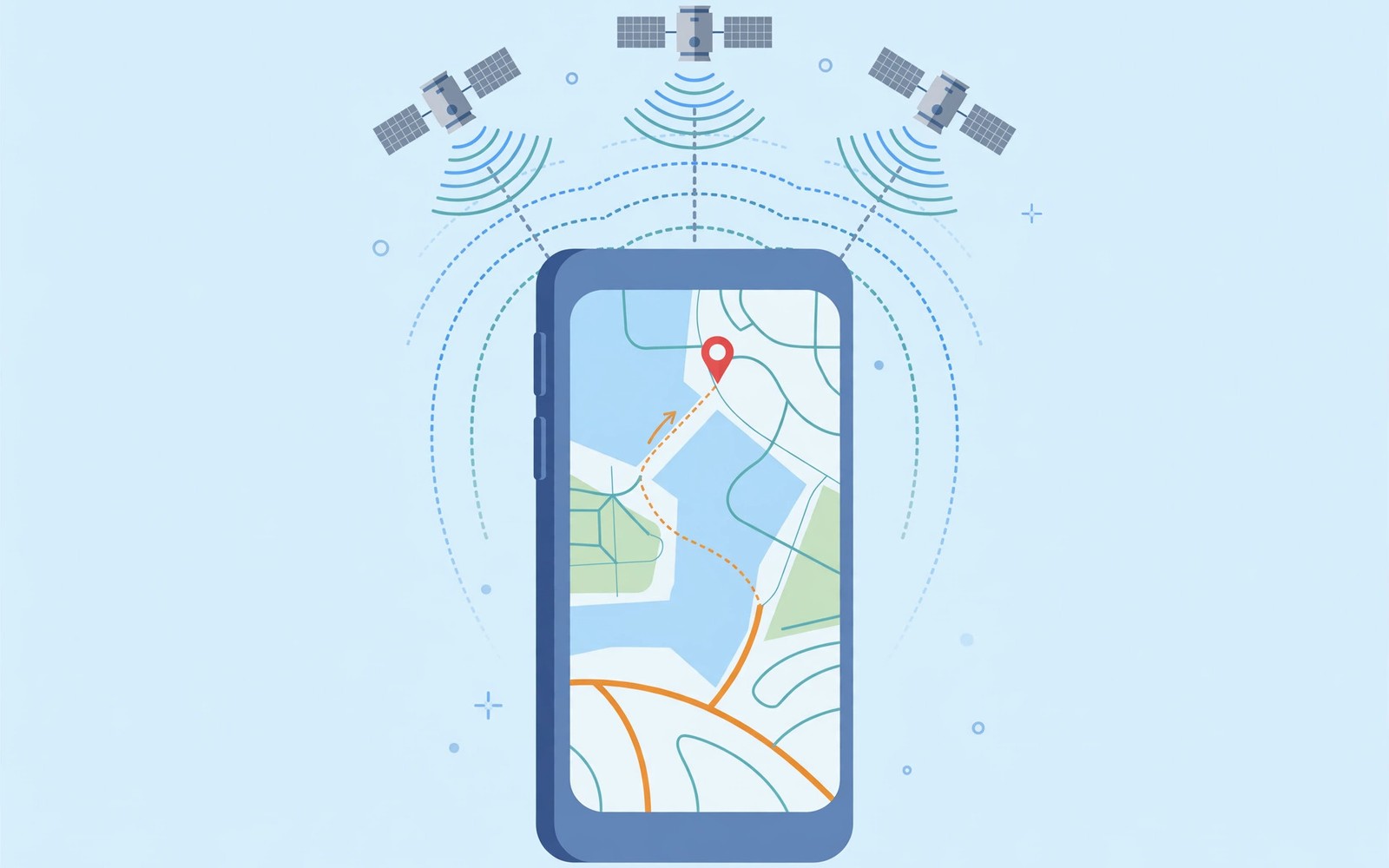
How to Fix GPS Signal “Location Not Found” Navigation Errors
You are halfway to a meeting, Google Maps is open on the dashboard mount, and the blue dot suddenly stops moving. A grey banner appears instead: the app cannot find where you are. I have had that exact moment on a rainy evening in an unfamiliar part of town, and the frustration is real because the phone is not broken in any obvious way. It still makes calls, the screen works, and the mobile signal bars look fine. Only the position is gone.
That failure has a name on Android, and it shows up in Maps, Waze, ride-hailing apps, delivery apps and fitness trackers in slightly different words. This guide walks through what the message means, why it happens, and the fixes in the order I would try them, from the thirty-second checks to the last-resort reset. Every step tells you what to look for afterwards, so you know whether it worked or whether you should move on to the next one.
You do not need any special tools for most of this. A clear view of the sky helps more than any app you could install, and a surprising number of cases turn out to be one permission, one battery setting, or one stale piece of satellite data. Work through the steps in order and you will either fix it or narrow it down to a hardware fault you can describe clearly to a repair shop.
What Location Not Found Means on Android GPS and Navigation Apps
When Maps says it cannot find your location, it is telling you that the phone could not produce a fresh, trustworthy position fix in the time the app allowed. Android builds your position from three sources: satellites overhead, nearby Wi-Fi networks and mobile towers, and sensors such as the compass and accelerometer. If the satellite signal is weak and the network sources are switched off or unavailable, the system has nothing solid to report, so the app shows the error rather than guessing.
The wording changes between apps, which is why the same fault can look like several different problems. Google Maps may say your GPS signal is lost, Waze may say it is searching for GPS, and a delivery app may simply show a grey circle or an old address. Underneath, the cause is usually the same: the location service on the phone could not lock on, or the app was not allowed to ask for it. Knowing that saves you from reinstalling every navigation app you own when the real problem sits one level deeper, in the phone settings.
There is also a difference between a wrong position and no position at all. A blue dot that jumps across the map or sits two streets away usually points to a weak or reflected signal, often indoors or between tall buildings. A dot that freezes, or the message that no location could be found, usually points to a permission, a setting, or a service that has stopped. I treat those as two different problems, because the fix for a frozen dot is different from the fix for a dot that wanders.
How Android builds your position from satellites, Wi-Fi and mobile towers
Your phone listens for signals from GPS satellites run by the United States, plus Galileo from Europe, GLONASS from Russia and BeiDou from China on most modern handsets. It needs a signal from at least four satellites to calculate a three-dimensional fix, and it needs a clear line of sight to hear them well. Assisted GPS, or AGPS, speeds this up by fetching satellite orbit data over the internet, so the first fix after you switch location on takes seconds instead of minutes. When that downloaded orbit data goes stale, the first fix gets slow and unreliable.
Wi-Fi and mobile towers fill the gaps. In a city, your phone can place you within a few dozen metres just from the networks it can see, even before the satellites lock on. That is why navigation often works indoors in a shopping centre, then falls apart in a rural car park where there is no Wi-Fi and the nearest tower is far away. If you switch off Wi-Fi scanning or mobile data, you remove that safety net and force the phone to rely on satellites alone.
Why the error appears in Maps, Waze and ride-hailing apps at different times
Each app asks Android for a position on its own schedule. Maps asks constantly while you navigate, a ride-hailing app asks once when you request a car, and a fitness tracker asks every second while you record a run. A weak signal that Maps can ride through may still be enough to make a ride app fail at the one moment it asks, because it gets a single stale answer and gives up. The timing of the error tells you something: if it fails only at the start of a trip and recovers after a minute, the first fix is the problem, and the AGPS steps later in this guide are the ones to try.
Reading the blue dot: frozen, jumping, or missing entirely
A frozen blue dot means the last good fix is being shown while no new fix arrives. A jumping dot means fixes are arriving but they disagree, which happens near glass facades, in car parks under concrete, and in narrow streets where signals bounce. A missing dot with the error message means no fix at all. Note which one you see before you start changing settings, because it tells you whether to chase signal strength, settings, or a stuck service.
When the message means the app cannot ask, not that the signal is gone
If the message appears the instant you open Maps, before the phone has had ten seconds to listen for satellites, the app probably lacks permission or the system location switch is off. Satellite problems take time to appear, because the phone tries first and fails slowly. Instant failure is a settings problem almost every time, and the permission checks in the next section will settle it in under a minute.
Why GPS Signal Drops: Location Permission, Accuracy Mode and Stale AGPS Data
Most cases I have fixed came down to one of a handful of causes, and they are worth understanding before you start tapping through menus. A cause you understand is a cause you can test, and testing is faster than guessing. The list below runs from the most common to the least common, roughly in the order I see them on real phones.
Location permission denied or set to approximate only
Android 12 and later let you grant an app approximate location instead of precise location. Approximate location is fine for a weather app, which only needs your city, but it is useless for turn-by-turn navigation, which needs your street and your lane. If Maps has approximate permission, it may show the error or place you hundreds of metres away. The same happens when permission is set to ask every time and you tap the wrong option in a hurry, or when permission is granted only while using the app and the app is running in the background during a long drive.
Permissions also get revoked quietly. Android can remove permissions from apps you have not opened in a while, and a system update can reset them. If navigation worked last month and fails now, and nothing else changed, check permissions first. It costs nothing and it is the single most common fix in my experience.
Location switched off, or accuracy mode set to device only
The master location switch in quick settings or in Settings can be off without you noticing, especially after a child plays with the phone or a routine in a digital wellbeing app switches it. Below that switch sits Location accuracy, sometimes called Google Location Accuracy, which lets the phone use Wi-Fi and mobile networks to improve the fix. Turning that off leaves the phone with satellites alone, which is slower and weaker indoors. Some phones also offer a device-only mode that does exactly that, and it is a common cause of slow first fixes on older handsets.
Battery optimisation and power saving killing the location service
Battery optimisation is the quiet saboteur of navigation. When a phone tries to save power, it can pause background location for Maps or Waze, throttle the GPS chip, or kill the app entirely while the screen is off. The symptom is distinctive: navigation works while you watch it, then the blue dot freezes or the error appears after ten minutes with the screen dark, often on a long motorway drive. Battery saver mode and adaptive battery make this worse, and some brands such as Samsung, Xiaomi, Oppo and Vivo add their own aggressive app killers on top of Android’s own rules.
Stale AGPS data and a corrupted Maps cache
AGPS data has a shelf life. If the phone has been off, in flight mode, or without a data connection for days, the stored satellite orbit data expires, and the first fix after that can take several minutes of clear sky. A corrupted cache in Maps can cause a different problem: the app itself misbehaves even though the system location service is fine, showing old tiles, freezing, or reporting errors that no other app shows. Clearing the cache, covered in the step-by-step section, separates an app problem from a system problem in about a minute.
VPN, mock location apps and developer options interference
A VPN does not block GPS, because satellite signals do not travel through your VPN tunnel, but some VPN apps and ad blockers interfere with the network side of location, and a few location-spoofing apps leave a mock location provider active long after you stop using them. If Developer options has a mock location app selected, some apps refuse to trust the position at all and show the error on purpose. The same applies to apps that detect a fake GPS tool running in the background. If you ever installed a location spoofing app, even for a game, check that setting before anything else.
How a metal case, a car mount or a thick cover weakens the signal
Satellite signals are faint by the time they reach your phone, and metal blocks them. A metal bumper case, a magnetic mount with a large metal plate behind the phone, or a wallet case with metal clasps can cut the signal enough to matter, especially when the phone is already struggling indoors. I once chased a navigation fault for a week before realising the new magnetic car mount was the cause. Take the phone out of the case and off the mount, hold it in your hand with a clear view of the sky, and test again. It is a free test and it settles the question in seconds.
Hardware faults: a failing GPS antenna after a drop or a repair
A drop, a screen replacement, or water damage can loosen or damage the GPS antenna connection. The symptom is usually a signal that is weak everywhere, in every app, outdoors, with every setting correct. If a second phone next to yours locks on instantly in the same spot, and yours cannot lock on at all after all the software steps below, the antenna or the GPS chip is the likely fault. That is a repair shop job, not a settings job, and knowing that saves you from a factory reset that would not have helped.
Quick Checks Before You Change Anything on Your Android Phone
Before you change a setting, spend two minutes on checks that cost nothing and often solve the problem on their own. I do these in the same order every time, because they separate the easy fixes from the real faults.
First, step outside or move near a window. Satellite signals do not pass through concrete, metal roofs, or underground car parks. If the error appears indoors and clears outdoors, your phone is fine and the building is the problem. Second, look at the top of the screen for flight mode, and check that mobile data or Wi-Fi is on, because AGPS needs a data connection for its first fix. Third, restart the phone. A restart clears a stuck location service, and it is the fix I reach for when a phone that worked yesterday fails today for no clear reason.
Fourth, check the date and time. If the clock is wrong by more than a few minutes, AGPS data can be rejected and the first fix can fail. Set date and time to automatic in Settings, then try again. Fifth, open a second navigation app and compare. If Maps fails but Waze works, the fault is in Maps. If every app fails, the fault is in the system settings or the hardware. That single comparison saves a lot of wasted effort.
Sixth, take the case off and move the phone away from the car mount, as described above. Seventh, check whether the problem started after an update, a new app, or a new case. A fault with a clear starting point usually has a clear cause, and remembering what changed is the fastest route to the fix. Write down what you find at each step, even just in your head, because the pattern matters more than any single test.
Test outdoors with a clear view of the sky for a true GPS lock
Stand outside, away from tall buildings, hold the phone flat with the screen up, and open Maps. Give it a full minute. A healthy phone locks on in under thirty seconds with a clear sky, and under a minute in a city street. If it takes longer than two minutes outdoors, something is wrong in software or hardware, and the steps below are worth working through. Do not test this from a basement car park and conclude the phone is broken.
Compare Maps with a second app to separate app faults from system faults
Install or open Waze, or a GPS test app such as GPS Status, and look at the satellite count. A test app that shows many satellites in view but no fix points to a software problem. A test app that shows no satellites at all points to a hardware or antenna problem. This is the most useful diagnostic in the whole guide, because it tells you which half of the phone to blame.
What a good satellite lock looks like in a GPS test app
A good lock shows at least four satellites being used for the fix, a signal strength above the middle of the scale on several of them, and an accuracy figure under about 20 metres outdoors. Accuracy under 5 metres is excellent and common on a clear day with a modern phone. Accuracy above 100 metres, or a lock that comes and goes, means the phone is struggling and the accuracy and AGPS steps below are the ones that matter.
Fix GPS Signal Location Not Found Step by Step in the Right Order
Work through these steps in order and check the result after each one. Do not skip ahead to the factory reset, because each step rules out a cause, and the early steps fix most cases. Open Maps outdoors after each step and give it a minute to lock on.
-
Switch location on and set it to high accuracy. Go to Settings, then Location, and make sure the master switch is on. Tap Location services or Location accuracy and switch on Google Location Accuracy and Wi-Fi scanning. What to check after this step: open Maps and see whether the blue dot appears within a minute. If it does, you are done.
-
Give Maps precise location permission. Go to Settings, then Apps, then Maps, then Permissions, then Location, and choose Allow all the time or Allow only while using the app, with Precise location switched on. Do the same for Waze or any other navigation app you use. What to check: open Maps again and watch for the permission prompt. If the error is gone, the permission was the cause.
-
Turn battery optimisation off for Maps. Go to Settings, then Apps, then Maps, then Battery, and choose Unrestricted, or go to Settings, then Battery, then Battery optimisation, find Maps, and set it to not optimised. What to check: start a navigation route, switch the screen off for five minutes, and see whether the blue dot still moves when you wake the phone. If it does, the battery setting was killing the service.
-
Toggle flight mode and location off and on. Pull down quick settings, switch flight mode on for ten seconds, switch it off, then switch location off and on. What to check: this forces the radio and the location service to restart cleanly, and it often clears a stuck first fix.
-
Clear the Maps cache, then its data if the cache alone does not help. Go to Settings, then Apps, then Maps, then Storage, and tap Clear cache. What to check: open Maps and see whether it loads fresh and finds your position. Only tap Clear data if the cache step fails, because clearing data signs you out of saved places and offline maps.
-
Refresh the AGPS data outdoors. Open a GPS test app or simply leave Maps open under a clear sky for three to five minutes with mobile data on. What to check: the accuracy figure should fall below 20 metres. If it stays above 100 metres after five minutes outdoors, move on to the next step.
-
Check for a mock location app and switch off any VPN. Go to Settings, then Developer options, and look for Select mock location app. It should say none. Turn off your VPN and any ad-blocking app, then test again. What to check: if the error clears with the VPN off, the VPN app was interfering with network location.
-
Remove the case and test away from the car mount. What to check: if the lock is fast in your hand and slow in the mount, the mount or case is the cause, and a plastic mount or a different case will fix it permanently.
-
Update Maps and the system software. Open the Play Store, update Maps, then go to Settings, then System, then System update, and install any pending update. What to check: a known location bug in an old version is fixed by the update, and the first fix after an update can be slow, so test outdoors.
-
Try safe mode. Press and hold the power button, then press and hold Power off until the safe mode prompt appears, and tap OK. What to check: in safe mode, only system apps run. If navigation works in safe mode, a third-party app is interfering, and you can remove recently installed apps one at a time until the fault goes away.
-
Reset network settings. Go to Settings, then System, then Reset options, then Reset Wi-Fi, mobile and Bluetooth. What to check: this clears corrupted network location data, but it also forgets saved Wi-Fi passwords, so note them down first. Test outdoors afterwards.
-
Factory reset as a last resort. Back up your phone first, then go to Settings, then System, then Reset options, then Erase all data. What to check: set the phone up as a new device, install only Maps, and test outdoors before you install anything else. If the error is still there on a clean phone, the fault is hardware.
Settings paths for Samsung Galaxy, Pixel and Xiaomi phones
The menu names shift slightly between brands. On a Pixel, the path is Settings, then Location, then Location services, and battery settings sit under Settings, then Apps, then Maps, then App battery usage. On a Samsung Galaxy phone, look in Settings, then Location, then Improve accuracy, and battery settings sit under Settings, then Battery, then Background usage limits. On Xiaomi, Redmi and Poco phones, the extra step is Settings, then Apps, then Manage apps, then Maps, then Battery saver, set to No restrictions, and Autostart switched on. The setting exists on every brand, only the label changes.
Samsung Galaxy location accuracy and background usage limits
Samsung phones add a background usage list that can put Maps to sleep. Open Settings, then Battery, then Background usage limits, then Never sleeping apps, and add Maps and Waze to that list. Also check Settings, then Location, then Improve accuracy, and switch on Wi-Fi scanning and Bluetooth scanning. I have seen Samsung phones fail navigation purely because Maps sat in the deep sleeping list after a month of not being opened.
Pixel location services and app battery usage
On a Pixel, open Settings, then Location, then Location services, and switch on Wi-Fi scanning and Bluetooth scanning. Then open Settings, then Apps, then Maps, then App battery usage, and choose Unrestricted. Pixels are usually gentle with battery optimisation, but adaptive battery can still pause location on a phone that has not used Maps in weeks.
Clearing Maps Cache and Resetting AGPS Data to Fix a Slow First Lock
The cache and the AGPS data are two different things, and they fail in two different ways. The cache is the app’s stored maps, search history and temporary files. When it corrupts, Maps misbehaves while the rest of the phone works fine. AGPS data is the satellite orbit information the phone downloads to speed up the first fix. When it expires, the first fix is slow everywhere, in every app. Treat them separately and you will not waste a factory reset on a cache problem.
To clear the cache, go to Settings, then Apps, then Maps, then Storage and cache, and tap Clear cache. Restart Maps and test outdoors. If that does not help, clear the cache for Google Play Services as well, because the location service lives there, not in Maps. Go to Settings, then Apps, then See all apps, then Google Play Services, then Storage and cache, and tap Clear cache. Do not tap Clear storage or Manage space on Play Services unless you are prepared to re-check several settings afterwards, because it holds more than location data.
To refresh AGPS data, the simplest method is time and sky. With mobile data on, leave a GPS app open under a clear sky for five minutes. The phone downloads fresh orbit data and the next fix is fast. Some GPS test apps offer a button to reset or inject AGPS data, often labelled Manage A-GPS state, and that can help on a phone that has been offline for weeks. After a reset, the first fix will be slow by design, because the phone has to download the data again, so test after the download, not during it.
When clearing the cache helps and when it does nothing
Clearing the cache helps when Maps shows the error but Waze works, when Maps freezes on an old location, or when the problem started after a Maps update. It does nothing when every app fails, when the error appears outdoors with a clear sky, or when the phone cannot see any satellites in a test app. Knowing that in advance stops you from clearing the cache five times in a row and expecting a different result.
Why the first fix after a reset is slow and how long to wait
A cold start, with no AGPS data and no recent fix, can take up to twelve minutes in poor conditions, because the phone must listen for the satellite signals directly and decode them slowly. That is normal, not a fault. Give it five minutes under a clear sky before you conclude anything, and do not test it from a moving car, where the phone has to chase the signal as well as decode it. A warm start, with fresh AGPS data, should take under thirty seconds.
When the Problem Is Hardware, Your Case or Your Environment
Software fixes have a limit. If you have worked through the steps above, tested outdoors, tried a second app, and the phone still cannot lock on, the cause is probably physical. That is not a failure of the guide. It is a useful answer, because it tells you what to do next and what not to waste time on.
The environment is the first physical suspect. Multi-storey car parks, tunnels, metal-roofed buildings, and narrow streets between glass towers all weaken or reflect the signal. A phone that works on the street and fails in a car park is behaving normally. The same applies in a car with a heated windscreen, which often has a metallic coating that blocks satellite signals. Try holding the phone near an open window or on the dashboard away from the coated glass and compare.
The case and mount are the second suspect, and they are the cheapest to test. Metal cases, magnetic plates, and thick wallet covers all reduce the signal. A phone in a thin plastic case usually locks on fine, while the same phone in a metal bumper may struggle. If the fault started the day you bought a new case or mount, that is your answer. Other Android users hit similar mysterious hardware quirks too, and the pattern of a fault that follows an accessory is familiar: I have seen the same kind of accessory confusion in troubleshooting ghost touches, where a case or screen protector turns out to be the cause of a problem that looks like a broken phone.
The antenna is the third suspect. A phone that has been dropped, repaired, or exposed to water can have a loose antenna contact. The test is simple: put a second phone beside yours in the same spot and compare the lock time. If the second phone locks in ten seconds and yours cannot lock in five minutes, book a repair and describe the comparison to the technician. It saves them diagnostic time and it saves you from paying for a software check you have already done.
One more hardware point worth knowing: some phones lose GPS performance when the battery is very low or very hot. A phone that shuts down non-essential radios to save power, or throttles the chip when it overheats in direct sun on a dashboard, can drop the location service first. If the error only appears on hot days or below ten percent battery, charge the phone, move it out of the sun, and test again before you blame the antenna.
Indoor, underground and built-up areas where any phone will struggle
No phone navigates well in a basement, a tunnel, or a lift shaft. The signal cannot reach the antenna, and that is physics, not a fault. In those places, rely on Wi-Fi positioning and the last known location, and expect the fix to return within seconds of stepping outside. If your daily commute includes a long tunnel, download offline maps for the route so the map itself stays available even while the position is missing.
How to describe the fault to a repair shop so it gets fixed first time
Take notes: which apps fail, whether the error happens outdoors, how long a lock takes, what a GPS test app shows for satellite count, and whether a second phone works in the same spot. Tell the technician you have already tried permissions, cache, AGPS, safe mode and a network reset. A clear description like that usually gets the antenna checked first instead of a factory reset you have already ruled out.
Cause vs Symptom vs Fix: A Quick Reference Table for GPS Errors
Use this table to match what you see with the fix most likely to help. Start with the row that fits your symptom, try its fix, and only move down the table if the symptom does not change.
| Cause | Symptom | Fix |
|---|---|---|
| Precise permission off | Error appears instantly on opening Maps | Set location permission to precise, allow while using the app |
| Location accuracy off | Slow lock, poor accuracy indoors | Switch on Google Location Accuracy and Wi-Fi scanning |
| Battery optimisation | Dot freezes after the screen goes dark | Set Maps battery use to unrestricted |
| Stale AGPS data | First fix takes several minutes outdoors | Leave the app open under a clear sky with data on |
| Corrupted Maps cache | Maps fails while Waze works | Clear the Maps cache, then the Play Services cache |
| Mock location or VPN | Apps refuse the position or show a wrong place | Clear the mock location app setting, switch the VPN off |
| Metal case or mount | Works in hand, fails in the car mount | Remove the case, use a plastic mount |
| Hardware antenna fault | No satellites in a test app, everywhere, outdoors | Repair shop, describe the comparison test |
Two other Android faults follow the same pattern of a small setting causing a big symptom, and they are worth knowing about so you do not misread them as a GPS problem. A phone that fails a safety check can block apps that need a trusted device, which is what resolving a payment security check failure explains, and a phone whose audio routing is stuck can make you think navigation voice prompts are broken, which is covered in fixing speakers stuck in headphone mode. In each case the cure is a setting, not a new phone.
Frequently Asked Questions About GPS Location Errors on Android
Why does my GPS work in one app but not in another?
Because permissions and battery settings are per app, not per phone. Maps can have precise permission while Waze has approximate permission, or Maps can be unrestricted while another app is optimised to sleep. Check the permission and battery setting inside the app that fails, not the one that works. A second cause is the cache: one app can have a corrupted cache while the other is clean, so clear the cache of the failing app first.
How can I improve GPS accuracy on my Android phone?
Switch on Google Location Accuracy and Wi-Fi scanning, give the app precise permission, keep mobile data on for AGPS, and test outdoors with a clear view of the sky. Take the phone out of a metal case, hold it flat with the screen up, and give it a minute to lock. Accuracy under 10 metres outdoors is normal for a modern phone, and under 5 metres is common on a clear day. Indoors, expect 20 to 50 metres at best, because the phone is guessing from Wi-Fi and towers rather than measuring satellites.
What should I do when Google Maps says GPS signal lost while driving?
Do not fiddle with settings while driving. Pull over safely first. Then check that location is on, that battery saver is off, and that Maps is set to unrestricted battery use, because the screen-off freeze is the most common cause on a long drive. Restart Maps, and if the dot returns, keep the screen on or set the display timeout longer for the rest of the trip. If it fails again in the same place every day, the cause is likely a tunnel, a metal-roofed stretch, or a heated windscreen, not the phone.
Can a factory reset fix a GPS signal problem on Android?
It can fix a software fault, such as a corrupted system setting or a rogue app, but only as a last resort and only after you have tried permissions, cache, AGPS, safe mode and a network reset. A factory reset cannot fix a damaged antenna, a metal case, or a building that blocks the signal. Test the phone on a clean setup before you install your apps back, and test outdoors, so you know whether the reset actually helped. If the error is still there on a clean phone, the fault is hardware.
Is GPS signal loss caused by my mobile network or my SIM card?
Not usually. Satellites do not need a SIM card or a mobile signal at all, and a phone with no SIM can still navigate with downloaded offline maps. The network only helps through AGPS and Wi-Fi positioning, so a weak mobile signal can slow the first fix and reduce accuracy indoors, but it cannot stop a satellite fix outdoors. If navigation fails with full signal bars outdoors, the mobile network is not the cause. If it fails only indoors with no Wi-Fi, the missing network assistance is part of the story.
Your Next Step: Test the Fix Outdoors and Drive With Confidence Again
Start with the two-minute checks: step outside, confirm location is on, and give Maps precise permission. Then work down the numbered steps, testing outdoors after each one. Most readers will be fixed by step three, and almost everyone else will know by step ten whether the fault is software or hardware. That knowledge is the real prize, because it turns a vague error into a specific problem with a specific cure.
My own rule after years of relying on phone navigation is simple: I check the location settings the same week I buy a case, install a VPN, or update the system, because those are the three moments the fault usually starts. Do the outdoor test today, on a route you know, before you need navigation on a route you do not know. A blue dot that locks in ten seconds on a familiar street is the best proof that the fix held.

