

What No Service Means
No service means the phone cannot register on a mobile network. It may still connect to Wi-Fi but calls and texts and mobile data will not work. The cause can be the SIM card or the SIM tray or network settings or carrier account or phone hardware. A phone that worked yesterday and shows no service today often has a simple cause such as a loose SIM or a temporary network outage. Work through the checks in order from simple to deep.
First confirm the scope. Does the fault affect calls only or data only or everything mobile. Does it affect one SIM or both SIMs on a dual SIM phone. Does it happen everywhere or only in one location. A fault in one location points to coverage. A fault everywhere points to SIM or phone or account. A single SIM fault points to that SIM. Note the pattern before changing settings.
Reseat The SIM Card Properly
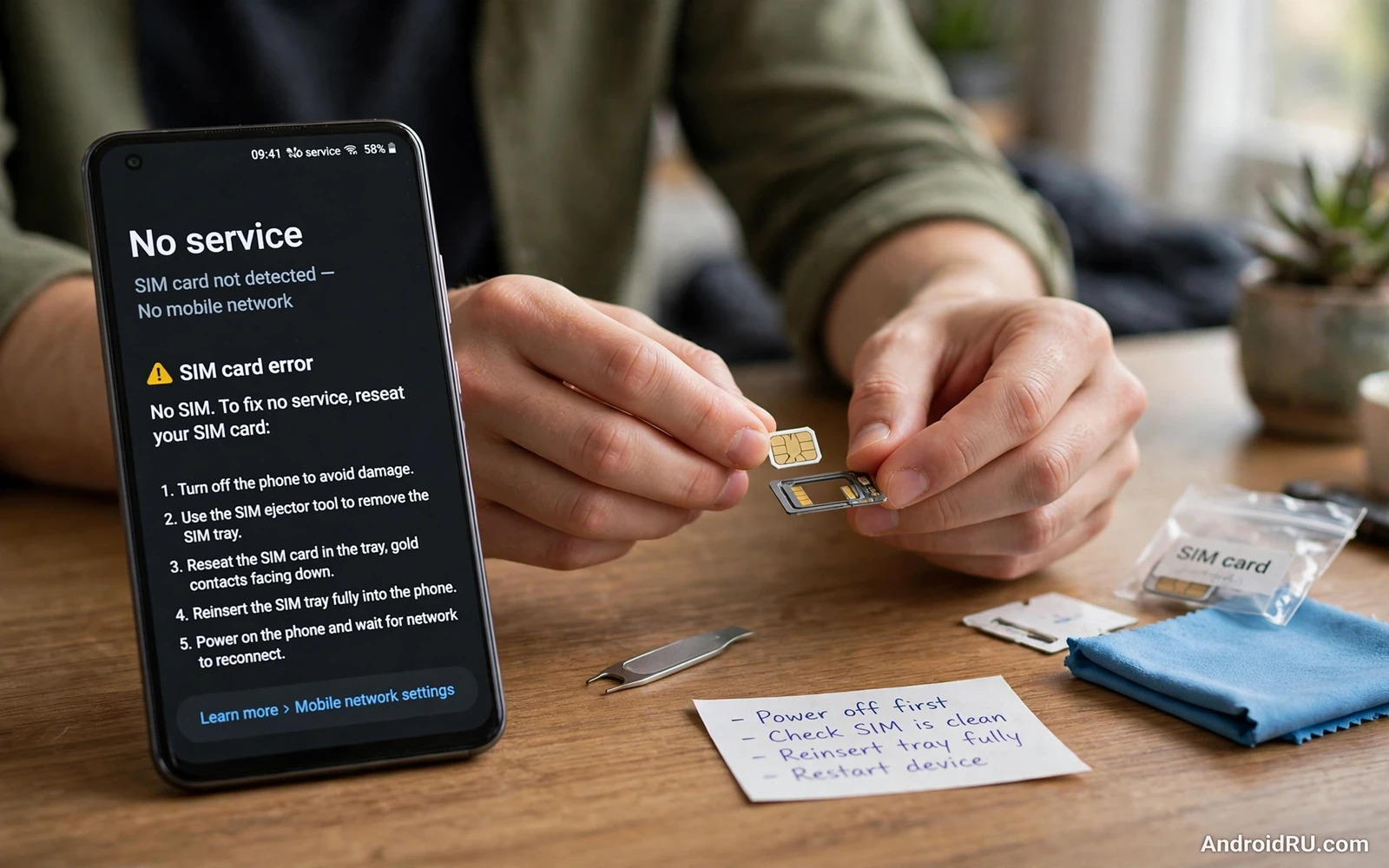
Power off the phone fully before touching the SIM. Eject the tray with the proper tool and remove the SIM. Inspect the gold contacts for dirt and damage. Wipe the contacts gently with a soft dry cloth. Inspect the tray for bends and cracks. A bent tray can hold the SIM at a wrong angle. Reinsert the SIM in the correct orientation and push the tray fully home. Power on and wait a full minute for registration.
Test the SIM in the other slot if the phone has two slots. A slot specific fault will follow the slot. A SIM fault will follow the SIM. Also test the SIM in another phone if possible. A SIM that works elsewhere points to the phone. A SIM that fails elsewhere points to the SIM or the account. These swaps are the fastest diagnostic in this guide. Do them before resetting network settings.
Check Network Mode And Operator Selection
Open Settings and then Network and internet and then SIMs or Mobile network. Confirm that the SIM is enabled. Some phones let you disable a SIM entirely and a disabled SIM shows no service. Then tap Preferred network type and choose a mode that includes the carrier network such as 5G and 4G and 3G and 2G automatic. A mode locked to a band the carrier does not use in your area will show no service.
Tap Network operators or Choose network and switch from automatic to manual selection briefly. Let the phone scan and pick the carrier network from the list. If the carrier appears then select it. If the carrier never appears then coverage or SIM or account is suspect. Return to automatic selection after the test. Manual selection is a diagnostic tool not a permanent setting for most users.
Rule Out Outages And Account Blocks
Check whether other phones on the same carrier also lose service in your area. A shared outage affects many phones at once and no phone setting can fix it. Wait for the carrier to restore service and test again later. Check the carrier app or contact carrier support for outage news. An outage explanation saves a needless reset of a healthy phone.
Check the account status. A suspended account or an expired prepaid balance can show as no service or emergency calls only. Contact the carrier to confirm the account is active and the SIM is provisioned. A replacement SIM may be needed if the old SIM is damaged or deactivated. Carrier stores can issue a replacement SIM that keeps your number. Ask for that option before assuming a phone fault.
Reset Network Settings
If reseating and operator checks fail then reset network settings. Open Settings and then System and then Reset options and then Reset Wi-Fi mobile and Bluetooth. This reset clears saved Wi-Fi networks and Bluetooth pairings and mobile settings. It preserves photos and apps and messages. Note Wi-Fi passwords before the reset. After the reset the phone rebuilds carrier settings from the SIM. Test registration after a restart.
Do not jump to a factory reset at this stage. A factory reset erases everything and rarely fixes a no service fault that a network reset cannot fix. A network reset plus a SIM swap covers the software and SIM causes. If both fail then the remaining suspects are account and hardware. A factory reset would waste time and data while those suspects remain.
Check For Damage And Software Faults
Think about recent drops and water exposure. A damaged antenna or SIM reader can cause sudden no service. A phone that lost service right after a drop fits a hardware story. A phone that lost service after an update fits a software story. Check for a system update that may fix a modem bug. Install it and test registration again. Also check that the phone is not in airplane mode with a stuck toggle. Toggle airplane mode on and off once to reset the radios.
Remove a new case with metal parts and test again. A metal case can shield the antenna and weaken registration in weak coverage areas. Test without the case in a known good coverage spot. If service returns then the case contributes to the fault. A plastic case avoids the issue. Small physical factors matter most at the edge of coverage where the signal is already weak.
Use Wi-Fi Calling As A Bridge
While mobile service is down Wi-Fi calling can keep you reachable if the carrier supports it and the phone has it enabled. Open Settings and then Network and internet and then SIMs and look for Wi-Fi calling. Turn it on and connect to Wi-Fi. Calls and texts may then work over Wi-Fi even while mobile registration fails. This bridge does not fix the underlying fault but it keeps communication alive during diagnosis or while waiting for a replacement SIM.
Messaging apps over Wi-Fi also bridge the gap. Friends and family can reach you through internet messaging while the SIM fault is resolved. Tell key contacts that your number is temporarily unreachable by mobile so they use the app instead. A clear message prevents worry and missed coordination. For message faults once service returns the guide to fixing MMS and text messages that fail to send covers the next layer of message diagnosis.
Know When To Seek Repair Or Replacement
A SIM that works in another phone plus a network reset plus good coverage plus an active account leaves hardware as the main suspect. A faulty SIM reader or antenna needs professional repair. Back up data before service because repair may reset the phone. Note every test result for the repair centre. A clear test history speeds diagnosis and avoids repeat steps.
If repair costs exceed the phone value then a replacement phone with the same SIM is a practical path. Move the SIM to the new phone and confirm registration before recycling the old one. Wipe the old phone fully before disposal. No service is frustrating because it cuts basic communication. The ordered checks here restore service in most cases without a reset or a repair. Reseat first and settings second and carrier third and hardware last.
Dual SIM And No Service
Dual SIM phones add a layer to no service diagnosis. Each SIM has its own registration and its own signal. A fault that affects one SIM only points to that SIM or its slot or its account. A fault that affects both SIMs points to the phone or to coverage. Test each SIM alone by disabling the other in settings. A single SIM test removes interaction between the two registrations.
SIM slot order can matter on some phones. A SIM that fails in slot two may work in slot one. That pattern points to a slot fault rather than a SIM fault. Swap slots and note the result. A slot fault needs repair while a SIM fault needs a replacement SIM. The swap test distinguishes them in minutes without any reset.
Carrier Settings Updates
Carrier settings updates arrive silently and they tune how the phone registers on a network. A missed carrier update can cause registration trouble after a system update. Check for carrier settings in the system update screen or through the carrier app. Install any pending carrier update and restart. A carrier update is small but it can restore a stubborn registration.
Roaming settings also affect registration. A phone set to block roaming data may still register for calls. A phone set to manual network selection while travelling may fail to find the home network on return. Return network selection to automatic after travel. Automatic selection lets the phone find the home carrier without manual hunting. Travel settings left behind cause many mysterious no service reports at home.
Emergency Calls During No Service
A phone showing no service may still place emergency calls when any compatible network is reachable. The phone can use another carrier network for emergency calls even without a registered SIM. That capability is a safety feature. Test knowledge of it rather than testing the call itself. Never place a test emergency call. Knowing the feature exists is enough.
Keep a charged backup communication path during a no service fault. Wi-Fi messaging and Wi-Fi calling bridge the gap as the main guide describes. Tell key contacts about the fault so they use the bridge. For message faults after service returns the guide to fixing MMS and text messages that fail to send and the guide to fixing mobile data that stops working cover the next layers. Service restored plus messages flowing plus data working equals a fully healed phone.
A Practical Checklist For Signal Recovery
Recover from no service with a checklist that moves from simple to deep. Power off and reseat the SIM and inspect contacts and tray. Power on and wait a full minute for registration. Test the SIM in another slot and in another phone when possible. Check network mode and try manual operator selection. Check for outages with other phones on the same carrier. Check account status with the carrier. Reset network settings only after the simpler steps fail. Each step in order prevents a drastic reset for a loose SIM and prevents a missed carrier block hiding behind app settings.
Document every test result as you go. Note which SIM failed and which slot failed and which phone failed. A written test history speeds carrier support and repair diagnosis greatly. Support staff can skip repeated steps when the history is clear. A repair centre can focus on hardware when the history rules out SIM and settings. Documentation is the cheapest way to shorten any support conversation. It also prevents you from repeating a step you already tried under stress.
Prepare for the next outage before it happens. Enable Wi-Fi calling where the carrier supports it. Keep a messaging app path for key contacts. Know how to reseat the SIM without hunting for instructions. Keep the carrier support number saved somewhere reachable without mobile service. Preparation turns a no service fault from a crisis into an inconvenience. A phone that loses service is frustrating enough without a scramble for basic information that could have been saved in advance.

