

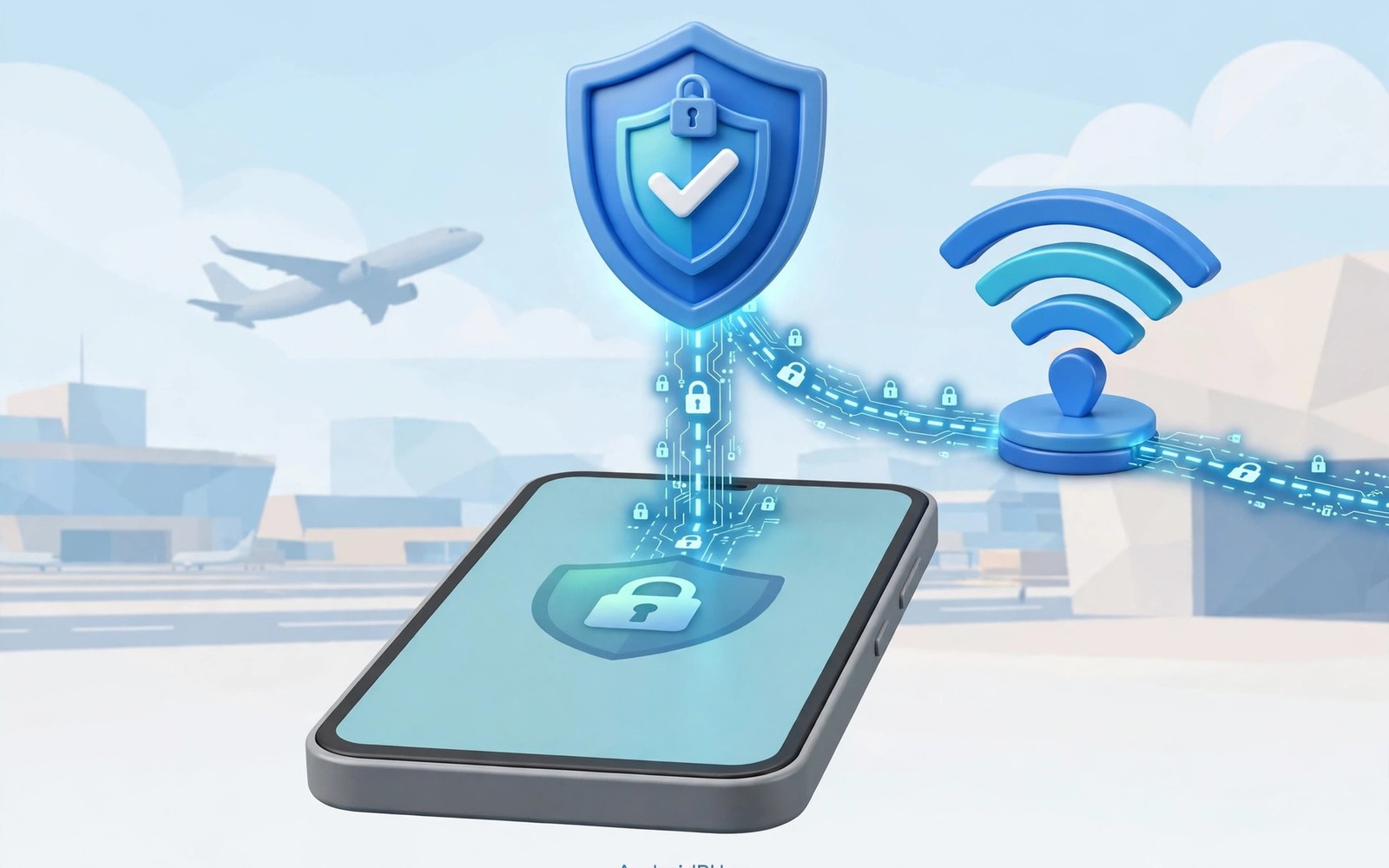
How VPNs Protect You While Connected to Unsecured Airport Wi-Fi
You land at a busy airport, open your phone, and join the free Wi-Fi before you have even found your gate. The network name looks official, there is no password or the password is printed on a sign above the check-in desks, and within seconds you are checking email, pulling up a boarding pass, and scrolling through messages. That routine feels harmless because the airport is a public, staffed, well-lit place. The network underneath it is a different story. Open airport Wi-Fi is one of the easiest places on earth for a stranger to watch what your phone sends, and most travellers never notice anything is wrong until long after they have landed.
A VPN changes that picture by wrapping everything your phone sends in an encrypted tunnel before it ever touches the airport access point. The hotspot operator, the person sitting two rows away with a laptop, and anyone running a fake network nearby all see the same thing: scrambled packets heading to a single VPN server. They cannot read your messages, your login pages, or your banking session. That is the whole point of using one at the airport, and it is why frequent flyers treat a VPN as part of their travel kit, right next to a charger and a passport.
This guide walks through the real threats waiting on airport networks, how VPN encryption actually stops them, and the exact settings to turn on before your next flight. It covers what a mobile VPN is and why you need one, the kill switch that keeps you covered when your phone hops between access points, and the captive portal trick that trips up most first-time users. By the end you will have a short pre-flight checklist you can run in two minutes.
Why Airport Wi-Fi Is an Easy Target for Attackers
An airport is a perfect hunting ground for network attacks, and the reason is simple arithmetic. Thousands of people pass through every hour, most of them are in a hurry, most of them join the first network whose name looks right, and almost none of them check whether that network is genuine. Attackers know this. A laptop, a small portable router, and a little patience are enough to run an attack in a departure lounge, and the crowd provides cover. Nobody looks twice at someone typing on a laptop at an airport.
Open networks make the job easier still. On a network with no password, traffic between your phone and the access point travels without link-layer encryption. That means anyone in radio range with free packet-capture software can collect the unencrypted pieces of your traffic. Apps that still send data over plain HTTP, older email clients, and misconfigured services leak readable content. Even apps that do encrypt their traffic leak metadata: which servers you contact, when, and how often. That metadata alone can reveal who you work for, which airline you fly, and which hotel you booked.
What an evil twin hotspot looks like in a real airport
An evil twin hotspot is a fake network that copies the name of the real airport Wi-Fi. The attacker sets up a portable access point called something like “Airport_Free_WiFi” or the exact name of the official network, then waits. Your phone, which helpfully remembers network names from past trips, may join the fake one automatically, especially if the real network is congested or out of range in your corner of the terminal. Once you are connected, the attacker controls your entire path to the internet.
From there the attack can take several forms. The fake hotspot can redirect you to a convincing copy of an airline login page and harvest your frequent-flyer credentials. It can strip security from pages that should load over HTTPS when the browser or app allows a fallback. It can inject ads or fake update prompts into unencrypted pages. The most patient attackers do nothing visible at all; they simply record traffic for hours and mine it later. I have watched a security researcher demonstrate this at a conference with a twenty-dollar travel router, and the whole setup took less time than ordering coffee.
Packet sniffing on open airport networks
Packet sniffing is the quietest attack on this list. The attacker never touches your phone and never shows you a fake page. They sit nearby, put a wireless card into monitor mode, and collect every unencrypted packet floating through the air. On an open network, a surprising amount of traffic is still readable: DNS queries that reveal every domain you visit, unencrypted email, chat messages from apps that cut corners, and session tokens from services that only encrypt the login page and not the session that follows.
The fix for sniffing is encryption at a layer the attacker cannot peel away, which is exactly what a VPN provides. When the tunnel is up, the sniffer sees one stream of encrypted data going to one server address. The contents are unreadable, the destination sites are hidden, and the session tokens never cross the air in plain text. That said, a VPN does not make you invisible: the network operator can still see that you are connected to a VPN, how much data you move, and when. What they cannot see is what is inside.
Man-in-the-middle attacks between you and the gate
A man-in-the-middle attack goes one step further than sniffing. The attacker places themselves between your phone and the real internet, so your traffic passes through their machine first. On an open network this can be done with ARP spoofing, a technique where the attacker tells your phone that their laptop is the gateway to the internet. Your phone believes the lie and sends everything to them. Combined with a fake certificate or a downgraded connection, the attacker can read or alter traffic that should have been protected.
Modern browsers and apps fight back with certificate checks and HTTPS enforcement, and those defences catch many clumsy attacks. But travellers in a rush are the weak link: a certificate warning looks like an annoyance when your flight boards in twenty minutes, and one tap on “continue anyway” hands the attacker exactly what they need. A VPN shrinks this risk because the encrypted tunnel is established with the VPN server, not with whatever gateway the local network claims to offer. The attacker in the middle sees encrypted packets they cannot read and cannot convincingly alter.
How VPN Encryption Shields Your Airport Traffic
The core idea is straightforward. Before your phone sends anything to the airport network, the VPN app encrypts it and wraps it in a tunnel that ends at the VPN provider’s server. The airport access point forwards those encrypted packets without being able to read them. The VPN server decrypts them, forwards your request to its real destination, encrypts the reply, and sends it back down the tunnel. Anyone watching the local network sees a single encrypted conversation with one server. Your bank, your airline, and your email provider see traffic coming from the VPN server, not from the airport.
This matters most for the traffic that apps leave unprotected. You would be surprised how much of a normal phone session still travels without strong encryption: background sync, analytics pings, older messaging apps, and some airline and hotel apps that were built years ago and never updated their networking code. The VPN covers all of it at once, app by app, without you having to audit each one. That blanket coverage is the practical advantage over relying on HTTPS alone, because HTTPS protects one connection at a time and only when the app uses it correctly.
What happens inside the encrypted VPN tunnel
Think of the tunnel as a sealed envelope inside a postcard. The postcard is the packet the airport network sees: it has a sender and a recipient, the VPN server, and nothing else readable. The envelope inside holds your real request, encrypted with a key that only your phone and the VPN server share. The key is agreed when the tunnel starts, using a handshake that verifies the server’s identity, so a fake hotspot cannot pretend to be your VPN server and trick your phone into handing over the key.
Once the tunnel is up, every packet gets encrypted with a symmetric cipher, usually AES-256, and a fresh key is negotiated regularly so that even a long session does not reuse the same key forever. If a packet is altered in transit, the authentication tag on it fails and the packet is discarded rather than delivered. That integrity check is what stops a man-in-the-middle from quietly editing your traffic, for instance by swapping a real download link for a malicious one.
AES-256 and modern VPN protocols compared for travel
Most reputable VPN apps on Android offer a choice of protocols, and the choice matters more at an airport than at home. WireGuard is the modern default in many apps: it connects in a fraction of a second, recovers quickly when your phone switches access points, and uses a small, auditable codebase. OpenVPN is the older workhorse: slower to connect, but battle-tested for over two decades and flexible enough to run over TCP port 443, which helps on networks that block unusual traffic. IKEv2 is built into Android and reconnects well when you move between networks, which makes it a solid pick for travellers who walk through large terminals.
For airport use, my preference is WireGuard first and OpenVPN over TCP as the fallback. WireGuard’s fast reconnection is exactly what you need when your phone jumps between the terminal, the lounge, and the gate area. OpenVPN over TCP is the plan B for airports whose firewalls block the UDP traffic WireGuard prefers. Check both before you travel, not after you are standing in a terminal with a boarding call in progress.
WireGuard vs OpenVPN on Android at the airport
WireGuard wins on speed of reconnection and battery use, which matters when your phone is hopping between access points every few minutes. OpenVPN wins on compatibility: almost every airport firewall leaves TCP port 443 open because blocking it would break ordinary web browsing. If your VPN app lets you set a preferred protocol and a fallback, set WireGuard as preferred and OpenVPN TCP as the fallback, then test the switch once at home by toggling airplane mode and watching the VPN reconnect.
Why the protocol choice matters more on public Wi-Fi
On your home network the protocol barely matters, because the connection is stable and nobody is trying to interfere with it. At an airport the connection is unstable by design: you move, access points hand you off, captive portals expire, and some networks actively throttle or block VPN traffic. A protocol that reconnects in under a second instead of ten keeps your traffic covered during those gaps. A protocol that can disguise itself as ordinary web traffic gets through firewalls that would otherwise block it. Test both at home, and you will not be debugging them at the gate.
How a VPN Kill Switch Stops Leaks When Networks Change
A VPN tunnel is only useful while it is up. The dangerous moments are the transitions: your phone drops one access point and joins another, the tunnel drops for a few seconds, and in that gap your apps keep sending data over the open network. Email syncs, messages send, and a banking app refreshes, all without encryption, all in plain view of anyone watching. A kill switch closes that gap by blocking all network traffic the moment the tunnel drops, and only letting it flow again once the tunnel is back.
This is not a theoretical risk at an airport. A large terminal can have dozens of access points, and your phone switches between them as you walk from check-in to security to the gate. Each switch is a chance for a brief leak. Add the lounge, the food court, and the shuttle bus, and a single trip can include a dozen network changes. Without a kill switch, every one of those changes is a small window where your traffic is exposed.
Learning how a kill switch protects your IP address is worth ten minutes before your next trip, because the setting is not always where you expect it. Some VPN apps have their own kill switch toggle inside the app. Android also has a system-level option: open the VPN settings, tap the gear next to your VPN app, and enable “Block connections without VPN” together with “Always-on VPN”. The system option is stronger because it applies even if the VPN app crashes. Turn on both, and test them by disconnecting the VPN on purpose and watching your apps lose internet access.
Android system kill switch vs in-app kill switch
The in-app kill switch lives inside your VPN provider’s app and usually works well, but it depends on that app staying alive. If Android kills the app to save battery, the in-app switch dies with it. The Android system kill switch is enforced by the operating system itself, so it keeps blocking traffic even when the app is not running. The trade-off is that the system switch can be stricter than you expect: it blocks everything, including the captive portal page you need to accept before the airport Wi-Fi works at all. That is why the portal-first sequence in the next section matters. Use the system switch as your main defence and the in-app switch as a backup, not the other way round.
Airport Wi-Fi Captive Portals and VPN: What to Do First
Almost every airport network greets you with a captive portal: a page that asks you to accept terms, enter an email address, or watch an ad before the internet opens. Captive portals and VPNs fight each other, because the portal needs to see your traffic before it grants access, and the VPN hides your traffic by design. If you connect the VPN first, the portal page may never load, and you will stare at a spinning loader while your flight boards.
The sequence that works is simple: join the network with the VPN off, accept the portal terms, wait until a normal web page loads, then turn the VPN on and confirm the key icon appears in your status bar. Do your sensitive work only after that icon shows up. Some VPN apps offer a setting to allow captive portal traffic or to delay auto-connect until the portal clears; if yours has it, turn it on before the trip.
The portal-first, VPN-second sequence in practice
Here is the order I use at every airport. First, forget any network with a suspiciously similar name so my phone does not auto-join a fake. Second, join the verified official network manually. Third, open the browser and accept the portal, then load one ordinary page to confirm the internet works. Fourth, enable the VPN and wait for the key icon. Fifth, and only then, open email, banking, or work apps. The whole sequence takes about a minute, and it removes the most common reason people end up browsing unprotected: they gave up on the VPN because the portal would not load.
When the portal keeps dropping your tunnel
Some airport portals expire after an hour or two, which quietly kills your internet access until you accept the terms again. When that happens the VPN tunnel drops too, and your kill switch should block traffic until you re-authenticate. If you find the tunnel dropping repeatedly on one network, try switching to a different VPN server, or switch the protocol to OpenVPN over TCP, which survives portal quirks better than UDP-based protocols. During a long layover, expect to re-accept the portal at least once, and treat each re-acceptance as a fresh start: portal first, VPN second, key icon check third.
Setting Up Your VPN Before You Leave for the Airport
The worst time to configure a VPN is at the airport. Do it the night before, when you have stable home Wi-Fi, a charger, and time to fix anything that goes wrong. A prepared phone needs no thinking at the terminal, and that is exactly the point: travel days are stressful enough without adding network debugging to the walk between security and the gate.
- Update your VPN app and your Android system software, then open the app and sign in while you still have reliable internet. An expired session or a pending update discovered at the airport is a problem you do not need.
- Pick your protocol: WireGuard as the preferred option, OpenVPN over TCP as the fallback. Connect once on each and confirm both work, so you know the fallback is real and not just a menu entry.
- Enable auto-connect for untrusted Wi-Fi networks, and set the app to connect on networks without a password. This is the single setting that protects you when you forget everything else.
- Turn on the kill switch in the app, then open Android Settings, go to Network and internet, then VPN, tap the gear beside your VPN app, and enable “Always-on VPN” and “Block connections without VPN”. Test it by disconnecting the VPN and confirming your apps lose access.
- Choose a VPN server in your home country or a nearby one for the fastest speeds, and save it as a favourite so the app does not pick a slow or distant server by itself.
- Download boarding passes, hotel confirmations, and maps for offline use before you leave home. Every sensitive page you do not need to open at the airport is one less exposure.
- Charge the phone fully and pack a power bank. A dead phone cannot run a VPN, and airport charging points are another place where strangers plug in unknown hardware.
Step-by-step: auto-connect and kill switch on Android
Open your VPN app, go to Settings, and look for “Auto-connect” or “Connect on untrusted networks”. Enable it and, if the app asks which networks count as untrusted, select open networks and any network that is not your home Wi-Fi. Then find the kill switch toggle in the same settings screen and turn it on. Next, open Android Settings, tap Network and internet, tap VPN, tap the gear icon next to your VPN service, and enable “Always-on VPN” and “Block connections without VPN”. Android may warn you that this blocks traffic when the VPN is down. That is precisely the behaviour you want.
Checking the VPN key icon before you open email
Make the key icon your one-second habit. After joining any airport network and enabling the VPN, glance at the status bar: a small key icon means the tunnel is up and traffic is encrypted. No key icon means no protection, no matter what the app screen says. If the icon is missing, do not open email, banking, or work chat. Switch to mobile data for anything urgent, or wait and reconnect the VPN. Teach this check to anyone travelling with you; it takes seconds and it is the most reliable indicator you have.
Safe Habits While Browsing on Airport Wi-Fi
A VPN is a strong layer, not a magic shield. It hides your traffic from the local network, but it does not protect you from a phishing page you open yourself, a fake app you install, or a login form on a site that was never legitimate. The habits below close the gaps the VPN cannot reach, and they cost nothing but a little attention.
Prefer official airline and hotel apps over browser logins when both are available. Official apps usually enforce transport encryption more consistently than mobile websites, and they store your boarding pass offline so you do not need the network at all at the gate. Avoid banking transfers that can wait until you reach a trusted network at your destination. If a transfer cannot wait, use mobile data instead of airport Wi-Fi; your carrier connection is encrypted and authenticated in a way open Wi-Fi is not. For streaming on a long layover, remember that a VPN also helps with bypassing geo-restrictions on streaming services, so the same tunnel that protects you can also open up your home catalogue while you wait.
Banking, boarding passes and work email on public Wi-Fi
Treat airport Wi-Fi as a network for light browsing: checking the news, messaging friends, looking up a gate change. Move banking, work email with attachments, and anything involving passwords or payment details to mobile data or to a moment when the VPN is confirmed up with the key icon visible. Download your boarding pass before you leave home so the gate is a matter of showing your screen, not logging in over an airport network while a queue forms behind you. If your employer uses a corporate VPN or a zero-trust client, use that for work tasks instead of your personal VPN, because it applies your company’s own access rules on top of the encryption.
Certificate warnings you should never tap past
A certificate warning in your browser means something is wrong with the secure connection to that site. On a home network it is usually a misconfigured site or an expired certificate. On an airport network it can mean an attacker is intercepting the connection. Never tap “continue anyway” on a public network. Close the page, switch to mobile data, and try again. If the warning appears for a site you know well, that is a strong reason to stop using that airport network entirely and wait until you are somewhere safer. A warning is the browser doing its job; tapping past it is you doing the attacker’s job for them.
After You Land: Cleaning Up Airport Networks and Checking Logs
Good travel security does not end at the gate. The networks your phone remembers are a liability after the trip, because a fake hotspot with the same name can trick your phone into joining it weeks later in a completely different city. The fix takes thirty seconds: open Android Wi-Fi settings, find the airport network, and tap “Forget”. Do it for every airport, hotel, and cafe network you joined during the trip, unless it is a network you will genuinely use again and whose name you can verify.
While you are at it, check your VPN app’s connection log if it keeps one. Look for unusual drops, repeated reconnections, or long gaps during the trip. A few drops are normal on a network with dozens of access points, but a pattern of drops at one airport is worth noting, and it may tell you to use mobile data there next time. Update your apps and system software promptly after travel too, since public networks expose devices to probing, and a quick check of battery usage can reveal an unfamiliar app that should not be there.
Forgetting airport networks so fakes cannot auto-join later
Android’s auto-join is convenient and dangerous in equal measure. It remembers a network name, not the network itself, so any access point broadcasting the same name looks identical to your phone. An attacker who knows which networks travellers remember, and the popular ones are no secret, can set up a fake with the same name near a hotel or a conference centre and collect phones that join it automatically. Forgetting the network breaks that chain. If you fly the same route often, you can rejoin the genuine network manually each time and verify the name against airport signage before you do.
Frequently Asked Questions About VPNs on Airport Wi-Fi
Does a VPN make airport Wi-Fi completely safe?
No, and anyone who promises that is selling something. A VPN encrypts your traffic and hides your destinations from the local network, which removes the easiest and most common attacks: sniffing, evil twin snooping, and casual man-in-the-middle interference. It does not protect you from phishing pages, malicious apps, fake login forms, or a compromised device. Think of it as a seatbelt: it dramatically improves your odds, but it works best together with the other habits in this guide, like verifying network names, watching for certificate warnings, and using mobile data for banking.
Why does my VPN disconnect on airport Wi-Fi?
The usual causes are captive portals expiring, the phone switching between access points as you move through the terminal, and airport firewalls blocking the protocol your VPN uses. The portal expiry is the most common: after an hour or two the network wants you to accept the terms again, and until you do, the tunnel has no internet to travel over. Try re-accepting the portal, then reconnect the VPN. If disconnects keep happening, switch to OpenVPN over TCP, which survives airport firewalls better, or switch to a different VPN server. A kill switch should keep you safe during each drop by blocking traffic until the tunnel returns.
Should I use mobile data instead of airport Wi-Fi for banking?
Yes, whenever you can. Mobile data runs over your carrier’s authenticated, encrypted connection, and it does not share a broadcast medium with strangers in the terminal. It is the safer choice for banking, password changes, and work systems, even with a VPN running. The trade-off is cost and data caps, especially when roaming abroad, so use the airport Wi-Fi with a VPN for light browsing and save mobile data for the tasks that genuinely need the stronger channel. If you are roaming and data is expensive, do the banking task before you leave home or after you reach your hotel’s network with the VPN on.
Can the airport see what I do when my VPN is on?
The airport network operator can see that your device is connected to a VPN server, how much data you transfer, and the times you connect and disconnect. They cannot see which websites you visit, what you type into them, or the contents of your messages, because all of that travels inside the encrypted tunnel. Your VPN provider can see more, which is why choosing a provider with a no-logs policy that has been independently audited matters. The websites you visit see the VPN server’s address instead of the airport’s, so your browsing cannot be tied to that airport network from their side either.
Your Pre-Flight VPN Checklist
Everything in this guide comes down to a short routine you can run the night before any flight. Update the VPN app, enable auto-connect and both kill switches, pick a nearby server, download your boarding passes for offline use, and charge the phone. At the airport, verify the network name, accept the portal with the VPN off, turn the VPN on, check for the key icon, and only then open anything sensitive. After landing, forget the airport network and glance at the connection log. That is the whole system, and it takes less time than packing a bag.
Your next step is the simplest one: open your VPN app right now and check whether auto-connect and the kill switch are actually on. Most people assume they are, and a surprising number discover they never enabled them. Do that check today, before your next trip, and the airport will take care of itself. If you travel often, save this checklist on your phone and run through it the way pilots run theirs, every single time, even when the trip feels routine. The routine is the protection.

