

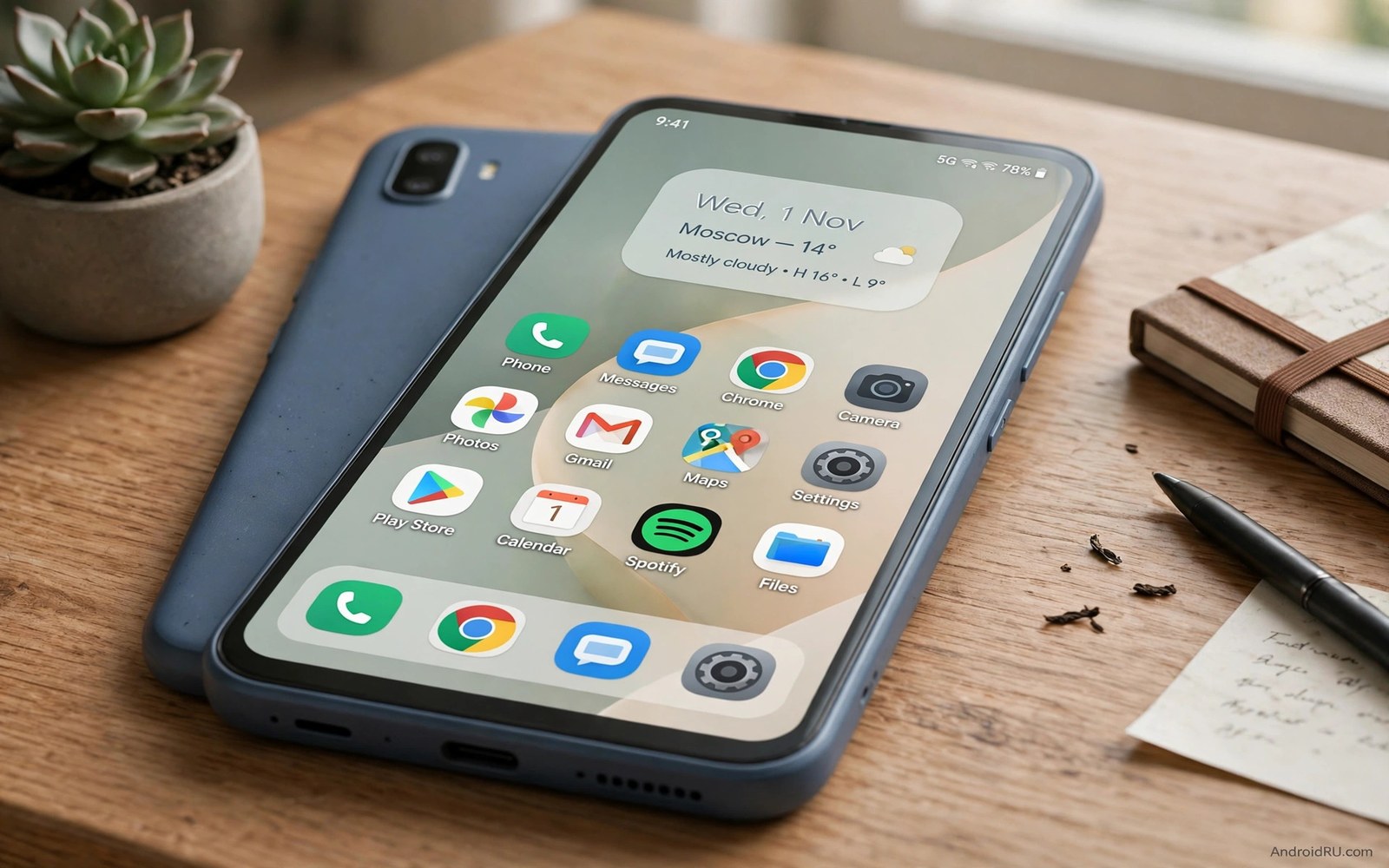
A budget phone feels cheap mostly because of its software surface. The default launcher crowds the screen with folders and bright badges. The wallpaper clashes with the icons. The notification shade looks busy before you read a single alert. None of that reflects the hardware in your hand.
A Pixel flagship look is really a discipline. It uses one clean grid and generous spacing and a small set of colors. It hides clutter instead of organizing it into more folders. It lets one widget carry the information you check most often. You can copy that discipline on almost any budget phone without buying anything.
This guide builds the look in layers. You will start with the launcher and the grid. Then you will fix the wallpaper and the color theme. Then you will add the smart widget and the quick settings polish. Each layer is reversible so you can stop at the point where the phone feels right to you.
Start with a clean Pixel style launcher
Install a lightweight launcher that supports a simple grid and a hidden app drawer search. Set the home grid to five columns and four rows so icons breathe. Turn off icon labels on the home screen only and keep them in the drawer where they help you find apps. Place just eight apps on the first screen and move everything else into the drawer.
Choose a dock with three apps and no background bar. A floating dock looks modern and keeps the wallpaper visible. Turn off the app drawer icon if your launcher supports a swipe up gesture instead. That single change removes a visual anchor that makes budget launchers look dated. Your home screen should now feel calm even before you change a single icon.
If you want more ideas for the launcher layer then read about Android customization hacks and borrow only the tweaks that match this clean style. Skip heavy gesture packs and animated transitions for now. A flagship feel comes from restraint and not from every effect turned on at once.
Fix the wallpaper and the color theme
Pick a wallpaper with one soft gradient or one simple landscape shape. Avoid busy photos with faces and text near the top of the screen. A calm wallpaper lets white icons and dark text stay readable in sunlight. It also lets the system color picker extract a sensible palette instead of a muddy mix.
Open the wallpaper and style settings and pick a color theme drawn from that wallpaper. Set the theme to a muted blue or a soft green and avoid saturated reds on a budget LCD panel. Apply the same palette to quick settings and to the volume panel if your phone offers that option. Consistency across those surfaces is what sells the flagship illusion.
The color layer pairs well with Material You color tweaks which explain how to push one palette across more of the interface. Change one color at a time and live with it for a day. A palette that looks great in a screenshot can feel tiring after a week of real use.
Add the smart widget that carries your day
Place one wide widget at the top of the home screen for date and weather and the next calendar event. Keep it to two lines of text and resist adding a second widget beside it. The widget should answer three questions at a glance. What day is it. What is the weather. What happens next.
Below the widget put a single row of your four most used apps. Use simple outline style icons if your icon pack offers them. Avoid mixing two icon packs on the same screen because the clash breaks the illusion at once. If one app has no matching icon then leave its default icon and move on.
A good companion for this step is the walkthrough for Pixel At a Glance on any phone which covers widget apps that mimic the flagship widget closely. Test the widget for a full day before you judge it. A widget that updates slowly or drains battery is worse than no widget at all.
Polish quick settings and notifications
Open quick settings and remove tiles you never tap. Keep Wi-Fi and Bluetooth and flashlight and Do Not Disturb and one brightness slider. Reorder them so the first row matches your daily routine. A short panel feels premium because every tile earns its place.
Set notification icons to show only the three most recent apps. Turn off persistent notifications from shopping apps and games. A flagship phone feels quiet and your budget phone can feel quiet too once the noise is gone. Check the lock screen after these changes and confirm that only useful alerts remain.
Finish with a restart and a screenshot of the home screen. Compare it with your old layout side by side. Most people notice the difference in the spacing and the color calm before they notice any single feature. That calm is the whole trick.
Copy the flagship layout settings
Use these settings as a checklist in your launcher. They describe the grid and the dock and the label rules from this guide. Adjust the numbers by one step if your screen is very small or very large.
home_grid = 5 columns x 4 rows
dock_apps = 3
icon_labels_home = off
icon_labels_drawer = on
quick_settings_tiles = wifi, bluetooth, flashlight, dnd
widget = date + weather + next event
The checklist above was written for this guide to summarize the layout choices in one place. It is not copied from any launcher manual. Treat each line as a setting to check rather than a command to run.
Tune performance so the flagship look stays smooth
A flagship look fails if the phone stutters while showing it. Open developer options and set window animation scale and transition animation scale to one half. The interface will feel snappier without looking rushed. Test the change by opening and closing five apps in a row.
Next check which apps run at startup and disable the ones you never use at boot. Startup apps compete for memory in the first minute after a restart. A budget phone feels slowest in that minute so trimming startup gives the biggest perceived gain.
Set background restrictions for social apps that refresh constantly. Those apps do not need live updates every minute. Hourly refresh keeps them current enough for most people and frees memory for the launcher itself.
Clear the cache of the launcher only if the home screen starts lagging after weeks of use. Do not clear data because that erases your layout. Cache clearing is safe and it often restores smooth scrolling on older phones.
Finally restart the phone once a week at a fixed time such as Sunday night. A weekly restart clears memory leaks from long running apps. Combined with the animation tweak it keeps the flagship illusion believable for months.
Choose hardware friendly settings for a lasting flagship feel
A budget phone hides its limits in specific places and a flagship look must work around those limits rather than pretend they do not exist. The display is usually the first limit because budget panels show narrower viewing angles and weaker peak brightness. Choose a wallpaper with strong contrast and avoid thin gray text on white backgrounds. Strong contrast keeps the interface readable outdoors where a weak panel struggles most. Test every color choice in direct sunlight before you commit to it for daily use.
Memory is the second limit and it decides whether your launcher stays smooth after a week of real use. A heavy launcher with animated feeds will consume memory that your messaging app and browser also need. A light launcher leaves that memory free and the whole phone feels faster even though no hardware changed. Check memory use in settings after three days with the new launcher. If the launcher sits near the top of the memory list then it is too heavy for your phone and a lighter option will serve the flagship illusion better.
Storage speed is the third limit and it affects how fast apps open from the drawer. Budget phones often use slower storage that stutters when many apps update at once. Disable automatic updates during the day and schedule them for night charging hours. Night updates keep daytime storage free for the apps you actually open. This single scheduling change removes many small stutters that people blame on the launcher.
Camera expectations need honest handling because no launcher changes the camera sensor. A flagship look can improve the camera app layout but it cannot add optical quality. Spend your effort on the gallery and editing apps instead because those shape how photos look after capture. A clean gallery with good editing tools makes budget photos look far better than a themed camera icon ever will.
Finally protect the result with a backup of the launcher layout and the wallpaper file and the icon pack name. Budget phones receive fewer system updates but they still receive them and updates sometimes reset themes. A backup folder with those three items rebuilds the flagship look in ten minutes. Without it a single reset can erase an evening of careful work and tempt you to accept the boring default again.
A realistic flagship checklist for every budget tier
Budget phones fall into distinct tiers and each tier needs a different flagship strategy. Ultra budget phones with two gigabytes of memory need the lightest launcher and no live wallpaper at all. Mid budget phones with four gigabytes can handle a smart widget and a themed icon pack comfortably. Upper budget phones with six gigabytes or more can run nearly the full flagship look without compromise. Match your ambition to your tier honestly and the result will feel premium instead of strained.
Display quality varies more than any other hardware trait in the budget range. Some budget phones use bright LCD panels that look great outdoors. Others use dim panels that wash out under sunlight no matter what theme you apply. Test your panel with a white screen outdoors before choosing light or dark themes. A dim panel favors dark themes with bright accents because dark backgrounds hide panel weakness. A bright panel handles either theme well and gives you free choice.
Processor age matters for animation smoothness in ways that theme guides often ignore. A three year old budget processor may stutter on transition animations that a new chip handles easily. Reducing animation scale to one half helps older chips more than newer ones. If stutter persists after that change then disable animations entirely for a week. A phone without animations feels less flashy but far more responsive than a phone with stuttering animations.
Battery size interacts with the flagship look through screen on time. A flagship look with a bright wallpaper and several widgets keeps the screen inviting and you will look at it more often. More glances mean more screen on time and faster battery drain. That drain is behavioral rather than technical. Accept it as the price of a beautiful phone or reduce widget count to protect battery on long days away from chargers.
Network speed shapes the flagship experience through app loading times. A beautiful launcher cannot hide slow app downloads on a weak connection. Keep your most used apps updated over Wi-Fi at night so daytime opens feel instant. Preloading content in news and music apps during charging hours also helps. These preparation habits make a budget phone feel flagship fast even on modest mobile data.
Finally remember that the flagship feeling comes from consistency over weeks rather than a dramatic first day. A layout that survives a month without changes feels like a designed product. A layout that changes every weekend feels like an endless project. Commit to your flagship layout for thirty days after building it. At the end of that month judge it honestly and keep only the parts that still delight you.
Common mistakes
Most flagship makeovers fail for the same few reasons. Avoid these traps and the result will hold up after the first week.
- Installing three launchers at once and switching between them before any layout settles.
- Picking a busy photo wallpaper that fights the icons and the widget for attention.
- Mixing two icon packs on one screen so the style breaks in the middle of the dock.
- Adding five widgets that all update constantly and then blaming the phone for lag.
- Copying a screenshot layout exactly even when your most used apps differ completely.
Frequently asked questions
Will this make my phone faster?
It can feel faster because a light launcher and fewer widgets reduce work on the home screen. It will not upgrade the processor or the camera sensor. Judge the result by smoothness and calm rather than benchmark numbers.
Do I need root for the Pixel look?
No root is needed for the launcher and wallpaper and widget layers in this guide. Deeper system changes need root on most phones and they are not required here. Stay with the no root path unless you already understand the risks.
What if my phone has no theme color setting?
Use a launcher theme and an icon pack to carry the palette instead. Pick one accent color and repeat it in the wallpaper and the widget. The eye reads that repetition as a designed theme even without a system setting.
Conclusion
Your budget phone now wears a flagship layout built from a clean grid and one palette and one smart widget. The hardware did not change. Your daily experience did because every surface now follows the same quiet rules.
Your concrete next step is to take a screenshot of the new home screen tonight and delete one app from the first screen that you did not open today. Repeat that trim once a week and the flagship feel will survive long after the novelty fades.

