

A Laptop Shell Powered By Your Phone
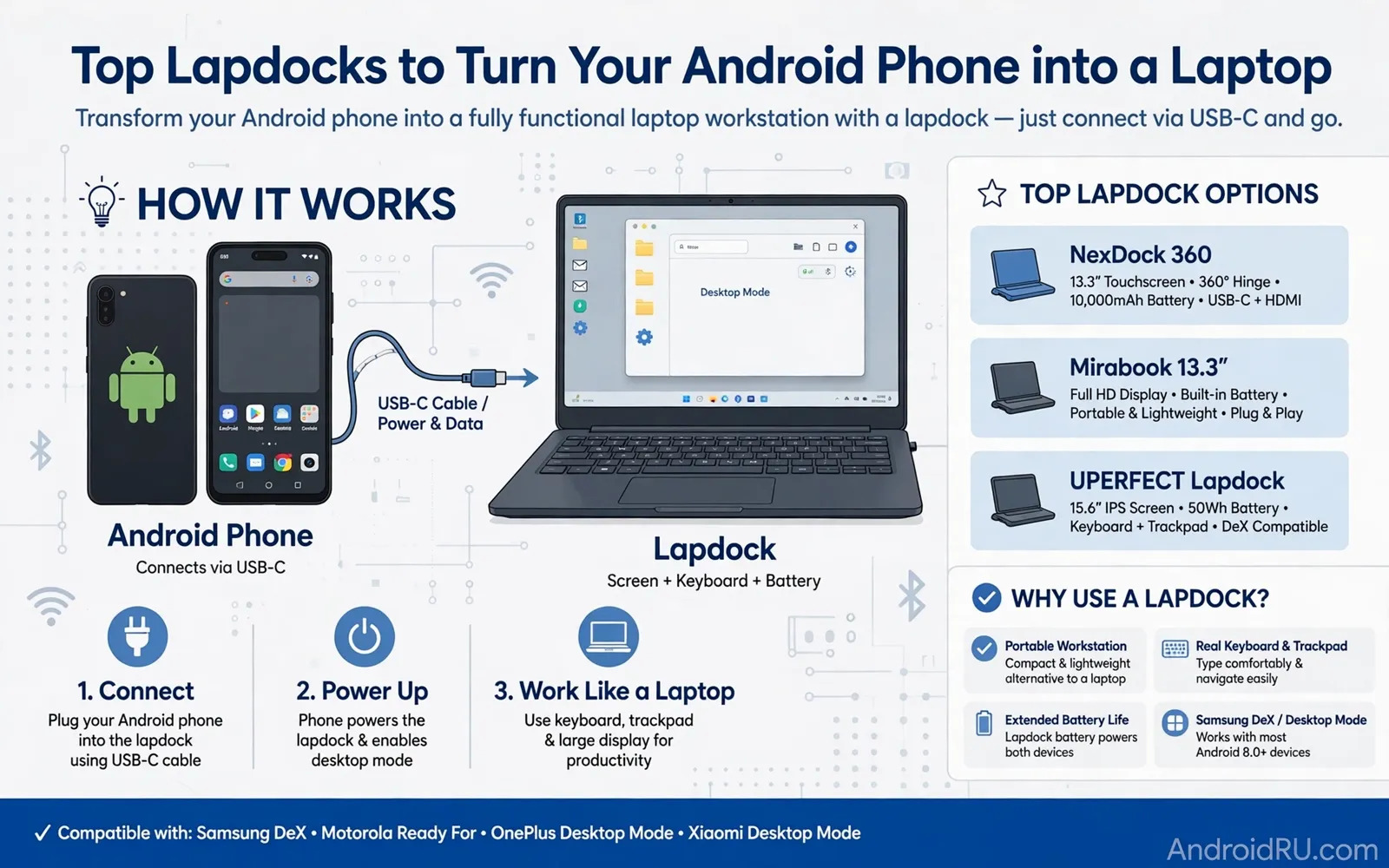
A lapdock is a shell that looks like a laptop but has no processor of its own and no storage of its own and no operating system of its own. It provides a large screen and a full keyboard and a trackpad and a battery and ports while your Android phone supplies all of the computing power. You connect the phone with a cable and the phone switches into a desktop-style interface that fills the larger screen with windows and a taskbar and a desktop layout. Your apps and files and accounts stay on the phone so you never need to sync documents between two computers or learn a second system. When you disconnect the phone the lapdock goes dark and your work remains exactly where it left off on the phone itself.
This idea works best for people who already do most of their work in a browser and in documents and in messaging and in email and in light photo editing. A phone processor can handle those tasks smoothly on a large screen when the phone has enough memory and when the desktop mode is well supported. It works less well for heavy video editing and for large three dimensional projects and for software that only exists on a desktop computer. Readers who want to understand how the phone side of this setup behaves can explore desktop mode on Android and whether it can replace a laptop before they spend money on hardware. That background helps set honest expectations about multitasking and about app windows and about external display support.
How The Connection Actually Works
Most lapdocks connect through a single USB-C cable that carries video and data and power at the same time. The phone sends a video signal to the lapdock screen while the lapdock sends keyboard and trackpad input back to the phone and the lapdock battery can charge the phone during use. Some phones support this video output directly while others need a specific adapter or a specific dock mode or a specific software feature. Check your phone model first and check whether it supports video over USB-C and check whether it supports a desktop interface. A lapdock cannot add video output to a phone that lacks it and buying first and checking later is the most common disappointment with this category.
Cable quality matters more than it appears to matter at first glance. A thin cable that only supports charging will not carry video and will leave you staring at a blank screen while the phone charges happily. A proper video cable and a clean port and a firm connection solve many first setup problems. Readers choosing a cable for a wired display setup can also review USB-C cable buying advice covering data transfer and wattage so the cable matches the job. Wireless casting exists as an alternative but it adds delay and it adds compression and it drains the battery faster and it suits video playback better than it suits typing and precise mouse work.
What To Compare Before You Buy
Screen quality decides whether long sessions feel comfortable or tiring. Look at screen size and resolution and brightness and viewing angles and colour accuracy in plain language rather than chasing one headline number. A dim screen frustrates outdoor work and a glossy screen reflects every light source in a bright room. Keyboard feel matters just as much because a shallow keyboard with cramped keys will slow your typing and tire your hands. Trackpad size and precision matter for selecting text and for dragging windows and for working without an external mouse. Test reports and return policies help here because keyboard feel cannot be judged from a photograph alone.
Battery size and port selection shape daily usefulness in quiet ways. A lapdock battery should last through a work session and still leave charge in the phone at the end of the day. Extra USB ports let you attach a mouse and a flash drive and a headset without a separate hub. A headphone jack helps on calls and a slot for a memory card helps photographers who move files often. Weight matters too because a heavy shell defeats the point of travelling light with only a phone. Compare the total travel weight of phone plus lapdock against a small laptop before you assume that the lapdock is always the lighter choice.
- Screen size and brightness for the rooms where you will actually work each day
- Keyboard travel and layout and trackpad precision for long typing sessions
- Video support on your exact phone model and cable requirements for that model
- Battery capacity and charging behaviour for both the lapdock and the phone
- Ports for a mouse and storage and audio so you avoid carrying a separate hub
Setting Up A Comfortable Desktop Workspace
Start with a short test session before you rebuild your whole workflow around a lapdock. Connect the phone and open your browser and your documents and your messaging apps and arrange the windows the way you would on a laptop. Check whether your favourite apps resize cleanly and whether notifications behave sensibly and whether the keyboard shortcuts you rely on actually work. Some Android apps only offer a phone layout even on a large screen and that limitation can surprise new users. Knowing which apps work well in windowed mode lets you plan around the weak spots instead of discovering them during an important task.
Keep the phone cool and charged and accessible during long sessions. A phone running a desktop interface and driving a large screen works harder than a phone sitting idle in a pocket. A lapdock that charges the phone helps but heat can still build up on demanding days. Give the phone airflow and avoid stacking the setup on soft bedding that traps heat. You can also keep a wired headset nearby for calls because a large screen setup often sits further from your face than a phone held in the hand. Readers who use their phone as a computer camera as well may find using an Android phone as a webcam for video calls useful when a lapdock session turns into a meeting.
Everyday Strengths And Honest Limits
The strongest advantage of a lapdock is simplicity of ownership. You maintain one device and one set of files and one set of accounts and one security setup. Updates happen once and backups cover everything and a lost lapdock contains no personal data because the phone holds it all. Travellers benefit because the phone stays in a pocket for navigation and photos and calls while the lapdock stays in a bag until a desk is available. Students and field workers benefit for the same reason because the system adapts from pocket device to desk device without a second computer to manage.
The limits deserve equal honesty. A lapdock adds cost on top of a capable phone and a cheap small laptop sometimes costs less in total and runs desktop software natively. App compatibility varies and printer support varies and specialised desktop tools may have no Android equivalent at all. A lapdock also depends completely on the phone so a dead phone battery or a phone repair leaves you without a computer until the phone returns. Weigh those trade-offs against your real tasks rather than against an imagined ideal workflow and choose the shell that matches the work you already do.
Care And A Practical Buying Checklist
Treat a lapdock like a laptop for care purposes even though it contains no computer of its own. Keep the screen clean and keep the hinge free of grit and keep the cable ends protected and store the shell in a sleeve during travel. Check for firmware updates from the maker when they are offered because display behaviour and keyboard behaviour can improve after launch. Clean the phone port gently before blaming the lapdock for a loose connection and test with a second cable before concluding that the hardware has failed. Simple checks save many returns and many support tickets.
Buy in this order to avoid regret. Confirm video output and desktop support on your exact phone model first. Decide the screen size and weight you will actually carry second. Compare keyboard and trackpad quality third and battery and ports fourth. Read the return policy last but read it fully because fit and feel are personal and a lapdock that suits one person may frustrate another. A careful order of checks turns a tempting gadget into a dependable daily tool and keeps the phone at the centre of a setup that stays simple and portable and genuinely useful.
- Confirm video output on your exact phone model before ordering any shell
- Test keyboard and trackpad comfort during the return window with real work
- Carry one proven video cable as a spare when you travel with the setup
- Keep the phone charged and cool during long desktop sessions on a large screen
Lapdock Long-Term Use And Accessory Pairing
A lapdock earns its keep over months rather than in a single impressive demonstration. Daily users learn which apps behave well in windowed mode and which apps demand a phone layout even on a large screen. Browsers and document editors usually adapt smoothly while some social apps stay locked to a narrow phone column. Banking apps and messaging apps vary by maker and by version. Keeping a short personal list of apps that work well and apps that need workarounds saves repeated frustration. That list also guides future phone choices because desktop mode quality differs between phone makers and between software versions.
Pairing accessories thoughtfully improves a lapdock setup without adding clutter. A compact Bluetooth mouse gives precise control for spreadsheets and design work while the built-in trackpad handles casual navigation. A small USB hub adds storage and headset connections when the lapdock ports run short. A folding phone stand helps when the lapdock stays home because the same desktop habits transfer to a tablet or a monitor. Keep the accessory count low because every extra device adds a charging cable and a pairing step and a potential failure point. The best lapdock kit stays simple enough to pack in minutes and reliable enough to trust for real work.
Battery habits shape lapdock longevity as well. A phone that charges continuously from a lapdock while running a desktop session generates heat and ages its battery faster than a phone charged overnight at a slow rate. When a session ends unplug the phone and let it cool before pocketing it. Use the lapdock battery to top up the phone during work and use a slow charger overnight for full charging. That balance keeps daily convenience without accelerating battery wear unnecessarily. Over years of use the difference between careful charging and constant fast charging becomes visible in daily runtime.
- Keep a personal list of apps that work well in windowed desktop mode
- Add a compact mouse only when trackpad precision limits real work
- Use a small hub when lapdock ports run short for storage and audio
- Let the phone cool after long desktop sessions before pocketing it
- Charge slowly overnight and use lapdock charging mainly during work

