

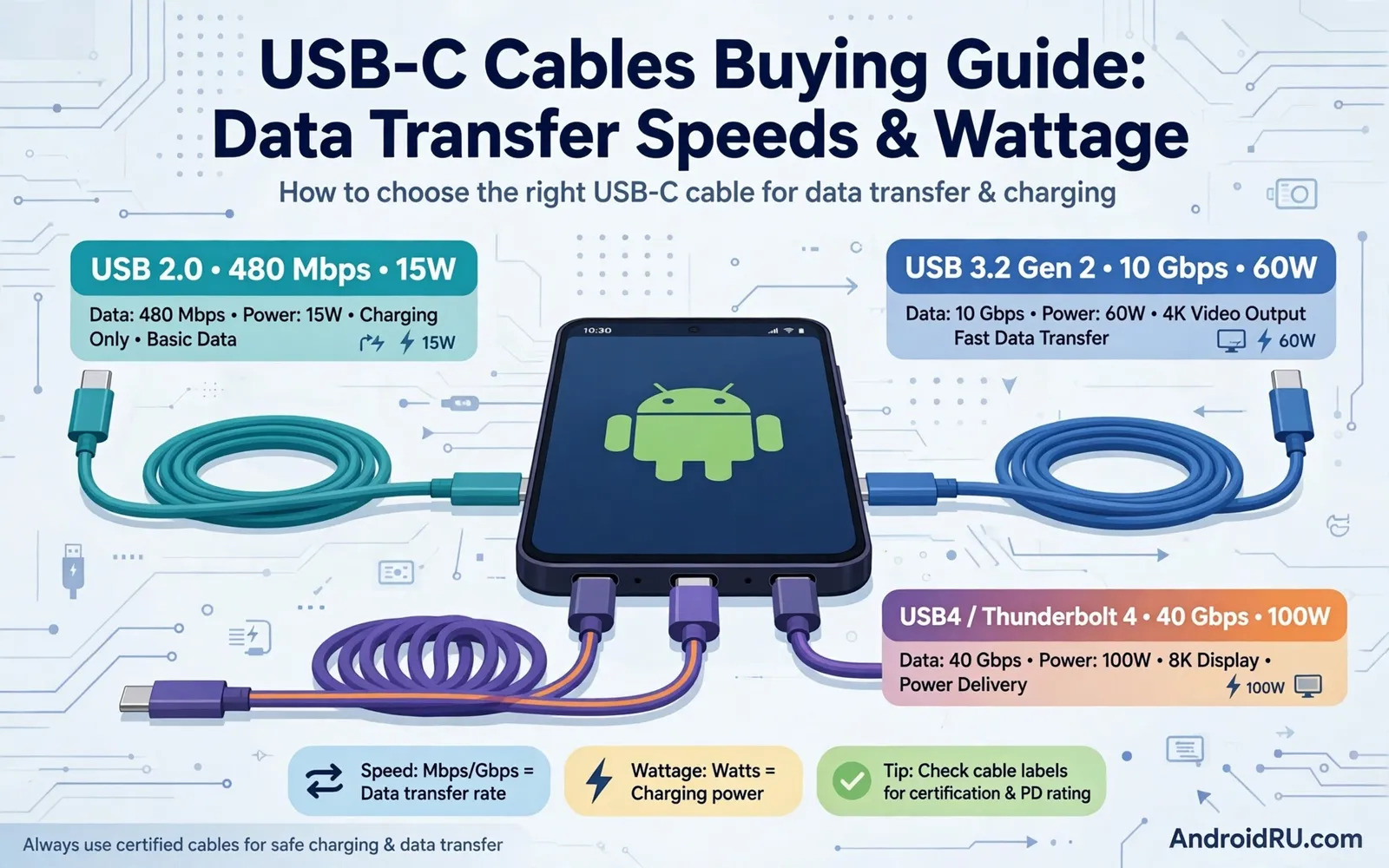
Why All USB C Cables Are Not Equal
USB C describes a connector shape only. It does not guarantee speed or power. Two cables with the same plugs can differ greatly inside. One cable may charge fast and transfer slowly. Another cable may transfer fast and charge slowly. A third cable may do both tasks well. Internal wires decide these abilities. Thicker power wires carry more wattage safely. More data wires carry faster transfers. Shielding reduces interference during transfers. Cheap cables may skimp on wires or shielding. That skimping limits performance in daily use. It can also affect durability over time. Check ratings before you assume a cable works for all tasks. A cable bundled with earbuds may suit audio only. A cable bundled with a phone may suit charging only. Label your cables by task after purchase. Labels prevent mix ups later.
Android phones use USB C for many tasks. Charging is the most common task. File transfer to a computer is another task. Video output to a display is a rarer task. Audio through USB is another task. Each task needs different cable abilities. A charging cable may lack video wires entirely. A data cable may lack high wattage wires. A full featured cable handles most tasks. Full featured cables often cost more. They also tend to run thicker and less flexible. Think about your main tasks before you pay more. A desk user may need full features. A travel user may need charging only. A photographer may need fast data transfer. Match cable ability to real tasks.
Wattage Ratings And Safe Charging
Wattage ratings show how much power a cable can carry safely. Common ratings include low and medium and high levels. A low rated cable suits small earbuds well. A medium rated cable suits most phones well. A high rated cable suits laptops and strong chargers. Using a low cable with a strong charger caps speed. The phone and charger negotiate a safe lower level. That lower level still charges the phone. It just takes longer than expected. Using a high cable with a weak charger causes no harm. The charger still sets the speed limit. Cable rating sets a ceiling not a forced speed. Check the rating printed on packaging. Check the rating in the product listing as well. Ratings should match across both sources. A mismatch deserves caution about seller accuracy.
Heat and safety connect to wattage ratings. A cable carrying power beyond its rating can overheat. Overheating can melt insulation over time. It can also damage connectors. Reputable cables include safety testing marks. Those marks show testing against standards. Very cheap cables may lack those marks. They may also use thin wires that heat quickly. Inspect cables regularly for warmth during charging. A warm cable during fast charging can feel normal. A very hot cable signals a problem. Stop use and replace a very hot cable. Inspect connectors for discoloration as well. Discoloration can signal heat damage inside. Replace damaged cables at once.
Data Speeds And File Transfer Reality
Data speeds appear in gigabits per second on packaging. Higher numbers promise faster file transfers. Real transfer speed also depends on phone and computer ports. A fast cable cannot exceed port limits on either end. A slow port caps the whole transfer chain. Check phone port speed in the manual. Check computer port speed in its specs. Match cable speed to the slower port. Paying for speed beyond port limits wastes money. Large video files reveal speed differences clearly. Small documents transfer quickly on any cable. Photo libraries sit in the middle range. A photographer moving many photos benefits from fast cables. A casual user moving few files may not notice differences. Test transfers with a large folder before you judge a cable. Note start and end times for comparison.
Cable length affects data speed in some cases. Very long cables can lose signal quality. Short cables usually maintain speed better. A one meter cable suits desk transfers well. A two meter cable suits living room use well. A three meter cable may still work for charging. It may transfer data slower than a short cable. Active cables include chips to boost long distance signals. Active cables cost more and suit special setups. Most home users do not need active cables. Choose the shortest cable that reaches comfortably. Shorter cables also tangle less in bags. Keep a short fast cable for transfers. Keep a longer cable for charging convenience. That split gives best performance for each task.
Connectors Durability And Daily Wear
Connector build decides cable lifespan in many cases. A metal shell resists crushing in bags. A plastic shell weighs less and costs less. Strain relief at the connector base prevents wire breaks. Long flexible strain relief works better than short stiff relief. Braided outer layers resist abrasion in bags. Braided layers can feel stiffer than rubber layers. Rubber layers bend easily around tight corners. Choose outer material based on bag and pocket use. Check connector fit in your phone case. A thick connector may not fit a case with a small port hole. A slim connector fits most cases well. Test fit with your actual case before travel. A cable that cannot plug in fully charges unreliably. It may also disconnect during transfers.
Daily habits extend or shorten cable life. Pulling a cable by the cord stresses internal wires. Pulling by the connector protects those wires. Wrapping cables tightly around a charger stresses wires too. Loose loops preserve wire health better. Keeping cables away from chair wheels prevents crushing. Keeping cables away from pets prevents chewing damage. Inspect cables monthly for fraying near ends. Replace frayed cables before they fail fully. A frayed cable can short during use. Keep spare cables for critical tasks. A spare prevents panic when a main cable fails. Label spares by speed and wattage. Labels help you grab the right cable quickly.
Hubs Adapters And Expanding One Port
Hubs expand a single USB C port into several ports. A hub can add USB A ports for older devices. A hub can add HDMI for a display. A hub can add card readers for cameras. A hub can add Ethernet for stable internet. Each added function draws power or bandwidth. A powered hub handles many devices better. An unpowered hub relies on host power alone. Check hub power needs before you connect hard drives. Hard drives need stable power to avoid disconnects. Check hub data speed for each port type. Some hubs share bandwidth across ports. Heavy use on one port can slow another port. Read hub specs for per port speeds. Test hubs with your actual devices before critical work. A hub that works for mice may fail for drives.
Adapters solve single purpose mismatches well. A USB C to USB A adapter connects older flash drives. A USB C to HDMI adapter connects displays. A USB C to audio adapter connects wired headphones. Each adapter adds a potential failure point. Quality adapters maintain signal well. Cheap adapters may drop connections under load. Buy adapters from reputable sellers. Test adapters with real files and real video. Note any flicker or disconnect during tests. Keep adapters in a small pouch for travel. Loose adapters get lost easily in bags. Label adapters by function if several look alike. A clear pouch system saves time on trips.
Charging Chains And Bottleneck Hunting
A charging chain includes charger and cable and phone. The slowest part sets the final speed. A strong charger with a weak cable charges slowly. A weak charger with a strong cable charges slowly. A strong pair with a phone limit charges at phone limit. Hunt bottlenecks by swapping one part at a time. Start with the original charger and cable as a baseline. Swap the cable and note charging time. Swap the charger and note charging time again. That method reveals the weak part clearly. Keep notes on each combination tested. Notes prevent repeated testing later. Share notes with family members who use the same gear. A shared note system saves everyone time. Bottleneck hunting also applies to data transfers. Swap cable then port then computer in order. That order isolates the slow part quickly.
Wall chargers and banks form the start of most chains. The GaN chargers and traditional adapters explains how charger output interacts with cable limits. A matched charger and cable pair avoids wasted potential. A mismatched pair wastes money or time. Test the full chain after any single change. A new cable can change speed even with the same charger. A new charger can change speed even with the same cable. Retest after firmware updates as well. Updates can change charging behavior on phones. A quick retest catches changes early. Keep a baseline charging time for your phone. Compare future results to that baseline.
Length Flexibility And Travel Choices
Length choice balances reach and performance. A short cable suits power banks in pockets. A short cable reduces tangles during walks. A medium cable suits desks and bedside tables. A long cable suits hotel rooms and airports. Long cables reach far sockets without moving furniture. Long cables also tangle more in bags. Use cable organizers for long cables in bags. Velcro ties work well for repeated use. Avoid tight knots that stress wires. Choose length based on worst socket distance you face. A cable slightly longer than needed beats a cable slightly short. A short cable that cannot reach forces awkward phone placement. Awkward placement can strain connectors. It can also drop phones from tables. Safety and convenience both favor adequate length.
Travel kits benefit from a small cable set. Pack a short fast cable for transfers. Pack a medium cable for hotel charging. Pack a spare cable for emergencies. The high capacity power bank for long distance travel pairs well with that cable set on long trips. Keep cables in separate pouch pockets. Separation prevents tangles and damage. Check cables before departure for fraying. Replace questionable cables before travel. A failure on the road costs more than a spare at home. Label each cable by length and rating. Labels speed up packing and use.
Buying Checklist And Final Verdict
Use this checklist before you buy any cable. Check wattage rating first. Check data speed rating second. Check length third. Check connector fit with your case fourth. Check outer material and strain relief fifth. Check safety marks sixth. Check seller reputation seventh. Check warranty terms eighth. A cable that passes most checks serves well. A cable that fails wattage for your charger disappoints daily. A cable that fails data speed for your photos wastes time. Price alone does not predict cable quality. A mid priced cable from a reputable seller often beats a very cheap cable. A very costly cable may add features you never use. Match features to tasks before you pay more. Keep receipts for warranty claims on premium cables.
Car use adds another cable consideration. A cable in a car faces heat and vibration and bends. The car mounts and wireless charging holders for Android show how mount placement affects cable strain. Route car cables away from pedals and moving seats. Secure loose cables with clips when possible. Test your chosen cable for a week in real use. Note charging speed and transfer speed and durability. A week of notes beats a single first impression. Keep the best cables for daily tasks. Keep spares for travel and emergencies. Good cables make every device work better.

