

Why A Phone Beats A Built-In Webcam
Most laptop webcams produce soft video in dim rooms and they sit at a fixed angle that is hard to adjust. A modern phone camera produces sharper video and better colour and it can sit on a small tripod at eye level. Using the phone as a webcam costs nothing if you already own the phone and it can transform a work call or a class or a family video chat. The setup takes a few minutes and it works over USB or over Wi-Fi. A phone webcam is a practical upgrade without buying new hardware.
A phone webcam also gives you flexibility that a fixed laptop camera cannot match. You can move the phone closer for a document close-up and you can move it back for a wider room view. You can switch between the rear camera for sharp detail and the front camera for a natural face view. You can adjust focus and exposure from the phone screen while the call runs on the PC. That flexibility makes every call look more professional.
Choose USB Or Wireless Connection
USB gives the most stable video because the cable carries data directly and it charges the phone at the same time. Wireless gives freedom of movement because the phone can sit anywhere on the same network. USB is best for long work calls and for important presentations where a drop would be embarrassing. Wireless is best for a quick call or for a room where a cable would be in the way. Test both methods at home and keep USB as the reliable fallback for important calls.
Check that your PC and phone share the same Wi-Fi network before you try a wireless setup. A phone on mobile data and a PC on home Wi-Fi will not find each other on a local wireless link. Turn off any VPN on the phone and on the PC for the first test because a VPN can block local discovery. A direct local connection gives lower delay than a connection that routes through the internet. A stable local network is the foundation for smooth wireless video.
Set Up With A Trusted Webcam App
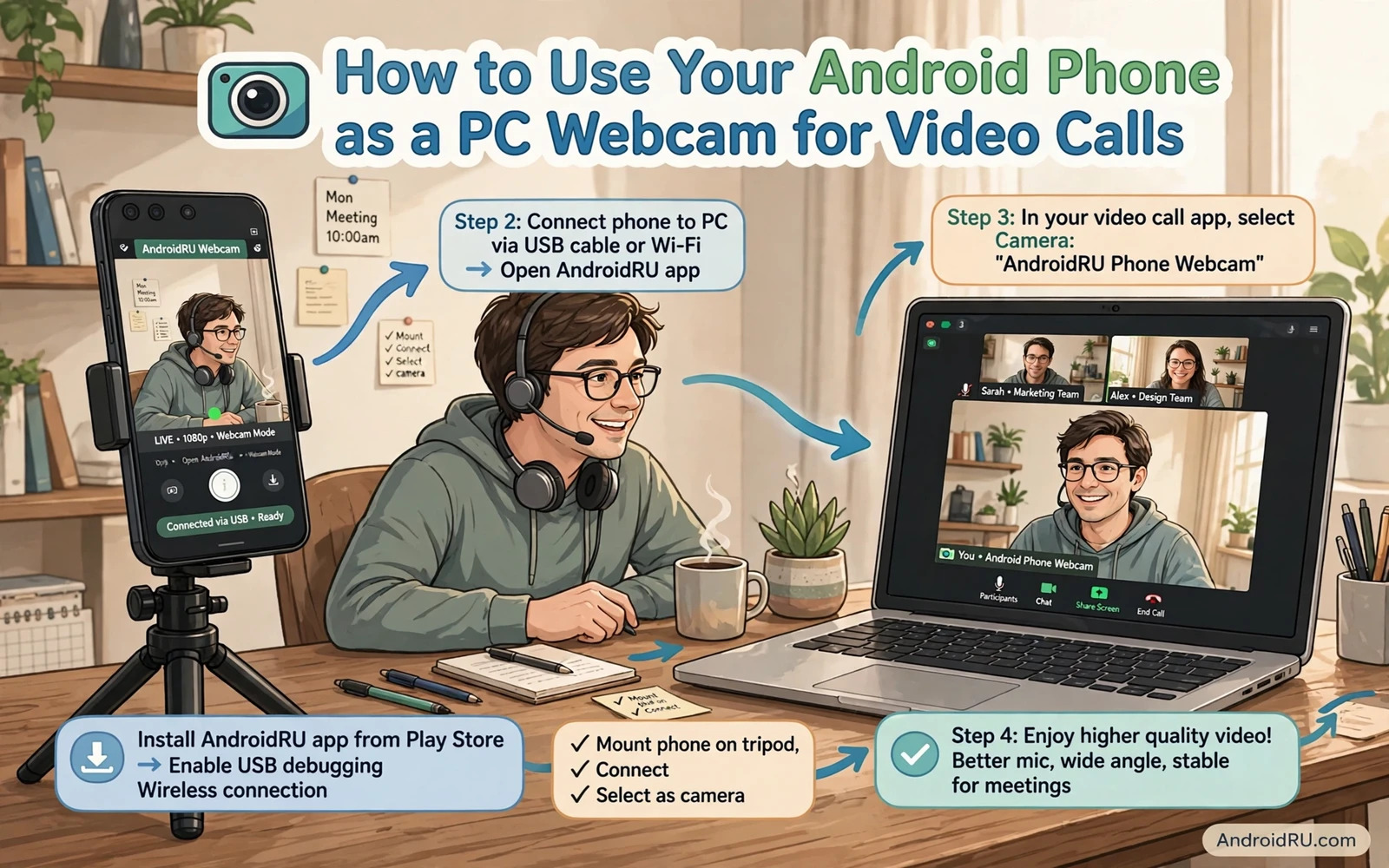
Install a webcam app on the phone from the official store and install its companion program on the PC if the app requires one. Open the phone app and grant camera and microphone permission when the app asks. Connect the phone to the PC by USB and enable USB debugging only if the app instructions require it for a wired mode. Many modern apps work without debugging by using a simple USB video mode. Follow the app instructions exactly and do not grant extra permissions that the app does not need.
Open the companion program on the PC and confirm that the phone appears as a video source. Select the phone camera in your video call app under its video settings. Test the video before a real call and check framing and focus and brightness. Adjust the phone position until your face sits in the centre of the frame at eye level. A test call with a friend gives you honest feedback on video and audio quality.
Basic setup
Phone webcam app > USB or same Wi-Fi > PC program > Video app camera > Test call
Position And Light The Phone Well
Place the phone on a stable stand or a stack of books so it does not wobble during the call. Set the phone at eye level or slightly above because a low angle looks unflattering and a high angle can hide your face. Face a window or a lamp so light falls on your face and not behind you. A bright window behind you turns your face into a dark silhouette. A simple lamp in front of you can fix most poor video quality without any new gear.
Keep the background tidy and free from distracting movement. A plain wall or a bookshelf works well for work calls. A busy background can pull attention away from your face and it can make video compression work harder. Sit at a comfortable distance so your head and shoulders fill the frame naturally. A well framed shot looks professional even on a modest phone camera.
Use Phone Audio Or A Separate Microphone
Decide whether the call will use phone audio or PC audio before the call starts. Phone audio can sound clear when the phone is close to you but it can echo if both the phone and the PC play sound. A headset connected to the PC often gives the cleanest audio because it separates the speaker from the microphone. Test audio with a friend and ask whether they hear echo or background noise. Choose the audio path that sounds clearest and stick with it for the call.
If you use phone audio then keep the phone near you and away from the PC speakers. A phone that sits next to a loud PC speaker will pick up its own call audio and create echo. Lower the PC speaker volume and raise the headset volume instead. A short audio test prevents an embarrassing echo at the start of an important meeting. Audio clarity matters more than video sharpness for understanding speech.
Fix Lag Freezing And Disconnection
Wireless video can lag when the Wi-Fi signal is weak or when many devices share the network. Move the phone closer to the router and close heavy downloads on the PC during the call. Switch to USB if wireless lag persists because a cable removes network variation from the problem. Restart the webcam app on the phone and the companion program on the PC if video freezes. A fresh start clears a stuck video stream quickly.
Connection drops can also come from hotspot or network settings and the hotspot steps in How to Use Android Phone as a Wi-Fi Hotspot for Laptop show how phone and PC sharing behaves on a local link. Check that the phone does not lock its screen during the call because a locked screen can pause the camera feed on some apps. Keep the phone charging during a long call so a low battery warning does not interrupt video. A charged phone and a strong network give the smoothest call.
Camera App Crashes And Permission Fixes
If the webcam app closes when you start a call then check camera permission in phone settings. Open app info for the webcam app and confirm that camera and microphone permissions are allowed. Close other apps that use the camera such as a video recorder or a social app that holds the camera open. Only one app can use the camera at a time on most phones. A camera held by another app will block the webcam app completely.
Camera faults follow a familiar pattern and the camera steps in How to Fix Camera App Crashing constantly on Android show how to clear cache and test the camera alone. Open the stock camera app and test photo and video to confirm that the camera hardware works. If the stock camera works then the fault lies in the webcam app settings or its PC companion. Reinstall the webcam app only from the official store if the fault persists after a cache clear.
Privacy And Safety For A Phone Webcam
A phone webcam can keep recording after a call if the app stays open in the background. Close the webcam app fully after every call and check that its camera indicator disappears. Cover the phone camera with a shutter or face it down when it is not in use. Review which apps have camera permission and remove permission from apps that you no longer use. A webcam setup should never leave the camera open when you are not on a call.
Be careful with webcam apps that ask for contacts or location or storage that they do not need for video. A webcam app needs camera and microphone and network access and little else. Read the permission list before you install and choose an app from a developer with a clear privacy policy. A trusted app respects your privacy while it delivers sharp video. Never install a webcam app from an unknown site link sent in a message.
Cast And Screen Sharing As Alternatives
Some users want the PC to show the phone screen rather than the phone camera and the casting steps in How to Cast Android Screen to Smart TV or PC Monitor explain that different sharing path clearly. Screen casting shows the phone display on a larger screen while a webcam setup sends phone camera video into a call app. Choose casting for a presentation of phone content and choose a webcam setup for a face-to-face call. Both tools are useful and they solve different problems.
Test the alternative that fits your meeting before the meeting starts. A presentation that needs phone content works better with casting. A meeting that needs your face works better with a webcam setup. A meeting that needs both may need two steps and a practice run. A short practice run prevents confusion when the real meeting begins.
Final Checklist For A Sharp Call
Confirm that the phone appears as a camera in the call app and that audio comes from a single clear source. Confirm that lighting falls on your face and that framing sits at eye level. Confirm that the phone is charging and that its screen stays awake during the call. Confirm that the webcam app is closed fully after the call ends. A short checklist turns a clever trick into a reliable daily tool.
Improve Video Quality Further
Clean the phone camera lens with a soft cloth before every important call. A smudged lens softens video more than any software setting can fix. Check the lens under a bright light and wipe away fingerprints gently. A clean lens gives sharp video with no extra cost.
Set the phone camera to a resolution that your network can handle smoothly. A very high resolution can lag on a weak connection while a moderate resolution stays smooth. Test two resolutions during a practice call and choose the one that stays stable. Smooth video matters more than maximum sharpness for understanding a speaker.
Use a small tripod or a stable mount for long calls because a handheld phone drifts and shakes. A stable mount keeps your face centred and it frees your hands for notes. A cheap tripod can transform a shaky call into a professional presentation. Stability is a simple upgrade that every caller notices.
Close other video apps before you start the webcam app so no other app holds the camera. A camera held by another app will block the webcam feed completely. Restart the phone before an important call if the camera behaved strangely earlier in the day. A fresh start gives the webcam app a clean camera path.
Keep USB as your reliable method and wireless as your flexible method. Keep the phone stable and lit and charged for every call. Your video calls will look sharper and your colleagues will notice the difference at once. A phone that you already own is often the best webcam that you will ever need.

