

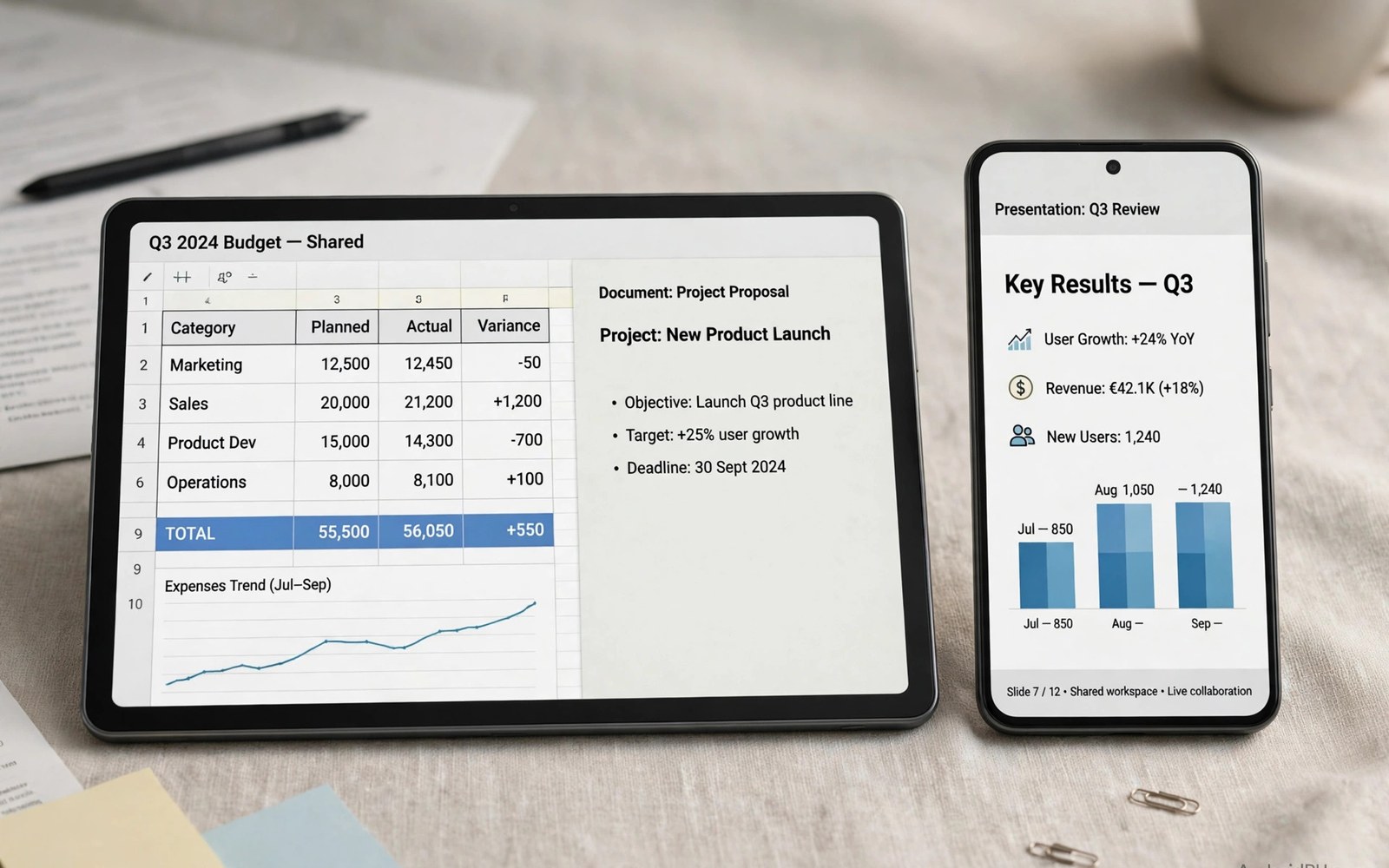
Microsoft Office vs Google Workspace on Android is a choice about files and collaboration and habits rather than about brand loyalty. Office excels at complex documents that must match a desktop layout exactly. Workspace excels at fast sharing and live collaboration from a phone.
Many users judge suites by one document that behaved badly and then blame the whole suite. A complex spreadsheet may break in one suite and a shared document may lag in the other. The right test uses your own files and your own team rather than a demo file.
Start by listing the documents you edit most on Android. Word files and spreadsheets and slides each stress different parts of a suite. A suite that handles your top document type well will feel right even when it lags on a rare file type. A closer look at distraction-free apps can help you compare daily tools before you commit to one setup.
What matters most
Document fidelity matters when a file must look identical on a phone and on a computer. Office keeps complex formatting and tracked changes closer to desktop output. Workspace can shift complex layouts and that shift matters for formal reports.
Live collaboration matters when many people edit one document at once. Workspace shows edits and comments in real time with a light touch on a phone. Office collaboration works well too but it often feels heavier on a small screen.
Offline editing matters on planes and in areas with poor signal. Both suites offer offline modes but setup steps and limits differ by app. Test offline edits on a real document before a trip rather than trusting a settings toggle.
How to choose the right setup
Office users with work files in Word and Excel formats will feel at home with Office on Android. File compatibility reduces conversion surprises when a document returns to a computer. A team that lives in Office formats should stay in Office formats on mobile too.
Workspace users with files in Docs and Sheets formats will feel at home with Workspace on Android. Sharing links and comments flow naturally across Docs and Drive and Gmail. A team that lives in Workspace formats should stay in that flow on mobile too.
Mixed teams need a clear rule for the master format of each document type. A document edited in both suites can lose formatting with each round trip. Pick one master suite per document and let the other suite read rather than edit.
A practical daily routine
Start the day in the suite that holds your main documents and check shared comments first. Comments often hold the real tasks for the day even when they hide inside a document. Reply to comments before you start new writing so collaborators stay in sync. A related look at password and encryption apps can show how a second tool fits the same workday without adding clutter.
Edit on a phone for short fixes and comments and approvals rather than for long drafting. Long drafting on a small screen slows most writers and invites errors. Save long drafting for a tablet or a computer and use a phone for review.
Export a final copy with a clear name and date when a document leaves the team. A final copy prevents later edits from changing an approved version. Keep the live document and the final copy in separate folders to avoid confusion.
Costs and privacy and limits
Both suites offer free mobile apps with limits that suit light use. Advanced editing and large storage often need a paid plan for each suite. Compare the paid plan you already use for email and storage before buying a second plan.
Storage counts because documents and attachments fill cloud space quickly. Office storage and Workspace storage follow different plans and limits. Check your current storage use before a suite switch forces a paid upgrade.
Learning cost matters when a team switches suites mid project. A switch during a deadline will slow everyone while habits reset. Switch between projects rather than during a project when possible.
A useful example
A quick package check confirms which office suites are installed and which versions they run. The commands below list office related packages and show version details for the main apps. Use the same check after an update when editing behaviour changes.
adb shell pm list packages | grep -E "office|docs"
adb shell dumpsys package com.microsoft.office.officehubrow | grep version
adb shell dumpsys package com.google.android.apps.docs | grep version
This package check pattern follows the approach described in the official Android developer documentation for listing installed packages and versions. The same documentation explains how version checks confirm which suite build a device runs.
What to check after a week
After a week check a complex document on a computer after phone edits. Formatting shifts and broken tables reveal fidelity gaps early. A document that survives phone edits and computer review has passed the real test.
After a week check collaboration by editing one shared document with a colleague. Note delays and comment visibility and version conflicts during the test. A smooth shared edit matters more than a long feature list. A practical look at cloud syncing apps can help you judge whether your current setup still earns its place on your phone.
After a week check offline edits by editing a document with mobile data off. Confirm that edits sync in order when connection returns. A clean offline test gives confidence for travel and poor signal days.
Deeper checks for careful users
Spreadsheet functions differ more than word processing between suites. Complex formulas and pivot tables may behave differently on a phone. Test your most complex spreadsheet in both suites before you commit a team to one path.
Presentation editing on a phone suits small fixes and speaker notes rather than full design. Slide layouts can shift when fonts differ across devices. Keep presentation fonts standard to reduce shifts on any suite.
Security and admin controls matter for work documents and shared drives. Both suites offer sharing controls and access history for team files. Review sharing settings monthly and remove access for people who no longer need it.
Making the choice stick
A suite habit sticks when the default save location matches your team folders. Set the suite to save into the shared team folder rather than a personal folder. A save in the wrong folder will hide work from collaborators. A correct default saves a move step for every document. Check the default after each app update because updates can reset it.
A document workflow needs a clear draft and final separation from day one. Keep drafts in a working folder and final copies in a separate final folder. A final copy that lives among drafts will get edited by accident. A separate final folder protects approved versions from later changes. Move a document to final only after review passes fully.
Comments in a shared document need a response rule or they will pile up. Reply to each comment or resolve it within two working days. A comment left for weeks will confuse new readers about current decisions. A resolved comment history still shows past reasoning without clutter. Review open comments each Friday and close any that are done.
Version history is a safety net that deserves a test before a real mistake. Restore an older version of a test document and confirm the process works. A restore test reveals history limits while they are still easy to fix. A test skipped will reveal limits during a real overwrite crisis. Keep a separate backup for critical documents even when version history feels strong.
Offline suite use needs a setup test before travel rather than during travel. Open key documents while online and edit them with data off. A document that fails offline needs a local copy plan before a flight. A local copy for travel documents will save work on planes and in poor signal areas. Test offline edits for both suites if you use both.
A suite earns a permanent place when it passes a complex document and a shared edit in the same week. Test both strengths together rather than separately. A suite that passes one test and fails the other will disappoint during real work. A combined test mirrors real team work far better than isolated tests. Keep the suite that passes the combined week.
A week of practice
Day one of practice should edit a real document from your team in each suite. Note formatting shifts and comment behaviour in both suites. A suite that preserves formatting will feel trustworthy at once. A suite that shifts tables or styles will cause rework later. Use your own complex document rather than a simple demo file.
Day three of practice should collaborate on one shared document with a colleague. Edit and comment at the same time and watch for delays or conflicts. A smooth shared edit proves the suite suits team work. A delayed or conflicting edit shows a sync or version problem. Note the exact moment of any conflict for troubleshooting.
Day five of practice should test offline editing with a real document and mobile data off. Edit for twenty minutes and then sync when connection returns. A clean sync proves offline mode works for travel. A conflict or lost edit shows a setup limit to fix. Repeat the test for the other suite before deciding.
Day seven of practice should review the week and compare fidelity and collaboration results side by side. A suite that passed both tests deserves the master format role. A suite that passed only one test suits reading rather than editing. Decide on evidence and set one master suite per document type. Keep the other suite for reading only.
Common mistakes
Most suite problems come from mixing formats rather than from app quality. The list below names the mistakes that break documents most often.
- Editing one document in both suites until formatting breaks.
- Judging a suite by a demo file instead of your own complex files.
- Skipping an offline test before travel with poor signal.
- Storing final copies and live drafts in the same folder.
- Paying for two full suites when one paid plan already covers needs.
- Switching suites in the middle of a deadline project.
Each mistake above is easy to avoid with one master format per document. A suite that matches your files and team will feel natural within a week. Keep the other suite for reading rather than for editing the same files.
Frequently asked questions
Which office suite is better on Android?
The better suite depends on your files and your team rather than on a universal winner. Office suits complex Word and Excel files and Workspace suits fast sharing. Test both with your own documents for a week.
Can I use both suites on one Android phone?
You can install both suites on one phone and use each for its strengths. Avoid editing the same document in both suites because formatting can break. Pick one master suite per document type.
Do office suites work offline on Android?
Both suites offer offline editing with setup steps and limits that differ by app. Test offline edits on a real document before travel. Confirm sync order when connection returns.
Conclusion and next step
Office wins for document fidelity and Workspace wins for fast collaboration on Android. Your files and your team decide which strength matters more each day. A clear master format rule will prevent most suite problems.
Your concrete next step is to test both suites for seven days with your own complex document and one shared edit. Keep the suite that passes fidelity and collaboration checks. Delete the other suite from daily use and keep work simple.

