

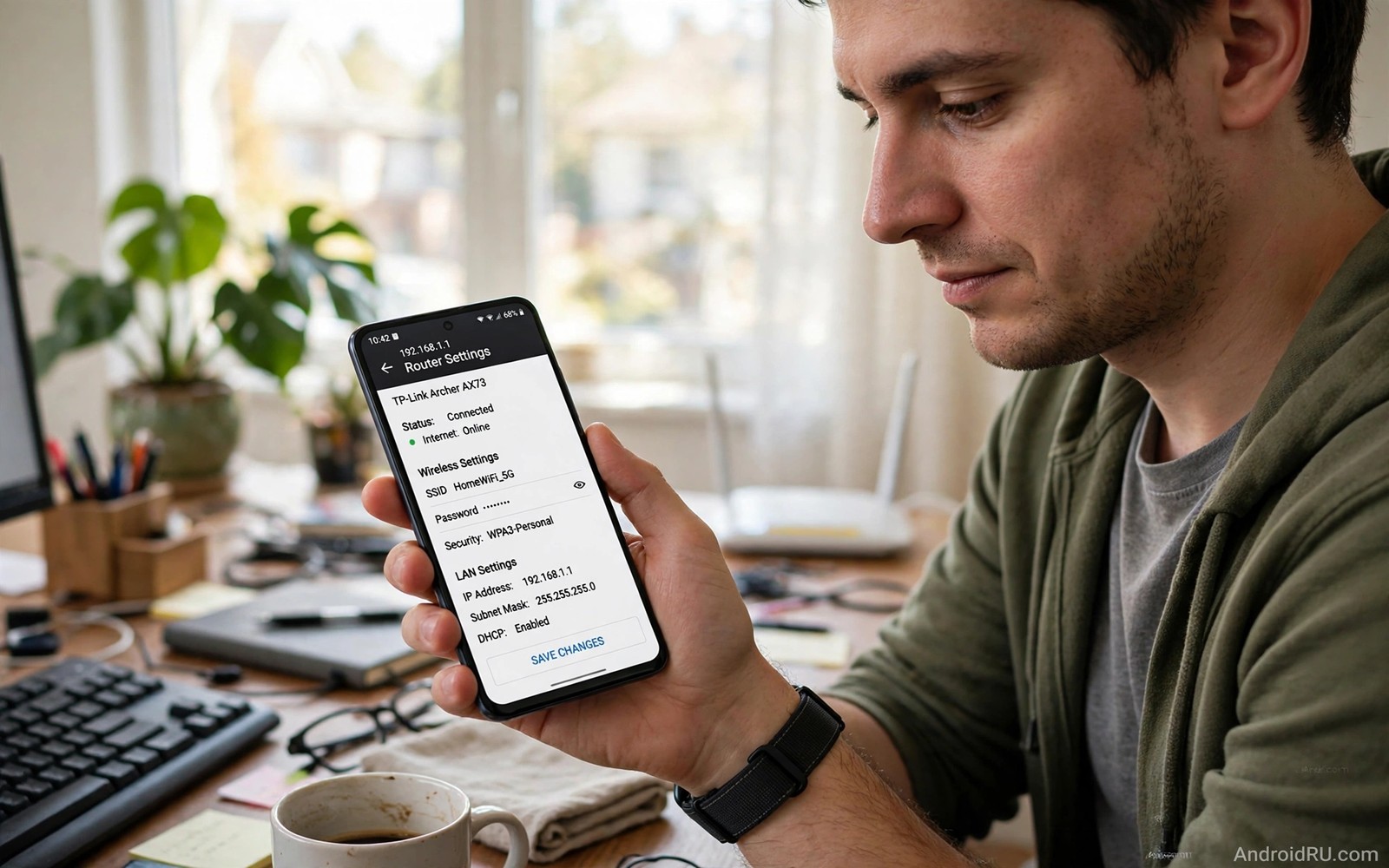
Your router holds the controls for your home Wi-Fi yet most people never open its admin panel from a phone. A slow network or a new password or a blocked device often needs a router change. A computer is not required for most of those changes. Your Android phone can open the admin panel directly through a browser. The trick is to find the correct gateway address and the correct login details.
The admin panel lives at the gateway address of your network. That address is usually a short private number such as 192.168.1.1 or 192.168.0.1. Your phone already knows that address because it uses it to reach the internet. You only need to find it in Wi-Fi details and type it into a browser. The panel will then ask for a username and password that came with the router.
This guide shows how to find the gateway and how to log in safely. It shows the most useful settings to change from a phone. It also shows what never to change without a backup. A router panel can break internet for the whole house if you change the wrong setting. A careful approach keeps the panel useful rather than dangerous.
Find your router gateway address on Android
Connect your phone to your home Wi-Fi first. A router panel is reachable only from inside the network in most home setups. Open Settings and tap Network and internet and then tap Wi-Fi. Tap the connected network and look for Gateway or Router in the details. That number is the admin panel address for your network. Write it down exactly as shown.
Open a browser on the phone and type the gateway number into the address bar. Do not type it into a search box. A search will return web results instead of the panel. The address bar is at the top of the browser. A correct gateway address should load a login page for your router brand. A wrong address will time out or load a different page.
Try the other common gateway number if the first attempt times out. Some routers use 192.168.0.1 while others use 192.168.1.1. A few use 10.0.0.1 instead. Check the sticker on the router for a printed address if both common numbers fail. The sticker often lists the admin address and the default login. A photo of that sticker can save a long search later.
Log in with the router credentials
Enter the username and password from the router sticker or from the manual that came with the router. Many routers use admin as the username and a unique password printed on the sticker. Some routers use a single password with no username field. Type the details carefully because a wrong password several times can lock the panel temporarily. A lockout usually clears after a few minutes.
Change the admin password at once if it is still the factory default. A default password is public knowledge for many router models. Anyone on your network could log in with it. Choose a strong admin password that you store in a password manager. A strong admin password protects every other router setting. Do not reuse the Wi-Fi password for the admin panel.
Log out of the panel when you finish. A logged in session on a shared phone can let the next user change settings. A logout takes one tap in most panels. A logout also protects you if the browser keeps the session open in the background. Make logout part of every router session habit.
Change Wi-Fi name and password safely
Find the wireless settings section in the panel. That section usually carries a name such as Wireless or Wi-Fi Settings. Change the network name only if you have a clear reason. A name change will disconnect every device at once. A password change will do the same. Warn the household before either change so that no one loses an important call or download.
Choose a strong Wi-Fi password with a mix of letters and numbers. A strong password resists guessing by neighbours and visitors. Avoid a password that contains your address or your family name. A password manager can generate and store a strong password for you. Share the new password only with trusted household members.
Save the change and reconnect your phone first. A successful phone reconnect proves that the new details work. Reconnect other devices one by one after the phone works. A device that fails to reconnect may have saved the old password. Forget the network on that device and join again with the new password. A fresh join fixes most reconnect failures. Channel choice can also improve a slow network and the guide to finding the least crowded Wi-Fi channel shows how to pick a cleaner channel from a phone.
Use this safe router session routine
Prepare the gateway address and the admin password before you open the panel. Change only one setting per session when you are learning the panel. Save the change and test the network before you change anything else. Log out when the test passes. That routine prevents a tangle of changes that are hard to undo.
Step one: connect phone to home Wi-Fi network
Step two: find gateway address in Wi-Fi details
Step three: open gateway address in browser bar
Step four: log in with router admin credentials
Step five: change one setting then save and test
This routine is an original example written for this guide. It uses only a standard browser and standard router screens. It does not require any extra app. The routine works because it limits each session to one change. A single change is easy to reverse if the network misbehaves. A batch of changes can hide the faulty one.
Check connected devices from the panel
Find the connected devices or clients section in the panel. That section lists every device on your network with a name and an address. An unknown device deserves a closer look. Compare the list with the devices in your home. A device that no one recognises may be a neighbour using a shared password. Change the Wi-Fi password if an unknown device persists.
Use the panel device list to spot a device that hogs bandwidth. Some panels show data use per device. A device with very high use may be running a large update or a cloud backup. Ask the owner to pause the update if it slows the whole house. A device list turns a vague slow network complaint into a specific device to check.
Do not block a device by guesswork. A wrong block can cut off a smart television or a work laptop. Confirm the device owner before you block anything. A confirmed block is a useful control. A guessed block creates a new problem for an innocent household member. Enterprise Wi-Fi has stricter rules and the guide to connecting to enterprise Wi-Fi safely explains certificate checks that home panels do not show.
Know what never to change casually
Do not change the internet connection type or the VLAN settings unless your provider tells you to. Those settings control how the router talks to the provider. A wrong value can kill internet for the whole house. A provider support agent can give the correct values if a change is truly needed. Note the original values before any provider guided change.
Do not disable the firewall or open ports without a clear reason. An open port can expose a device to the internet. A disabled firewall removes a basic protection layer. Port changes belong to advanced users with a specific need such as a game server. A normal household needs no open ports at all. A safe default is a closed and protected router.
Do not factory reset the router from the panel unless you have the provider details ready. A factory reset wipes the Wi-Fi name and password and the provider settings. A reset without those details can leave the house offline for hours. A simple restart from the panel is safe and it often fixes a sluggish router. A factory reset is a last resort rather than a first fix. Public network portals can also block a first page and the steps for public Wi-Fi landing page failures will help when a portal rather than a router setting is the cause.
Back up router settings before a change
Look for a backup or export option in the router panel before you change a major setting. A backup file lets you restore the working setup if a change goes wrong. Save the backup file in a safe place on your phone or in cloud storage. A backup that lives only on a device that loses connection is less useful. A safe copy outside the router itself is the point of a backup.
Test the restore process only if the panel offers a safe preview. A restore test on a working router can itself break the network. Do not test a restore just for curiosity. Keep the backup ready and use it only when a real fault needs it. A ready backup is insurance rather than a toy.
Note the date of each backup in the file name or in a private note. A dated backup tells you how recent the working setup was. An undated backup can be older than you think. A recent backup restores faster because it matches the current household devices. A stale backup can reintroduce old passwords that no one uses anymore.
Common mistakes
A common mistake is to search for the gateway number instead of typing it into the address bar. A search returns unrelated web pages. Another mistake is to change several settings in one session. A batch of changes hides the faulty one and it makes recovery harder. Change one setting and test the network.
Do not leave the admin password at the factory default. A default password is easy to guess for anyone on the network. Do not share a screenshot of the panel that shows the admin password either. A screenshot can leak the key to your whole home network. Crop or blur credentials before you share any panel image for help.
Frequently Asked Questions
Why does the gateway address time out?
A timeout usually means that the phone is not on the home Wi-Fi or that the address is wrong. Check the Wi-Fi connection and the gateway value in network details. A mobile data connection cannot reach a home router panel in most setups.
What if I forgot the admin password?
Check the router sticker for a printed password first. If the password was changed and forgotten then a factory reset is the only recovery on many routers. A reset wipes all settings so gather provider details before you reset.
Can I access the panel from outside my home?
Most home routers block remote admin access by default for safety. Remote access needs an explicit setting and it carries risk. Keep remote admin off unless you have a specific and secure reason to enable it.
Conclusion
Today connect your phone to home Wi-Fi and find the gateway address in network details. Open that address in a browser and log in with the router credentials from the sticker. Change the admin password if it is still the factory default and then log out. That single session will give you confident mobile access to your router for future Wi-Fi changes.
Keep a private note with the gateway address and the new admin password in a password manager. A safe note saves a long search next time and it keeps the credentials out of screenshots and messages. A prepared note turns router access from a mystery into a routine task.

