

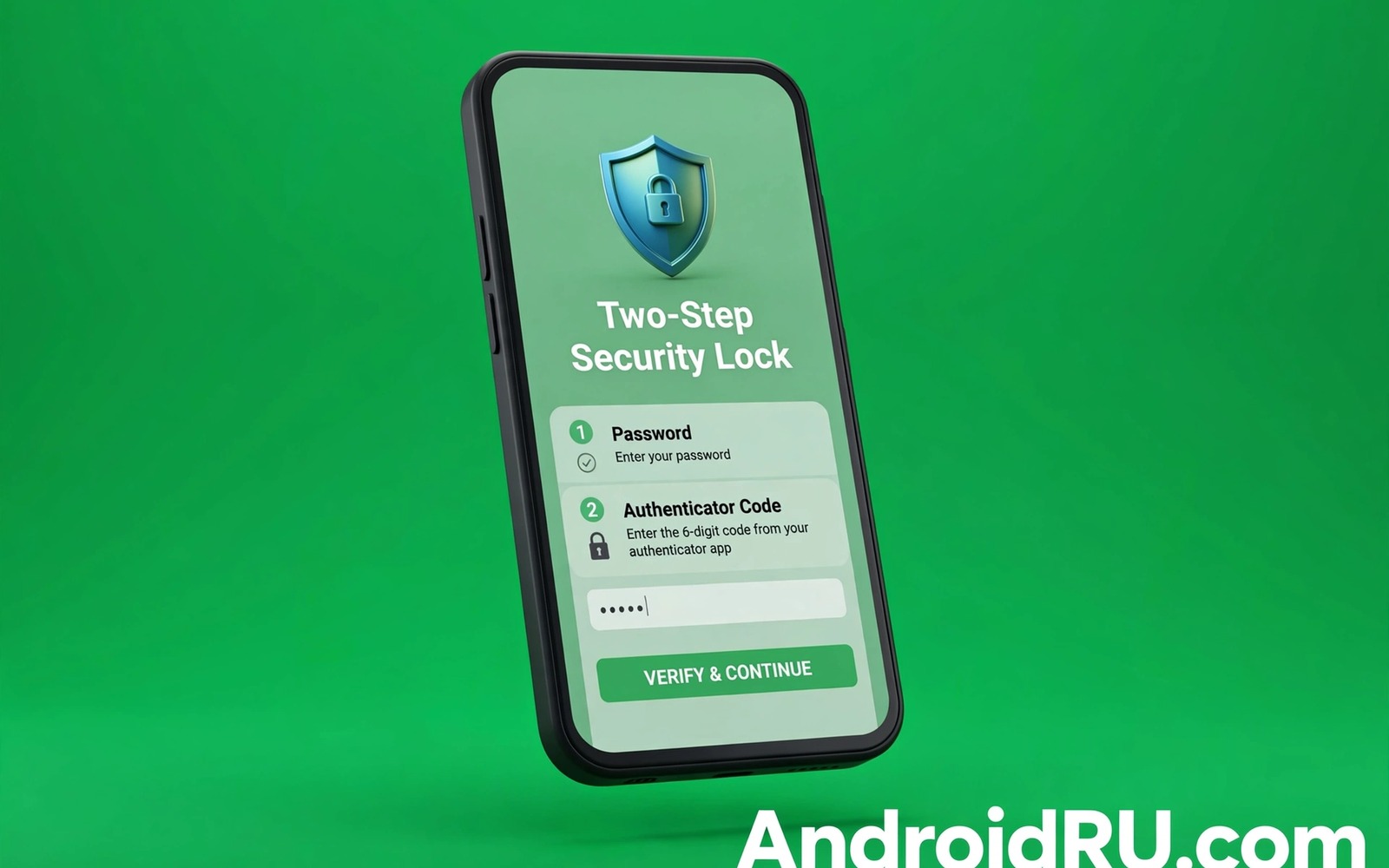
Two factor authentication adds a second proof of identity beyond your password. A password can be guessed or phished or leaked. A second factor lives on a device that only you control. An attacker who steals your password still cannot sign in without that second proof. That single addition stops most account takeover attempts before they start.
Many people delay turning it on because the setup sounds technical. In practice the setup takes about ten minutes for one important account. You scan a code with an authenticator app and you type the code it shows. From then on each new sign-in asks for a fresh code in addition to your password. Your everyday sign-ins on trusted devices stay smooth because most services remember them.
This guide walks through the safest setup for Android users. You will learn which second factor to choose and how to store backup codes and how to avoid the common trap of relying on text messages alone. You will also learn what to do when you lose your phone so that a lost device does not become a lost account.
Choose the right second factor
An authenticator app is the best balance of security and convenience for most people. It generates a six digit code every thirty seconds on your own phone. The code never travels over the mobile network so a SIM attack cannot intercept it. The app works offline which helps when you travel without a signal.
A hardware security key offers even stronger protection because it proves your identity with a physical tap and it resists phishing sites. A fake login page cannot trick a security key into approving a sign-in for a different site. Keys cost more than a free app and they can be lost. Many people therefore use a key for their most important account and an authenticator app for everything else.
Text message codes are better than no second factor at all but they are the weakest option. A scammer who moves your number to a new SIM can receive your codes. A phone in a low signal area may also delay codes until they expire. Use text codes only as a temporary fallback while you set up an app or a key. Do not treat them as your long term plan.
Set up an authenticator app step by step
Install a reputable authenticator app from a trusted source and open the account security page for the service you want to protect. Choose authenticator app as the second factor method and the service will show a QR code on screen. Scan that code with the authenticator app and it will start generating codes for that account immediately. Type the current code back into the service to confirm that the pairing worked.
Name each entry clearly inside the authenticator app so that you can tell accounts apart later. Use the service name and the email address together in the label. That clarity matters when you hold ten or more accounts in one app. A vague label can lead to entering the wrong code and locking yourself out during an urgent sign-in.
Save the backup codes that the service shows at the end of setup. Print them or write them on paper and store them in a safe place at home. Do not store backup codes in a photo on the same phone that holds the authenticator app. If that phone is lost then the backup codes in its gallery are lost with it. Paper backup codes survive a dead battery and a broken screen.
Protect your Google account first
Start with your Google account because it guards your email and your cloud backups and your password resets for many other services. Open Google security settings and turn on two step verification. Choose authenticator app or security key as the method and complete the pairing steps. Test the setup by signing out on a browser and signing back in with a fresh code.
Review the trusted devices list after setup and remove any device that you no longer use. A trusted device skips the second factor prompt which is convenient but also risky when an old phone changes hands. Keep trusted devices to phones and computers that you control today. That list deserves the same attention as the password itself.
Add a recovery phone number and a recovery email that only you can access. Recovery options are the escape route when your authenticator app is unavailable. They must be strong and private or they become a backdoor around your second factor. Check those recovery details every few months and update them when you change numbers. That habit complements avoiding password mistakes that put your Google account at risk as a complete account defence.
Handle a lost phone without panic
A lost phone feels like a security disaster when it holds your authenticator app. Your backup codes are the calm answer to that moment. Use a backup code to sign in on a trusted computer and then move your authenticator entries to a new phone. Revoke the old phone from trusted devices as soon as you regain access.
If you have no backup codes then use the account recovery process for that service. Recovery may ask for identity details and it may take days for sensitive accounts. That delay is frustrating but it exists to stop attackers from using the same process. Keeping backup codes safe is therefore far better than relying on recovery after a loss.
Consider a second authenticator device for your most critical accounts if your service allows multiple pairings. A spare old phone kept at home with the same entries can rescue you when your main phone fails. Keep that spare phone locked and updated and offline except when you need a code. A spare that sits unprotected defeats its own purpose.
adb shell settings get secure android_id
# Note the device identifier on your own phone only
# Use it to recognise the device in trusted device lists
# Remove any trusted device you cannot match to a phone you own
The commands above are an original example written for this guide to help you identify your own device during a trusted device review. They read a device identifier from a phone that you own so that you can match it against entries in an account security page. Never share that identifier publicly and never run such a check on a device that is not yours.
Recovery planning deserves the same attention as the initial setup because a second factor that cannot be recovered is a lockout waiting to happen. Write down where backup codes live and tell a trusted person how to find them only in an emergency. Test one backup code on a spare browser session to confirm that the codes work before you need them under stress. That test turns an abstract safety net into a proven escape route.
Common mistakes
One common mistake is turning on two factor authentication but leaving text messages as the only method. Another mistake is screenshotting the QR code during setup and storing that screenshot in a cloud gallery. Anyone who finds that screenshot can clone your authenticator entry. A third mistake is skipping backup codes because the setup screen feels long. Skipping them turns a lost phone into a locked account.
People also share authenticator codes with support agents or with friends who claim to need them urgently. A legitimate support team will never ask for your current code. Treat any such request as a scam attempt and end the conversation. Codes are meant for you to type into a login page yourself and nowhere else.
Another error is enabling a second factor on one account but ignoring the email account that resets all the others. An attacker who controls your email can reset many passwords and bypass other protections. Protect the email account first and then work outward to banking and social accounts. That order also matters when you learn how to check if your email passwords appeared in data breaches because a leaked email password threatens the whole chain.
FAQ
Does two factor authentication slow down daily use?
Daily use stays fast because trusted devices usually skip the second prompt for weeks at a time. You will see the prompt mainly on new devices and new browsers and after a password change. That occasional prompt is a small price for blocking most takeover attempts. Most users forget that the protection exists until it blocks a real attack.
If prompts appear too often then check whether your browser clears cookies on exit or whether you use private mode by default. Those settings can erase the trusted device marker and force a prompt every time. Adjusting them for your main browser reduces friction without weakening the underlying protection.
What happens if my authenticator app stops working?
Use a backup code to sign in and then re-pair the authenticator app from scratch. Most services let you remove the old pairing and scan a new QR code after a backup sign-in. Complete that re-pairing immediately rather than leaving the account on backup codes alone. Backup codes are limited in number and each one works only once.
If the app fails because the phone clock is wrong then fix the time setting first. Authenticator codes depend on accurate time and a clock drift of even a minute can cause failures. Set the phone to automatic time and then try a fresh code. That simple fix resolves many mysterious code rejections.
Should I use the same authenticator app for all accounts?
Using one reputable authenticator app for all accounts is fine and it keeps your codes in one place. The risk comes from losing the phone that holds that app which is why backup codes matter so much. Some people split critical accounts across two apps for extra resilience. Either approach works when backup codes are stored safely offline.
Choose an app that supports encrypted backup if you want an easier recovery path. Test the backup restore on a spare device before you depend on it. A backup feature that you have never tested may fail at the worst moment. A tested backup gives you confidence without adding daily complexity and it pairs well with locking down your mobile number against SIM swapping as a second layer of defence.
Conclusion
Two factor authentication turns a stolen password from a disaster into a failed attempt. An authenticator app or a security key gives you that protection with minimal daily friction. Backup codes and trusted device reviews keep the system usable when life goes wrong. Together those habits form a defence that most attackers will simply skip in favour of an easier target.
Your concrete next step is to turn on two step verification for your Google account today using an authenticator app. Save the backup codes on paper and store them somewhere safe at home. Then repeat the same setup for your email and banking accounts over the next week.

