

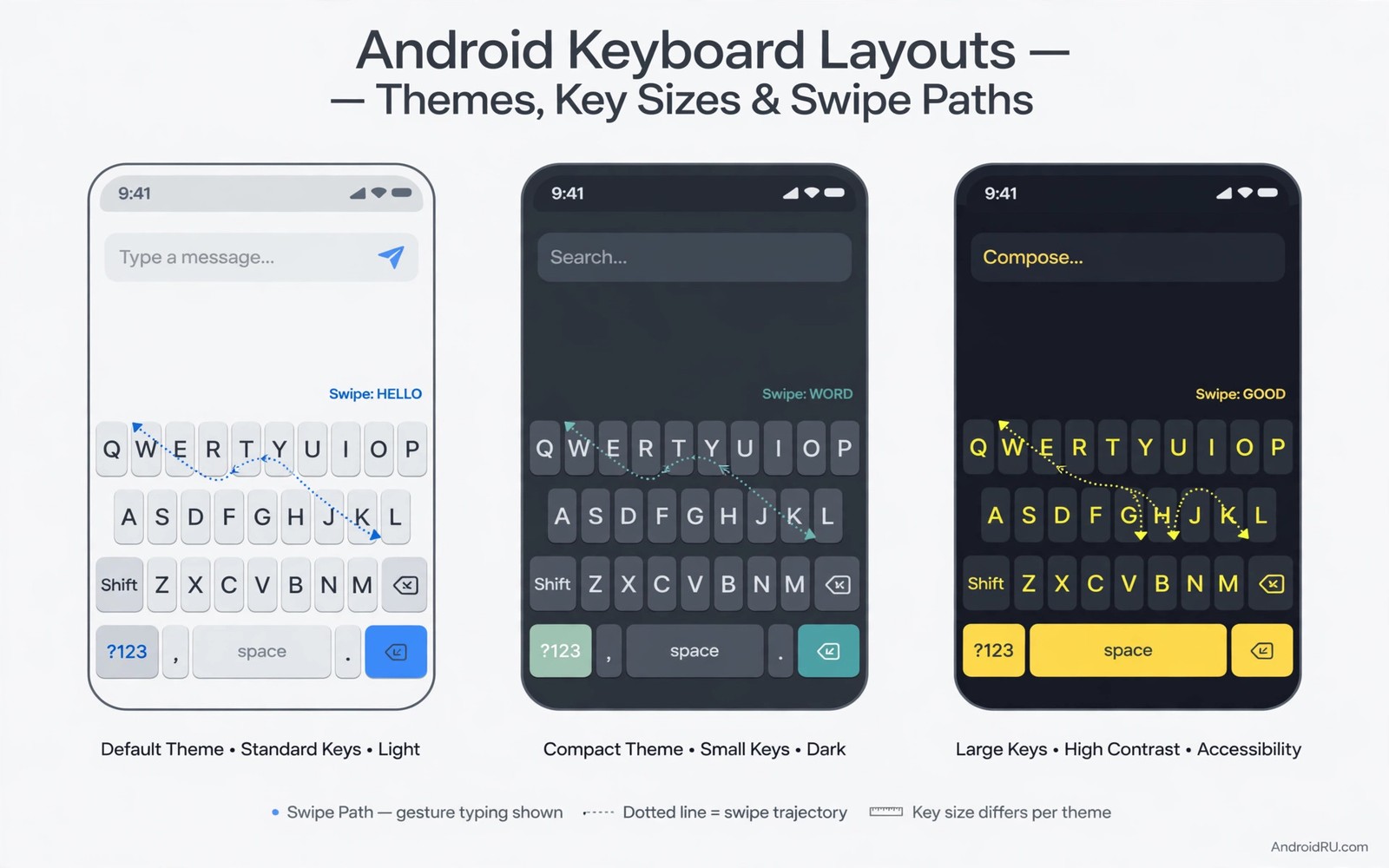
The standard keyboard is designed for average hands and average tasks. It uses a full width layout with small keys and a predictable row structure. That design works but it is not optimal for everyone. Large hands struggle with small keys. One handed users struggle to reach the far side. Multilingual users struggle to switch languages fast. Custom typing interfaces solve these specific problems with layouts built around real hands and real tasks.
Typing speed is not just about key size. It is about prediction and correction and layout logic. A good custom keyboard predicts your next word accurately. It corrects slips without changing meaning. It lets you swipe through a word instead of tapping each letter. These features matter more than a pretty theme. A keyboard that looks great but predicts poorly will slow you down every day.
This guide compares three interfaces that cover most needs. A swipe keyboard suits fast messaging with one thumb. A split keyboard suits large phones and tablets where thumbs rest at the edges. A one handed compact keyboard suits commuting and walking. Each interface is judged on speed and accuracy and learning time. The right choice depends on your hands and your daily typing mix.
Swipe keyboards for fast one thumb messaging
Swipe typing lets you drag a finger across letters without lifting it. The keyboard guesses the word from the path shape. This method is fast for common words and phrases. It is especially good for one handed use because your thumb stays on the screen in a continuous motion. Tapping each letter with one thumb requires stretching and repositioning. Swiping flows naturally across the layout.
Accuracy depends on prediction quality. A swipe keyboard must distinguish between similar paths for words like far and for. Good prediction uses context from the sentence to choose the right word. Test swipe accuracy with your own messages. Type ten common sentences by swiping and count corrections needed. If more than three sentences need fixing then try a different swipe engine or adjust sensitivity. A swipe keyboard that needs constant correction is slower than tapping.
Learning swipe takes a few days. Start with short messages and common words. Let the keyboard learn your vocabulary and your frequent phrases. Add custom words for names and places you use often. Swipe for those names will improve once the dictionary knows them. Avoid swiping long technical words at first. Tap those words until the dictionary learns them. A gradual transition builds confidence without frustration.
Privacy matters for swipe keyboards because they learn from your typing. Check whether learning stays on the device or syncs to a server. On device learning is safer for personal messages. If a keyboard syncs learning data then review its privacy settings and disable sync if you prefer local only. A fast keyboard should not require sending your typing history to a server. Choose a tool that respects that boundary.
Split keyboards for large phones and tablets
A split keyboard divides keys into left and right groups with a gap in the middle. Thumbs rest naturally at the screen edges and reach their half without stretching across the centre. This layout suits large phones held with two hands and tablets held in landscape. It reduces thumb strain on wide screens because each thumb travels a shorter distance. Long typing sessions feel more comfortable with a split layout.
Split width is adjustable on most custom keyboards. Set the gap to match your hand span. A gap that is too wide pushes keys to the far edges and makes outer keys hard to reach. A gap that is too narrow defeats the purpose of splitting. Hold the phone as you normally type and adjust the gap until both thumbs rest comfortably. Test with a paragraph of typing. Comfort after a paragraph matters more than comfort for a single word.
Split keyboards also help with number and symbol access. Many split layouts place numbers and common symbols within thumb reach on each side. This reduces mode switching for passwords and addresses. Test symbol access for your common tasks. If you type many numbers then choose a split layout with a dedicated number row. If you type many symbols for work then choose a layout that keeps symbols one tap away.
Learning a split layout takes a day or two for experienced typists. Muscle memory from a full layout transfers partially because letter positions stay similar within each half. The main adjustment is the gap in the middle. Space bar behaviour also changes because split keyboards often use two space keys or a central space zone. Practice with a long message to build new muscle memory. After a day the split should feel natural.
Compact one handed keyboards for commuting
A compact keyboard shrinks the layout to one side of the screen. It suits commuting and walking when only one hand is free. Keys become slightly smaller but they all sit within thumb reach. The keyboard can dock to the left or right based on your dominant hand. Switching sides takes one tap in most tools. This flexibility makes compact keyboards ideal for people who switch hands often.
Key size trade off is the main concern. Compact keys are smaller and mistaps increase at first. Mitigate this with strong prediction and a larger key height setting. A taller key gives your thumb more vertical room even when width shrinks. Test typing accuracy while walking. If accuracy drops sharply then increase key height or switch to swipe mode within the compact layout. Swipe plus compact is a powerful combination for one handed use.
One handed mode should be easy to toggle. A keyboard that needs five taps to enter one handed mode will not be used when you actually need it. Set a gesture or a button to toggle compact mode instantly. Practice toggling while holding a bag. The toggle must work without looking. A fast toggle turns one handed mode from a setting into a habit.
Use compact mode only when needed. Full width keyboards are better for long documents and for two handed typing at a desk. Switch back to full width when you sit down to write. A keyboard that adapts to context beats a keyboard locked into one mode. Context switching is the real productivity feature. It lets the same tool serve commuting and desk work equally well.
Compare speed accuracy and learning time honestly
Swipe wins on speed for short messages and casual chat. It loses on accuracy for technical terms and names until the dictionary learns them. Split wins on comfort for long typing on large screens. It loses on portability because it needs two hands. Compact wins on reach for one handed use. It loses on key size and initial accuracy. No interface wins on all three measures. Choose based on your most common typing situation.
Test each interface with a standard task. Type the same paragraph three times with each keyboard. Measure time and count errors. The paragraph should include names and numbers and punctuation to reflect real typing. A test with only simple words favours swipe unfairly. A realistic test reveals true strengths. Keep the test paragraph saved so you can repeat it after a week of practice.
Learning time varies by person. Swipe usually takes three to five days to feel natural. Split usually takes one to two days. Compact usually takes two to three days. Give each interface a fair trial before judging. A first hour impression is misleading because new layouts always feel awkward at first. Judge after the learning period and not during it.
Consider mixing interfaces by situation rather than choosing one forever. Use swipe for messaging and split for documents and compact for commuting. Many keyboard tools let you switch layouts quickly. A mixed strategy uses each interface where it shines. The best keyboard setup is often a system of layouts rather than a single layout. You can explore layout ideas alongside live wallpapers that stay light on battery style personalisation that keeps the whole phone coherent.
keyboard_modes = {
  "messaging": "swipe",
  "documents": "split",
  "commuting": "compact_one_handed"
}
print(keyboard_modes["messaging"])
The code above is an original example created for this article to show how keyboard modes could be mapped to situations as a simple plan. It is a planning aid and not a file you must run on your phone.
Typing comfort also improves with a calm screen around the keyboard and live wallpapers that stay light on battery keep the background gentle while you type.
Typing also feels calmer with a clear top area and live status bar controls can keep notifications visible without covering the keyboard.
Common mistakes
The biggest mistake is judging a new keyboard after one hour. New layouts feel awkward at first by definition. Give each interface at least three days of real use. Track accuracy over that period. A keyboard that improves daily is worth keeping. A keyboard that stays frustrating after three days is not right for you.
Another mistake is choosing a keyboard for its theme rather than its prediction. Themes are easy to change. Prediction quality is hard to fix. Test prediction with your own vocabulary first. Choose the engine that understands your words. Apply a theme afterwards. A beautiful keyboard with poor prediction will annoy you every day.
People also forget privacy settings when switching keyboards. A keyboard that syncs learning data may send typing patterns to a server. Review privacy settings on day one. Choose on device learning when possible. A fast keyboard should not cost your typing privacy. Check settings after updates too because defaults can change.
Frequently asked questions
Will a custom keyboard slow down my phone?
Most custom keyboards use little resources because they run only while typing. Heavy themes and constant prediction sync can add load. Choose a light theme and on device learning. If typing lags then disable animations in the keyboard settings. Lag during typing is usually caused by theme or sync rather than layout.
Can I switch keyboards quickly for different tasks?
Yes Android lets you switch input methods from the keyboard itself or from system settings. Set a switch key or a gesture for fast switching. Practice switching between swipe and split layouts. Fast switching lets you use the best layout for each task without digging through settings each time.
Do custom keyboards work with passwords and secure fields?
Most keyboards work in password fields but some switch to a secure mode that disables prediction. This is a security feature and not a bug. Prediction should not learn passwords. Test password typing in your chosen keyboard. If prediction stays off in password fields then the keyboard is behaving correctly. You can also improve overall typing comfort with custom quick settings tiles for fast keyboard switching from the shade.
Conclusion
Custom keyboards beat standard layouts when they match your hands and your tasks. Swipe suits messaging and split suits large screens and compact suits commuting. Your concrete next step is to try a swipe keyboard for messaging for three days. Type your usual messages and count corrections. If corrections drop by day three then keep swipe for messaging and try split for documents next.

