

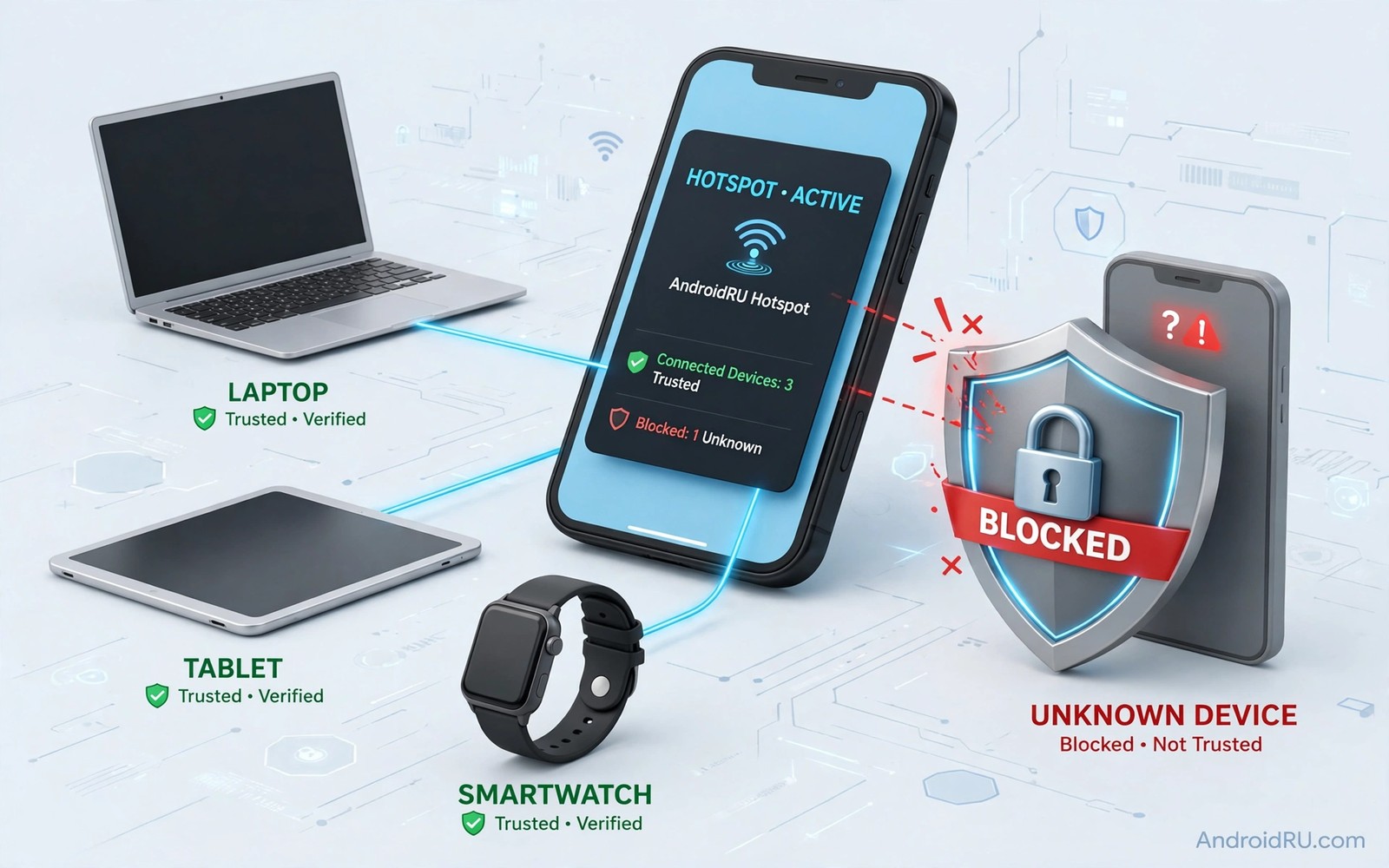
Your hotspot slows down at the worst moment and you suspect that a stranger is using it. A shared password can spread quietly from friend to friend until unknown devices join without asking. Each extra device takes a share of your data and a share of your speed. A MAC filter gives you a firmer control than a password alone. It lets you decide exactly which devices can connect.
A MAC address is a hardware identifier for a network device. A filter list uses those identifiers to allow or block specific devices. An allow list admits only devices that you name. A block list refuses only devices that you name. An allow list is stronger because it refuses every unknown device by default. A block list is weaker because a new stranger can still join until you block that specific device.
Android hotspot screens vary by brand. Some phones offer a simple connected devices list with a block button. Some phones offer no filter at all and you must use a password change instead. This guide shows both paths. You will learn how to find a device address and how to build an allow list habit. You will also learn the limits of filtering because a determined user can change a device address.
Find the address of each trusted device
Open Wi-Fi settings on the trusted device and look for its MAC address in the network details. On Android the address sits in the Wi-Fi network details or in About phone under network information. On a laptop the address sits in the network adapter details. Write down the address exactly as shown. A single wrong character will block a trusted device by mistake.
Label each address with the owner name and the device type. A label such as Maya laptop or Dad tablet prevents confusion later. Keep the list in a private note rather than in a shared message. A filter list is a security control and it should not travel in a group chat. A private note also helps you rebuild the list after a phone reset.
Check the address type on each device before you add it to a filter. Some devices use a randomised address for each network. A randomised address can change on the next join and break the filter. Set a trusted device to use its device address for your hotspot network. That stable address keeps the filter working across visits. A device that randomises every time needs a different control such as a password change.
Block a stranger from the hotspot screen
Open the hotspot screen while the stranger is connected. Look for the connected devices list and tap the unknown device. Many phones offer a block or disconnect option on that screen. A block stops the current session and it prevents an immediate rejoin with the same address. Test the result by watching the device list for a minute. The unknown device should stay absent.
Change the hotspot password at once if the stranger returns after a block. A returning stranger suggests that the password has spread or that the device changed its address. A new password drops every device and forces a fresh join. Share the new password only with trusted guests by a private method. A password change plus a block gives a stronger result than either step alone.
Turn the hotspot off when you do not need it. An idle hotspot invites scans and it drains battery. A hotspot that runs only during a visit has a smaller window for abuse. A short window plus a filter plus a fresh password gives a layered defence. No single layer is perfect but the layers together make abuse far harder. Dual band settings can also affect who connects smoothly and the guide to turning your phone into a dual-band hotspot explains band choices for guest use.
Use a password change as a filter reset
Treat a password change as a full filter reset. A new password removes every device at once including trusted devices. Trusted guests will need the new details to return. That inconvenience is the price of a clean reset. Use a reset after a large gathering or after any suspected abuse. A routine reset after gatherings prevents a slow accumulation of unknown devices.
Choose a guest password that you do not use for any other account. A guest password should be easy to change and easy to retire. A main account password should never serve as a hotspot password. That separation protects your accounts even if the hotspot password spreads. Change the guest password again after the next gathering for the same reason.
Set a device limit if your phone offers one. A limit of three devices keeps a small visit fast and it stops a chain of extra joins. A limit also gives you an early warning because a fourth device cannot join silently. Combine the limit with the device list check. A limit plus a list check gives you both prevention and detection in one habit.
Use this hotspot defence routine
Follow the same routine for every hotspot session. Prepare trusted addresses before guests arrive. Check the device list during the session. Block unknown devices at once. Change the password and turn off the hotspot after the session ends.
Step one: list trusted device addresses privately
Step two: turn on hotspot only for the visit
Step three: check connected devices during visit
Step four: block unknown device at once
Step five: change password after visit ends
This routine is an original example written for this guide. It uses only standard hotspot screens and it needs no extra app. The routine works because it combines a list check with a password reset. A list check alone can miss a device that changes its address. A password reset alone can miss a device that already knows the new password. Together they close both gaps.
Understand the limits of MAC filtering
A skilled user can change a device address to match an allowed address. That technique is called spoofing and it defeats a simple filter. A filter still helps against casual sharing because most strangers will not spoof an address. It does not help against a determined attacker who knows an allowed address. Treat the filter as a casual sharing control rather than as a high security lock.
A randomised address on a trusted device can also break an allow list. A phone that presents a new address each time will fail the filter even though the owner is trusted. Set trusted devices to a stable device address for your hotspot. That setting keeps the filter usable for honest guests. A filter that blocks honest guests will be abandoned quickly and then it protects no one.
Keep the hotspot name neutral so that strangers cannot guess whose connection it is. A name with your full name invites targeted attempts. A neutral name such as GuestNet gives less information to a scanner. A neutral name plus a strong password plus a device check gives a practical defence for daily use. Channel choices also affect stability and the steps for changing hotspot broadcast channels can help when a crowded channel slows a filtered hotspot.
Watch data usage for hidden joins
Check the hotspot data counter during and after a session. A counter that jumps without a matching guest activity suggests a hidden device. A large background update on a guest device can also explain a jump. Ask guests about updates before you assume abuse. A polite question can reveal a cloud backup that started silently.
Set a data warning for the hotspot period if your phone offers a data limit warning. A warning at a chosen threshold gives you time to act before the plan runs out. A warning also helps you spot a hidden device early. Act on the warning by checking the device list at once. A fast check beats a bill surprise at the end of the month.
Review the data total after each gathering and compare it with the expected use. A total that grows across gatherings without more guests suggests a leaked password. A password change after that review resets the situation. A regular review turns a vague suspicion into a measurable pattern. Meter limits help here too and the guide to setting strict app meter limits shows how to cap data use before it runs away.
Rotate the guest password on a schedule
Set a calendar reminder to change the guest password once a month if you host often. A monthly rotation limits how long a leaked password stays useful. A rotation also gives you a natural moment to review the trusted device list. A list that grows without review will eventually include devices that you no longer trust. A monthly review keeps the list honest.
Tell trusted guests about the rotation in advance so that the change does not surprise them. A short message on the day of the change is enough. A guest who knows the routine will ask for the new details without frustration. A guest who is surprised may assume that the hotspot is broken. A little communication preserves goodwill.
Keep the old guest password out of the rotation cycle. Reusing an old password defeats the purpose of a change. A password manager can generate a fresh guest password each month. A fresh password each month is a small effort with a clear security gain.
Common mistakes
A common mistake is to rely on a filter alone while keeping a weak and widely shared password. A filter plus a leaked password still admits a device that spoofs an allowed address. Another mistake is to block a device without changing the password. The same person can return with a new address or a new device. Combine a block with a password change for a lasting result.
Do not add a randomised address to an allow list and expect it to work forever. A randomised address can change and then a trusted guest gets blocked. Set the trusted device to a stable address for your hotspot first. Do not leave the hotspot on all day either. An idle hotspot is an open invitation even with a filter in place.
Frequently Asked Questions
Does a MAC filter work on every Android phone?
No because hotspot filter options vary by brand and by Android version. Some phones offer a block button in the device list. Some phones offer no filter and a password change is the main control. Check your hotspot screen for a device list option first.
Can a blocked device still use my hotspot?
A blocked device can return if it changes its address or if it learns a new password. A block plus a password change plus turning the hotspot off after use gives the strongest practical result. No phone filter alone can stop a determined spoofing attempt.
Should I use an allow list or a block list?
An allow list is stronger because it refuses unknown devices by default. A block list is easier because you only act on known strangers. Use an allow list for a small trusted group and a block list plus password changes for larger gatherings.
Conclusion
Today open your hotspot screen and check the connected devices list during a test session. Block any unknown device at once and change the hotspot password after the session ends. Write down trusted device addresses in a private note for future visits. Set a device limit if your phone offers one. That concrete routine will stop casual bandwidth theft without any extra app.
Repeat the device list check after every larger gathering. A regular check plus a fresh guest password keeps the hotspot generous for friends and closed to strangers. That habit protects both speed and data for the people you actually invited.

