

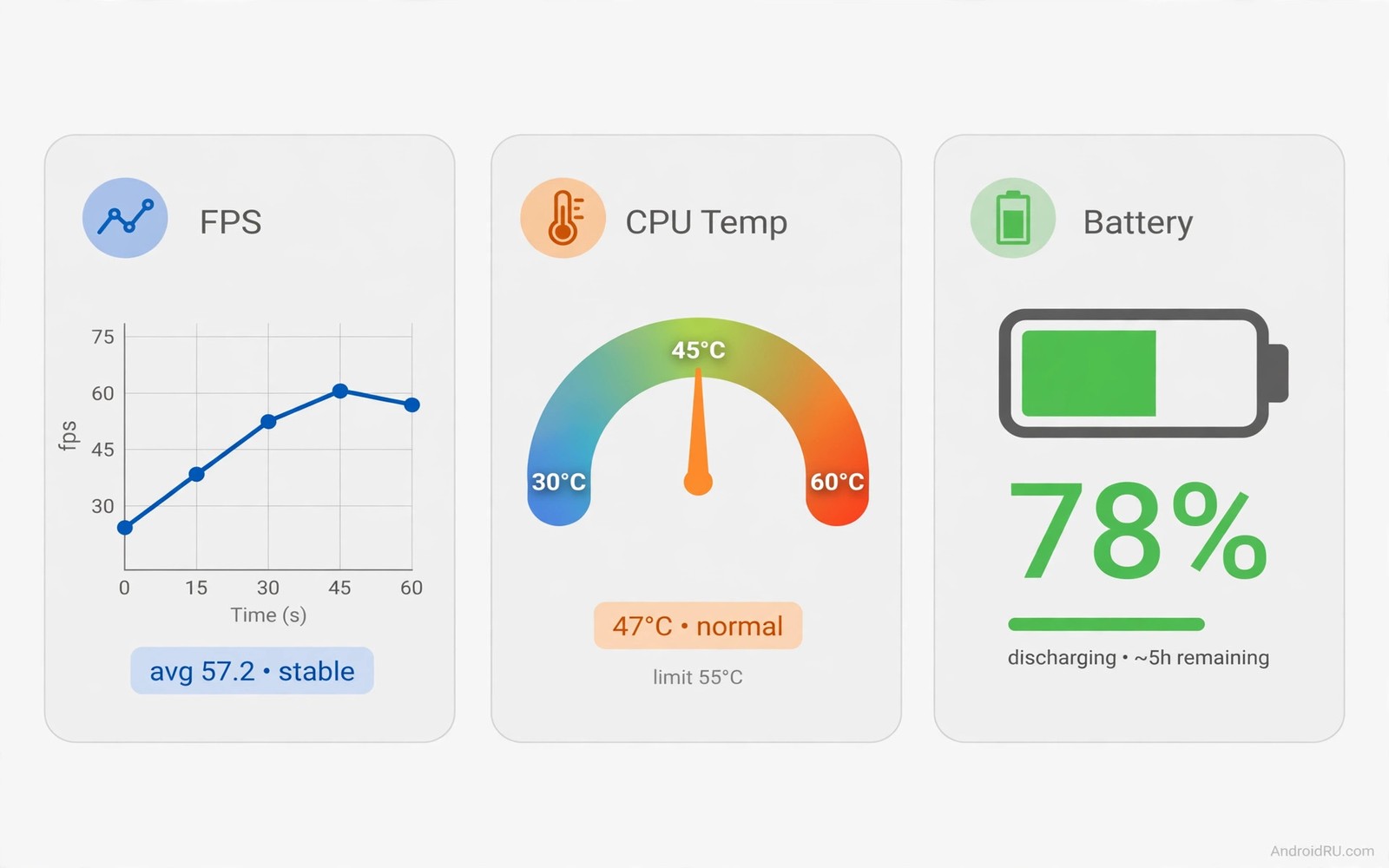
Your game stutters during a team fight. The phone feels hot. You wonder whether the game or the phone is at fault. A performance overlay answers in real time. It shows frames per second on screen. It shows CPU temperature beside it. It shows whether heat is forcing the chip to slow down.
FPS measures smoothness. Sixty frames per second feels fluid. Thirty feels choppy in fast games. A drop from sixty to twenty during action reveals a bottleneck. A steady thirty may be a game cap and not a fault. An overlay lets you tell the difference. Without numbers you guess. With numbers you diagnose.
CPU heat explains many drops. A phone chip slows itself when it gets too hot. This protection is called throttling. Throttling saves the chip from damage. It also ruins game smoothness. An overlay that shows heat and FPS together reveals the link. FPS falls as heat rises past a threshold. That pattern points to cooling and not to a bad game.
This guide shows how to use an overlay well. You will learn which numbers matter. You will learn how to test a game properly. You will learn cooling tricks that actually help. You will also learn the limits of overlay apps on modern Android.
Numbers that matter on screen
FPS is the headline number. Watch the average and the lowest values. An average of fifty with dips to fifteen feels worse than a steady forty. Dips cause visible stutter. Averages hide dips. A good overlay shows a small graph as well as a number. The graph reveals dips at a glance.
CPU temperature is the second number. Many phones throttle near forty five degrees on the chip sensor. Skin temperature feels lower than chip temperature. Do not judge heat by touch alone. A warm back may still be safe internally. A hot chip sensor with falling FPS is the real warning.
CPU load shows how hard each core works. A game that maxes one core while others idle may be poorly optimised. A game that spreads load evenly uses the chip well. Load numbers help advanced users. Casual users can focus on FPS and heat first. Load adds detail when FPS alone does not explain a problem.
Battery temperature and GPU load round out the set. Battery heat rises more slowly than chip heat. GPU load matters most for 3D games. A GPU at full load with low FPS suggests a graphics limit. A CPU at full load with low FPS suggests a logic limit. Together the numbers point to the bottleneck. Readers who monitor hardware generally should also see system monitor apps that check hardware health because an overlay is a specialised monitor.
How to run a proper performance test
Close all other apps before testing. Background downloads skew results. A chat app syncing photos can steal processor time. A test with background noise proves nothing. A clean test gives a baseline you can trust. Repeat the test on a second day to confirm it.
Play the same scene for five minutes. A menu screen tells you nothing about game load. A busy battle scene tells you everything. Record the average FPS and the lowest dip. Record the starting heat and the peak heat. A five minute test reveals throttling that a one minute test misses. Heat builds over time.
Test with the case on and the case off. A thick case traps heat. A thin case lets heat escape. The difference can be several degrees. A test with the case on reflects real use. A test with the case off shows the cooling potential. Knowing both helps you decide whether to remove the case for long sessions.
Test on Wi-Fi and on mobile data separately when the game is online. Network lag can look like FPS drops. A stutter from network delay feels similar to a frame drop. An overlay FPS number separates them. Stable FPS with visible lag points to network. Falling FPS points to the phone itself.
Cooling tricks that actually work
Remove the case for long gaming sessions. A case insulates the phone. Removing it lets heat radiate faster. Place the phone on a cool hard surface between matches. A table conducts heat better than a bed. Avoid gaming while charging when possible. Charging adds heat on top of game heat. The pair triggers throttling sooner.
Lower graphics settings one step. A drop from ultra to high often restores smooth FPS. It also lowers heat a lot. A drop from high to medium helps further. Smooth play at medium beats stutter at ultra every time. Graphics pride means little when the game stutters in a fight.
Use a small fan or a clip-on cooler for competitive sessions. A fan moves hot air away from the phone. A clip-on cooler actively draws heat. Both help sustained performance. A cooler is overkill for casual puzzle games. It is worthwhile for long ranked matches. Check that the cooler fits your phone model before buying.
Take a break every thirty minutes in a hot room. A break lets the chip cool fully. A cooled phone starts the next match at full speed. Continuous play in a hot room keeps the chip throttled. Breaks also help your eyes and hands. Performance and health both benefit from pauses.
Overlay limits on modern Android
Some overlays need special permission to draw over games. Grant draw over other apps permission when asked. Some games block overlays as a cheat precaution. A blocked overlay may vanish during a match. A system level game tool may offer FPS display instead. Use the built-in game tool when an overlay is blocked.
Root access unlocks deeper metrics on some phones. Non-root overlays estimate FPS from screen updates. Estimates are usually close enough for diagnosis. Root metrics are more precise but carry security risks. Most users should stay non-root. Estimates plus heat data already answer the main questions.
adb shell dumpsys gfxinfo com.example.game framestats
adb shell cat /sys/class/thermal/thermal_zone0/temp
adb shell dumpsys battery | grep -i temp
The snippet above is an original example written for this guide. It shows how an advanced user can check frame stats and thermal sensors from a computer. It is not a required step for normal overlay use and the example package name must be replaced with the real game.
Battery drain from an overlay itself is small. The overlay draws a few numbers on screen. It does not render game graphics. Drain from the game dwarfs drain from the overlay. Do not blame the overlay for game battery use. Compare battery with and without the overlay if you doubt it. The difference will be tiny.
Recording a performance log over time
A single test gives a snapshot. A log over weeks shows a trend. Record average FPS and peak heat for each game weekly. Note ambient temperature and case use each time. A trend reveals slow degradation from dust or battery age. A snapshot cannot show that pattern. A log turns guessing into evidence.
Compare logs after each system update. An update can change thermal policy silently. FPS may fall after an update even when hardware is unchanged. A log proves the change and its size. A report to the maker with log numbers gets more attention than a vague complaint. Numbers make support cases stronger.
Share logs with a community for your phone model. Other owners may show the same pattern. A shared pattern points to a model issue. A unique pattern points to your device or settings. Community comparison saves diagnostic time. It also warns buyers about real thermal limits.
Compare overlay readings with in-game benchmarks when available. Some games include a built-in frame counter. Run the game counter and the overlay together for one match. Note any consistent gap between the two numbers. A small gap is normal because measurement methods differ. A large gap suggests one tool misreads the game. Trust the built-in counter for that game thereafter. Cross-checking once prevents months of decisions based on a faulty number.
Common mistakes
The first mistake is chasing a constant sixty FPS at all costs. Many games cap at thirty by design. A cap is not a fault. Check the game settings for a frame rate option first. A game set to thirty will never show sixty. An overlay cannot override a game cap.
The second mistake is judging heat by hand feel alone. Hands sense skin temperature. Chips throttle on internal temperature. An overlay sensor reading beats touch. A phone that feels warm may still run at full speed. A phone that feels cool may already throttle on one sensor.
The third mistake is testing only the menu screen. Menus run at high FPS with low load. Real gameplay stresses the chip far more. Test a busy scene for five minutes. A menu test flatters every phone. A battle test tells the truth.
The fourth mistake is ignoring ambient temperature. A phone in a hot car throttles faster than the same phone in an air conditioned room. Test in your normal gaming spot. A result from a cool room does not predict a hot room session. Context changes thermal limits.
FAQ
Does an FPS overlay slow down my game?
Only slightly for most overlays. Drawing a few numbers costs little. The game rendering dominates processor use. A heavy overlay with graphs costs a bit more. Keep the overlay minimal during competitive play. A small number display is the lightest option.
What temperature is dangerous for a phone?
Chip temperatures near fifty degrees trigger throttling on many phones. Skin temperatures above forty five degrees feel uncomfortable. Sustained very high heat can age a battery faster. A phone that shuts down from heat needs a break and a cooler environment.
Can an overlay help non-gaming apps too?
Yes for video editing and camera apps. An overlay shows whether a stutter comes from processing or display. It helps diagnose any app that feels slow. Games are the clearest case. Heavy creative apps benefit as well.
Conclusion
A real-time overlay turns vague lag into clear numbers. FPS shows smoothness. Heat shows throttling. Load shows the bottleneck. A five minute busy scene test reveals more than hours of guessing. Cooling tricks and graphics tweaks then target the real cause.
Your concrete next step is to install an overlay today and run a five minute test in your most demanding game. Record average FPS and peak heat and the lowest dip. If heat rises with falling FPS then remove the case and lower graphics one step and test again. If FPS stays stable then your phone is fine and the game settings deserve a look. Readers who want automation for gaming sessions should also explore the ultimate automation app that will do work for you and lightweight apps that take less than 10MB of storage because a lean phone games better.

