

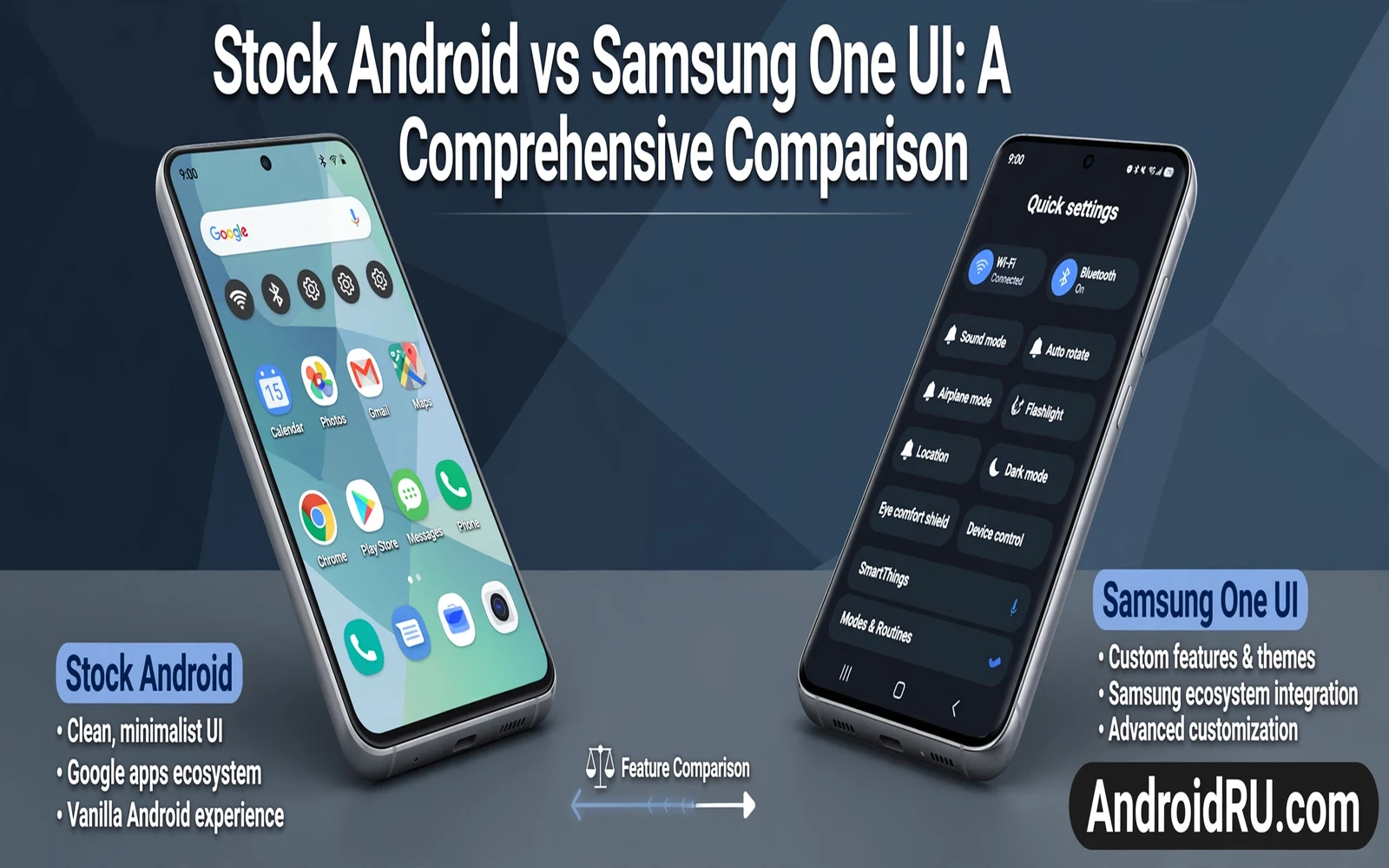
Stock Android and Samsung One UI start from the same base system. They differ in look and feel and extra features and update timing. Stock Android keeps the interface close to the pure system design. One UI adds a Samsung layer with its own apps and settings and visual style. Neither path is wrong for every user. The right choice depends on how you use your phone each day.
This comparison looks at design and features and performance and updates and app support. It looks at daily tasks rather than rare tricks. It looks at battery life and camera use and long term support. It also looks at what you can change after you buy the phone. A phone that feels right on day one should still feel right after a year of use.
Brand names matter here because the experience is tied to the maker. A Pixel phone shows stock Android in its clearest form. A Samsung phone shows One UI in its fullest form. Other makers add their own layers too. This guide focuses on those two paths because they show the contrast most clearly. Lessons from this contrast help you judge other maker layers as well.
Design And Daily Look
Stock Android uses a clean home screen with simple icons and a clear settings menu. Menus use plain labels and consistent spacing. Widgets use the dynamic color system to match your wallpaper. The result feels calm and easy to scan. A calm screen helps you find tools fast. A calm screen also reduces visual noise during a busy day.
One UI uses larger touch targets and a layout that favors one handed use. Important controls sit lower on the screen where your thumb can reach them. Menus use bold headings and grouped options. The result feels friendly for large phones. A large phone can be hard to use with one hand. A layout that moves controls downward makes daily reach easier.
Color and icon style differ in a visible way. Stock Android follows the wallpaper palette across menus and buttons and widgets. One UI offers its own theme store and icon packs and always on display styles. Both paths let you change wallpaper and widgets. One UI gives you more built in theme choices without extra apps. Stock Android gives you a more uniform look across system apps.
Lock screen options show the same contrast. Stock Android keeps lock shortcuts simple and consistent. One UI adds more lock widgets and clock styles and shortcut choices. More choices can be pleasant. More choices can also take longer to set up. Choose the path that matches how much time you want to spend on setup.
Built In Apps And Features
Stock Android ships with a lean set of system apps. The phone app and messages app and camera app follow the pure system design. Extra apps are few. Storage stays freer for your own apps. A lean system is easier to learn because every app behaves in a similar way. A lean system also leaves fewer duplicate apps to sort out.
One UI ships with a wider set of Samsung apps. The set may include a Samsung store and a Samsung browser and Samsung health tools and Samsung notes. Some users value those tools because they sync across Samsung devices. Some users see duplicates because a Google app already does the same job. You can disable many duplicates. You can also keep the Samsung version if it fits your other devices better.
Multitasking shows a clear One UI strength. Split screen and pop up windows and edge panels help you run two tasks at once. A large Samsung phone can show a video beside a chat. A large Samsung phone can show notes beside a browser page. Stock Android supports split screen too. One UI adds more window controls and more quick ways to launch a pair of apps.
Device integration differs as well. Samsung phones connect deeply with Samsung tablets and watches and earbuds. Stock Pixel phones connect deeply with Google services and Pixel accessories. Think about the devices you already own. A phone that fits your watch and tablet and earbuds will feel smoother in daily use than a phone that fights them.
Performance And Battery Life
Performance depends on hardware and software together. Stock Android runs lean code on Pixel hardware that Google tunes for that code. The match can give smooth scrolling and fast app opening. One UI runs extra services on Samsung hardware that Samsung tunes for that layer. The match can also give smooth scrolling when the hardware is strong. A flagship phone on either path should feel fast in normal use.
Mid range phones show the difference more clearly. A lean system leaves more memory for your apps. A heavier layer uses more memory for its own services. A mid range Samsung phone may still feel smooth because Samsung tunes its layer for that model. A mid range Pixel phone may feel smoother in long sessions because fewer background services compete for memory. Test both paths on the price tier you plan to buy.
Battery life follows a similar pattern. Stock Android uses strict background rules to save power. One UI uses its own power tools and sleep rules for apps. Both paths can last a full day with normal use. Heavy gaming and long video calls drain either path fast. Check battery use by app on your own phone. Real use tells you more than a single claim about either system.
Heat and long term speed also matter. A phone that stays cool keeps performance stable. A phone that heats up may slow down to protect itself. Both systems manage heat with thermal rules. A clean system with fewer background apps tends to stay cooler. Remove apps that you do not use on either path. A tidy phone runs better no matter which layer it uses.
Camera And Media Experience
Camera software is a major difference. Pixel stock Android uses Google camera processing to produce clean photos in low light. Samsung One UI uses Samsung camera processing with its own color style and zoom tools. Pixel photos often look natural and balanced. Samsung photos often look vivid and bold. Neither style is correct for every eye. Look at sample photos from both paths before you choose.
Video features also differ. Samsung phones often offer more manual video controls and more zoom options on flagship models. Pixel phones offer strong video stabilization and simple controls. A user who films often may prefer Samsung manual tools. A user who films casually may prefer Pixel simplicity. Match the camera to your shooting style rather than to a feature list alone.
Media playback is close on both paths. Both support high quality audio and video apps. Both support casting to a television. Both support wireless earbuds with low delay modes on matching hardware. The difference is in the extra media tools that Samsung adds. Samsung adds sound tools and video enhancer options in settings. Stock Android keeps media settings simpler and more uniform.
Updates And Long Term Support
Update timing is a classic stock advantage. Pixel phones usually receive new system versions first. Pixel phones usually receive monthly patches first. Samsung phones receive updates after Samsung adapts the new version to One UI. The delay can be weeks or months depending on the model. Flagship Samsung models now receive long support windows. The gap in timing remains even when the total support length is close.
Support length matters as much as timing. A long support window keeps patches coming for years. A short support window leaves you exposed sooner. Check the published support window for the exact model you plan to buy. Do not assume that every Samsung model shares the flagship window. Do not assume that every Pixel model shares the same window either. Model details decide real support.
Update size and restart behavior are similar on both paths. A major update needs a backup and a charge and stable Wi-Fi. A major update needs a restart and a short optimization period. Follow the same safe steps on either path. Back up before the update. Test core apps after the update. Keep app updates current after the system update finishes.
Beta access differs too. Pixel users can join an official beta program with clear enrollment steps. Samsung users can join Samsung beta programs when they open for eligible models. Beta software carries bugs and battery risk on either path. Beta access is a bonus for curious users. Beta access should not decide a purchase for a user who needs a stable daily phone.
Privacy Security And Control
Privacy controls exist on both paths. Both let you review camera and microphone and location permissions. Both let you hide sensitive content on the lock screen. Both let you control app tracking in settings. Stock Android presents these controls in a uniform system menu. One UI presents them with Samsung labels and extra Samsung account options. The core controls are similar. The path to reach them differs.
Security patch speed favors stock Android in most months. A faster patch closes a known gap sooner. A slower patch leaves the gap open longer. Samsung flagship models close the gap faster than Samsung budget models. Pixel models close the gap fastest in most cases. If patch speed is your top priority then stock Android has a clear edge.
Account sync adds another layer. Samsung phones ask for a Samsung account in addition to a Google account. A Samsung account enables Samsung cloud and device find tools. A Google account enables Google backup and device find tools. Two accounts mean two places to review privacy settings. Review both accounts after setup. A setting that you miss in one account can still share data that you meant to keep private.
App permissions deserve a regular review on either path. Open the permission manager once a month. Check which apps can use the camera. Check which apps can use the microphone. Check which apps can use location. Remove access from any app that does not need it. A short review protects you more than any single feature claim.
Which Path Fits You
Choose stock Android if you want fast updates and a clean uniform system. Choose stock Android if you want Google camera processing and Google service integration. Choose stock Android if you dislike duplicate apps and extra layers. Choose stock Android if you want the simplest path to a new system version. Stock Android suits users who value speed of updates over breadth of features.
Choose One UI if you want rich multitasking and deep Samsung device integration. Choose One UI if you want more theme choices and more lock screen options. Choose One UI if you already own Samsung accessories. Choose One UI if you use a large phone with one hand often. One UI suits users who value extra tools over the leanest possible system.
Consider the price tier before you decide. A flagship One UI phone hides the cost of its extra layer with strong hardware. A budget One UI phone may show that cost more clearly. A Pixel phone at the same price may feel leaner. Compare phones in the same price tier in a store when you can. Hold each phone and open your most used apps. A short hands on test beats a long feature list.
Beta access is one of the clearest stock advantages for curious users and how to install the latest Android beta on Google Pixel involves backup and enrollment steps that a stable phone never needs. Beta testing shows upcoming features early but it carries bugs and rollback risk. A user who loves early software may value that access highly. A user who needs stability may never use it at all.
A custom ROM replaces the maker layer entirely while One UI keeps the maker layer and tunes it for Samsung hardware and Android stock versus custom ROM performance captures that difference in daily terms. The custom path offers more control and more maintenance. The maker path offers tested drivers and app support with less work.
Stock themes use wallpaper colors across the system while One UI themes work in a different way with its own store and styles and Material You customization for Android centers on that wallpaper color idea. Try both theme systems in a store demo if you can. The theme system that feels natural to you will shape your daily mood more than a spec sheet will.
Quick Checklist
- Hold both phones in the same price tier before you buy
- Check the published update window for your exact model
- List apps that must work without any compromise
- Test camera samples in low light and daylight
- Review permissions for camera microphone and location
- Disable duplicate apps that you do not use
- Back up before any major system update
- Compare theme and one handed controls in daily use

