

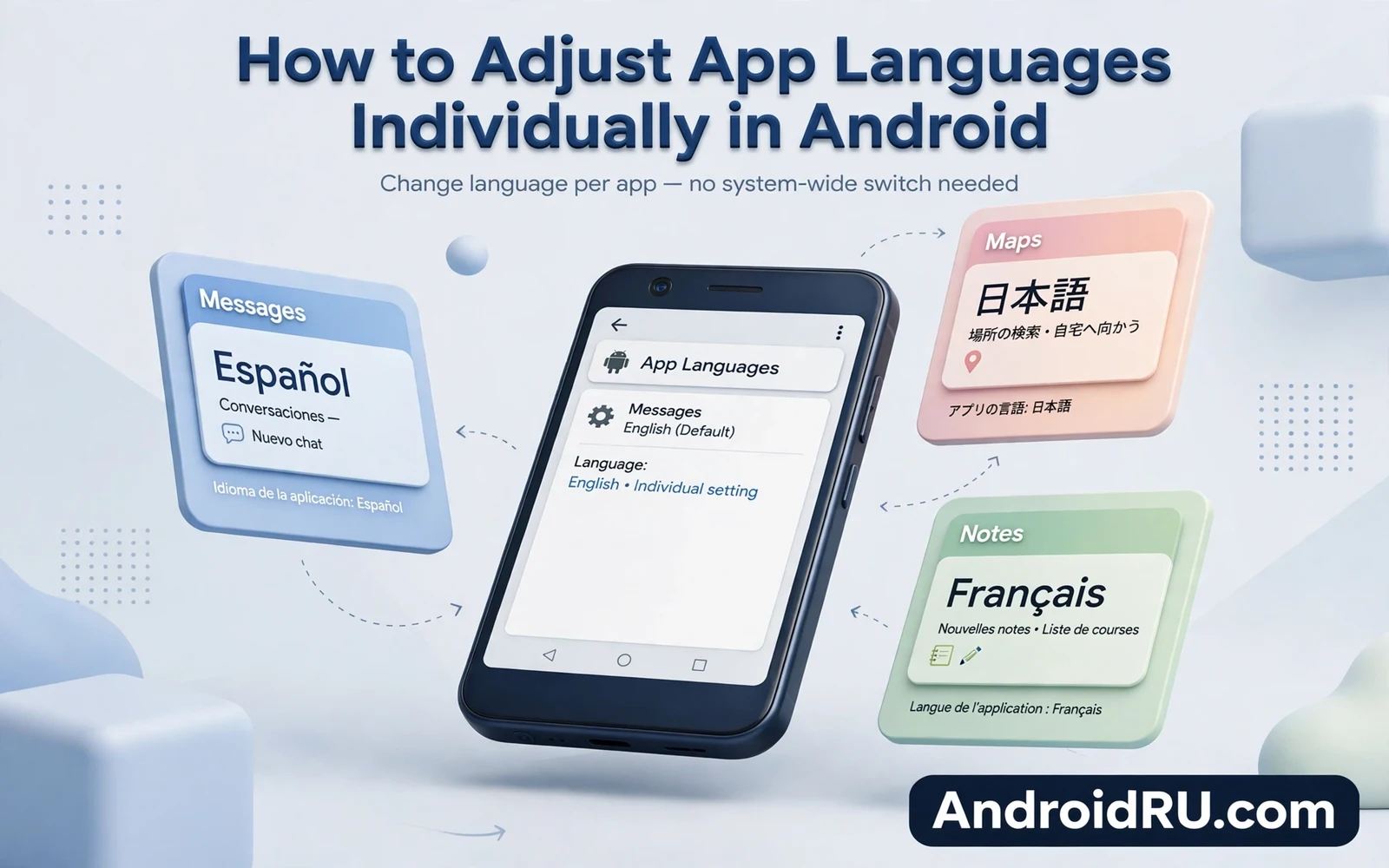
A phone speaks one main language by default. Every menu and every app follows that choice. That default suits most users most of the time. It fails users who live in two languages at once. A student may read study apps in one language and chat apps in another. A worker may use office apps in one language and home apps in another. A traveller may need maps in a local language and banking in a home language. Per app language settings solve that split cleanly.
Per app language lets you pick a language for a single app. The rest of the phone keeps the main language. System menus stay familiar. Other apps stay familiar. Only the chosen app switches its text. That isolation prevents confusion across the whole phone. You gain a bilingual phone without relearning every menu. Each app speaks the language that fits its task best.
Support varies by app and by phone. Apps built with modern tools usually offer the choice. Older apps may ignore the setting and follow the system language. Some apps offer their own language menu inside the app. Those in app menus override the system per app setting in most cases. Check both places when a language refuses to change. The system setting and the in app menu together cover nearly every case.
Find The Per App Language Setting
Open settings and search for the words app languages. Open the app languages screen from the results. You will see a list of apps that support the choice. Tap an app name to see its language list. Pick the language you want for that app. Return to the home screen and open the app. Its menus and labels should already show the new language.
When settings search finds nothing open the apps list directly. Open settings and open the apps section. Tap the app you want to change. Look for a language option inside the app info screen. Some phones place it near permissions and notifications. Some phones place it under a language heading of its own. Tap it and pick from the supported list. The change applies at once without a restart in most cases.
When an app shows no language option it may not support the feature yet. Check the app for an internal language menu first. Open the app settings or profile screen. Look for a language or region option there. Pick a language inside the app when one exists. Update the app when neither place offers a choice. Newer versions add per app language support over time as makers adopt modern tools.
Choose Languages That Fit Each Task
Maps suit the language of the place you travel in. Local street names and place labels read clearer in the local language. A map in a foreign language can confuse a turn at a busy junction. Switch maps to the local language before a trip. Switch maps back home after you return. That temporary switch costs seconds and saves wrong turns.
Learning apps suit the language you study. A language course app should show its target language for immersion. A study app for a science subject may suit a language with better materials. A reading app may suit the language of the books you love. Match the app language to the learning goal rather than to habit. Immersion works best when the tool itself speaks the target language.
Banking and government apps suit the language you read most carefully. Financial terms need precision. A mistranslated term can cause a costly error. Keep those apps in your strongest reading language even when other apps use a second language. Safety beats immersion for money and for official tasks. That rule protects you from a small wording slip with large consequences.
Fix A Language That Will Not Change
A language that ignores your pick often needs an app restart. Close the app fully from the recent screen. Open it again and check its menus. A restart forces the app to reload its text resources. Some apps cache language at launch and ignore a mid session change. A full close clears that cache and applies the new choice. Test the change after a restart before you try stronger steps.
An in app language menu can override the system pick. Open the app settings and check for a language option there. Set it to follow the system choice when you want the system per app setting to win. Set it to a fixed language when you want the app to ignore the system entirely. That hierarchy confuses many users. The in app menu usually wins because it sits closer to the app itself.
A system language that lacks a full translation can fall back to the main language for some screens. An app may show mixed languages when its translation covers only part of its screens. Update the app for a fuller translation. Report missing translations to the maker when a major screen stays untranslated. Mixed language screens annoy but they rarely block use. The core task usually remains clear even with a few untranslated labels.
Privacy And Language Choices
Language settings reveal little about you to others. A passerby may notice a foreign menu on your screen. That glimpse reveals a preference rather than private data. Lock screen shortcuts and notifications reveal more than language does. Keep language choices free of worry on a personal phone. On a shared phone remember that an open app shows its language to anyone nearby. That visibility rarely matters for most users.
Voice assistants follow language rules of their own. An assistant may need a separate language setting from app languages. Open assistant settings and check its language list. Add a second language when the assistant supports bilingual commands. Test a command in each language after you add it. An assistant that understands both languages feels far more natural in a bilingual home.
Keyboard languages deserve a separate check alongside app languages. A chat app in one language may need a keyboard in that same language. Add keyboards for each language you type often. Switch keyboards from the space bar or from the keyboard menu. A matching keyboard prevents autocorrect from fighting your words. App language plus keyboard language together give a smooth bilingual typing experience.
Build A Bilingual Phone That Feels Natural
Lock screen tools should match the language you read fastest at a glance and the shortcut steps in How to Customize Your Android Lock Screen Shortcuts help you place camera and torch and wallet within one tap of waking the phone. Colour themes shape the same daily comfort and the dynamic palette steps in How to Enable Dynamic Color Palette on Any Android Device show how wallpaper colours theme the interface around those tools. Background behaviour stays steady across languages and the memory explanation in How Android Handles Background Apps and Memory Management shows why the system keeps frequent apps ready for a fast return. Together these guides build a phone that feels personal in every language you use.
Review per app languages when your life shifts. A new job may bring a new work language. A move may bring a new local language. A course may bring a new study language. Update the affected apps in one settings pass. Leave the rest of the phone untouched. That focused update keeps the phone bilingual without a full rebuild.
Start with three apps for your first bilingual setup. Pick one chat app and one learning app and one travel app. Set each to the language that fits its task. Live with that trio for a week. Notice where the split helps and where it confuses. Expand to more apps only after the trio feels natural. A gradual bilingual phone beats a sudden overhaul that overwhelms you.
Test Language Changes Before Travel
Test a new app language at home before a trip depends on it. Open maps in the travel language and read a familiar route. Check that street names and directions stay clear. Open a translation app in the same language and test a common phrase. A home test reveals confusing labels while help sits nearby. A trip test reveals them when confusion costs time.
Restaurant and transport apps deserve a language test of their own. Open a food app in the local language and find a familiar dish. Open a transport app and read a familiar station name. Those small tests build confidence in the new language. They also reveal screens where translation stays partial. Knowing the gaps early lets you plan around them with saved phrases.
Offline language packs matter when travel leaves tower range. Download the language pack for a translation app before departure. Download offline maps in the travel language as well. Offline packs work without a connection. They turn a foreign city into a readable place even without signal. Pack downloads belong on every travel checklist alongside chargers and documents.
Children in bilingual homes benefit from per app language as well. A learning app in a school language supports homework. A game in a home language keeps play relaxed. A video app in a second language builds listening skill gently. Set each app to the language that fits its purpose. Review the choices as school needs change through the year.
Work travel brings its own language split. A mail app in a home language keeps careful reading easy. A local transport app in a travel language keeps navigation clear. A hotel app in a travel language keeps check in smooth. Set the trio before departure. Change them back after return in one settings pass. That temporary split serves the trip without disturbing home routines.
A bilingual household gains from a shared language routine across devices. Set the same per app languages on a tablet that children use for study. Keep chat apps in the home language on every family phone. Keep learning apps in the school language on every family device. Consistency across devices prevents confusion when a child switches screens. Review the shared routine each school term. A family language plan works best when every device speaks the same split.
A travel phrasebook app works best in the language of the country you visit. Set it to the local language before departure and test common greetings at home. Pair it with a maps app in the same language for consistent place names. That pairing prevents confusion between two different translations of one street. Consistent language across travel apps keeps navigation smooth and stress low.

