

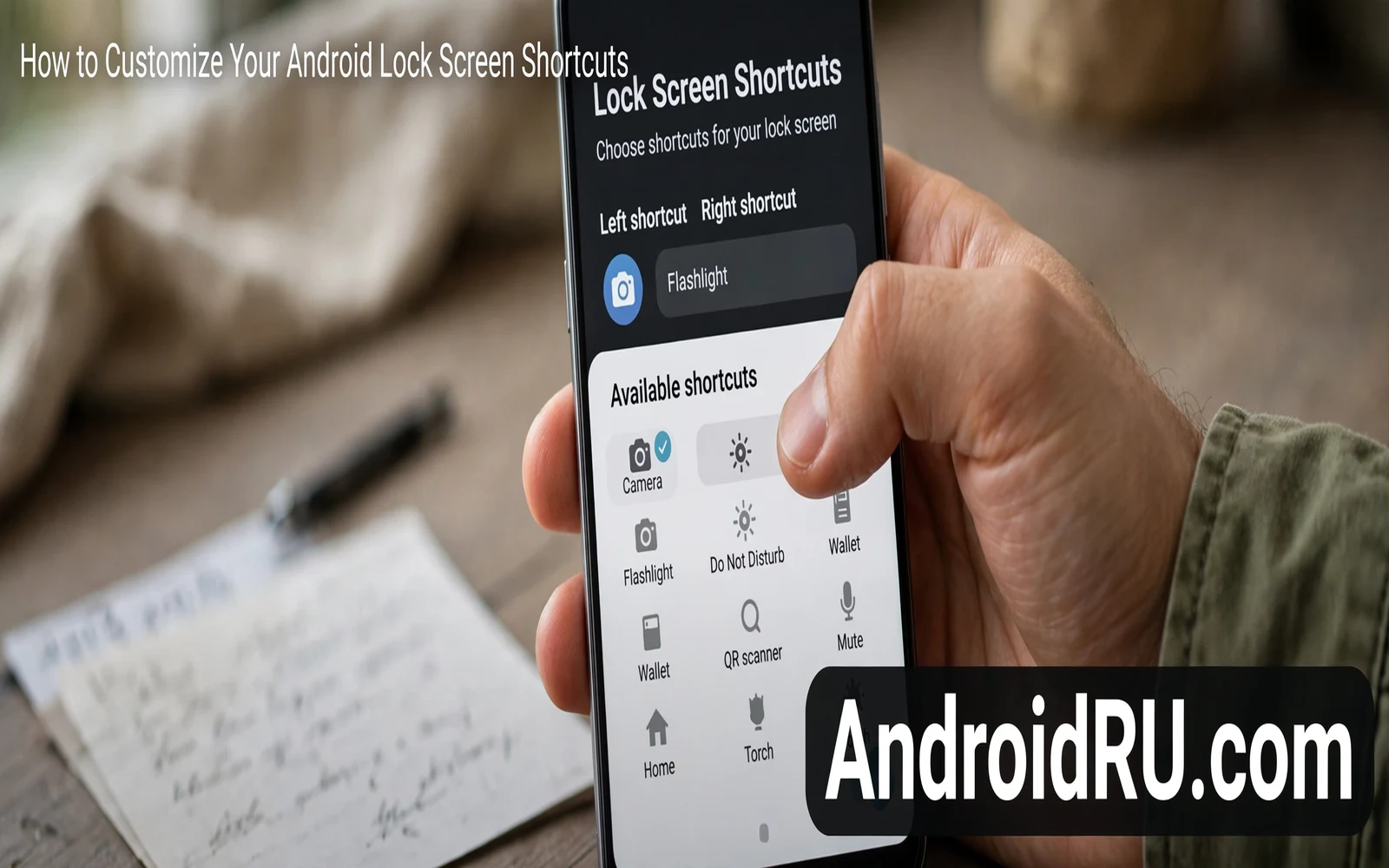
The lock screen is the most visited screen on a phone. You see it every time you wake the device. You see it before you unlock for a call or a photo or a payment. Shortcuts on that screen save precious seconds. A camera shortcut opens the camera without a full unlock. A torch shortcut lights a dark path without hunting through menus. A wallet shortcut opens payment without unlocking and searching. Good shortcuts match the tools you reach for most.
Shortcuts differ from widgets and from notifications on the same screen. A widget shows live information at a glance. A notification shows a message that needs attention. A shortcut launches a tool in one tap. That single tap purpose makes shortcut choice important. Two well chosen shortcuts beat six rarely used ones. Your thumb should find the right tool without looking closely. Speed and muscle memory matter more than novelty here.
Privacy shapes shortcut choice as well. A shortcut that opens a camera still protects your photos behind the lock. A shortcut that opens a wallet may need a biometric check before payment. A shortcut that opens a voice assistant may read a command without unlocking. Think about what each shortcut exposes before you add it. A fast tool should never become an open door to private data. The best shortcuts balance speed with a sensible lock.
Find The Lock Screen Shortcut Setting
Open settings and search for the words lock screen. Open the lock screen settings screen from the results. Look for a shortcuts option inside that screen. Some phones place it under a customise section. Some phones place it under a buttons section. Some phones show two shortcut slots with icons that you can tap. Tap a slot to see the list of tools that can fill it.
When settings search finds nothing try the wallpaper route instead. Long press the home screen and open the wallpaper and style screen. Some phones place lock screen controls on that same screen. Tap the lock screen preview to open its editor. Look for shortcut slots at the corners of the preview. Tap a slot and pick a tool from the list. Save the change and lock the phone to test it.
Some makers hide lock screen shortcuts under display settings. Open display settings and scroll to the lock screen section. Look for shortcut or quick launch wording there. A maker may also place the option inside a themes app. Open the theme app and look for lock screen customisation. The name varies but the pattern stays the same. A preview with two corner slots means you found the right screen.
Pick Shortcuts That Earn Their Place
Camera earns a slot for most users. Life moves fast and a photo moment rarely waits for an unlock. Torch earns a slot for users who walk at night or search dark rooms. Wallet earns a slot for users who pay by phone daily. Voice assistant earns a slot for hands free users who drive often. A notes app earns a slot for users who capture ideas on the move. Pick two tools that match your real days rather than tools that sound impressive.
Avoid shortcuts that duplicate an easy unlock path. A phone app shortcut saves little when a call takes one more tap after unlock. A browser shortcut saves little when browsing needs a full session anyway. A settings shortcut saves little on a screen meant for instant tools. Each shortcut should launch a task that finishes in seconds. Camera and torch and wallet all pass that test. Most other apps fail it.
Test new shortcuts for a full week before you judge them. A shortcut that feels clever on day one may sit unused by day seven. Watch which slot your thumb reaches for without thinking. Replace the ignored slot with a different tool. Repeat the test with the new pair. After two rounds you will own a pair that fits your habits. That habit fit matters more than any recommended list.
Use Gestures And Buttons Alongside Shortcuts
Some phones offer a double press of the power button for the camera. That gesture works from a locked screen and from any app. It pairs well with a torch shortcut in a corner slot. Together they give you three instant tools without crowding the screen. Enable the power gesture in settings under gestures or buttons. Test it with the screen off to build muscle memory.
Swipe gestures on the lock screen can also launch tools. A swipe from a corner may open the camera on some phones. A swipe up may open the wallet on others. Check the lock screen settings for gesture options alongside shortcut slots. Disable a gesture that triggers by accident in a pocket. Accidental camera launches waste battery and fill storage with dark photos. A gesture should feel deliberate every time.
Widgets can complement shortcuts when the lock screen supports them. A calendar widget shows the next event at a glance. A music widget controls playback without unlocking. A weather widget shows the day ahead before you step out. Widgets show information while shortcuts launch tools. Use both kinds wisely and keep the screen calm. A crowded lock screen slows the eye and defeats the purpose of instant tools.
Fix Shortcuts That Vanish Or Refuse To Change
A shortcut that vanishes after an update often needs a fresh pick. Open the lock screen settings and tap the empty slot again. Pick the tool once more and save. Lock the phone and test the slot at once. An update can reset custom slots to defaults without warning. A quick re-pick restores your setup in under a minute. Note your pair somewhere so a reset costs no thought.
A shortcut that refuses to change may face a launcher conflict. A third party launcher can override lock screen controls on some phones. Switch to the stock launcher briefly and test the change there. When the change works on the stock launcher then the third party launcher is the cause. Check that launcher for lock screen options of its own. Accept its controls or return to the stock launcher for lock screen work.
A work profile or a device admin can also lock shortcut settings. A managed phone may force a fixed pair for security reasons. A parental control app may block lock screen changes as well. Check with the admin when settings stay grey. A grey setting with no error message often signals a policy rather than a fault. Respect that policy on a managed device and customise the home screen instead.
Build A Lock Screen That Serves You
Colour and shortcuts should agree on one calm design and the dynamic palette steps in How to Enable Dynamic Color Palette on Any Android Device show how wallpaper colours can theme the whole interface including lock screen accents. Memory habits also affect lock screen speed and the background explanation in How Android Handles Background Apps and Memory Management shows why the system keeps your frequent apps ready for a fast return after unlock. Language comfort matters on the lock screen too and the per app language steps in How to Adjust App Languages Individually in Android let each app greet you in the language you read fastest. Together these choices make every wake feel familiar.
Review shortcuts each season as habits change. A summer of travel may demand a camera and a wallet. A winter of commuting may demand a torch and a music control. A new job may demand a notes app and a voice assistant. Update the pair when life shifts. A lock screen that follows your life stays useful. A lock screen frozen from last year slowly turns into decoration.
Keep the final test simple. Lock the phone and wake it. Find each shortcut without reading labels. Launch each tool in one tap. Return to the lock screen and repeat the test with the other hand. When both hands succeed without thought your setup is done. Speed you can feel beats a screen that merely looks good. Your lock screen should work as fast as you do.
Keep Shortcuts Useful After Updates
System updates sometimes reset lock screen slots to factory defaults. Check your shortcuts after every major update. Re-pick a lost shortcut at once before habit fades. A reset pair that lingers for weeks becomes a new habit by accident. Restore your chosen pair promptly and muscle memory returns within a day. That quick check belongs in every post update routine.
App updates can change what a shortcut opens. A wallet app may rename its quick action. A camera app may move its capture mode. Test each shortcut after an app update that touches it. A shortcut that opens the wrong screen needs a re-pick from the slot list. The slot list reflects current app actions after an update. Re-picking aligns the shortcut with the new app behaviour.
New apps may deserve a slot after your routine changes. A new fitness app may earn the slot that an old notes app held. A new payment app may earn the slot that an old wallet held. Review slots when a new daily tool arrives. A shortcut list should follow current life rather than old installs. Swap promptly and test the new pair for a week before judging it.
A lock screen that stays stable across updates builds trust in the phone. You wake the device and your tools sit where your thumb expects them. That stability feels small until it breaks. Guard it with a quick check after updates. Note your pair in a safe place for fast recovery. Stability plus a fast recovery plan keeps the lock screen serving you year after year.
Accessibility needs shape shortcut choice for many users. Large icons help users with low vision find tools fast. A torch shortcut helps users who need light for safe steps. A voice assistant shortcut helps users who struggle with small buttons. Place the most needed tool in the easiest slot to reach. Test shortcuts with the hand and grip you actually use daily. A setup that works for one hand may fail for the other.
A shortcut test should include wet hands and gloves and low light. Real life rarely offers clean dry fingers and bright rooms. Test the camera shortcut after washing hands. Test the torch shortcut in a dark hallway. Test the wallet shortcut with the hand you use at a till. A shortcut that fails those tests needs a different slot or a different tool. Practical tests beat showroom tests for a screen you use in every condition.

