

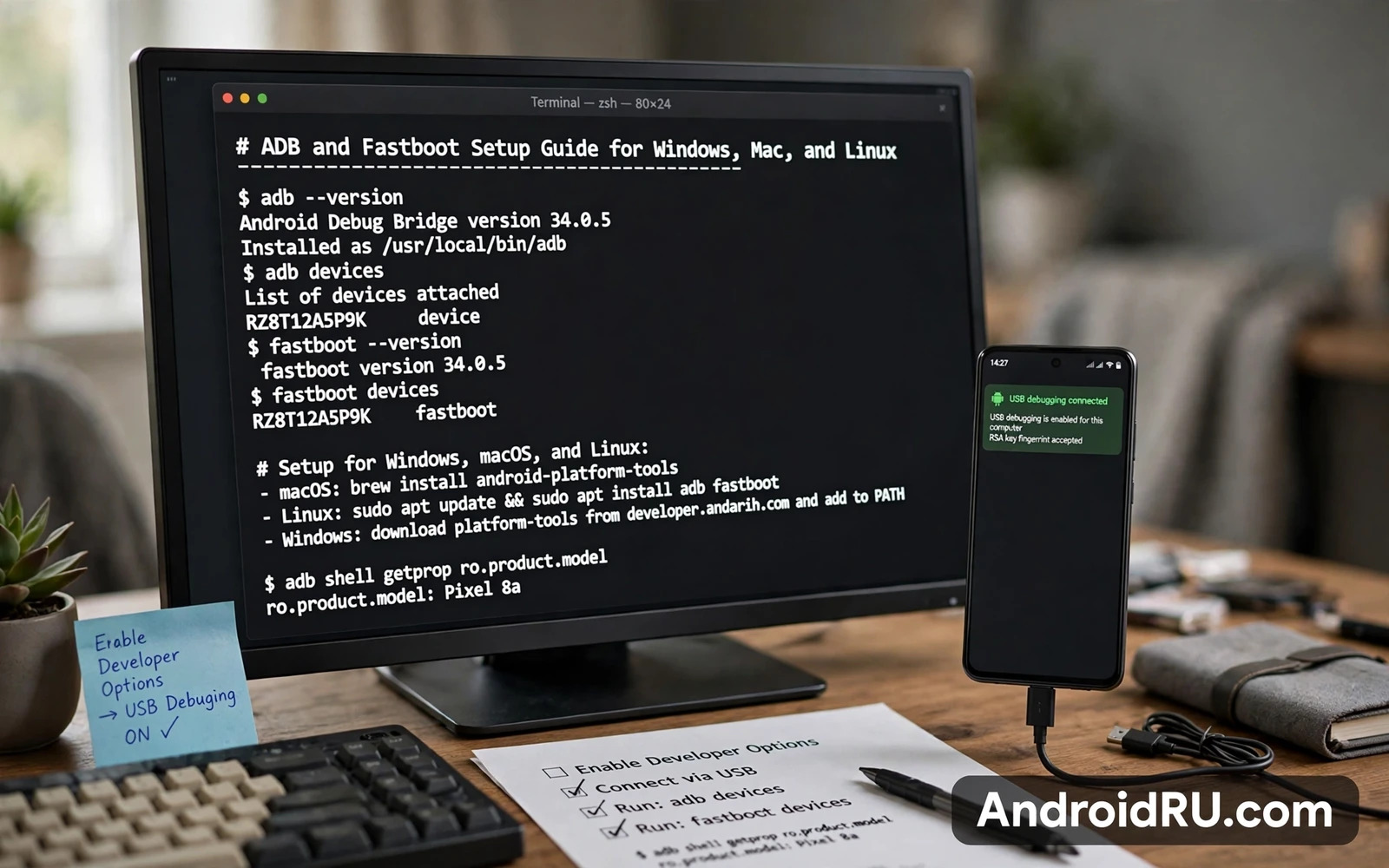
ADB and Fastboot are the two command tools for Android work from a computer. ADB talks to a running Android system. Fastboot talks to the bootloader before Android starts. Developers use ADB for debugging and file transfer and app installs. Power users use Fastboot for unlocking and flashing and recovery. This guide sets up both tools on Windows and Mac and Linux. It also explains verification and common commands and troubleshooting. Read the safety notes before you run any flash command.
Platform tools contain ADB and Fastboot in one package. Platform tools run on all three desktop systems. Platform tools need no install wizard on most systems. Platform tools need a path setup so commands work from any folder. Platform tools need a USB driver on Windows. Platform tools need permission rules on Linux. Platform tools need almost no extra setup on Mac. Each system section below covers its own quirks.
What ADB And Fastboot Do
ADB connects a computer to Android over USB or Wi-Fi. ADB can install apps from a computer. ADB can copy files both ways. ADB can run shell commands on the phone. ADB can capture logs for debugging. ADB can reboot the phone into bootloader or recovery. ADB needs USB debugging enabled on the phone. ADB needs the computer authorized on the phone screen.
Fastboot connects a computer to the bootloader. Fastboot can unlock the bootloader on supported models. Fastboot can flash boot images and recovery images. Fastboot can boot an image without flashing it. Fastboot can erase partitions when a guide requires it. Fastboot can check device state and slot state. Fastboot needs the phone in bootloader mode. Fastboot needs a correct driver or permission setup on the computer.
ADB and Fastboot serve different stages of phone work. ADB serves daily debugging and app work. Fastboot serves system level flashing and rescue. Root guides use both tools at different steps. ROM guides use both tools at different steps. Recovery guides use both tools at different steps. Learning both tools opens every later guide in this series.
Setup On Windows
Download the platform tools package for Windows from the official Android developer tools page. Extract the package to a short path without spaces. A short path avoids command errors later. A path like C platform tools works better than a deep nested folder. Keep the folder in a place that you will remember.
Install the USB driver for your phone when Windows does not recognize the device. Maker drivers come from the phone maker support page. A universal driver can work for many models but a maker driver works best. Install the driver before you connect the phone for ADB work. Restart the computer after driver install when the installer asks for it.
Add the platform tools folder to the system path or use the folder directly. Path setup lets you run ADB from any command window. Folder direct use means opening a command window inside the platform tools folder. Either method works. Path setup saves time over months of use. Folder direct use is simpler for a one time task.
Enable developer options on the phone. Enable USB debugging in developer options. Connect the phone with a good data cable. A charge only cable cannot carry ADB data. Accept the computer authorization prompt on the phone screen. Check the always allow option only for your own computer. Never accept authorization on a shared or public computer.
Setup On Mac
Download the platform tools package for Mac from the official Android developer tools page. Extract the package to a stable folder. A folder inside your home folder works well. Keep the folder path short and simple. Mac needs no separate USB driver for most Android phones. Mac recognizes most Android devices through the standard USB stack.
Run ADB from the terminal inside the platform tools folder or add the folder to your shell path. Shell path setup differs by shell. Check which shell your terminal uses before editing a profile file. Add the export line to the correct profile file. Open a new terminal window after path setup. Test the command in the new window.
Mac security prompts can block a new command tool at first run. Allow the tool in the security prompt when it appears. Allow the tool only for the official platform tools package. Do not allow random ADB copies from unknown uploaders. Enable developer options and USB debugging on the phone. Accept the computer authorization prompt on the phone screen.
Setup On Linux
Install platform tools through your distribution package manager or download the Linux package from the official Android developer tools page. Package manager installs keep tools updated with the system. Direct downloads give you the newest version sooner. Either path works for normal ADB and Fastboot use. Pick the path that matches your comfort with system packages.
Linux needs udev rules for USB device access without root. Udev rules tell the system to grant your user access to Android USB devices. Create a rules file for Android devices with the vendor identifiers that your phone uses. Reload udev rules after creating the file. Reconnect the phone after reloading rules. Without udev rules ADB may show no permissions for the device.
Avoid running ADB as root as a daily habit. Root ADB can change file ownership on the phone side in confusing ways. Root ADB can bypass permission checks that protect your files. Fix udev rules instead of reaching for root. Use root ADB only for a specific rescue task when no other path works. Return to normal user ADB after that task.
Enable developer options and USB debugging on the phone. Connect with a good data cable. Accept the computer authorization prompt on the phone screen. Test device detection before you run any other command. A device that shows as unauthorized needs prompt acceptance on the phone. A device that shows as no permissions needs udev rule fixes on Linux.
Verifying The Setup
Verification takes one minute and saves hours later. Open a terminal or command window. Run the device check command for ADB. Run the device check command for Fastboot after rebooting to bootloader. A correct setup shows the device serial in both checks. A missing serial points to driver or cable or permission trouble. Fix detection before you attempt any flash.
adb devices
adb shell getprop ro.build.version.release
adb reboot bootloader
fastboot devices
fastboot getvar current-slot
The commands above check detection and system version and bootloader slot. The shell command reads the Android version from the phone. The slot command reads the active slot on A B devices. The slot command may fail on A only devices. A slot failure on an A only device is normal. A device detection failure on any device needs fixing first.
Wireless debugging offers a cable free option on newer Android versions. Wireless debugging needs the phone and computer on the same network. Wireless debugging needs a pairing code from developer options. Wireless debugging suits app debugging and file transfer. Wireless debugging does not suit bootloader flashing. Fastboot still needs a USB cable. Use wireless debugging for convenience and USB for system work.
Common Commands You Should Know
Device commands form the daily core. Device list shows connected devices. Reboot commands move the phone between system and bootloader and recovery. Shell access opens a command shell on the phone. Log capture records system logs for debugging. App install from a computer helps developers test builds. File push and pull move files both ways. Learn these commands before advanced commands.
adb install app.apk
adb push file.txt /sdcard/Download/
adb pull /sdcard/Download/file.txt .
adb logcat -d
adb reboot recovery
The commands above cover app install and file transfer and log capture and recovery reboot. Replace file names with your own files. Replace paths with paths that exist on your phone. Read each command before you run it. A push to the wrong path can overwrite a file. A pull from the wrong path can copy nothing and waste time.
Fastboot commands form the system core. Device list shows bootloader devices. Flash commands write images to partitions. Boot command loads an image without flashing it. Erase commands clear a partition when a guide requires it. Slot commands switch the active slot on A B devices. Unlock commands start bootloader unlock on supported models. Never run an erase or flash command without a guide for your exact model.
fastboot flash boot boot.img
fastboot boot recovery.img
fastboot flashing unlock
fastboot reboot
The commands above show the general shape of fastboot flashing and unlock. File names vary by model. Partition names vary by model. Unlock wipes data on most phones. Boot without flashing is safer for testing a recovery image. Flash only when the guide for your model says to flash.
Troubleshooting Detection Problems
A missing device on Windows points to driver or cable trouble first. Try a different USB port. Try a different data cable. Reinstall the maker driver. Check device manager for a warning icon. A charge only cable is the most common cause. A loose port is the second most common cause. A driver conflict is the third most common cause.
A missing device on Mac points to cable or authorization trouble first. Try a different cable and port. Check that USB debugging is enabled. Check that the phone shows the authorization prompt. Revoke old authorizations on the phone and reconnect when the prompt never appears. A fresh prompt often fixes a stale authorization.
A no permissions device on Linux points to udev rules first. Check the rules file for correct vendor identifiers. Reload udev rules. Reconnect the phone. Check group membership for your user account. Log out and back in when group changes need a fresh session. Avoid root ADB as a workaround for a rules problem.
An unauthorized device on any system points to the phone prompt. Wake the phone screen and look for the authorization dialog. Accept the dialog for your own computer only. Revoke authorizations in developer options when the dialog never appears. Reconnect the cable after revoking. A dialog that never appears can also mean a charge only cable.
Safety Rules For ADB And Fastboot
ADB and Fastboot commands can wipe a phone in seconds. Never run a command that you do not understand. Never copy a command chain from an unknown uploader. Never run an erase command without a guide for your exact model. Never flash a file for a different model. Never unlock a bootloader without a backup. A command line gives no undo button for a flash.
Computer security matters for ADB work. An authorized computer can read phone data over ADB. Revoke authorizations after using a shared computer. Disable USB debugging when you finish a session on a daily phone. A phone with debugging left on is easier to access when lost. Enable debugging only during active work.
ADB and Fastboot unlock every later customization path. The complete Android rooting guide relies on these tools for bootloader steps and boot image flashing. Learn detection and verification here first. A solid computer setup prevents most flash failures later.
ROM work also relies on these tools. The how to install custom ROMs LineageOS step by step path uses sideload and bootloader commands at several stages. A setup that passes device checks on all three desktop systems gives you freedom to work from any computer.
Recovery rescue relies on these tools as well. The TWRP and OrangeFox custom recovery comparison assumes a working ADB connection for sideload rescue. Test sideload before a crisis. A tested connection beats a first time setup during a bootloop. Keep platform tools updated and cables ready.

