

Mobile Gaming Ecosystem: Android Emulation Freedom vs iOS Arcade
Mobile gaming splits into two worlds, and they feel nothing alike. One world is open and wild: thousands of games, emulators for consoles you grew up with, controllers in every shape, and cloud services that stream console games to a phone. The other world is calm and curated: one monthly fee, a library with no ads and no extra purchases, and a setup that a child or a grandparent can use without a tutorial. Android hosts the open world. iOS hosts the curated one through Apple Arcade.
I have played in both worlds for years. My Android phone runs emulators, a telescopic controller, and two cloud gaming services. My iPad runs Apple Arcade for the family, and it is the device my kids reach for first. Neither side is the right answer for everyone, and that is the point of this comparison. What follows is a real head-to-head: the catalogs, the costs, the emulation rules, the controllers, the cloud services, and the family controls, with a verdict for each kind of player at the end.
For the wider system around these two platforms, see the ecosystem breakdown. This article stays focused on gaming: what you can play, what it costs, and what each side asks you to give up.
Android vs iOS Mobile Gaming Compared: The Full Table
Read this table first. It puts the two ecosystems side by side on the same criteria, so you can see the trade-off in one glance before the detail sections below.
| Criteria | Android | iOS and Apple Arcade |
|---|---|---|
| Game catalog | Google Play holds millions of apps, with huge free, paid, beta and early-access choice | App Store is curated; Apple Arcade adds 200+ games with no ads and no in-app purchases |
| Subscription model | No single bundle; Google Play Pass is one option, most games are free with ads or paid once | Apple Arcade costs around $6.99 a month in the US, with family sharing for up to six people — check the current plan |
| Emulation and retro play | Full freedom: PPSSPP, Dolphin, RetroArch and more run on the Play Store | Emulators allowed since the 2024 App Store rule change, but with limits on performance and no JIT |
| Controller choice | Very wide: Backbone, Razer Kishi, Xbox, PlayStation, 8BitDo and many niche pads | Strong support for major pads, smaller range of niche and telescopic options |
| Cloud gaming | Native apps for Xbox Cloud Gaming, GeForce Now and more | Cloud apps allowed natively since 2024; web apps in Safari also work |
| Phone price range | Under $200 for budget phones to over $1,500 for flagships and gaming phones | From around $599 for the entry iPhone to past $1,100 for Pro Max models — check current pricing |
| Ads and in-app purchases | Common in free games; energy timers and cosmetic shops are the norm | None inside Apple Arcade games; App Store free games still carry ads and purchases |
| Family controls | Google Family Link, Play Store purchase approval, per-app time limits | Apple Screen Time, Family Sharing, Ask to Buy for children |
The table tells the story in miniature. Android gives you more of everything — more games, more controllers, more ways to play old games — and asks you to manage the mess yourself. Apple Arcade gives you less, and what it gives you is clean: no ads, no surprise costs, no settings to babysit. Your choice depends on which side of that trade you value more, and the sections below help you decide with real detail instead of slogans.
Apple Arcade Explained: Price, Catalog and Family Sharing
Apple Arcade is a subscription inside the App Store. One monthly fee opens a library of games that carry no ads, no in-app purchases, and no energy timers. You pay, you play, and the game never interrupts you to sell something. That is the whole pitch, and for the right player it is a strong one.
The catalog favors polished indie titles, remasters, and family-friendly games. You will find puzzle games, adventure games, racing games, and a steady flow of new releases and updates. What you will not find is the full App Store: the biggest hit titles, the long-running competitive games, and the free-to-play giants mostly stay outside Arcade. The library is a subset, chosen for quality and for the absence of purchase pressure, and it shows in both directions.
What Apple Arcade includes — and what it leaves out
Arcade games are complete games. There are no coins to buy, no timers to wait out, and no cosmetic shops at the end of a level. Many Arcade titles also run on iPad, Mac, and Apple TV with the same subscription, and progress carries over between devices through iCloud. For a household, that cross-device play is genuinely useful: start a game on the phone, continue it on the iPad, and nobody pays twice.
The limit is scope. If your favourite game is a competitive shooter, a gacha collector, or a live-service title with daily events, it almost certainly lives outside Arcade, and the subscription does nothing for it. Arcade is a library you rent, not a collection you own: stop paying and the games close, including your saves in most cases. For steady casual play the model is excellent. For a player with one passion outside the catalog, it is the wrong purchase.
Apple Arcade price and family sharing
Apple Arcade costs around $6.99 a month in the US, and pricing differs by country — check the current plan in your region before you subscribe. One subscription covers Family Sharing for up to six people, which makes the real cost per person very low in a household. Apple also bundles Arcade into Apple One plans, so check whether a bundle you already pay for includes it. A one-month free trial usually comes with a new iPhone or iPad, and that trial is the right way to test the catalog: play the games you actually like for two weeks, then decide.
Who Apple Arcade suits best
Arcade suits casual players, families with young children, and anyone who hates ads and purchase prompts. It suits a parent who wants to hand a phone to a child without worrying about a surprise bill. It does not suit a competitive player, a retro collector, or anyone whose favourite game lives outside the catalog. The honest test is simple: open the Arcade tab, count the games you would actually play, and divide the monthly fee by that number.
The Android Game Library: Google Play Choice, Free Play and Ads
Google Play holds the widest game library on any phone. You will find free games with ads, paid games with no ads, betas and early-access titles, and genres the App Store barely carries. Choice is the strength. Quality varies a lot, and that is the weakness. For every polished gem there are a dozen clones, and the store’s open door is the reason for both.
Free play hides its costs in plain sight. Energy timers gate progress. Cosmetic shops sell outfits and skins. Some games push purchases hard, with limited-time offers, daily login rewards, and battle passes that reset every season. None of that makes Android gaming bad — some of the best mobile games ever made are free to start — but it means the player has to manage spending, and parents have to manage it for their children.
Free games, paid games and early access on Google Play
Paid games on Android work like paid games anywhere: you pay once and you own the game, usually with no ads and no extra purchases. Free games work on the opposite model, and the real price appears over weeks of play. Early access and beta titles add a third flavour: unfinished games you can try early, give feedback on, and sometimes watch shut down before release. That early access culture is something iOS barely offers, and it is a real draw for players who like discovering games before everyone else.
Google Play Pass is Android’s closest answer to Arcade: one monthly fee for a bundle of games and apps with no ads and no in-app purchases. The catalog is smaller than Arcade’s and leans on different titles, and pricing varies by region, so check the current plan. It is worth comparing directly with Arcade if a bundle is what you want, because the two subscriptions solve the same problem in different ways.
How ads and in-app purchases change the real cost
A free game that costs nothing to install can cost more than a paid game within a month. A battle pass here, a bundle of coins there, and the total creeps past the price of a full console game. Set a monthly cap before you play: open Google Play, go to Payments and subscriptions, then Budget and history, and set a monthly spending limit. Require approval for purchases on a child’s account, and turn off one-tap buying. Review the purchase history each month the way you would review a bank statement, because small purchases add up quietly and the store will not warn you.
How to set a spending limit in Google Play
Open Google Play, tap your profile picture, then Payments and subscriptions, then Budget and history. Set a monthly budget that fits what you are willing to spend on games. The store will warn you when you approach the limit. That warning is not a hard block, so pair it with purchase approval for children and a monthly review of the history screen. A cap you set yourself beats a surprise bill every time.
Emulation and Retro Gaming on Android vs iOS
Emulation is where the two ecosystems part ways most sharply. An emulator is an app that lets a phone run games made for an older console — a PSP, a GameCube, a Super Nintendo — using game files from cartridges and discs you own. Android has allowed emulator apps on Google Play for years. Apple only opened the door in April 2024, when it changed App Store rules to allow retro game emulators. That four-year head start still shows in what each side can do.
The rules matter here, and they are the same on both sides. Only emulate games you legally own. A game file copied from a disc or cartridge you bought is your file to play. A game file taken from a random site is piracy, and those sites are also a common source of malware. Keep your files from sources you trust, respect the law in your region, and the hobby stays clean and safe.
Emulation on Android: PPSSPP, Dolphin and RetroArch
PPSSPP is the standard emulator for PSP games on Android, and it runs on the Play Store as a free app with an optional paid Gold version. It upscales old PSP graphics to modern phone screens, adds save states at any point, and maps touch controls or a real controller to the PSP layout. A mid-range phone from the last few years runs most PSP games at full speed, and a flagship runs them with upscaling turned up.
Dolphin runs GameCube and Wii games on Android, and it is the most demanding emulator most people will try. A strong phone with a recent chip handles many GameCube games well, and Wii games need more power and a controller, since motion controls do not translate to touch. RetroArch is a different kind of tool: a single front end that runs many systems through cores — NES, SNES, Mega Drive, Game Boy Advance, PlayStation, and more — with one interface, one controller map, and one save system. It has a learning curve, and it rewards the effort with the tidiest retro setup on any phone.
Two names carry a warning. Yuzu, the Nintendo Switch emulator, shut down in March 2024 after a legal settlement, and forks such as Sudachi exist in its place — check the current state of any fork before you trust it, because forks appear and disappear fast. Citra, the Nintendo 3DS emulator, shut down at the same time. The lesson is practical: an emulator tied to a current console lives on borrowed time, while emulators for retired consoles such as the PSP, GameCube, and SNES have been stable for years.
Retro gaming on iOS after the App Store rule change
Since April 2024, Apple allows retro emulators on the App Store, and Delta quickly became the best-known example: a free emulator for NES, SNES, Nintendo 64, Game Boy, Game Boy Advance, and Nintendo DS, with controller support and a clean interface. PPSSPP is also on the App Store now. For casual retro play — a Mario game on a flight, a Pokemon save from years ago — iOS is genuinely usable for the first time.
The catch is performance. iOS does not allow just-in-time compilation for App Store apps, and that technique is what makes demanding emulation fast. The result is that light systems run well on iOS while heavier ones struggle: GameCube and Wii games that run smoothly on a strong Android phone stutter or fail on an iPhone of similar power. Sideloading through tools such as AltStore can work around the limit, but that route needs a computer, a refresh every seven days for free accounts, and comfort with steps most players will not take. For most people, the honest summary is that iOS now does retro, and Android still does it better.
How to set up an emulator legally: own your games
Start with games you already own. Rip a disc or cartridge you bought with a tool made for that job, or buy a digital copy from a legitimate store where one exists. Store the game files in one folder, named by title and region, and keep save states in a backup folder that you copy to cloud storage once a month. A lost save erases weeks of progress, and a tidy folder is the difference between a library and a mess.
Controller mapping tips for retro games
Touch buttons suit short sessions. Long sessions need sticks and buttons, so pair a Bluetooth pad, clip the phone above it, and map the buttons inside the emulator settings. Save the map per game type: platform games need a tight d-pad, racing games need analog triggers, fighting games need fast face buttons. Test the map for ten minutes and adjust dead zones for drift. A good map feels invisible in play, and a bad map fights every move.
Controllers for Mobile Gaming: Backbone, Razer Kishi and Bluetooth Pads
Controllers turn a phone into a console, and the difference they make is hard to overstate. Touch controls cover you to a point, then they cost you matches: a thumb slips, a button hides under your palm, and a ranked game ends on a mistake the hardware caused. A real pad fixes all three, and both ecosystems support one — with Android offering the wider shelf.
Telescopic controllers: Backbone One vs Razer Kishi
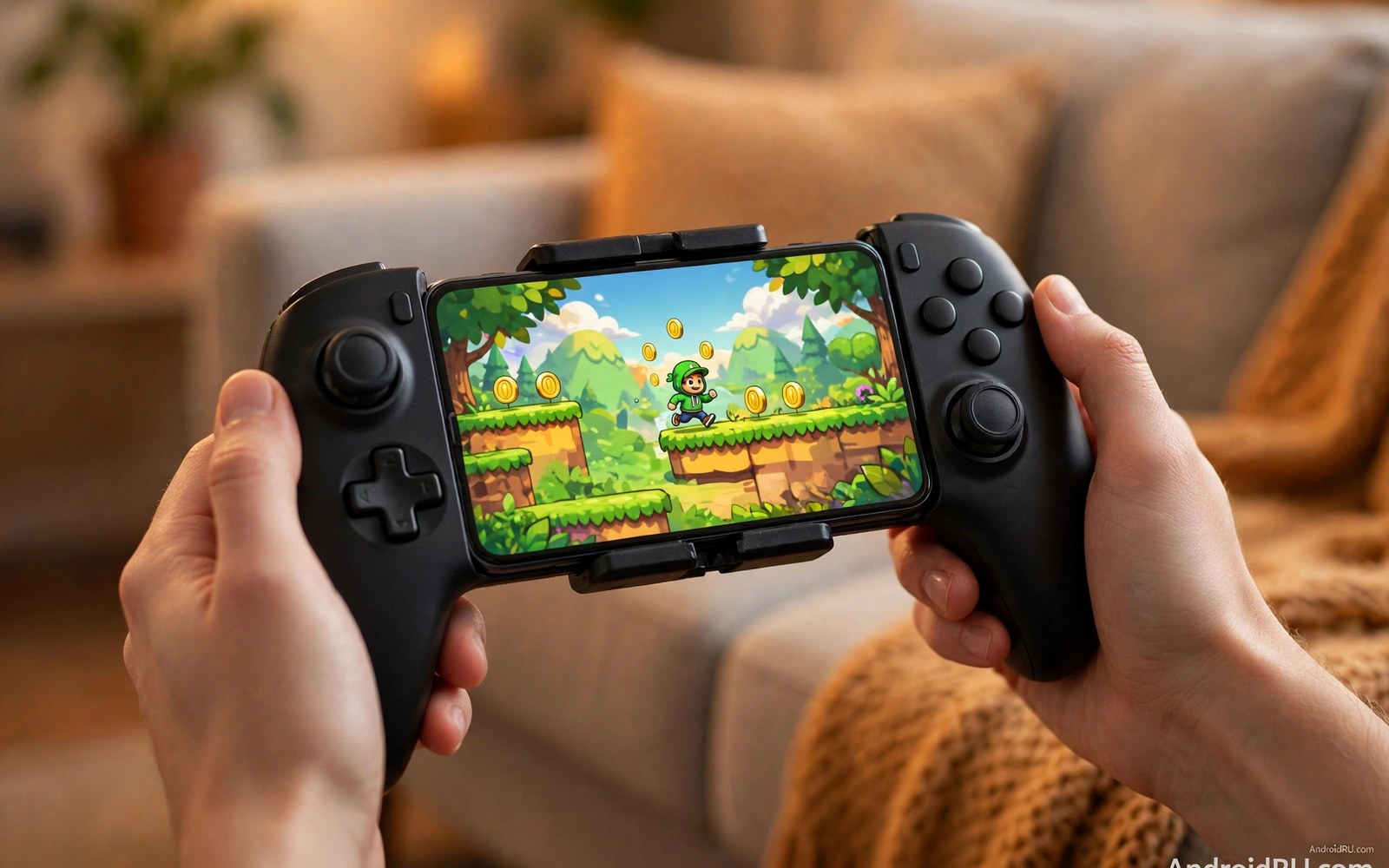
Telescopic controllers grip the phone in the middle and put sticks and buttons on both sides, like a handheld console. Backbone One is the best-known example: a USB-C version for Android and modern iPhones, and a Lightning version for older iPhones, each around $100 — check the current price in your region. It pairs with a companion app that gathers your games in one place, and it works with cloud gaming, Apple Arcade, and native games without extra setup.
The Razer Kishi V2 is the closest rival, with a similar telescopic design, clicky buttons, and a companion app of its own. The two feel different in the hand — Backbone is lighter and simpler, Kishi has a firmer grip and a more console-like button feel — and the right pick is the one that fits your hands and your phone case. Both are worth trying in a shop before you buy, because comfort is personal and a controller you dislike is a controller you stop using.
Bluetooth controllers: Xbox, PlayStation and 8BitDo
A full-size Bluetooth pad is the better pick for long sessions at home. The Xbox Wireless Controller pairs with Android and iOS over Bluetooth, works with cloud gaming and emulators, and feels like the controller most players already know. The PlayStation DualSense pairs the same way, with the same broad support. 8BitDo makes smaller retro-styled pads, such as the Pro 2, that suit emulation and travel because they fit in a jacket pocket and cost less than the big-brand pads.
Android pairs with more of these than iOS does. Niche pads, arcade sticks, and older controllers usually work on Android through Bluetooth or USB, while iOS supports the major pads well and the niche ones rarely. Android also lets you remap buttons more freely, which matters for emulators with unusual layouts. iOS wins on setup: pairing a major pad takes seconds, the connection is stable, and the system handles the mapping for supported games without a settings hunt.
What to check before you buy a mobile controller
Check the connector first: a USB-C controller fits modern Android phones and iPhones with USB-C, while older iPhones with Lightning need the Lightning version. Check the phone fit, because a telescopic controller has a maximum width and a thick case may not fit inside it. Check the games you play, because a controller only helps if your games support one — most cloud games and emulators do, while some mobile-only competitive games limit controller use in ranked play. Finally, check the return policy, because comfort is the one spec sheet no review can settle for you.
Cloud Gaming on Android vs iOS: Xbox Cloud, GeForce Now and More
Cloud gaming streams a game from a distant server to your phone, so the phone does the showing while the server does the heavy work. That means a mid-range phone can play a console game it could never run on its own, and it means your library follows you from phone to tablet to TV. The price is dependence on the network: a fast, stable connection is not optional, and latency decides whether a game feels good.
Xbox Cloud Gaming is the biggest name here. It comes with a Game Pass Ultimate subscription — check the current plan, since pricing changes by region and over time — and it streams a rotating catalog of console and PC games to Android, iOS, and the browser. GeForce Now takes a different route: it streams games you already own on PC stores such as Steam, with a free tier that limits session length and paid tiers that start around $10 a month for longer sessions and better hardware. Amazon Luna and Boosteroid offer similar services with their own catalogs and pricing, and the right one depends on which games you already own.
Xbox Cloud Gaming and GeForce Now on each platform
On Android, cloud gaming runs through native apps. Install the Xbox Game Pass app or the GeForce Now app, sign in, pair a controller, and play. The apps handle touch controls, streaming quality, and network warnings for you. On iOS, the same services work through native apps since Apple changed its rules in 2024, and through web apps in Safari as a fallback. The native route is smoother, the web route works anywhere, and both need the same thing underneath: a solid connection.
GeForce Now suits PC gamers best, because it streams the Steam and Epic games they already own instead of asking them to buy the same game twice. Xbox Cloud Gaming suits console players best, because its catalog is a subscription library: pay monthly, play anything in it, and lose access when you stop. Pick the service that matches the games you already have, not the one with the loudest marketing.
What your connection needs for smooth cloud play
Wi-Fi works best for cloud sessions, and a 5 GHz network beats a crowded 2.4 GHz one because it carries more data with less interference. Mobile data can work in strong signal areas, but it eats through a data allowance fast — an hour of cloud play can use several gigabytes — so check your plan before a long session on data. Fast action games need low delay: a fighting game or a competitive shooter feels wrong above 60 milliseconds of latency, while a slow strategy game or a puzzle game stays playable well above that. Test with a game you know well before you commit to a ranked match on a new network.
How to test latency before a ranked match
Open the cloud app, start a game you know, and play for five minutes on the exact network you plan to use. Watch for input delay: press a button and count how long the action takes to appear. If movement feels heavy or aiming lags behind your thumb, the connection is not good enough for ranked play, even if the picture looks sharp. Switch to a 5 GHz network, move closer to the router, or save ranked matches for a better connection. A casual game on a weak network is fine. A ranked game on one is a loss you chose.
Performance, Heat, Battery and Audio in Long Gaming Sessions
Long sessions test a phone harder than any other task. A heavy game pushes the chip, the screen, and the radio at once, and the phone answers with heat. Heat throttles speed to protect the parts, throttling drops frame rates mid-match, and a match lost to a frame drop stings more than a match lost to a better player. Both ecosystems face this, and the answers are the same on both sides.
Gaming phones add cooling chambers, vapour chambers, and sometimes small fans to fight the heat. Normal flagships manage heat well too, with large heat spreaders and software that balances speed against temperature. Budget phones may stutter in heavy games, and the fix is honest: lower the graphics settings, cap the frame rate, and close background apps before you play. A smooth game at medium settings beats a stuttering game at high settings every time.
The hardware choices shape screen size and cooling for long sessions. Android offers gaming phones with 144 Hz screens, shoulder triggers, and active cooling, alongside budget phones that struggle with the same games. iPhones offer a short list of models with consistent performance, and every recent iPhone runs heavy games well — the trade is that you cannot buy an iPhone with a built-in fan or shoulder triggers at any price.
Heat, throttling and cooling accessories
Clip-on fans cool the back of the phone and stabilise performance in long sessions. They add bulk, and they need a cable or a battery, but a serious player will feel the difference within twenty minutes: frame rates hold steady instead of sliding down as the phone warms up. Playing near a fan at home works nearly as well for free, and removing the case during long sessions helps too, because cases trap heat against the phone. Take a break every hour for the phone and for you: breaks let heat dissipate naturally, and they rest eyes and hands at the same time.
Battery life and power banks for travel gaming
A phone can drain in three hours of heavy play, and cloud gaming drains faster still because the radio never rests. Offline games drain less, and airplane mode plus an offline game lasts longest of all — a useful fact on flights, where Wi-Fi is often absent or unreliable. Check offline support before departure: some games claim offline play but need a login first, and that login needs a network at least once. Log in at home, load the game data on home Wi-Fi, and test airplane mode before you leave.
Power banks extend sessions away from plugs. Pick a bank with fast output for gaming, because a slow bank cannot keep up with the drain and the phone still loses charge, just more slowly. A 10,000 mAh bank suits a day out, a 20,000 mAh bank suits a weekend, and weight grows with capacity fast, so carry only what the trip needs. Cable quality matters too: cheap cables throttle power silently, so test cables with a known fast charger before you rely on one.
Audio latency: why wired earbuds still win for competitive play
Audio gives competitive edges in games. Footsteps reveal enemy positions, and directional sound beats loud sound. Low latency matters as much as direction: Bluetooth lag delays sound behind the action, and a delayed footstep misleads players badly. Wired earbuds cut latency to near zero, and gaming mode on wireless earbuds cuts lag too. Test lag with a rhythm game first, because rhythm games expose lag instantly — a laggy pair fails rhythm tests clearly, while music hides lag well. Pick audio gear by game tests, not by music tests.
Costs, Ads and Family Controls Compared
Gaming costs creep up quietly on both sides, and the honest comparison is not the price of one game but the price of a month of play. The table below shows what a typical month looks like for three kinds of players, using ranges rather than exact prices, because pricing changes by region and over time.
| Player type | Typical monthly cost on Android | Typical monthly cost on iOS |
|---|---|---|
| Casual player | Free to a few dollars; free games with ads, occasional purchases | Apple Arcade around $6.99, or free games with ads — check the current plan |
| Family with children | Free games plus Family Link controls; Play Pass is one bundle option | One Arcade subscription shared by up to six people; Ask to Buy blocks surprise purchases |
| Cloud gamer | Game Pass Ultimate or GeForce Now paid tier, plus controller — check the current plan | Same subscriptions, same range; web apps work as a fallback |
| Retro collector | Free emulators; cost is the games you already own | Free emulators since 2024; heavier systems may need a stronger phone |
Ads are the hidden cost on both sides. Free games carry them, paid games usually do not, and Arcade-style bundles remove them by design. Weigh a monthly bundle against single buys: a bundle suits a family with many players, while single buys suit a player with one passion. Either way, set a monthly cap in the store and review purchase history each month, because small purchases add to large sums on both platforms.
The real monthly cost of each ecosystem
On Android, the real cost is whatever you spend inside free games, plus any subscription you choose. That number can be zero for a disciplined player and very high for an impulsive one. On iOS, the real cost is the Arcade fee plus whatever you spend in App Store games outside Arcade. Arcade caps the surprise: the games inside it cannot charge you anything, so the monthly total is predictable. The trade is that Arcade only covers the games inside it, and the games outside it charge the same way Android games do.
Parental controls: Screen Time vs Family Link
Apple Screen Time and Google Family Link do the same job with different names. Both set daily play limits, require approval for new downloads and purchases, and let a parent review what a child plays. Screen Time is built into iOS and ties into Family Sharing, so a parent approves a purchase with Ask to Buy and the child never sees a payment screen. Family Link ties into the Play Store the same way, with purchase approval and per-app time limits.
The controls only work if someone explains them. A limit explained feels fair, and a limit imposed feels like a jail. Talk about why limits exist, play together sometimes to learn the games, and praise creative play over grind play. Building games teach planning. Grind games teach spending. Guide children toward the first kind, and turn off open chat for young players: strangers can message them in online games, so allow friend chat only with known friends and review friend lists together monthly.
A simple monthly spending check
Once a month, open the purchase history in your store — Google Play under Payments and subscriptions, or the App Store under your account settings — and add up the gaming total. Compare it with the cap you set. If the total is higher than the cap, find the game responsible and switch off its purchase prompts or remove it. The check takes five minutes, and it is the single most effective habit in this whole article.
FAQ: Android vs iOS Mobile Gaming Questions
Which is better for retro gaming, Android or iOS?
Android is better for retro gaming today. It has run emulators such as PPSSPP, Dolphin, and RetroArch on the Play Store for years, it allows just-in-time compilation so demanding systems run at full speed, and it pairs with the widest range of controllers. iOS improved a lot when Apple allowed emulators in 2024, and Delta covers the lighter systems well, but the lack of just-in-time compilation holds back GameCube, Wii, and PlayStation 2 class emulation. If retro is your main hobby, Android is the clear pick.
Can I play Apple Arcade games on Android?
No. Apple Arcade games run on iPhone, iPad, Mac, and Apple TV only, and there is no Arcade app for Android. Some Arcade titles also exist as separate games on other platforms under different names or editions, but the subscription itself is Apple-only. If Arcade is the main draw, you need an Apple device. Android’s closest equivalent is Google Play Pass, which is a different catalog with different games.
Do I need a controller for cloud gaming on a phone?
You do not need one, but you will want one for most games. Cloud services offer touch controls, and they work for slow games such as strategy and puzzle titles. Fast games — shooters, racing, fighting — are hard to play well on touch, and a controller such as the Backbone One, Razer Kishi, or a Bluetooth Xbox pad changes the experience completely. Start with touch to test the service, then buy the controller if you plan to play regularly.
How much does mobile gaming cost per month on each side?
It ranges from free to around $30 a month depending on how you play. A casual player who sticks to free games pays nothing on either side. A family sharing one Apple Arcade subscription pays around $6.99 a month in the US. A cloud gamer pays for a Game Pass Ultimate or GeForce Now tier on top of that — check the current plan in your region. The honest answer is that the subscription is the predictable part, and the in-game purchases are the part that needs a monthly cap.
Verdict: Which Mobile Gaming Ecosystem Fits Your Play Style
There is no overall winner here, and any article that declares one is selling you something. The right pick depends on how you play, and the honest verdict is one per kind of player.
Pick Android if you love freedom and retro play. You get emulators, many controllers, cloud play, and a vast store, and you must manage ads and purchases with care. Tinkerers will feel at home, and retro collectors have no real alternative. Pick iOS and Apple Arcade if you love calm and curation. You get a clean library with no ads, family-friendly costs, and a setup that needs no babysitting, and you trade breadth for peace of mind. Families with young children belong here first.
Competitive players can be happy on either side, and the deciding factor is hardware, not the logo: a fast screen, a stable connection, a real controller, and low-latency audio matter more than the operating system. Budget players belong on Android, where good gaming phones exist at every price. Players who already own a library of PC games belong with GeForce Now on either phone, since it streams the games they own. Players who travel a lot should check offline support first, because a game that fails in airplane mode fails on a flight.
For voice control while gaming, see the voice assistant comparison — hands-free commands help most when a controller already fills both hands. Either world can host years of fun, and the best choice is the one that fits the way you actually play, not the way a marketing page says you should.
Your next step is simple. If you play on Android, install one emulator for a console you own, map a controller to it, and play for an evening — that one session will tell you whether the open world is yours. If you play on iPhone, start the Apple Arcade trial, play three games you would never have bought alone, and count how many survive the second week. Whichever side you pick, set the spending cap first, pair a real controller second, and let the games themselves settle the argument.

