

File Management Compared: Android Open Files System vs iOS Files
File management sounds dull until you need one file fast. Then it matters a lot. Android gives you a shared file system you can browse like a small computer. iOS gives you a Files app with tighter walls, where each app keeps its own box and the system hands you a window into some of those boxes. Both let you store and share files, but the feel of each system is quite different, and the difference shows up in daily work: finding a download, moving a project folder, sharing a large video, or cleaning up storage before a trip.
This comparison explains both models in plain terms. It covers folders and downloads, USB moves and cloud links, sharing and cleanup, naming and backup. By the end you will know which model suits your work style, and if you are thinking of switching sides, the migration steps show how to move files safely without losing anything in the transfer.
The Core Difference Between Android and iOS File Management
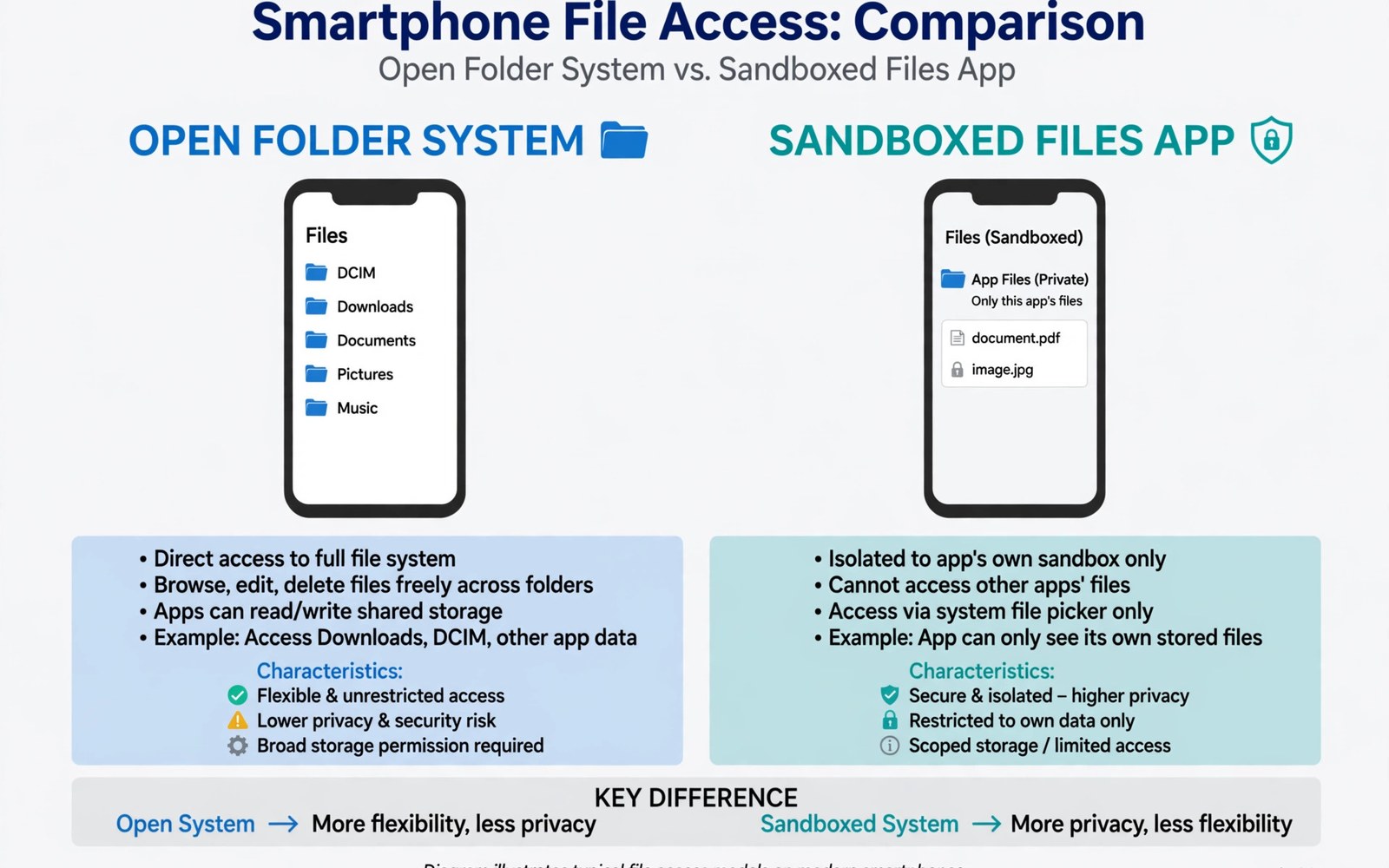
Android treats storage like a set of shared folders. Apps can read files in shared places with your permission, you can open a file manager and see the tree, move a photo from one folder to another, and rename files freely. The system feels like a small computer, and that openness is the whole point. iOS treats each app as a sealed box. Files live inside the app that made them, the Files app gives you a window into some of those boxes, and you can still move files around, but the walls between apps stay firm. This design favours safety over free roaming.
Neither model is wrong. The open model suits people who move files a lot, juggle tools, and back up by hand. The sealed model suits people who rarely touch files by hand and value guardrails. The trade-off is control against calm: Android gives you control and asks you to manage it, while iOS gives you calm and asks you to accept its limits.
Android Open Files System at a Glance
On Android, downloads land in a shared Downloads folder that any file manager can open. You can sort by date or by size, move files to project folders at once, and find browser files and chat files in known spots. That predictability helps a lot when you need a file under pressure. Photos live in a shared media store, so gallery apps and editors see the same library, and large video files move like any other file.
iOS Files App at a Glance
On iOS, downloads land where the app puts them. Safari files often go to a Downloads folder in Files, while other apps keep files inside their own space. You may need to hunt across apps to find a file, and the search in Files helps, but it cannot match a single shared tree. Photos stay in their own library, apps ask for access to it, and large videos can export more slowly, especially when cloud sync delays the process.
Android vs iOS File Management Comparison Table
| Feature | Android Open Files System | iOS Files |
|---|---|---|
| File browsing | Shared folder tree visible in any file manager | Files app shows some app folders, walls stay firm |
| Downloads | One shared Downloads folder, easy to sort and move | Downloads split by app, Safari files in Files Downloads |
| USB and computer access | Phone acts like a drive, drag folders both ways | Photos and files move through official tools or cloud |
| Sharing between apps | Many apps open the same file without copies | Share sheet often makes a copy per app |
| Cleanup and storage control | Per-app cache clearing, large file views, smart cleanup tools | Storage screen with recommendations, less direct control |
| Privacy model | Scoped access, apps see only files you grant | Sealed app boxes, strong isolation by default |
The table shows the pattern clearly: Android wins on direct access and flexibility, iOS wins on isolation and simplicity. The right choice depends on how often you touch files by hand, not on which logo you prefer.
Downloads and Where They Land on Android and iOS
On Android, downloads land in a shared Downloads folder. You can open it from any file manager, sort by date or by size, and move files to project folders at once. Browser files and chat files gather in known spots, and that predictability helps when a deadline is near. Rename downloads as soon as they land, because a minute of naming saves ten minutes of hunting later. A name like 2026-08-trip-plan finds itself, while a name like file-final-2 hides forever.
On iOS, Safari files often go to a Downloads folder in Files, but other apps keep files inside their own space. You may need to hunt across apps to find a file. The search in Files helps, but it cannot match a single shared tree. If you download the same file in two apps, you may end up with two copies, and edits in one copy may not reach the other. Check which copy you edited before you send it on.
USB Moves and Desktop Access for File Transfers
Plug an Android phone into a computer and it acts like a drive. You can drag folders both ways, back up a whole photo folder in minutes, and copy music and documents without extra apps. This direct access is a big win for many users, and it makes a monthly manual backup genuinely easy: copy docs, photos, and downloads by cable, verify the copy count matches the phone count, and you have a backup you can trust. A copy you never check is a hope, not a backup.
Plug an iPhone into a computer and the path is narrower. Photos sync through official tools, files move through the Files app or cloud links, and it works well inside one brand family. It feels slower when you mix brands, and for mixed setups, Android direct access saves real time. For a wider view of how the two ecosystems differ beyond files, read the ecosystem breakdown alongside this comparison.
Working With Documents on the Go
Android lets many apps open the same file. Edit a document in one app, open it in another app later, and share it to a third app without a copy maze. This flexibility suits writers and students who juggle tools. iOS sharing works through share sheets: you pick a file and a target app, and the system makes a copy for that app in many cases. Cloud files reduce this pain, but local files still need care.
Why Copies Cause Confusion on iOS
When a share sheet makes a copy, the original and the copy can drift apart. You edit the copy, the original stays old, and a week later you cannot tell which one is current. The fix is a habit: keep one master copy, name it clearly, and delete the duplicate as soon as the share is done.
Photos, Media, and Large Files on Both Systems
Photos live in a shared media store on Android. Gallery apps and editors can see the same library, you can move photos into albums with a file manager, and you can copy them to a card or a drive. Large video files move like any other file, and that matters when a single 4K clip is several gigabytes. iOS keeps photos in its own library, apps ask for access to it, and you can export photos to Files when needed. Large videos export more slowly in some cases, and cloud sync can delay a big export, so plan ahead before a trip or a shoot.
Photo libraries grow into chaos fast on either system. Thousands of shots pile up yearly, screenshots mix with family portraits, and receipts mix with sunsets. Sorting needs a simple system, not a perfect one. Start with yearly folders, add monthly folders inside each year, and move photos in weekly batches. A weekly batch takes ten minutes. A yearly backlog takes a weekend. Delete duplicates during each batch, delete blurry shots without mercy, and keep the best shot of each moment. Five great shots beat fifty average ones.
Sharing Files With Others From Android and iOS
Sharing on Android is flexible. Send a file by link or by direct transfer, use nearby share for close devices, use email or chat for far ones, and attach from the file manager in most apps. The receiver gets the real file, not a locked preview. Sharing on iOS is smooth inside its own family: AirDrop moves files fast between nearby devices, and links work well for everyone else. But a receiver outside the family may hit extra steps, need an app, or need a web view. Test sharing with a friend on another system first, before the moment it matters.
Large files challenge every sharing method. Email caps attachments at small sizes, chat apps compress videos heavily, and cloud links handle large files best. Upload the file to cloud storage, share a link with view rights only, and set an expiry date on the link, because a link that lives forever can leak later. Password protect sensitive files too, and share the password through a second channel. Receivers download the real file, not a crushed copy, and video quality survives cloud links well.
Cloud vs Local Storage: A Balanced Setup
Cloud storage and local storage suit different needs. Cloud files open on any device, local files open without a network link. A balanced setup uses both: keep active projects in the cloud, keep large media local with a backup, and keep travel documents in both places. A flight ticket should live offline too, because a network outage should never strand you. The cloud backup options explain how each side stores media and what the trade-offs cost each month.
Costs Shape the Balance Between Cloud and Local
Cloud space costs monthly fees, local space costs once in the phone price, and a card slot adds cheap local space on some Android phones. Use it for media and backups, keep cloud space for documents and photos, and review storage use each month. Delete duplicates that waste paid space, and move old projects to a home drive. A home drive costs once and lasts years.
Cleanup, Privacy, and Safety Trade-Offs in File Management
Android storage screens show what eats space: app data, media, and downloads in one view. You can clear cache per app, delete large files from one view, and use a smart cleanup tool where your phone provides one. Use it with care and check before you confirm, because a cleanup tool cannot tell a precious file from a forgotten one. Open access brings a duty of care: a rogue app with broad access could read shared files, so Android limits this with scoped access rules, and you should still check permissions for file apps you install and grant the narrowest access that works.
Sealed boxes bring a different cost. Safety rises but flexibility falls. You may duplicate files across apps and lose track of which copy is current. Good habits fix most of this pain: name files clearly, keep one master copy, and use few folders with clear names. Work, personal, and travel cover most lives, and deep nests hide files from future you. Keep depth to two levels when you can, sort by date to find recent work fast, and sort by size to find space hogs fast.
Backing Up Files Beyond the Phone
A phone backup is not a file backup. App backups may skip loose files, so copy key folders by hand each month. Use a cable for speed and certainty, copy docs and photos and downloads, and verify the copy count matches the phone count. Keep one copy on a home drive and one copy in the cloud if you can. Two copies survive a theft or a flood better than one, and a lost phone then costs money, not memories. Automate the parts you can: set photo backup to run on Wi-Fi, set document sync for active projects, and plug in a drive on the first Sunday of each month. Make it a ritual like laundry, because rituals beat intentions every time. Check the drive once a quarter and open a few old files to prove they still read, because drives fail silently over years. A proven backup is the only backup that counts, so test it before you need it.
Which File Management Model Fits Your Work
Pick the open model if you move files a lot. It suits creators and office workers, anyone with a mixed set of devices, and people who back up by hand. The file manager becomes a daily tool, and you will feel in control fast. Pick the sealed model if you want guardrails. It suits people who rarely touch files by hand, families who share one cloud plan, and users who value simple safety. You will rarely think about folders at all, and for many people that calm is worth the limits.
For many people the answer is not a side but a habit: good names, few folders, one master copy, and a monthly backup. A small naming habit beats a fancy app, because it works on any phone and any computer. Start there, and the model you use matters less than the discipline you bring to it.
Frequently Asked Questions About Android and iOS File Management
Can I access the full file system on iOS like on Android?
No. iOS keeps each app in a sealed box and the Files app only shows what apps expose. You can move files between exposed locations, but you cannot browse the whole system the way an Android file manager can. That limit is a deliberate safety choice, not a missing feature.
Why do my files duplicate when I share them on iOS?
The share sheet often makes a copy for the target app, so the original and the copy can drift apart. Keep one master copy, name it clearly, and delete the duplicate after the share. On Android the same file can open in many apps without copies, so this problem rarely appears.
Is Android file management less safe than iOS?
Open access brings risk, but Android limits it with scoped access: apps see only the files you grant. Check permissions for file apps, grant the narrowest access that works, and avoid file managers from unknown makers. With those habits, the open model is safe for daily use.
What is the best way to back up files from either phone?
Copy key folders by cable once a month, keep one copy on a home drive and one in the cloud, and verify the copy by opening a few files. A phone backup alone is not a file backup, because app backups may skip loose files stored outside app folders.
File management is a daily habit disguised as a settings choice. Android gives you a shared tree and asks you to manage it. iOS gives you sealed boxes and asks you to accept the walls. Your next step is small: open your Downloads folder today, rename five files by date and topic, and delete the duplicates you find. That five-minute habit will save you more time this month than any new file manager app.

