

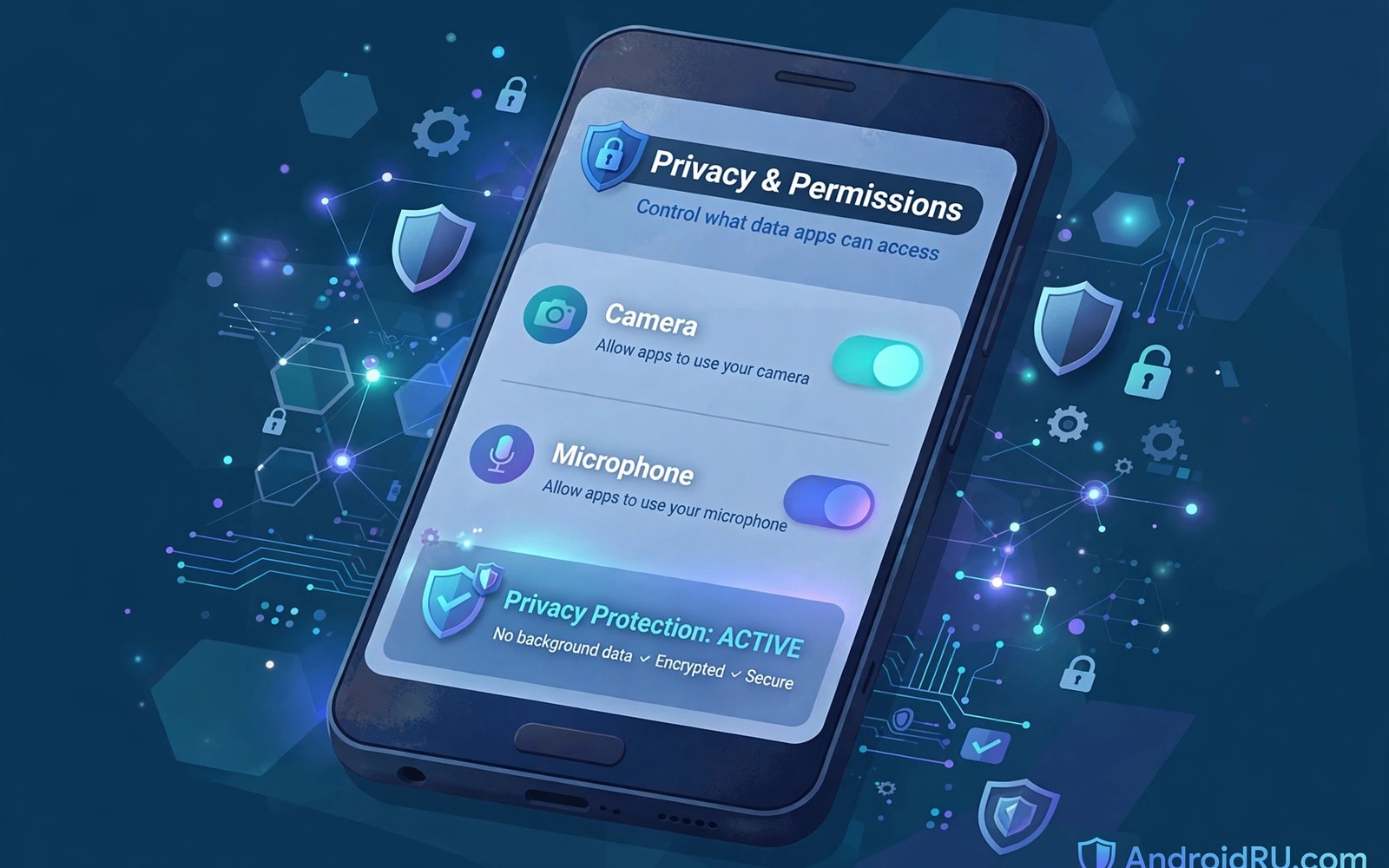
Social apps request camera and microphone access for obvious features. Stories need a camera and calls need a microphone. Yet broad permissions let apps access sensors beyond single moments. Managing camera microphone permissions social apps protects against silent misuse. This guide covers Android permission levels and indicators. You will learn a review routine that takes minutes.
Start by opening privacy settings and then permission manager. List apps with camera access and microphone access separately. Also check top privacy settings for Instagram and TikTok for app level controls. Note any app with always access that should only need occasional access. That list is your audit starting point.
Permission levels explained clearly
Android offers allow only while using the app and allow all the time and ask every time. While using the app is the right default for most social apps. Ask every time suits apps you rarely use for camera or calls. Allow all the time suits almost no social app. Background sensor access should stay rare and justified.
One time permission grants access for a single session. The app must ask again next time. That option is ideal for a one off story upload. Use it for apps you distrust but still need occasionally. It gives function without permanent access.
Indicators that reveal live sensor use
Android shows a green dot indicator when camera or microphone is active. That dot appears in the status bar during use. Tap the dot to see which app triggered it. A dot during idle use deserves investigation at once. Note the app and the time and what you were doing.
Privacy dashboard shows sensor access history over recent days. Review it weekly for surprises. An app that used the microphone at night needs explanation. Check whether a scheduled feature or a bug caused it. Revoke access if no good explanation exists.
Auditing social apps one by one
Audit camera access first because visual data is sensitive. Keep camera access for apps where you post stories or scan codes. Remove it from apps where you only read feeds. Reading never needs a camera. That simple rule cuts many unnecessary grants.
Audit microphone access next with the same logic. Keep microphone access for calling and voice message apps. Remove it from feed only apps. Also read securing your messaging apps with biometric app locks for device level layers. A locked phone plus tight permissions gives strong protection.
Background access and sneaky defaults
Background microphone access is the riskiest permission pattern. Some apps request it for voice activation features. Voice activation may sound convenient but it listens continuously. Disable always allow microphone for social apps unless you truly use voice activation daily. Most users never need it.
App updates can introduce new permission requests. Read update permission prompts instead of tapping allow blindly. New features sometimes need new sensors. A feed app suddenly asking for microphone access deserves scepticism. Check the feature description before granting anything new.
Children and shared devices
Children phones need stricter sensor rules than adult phones. Set camera and microphone to ask every time for social apps. Review permission history together weekly. Teach children to notice the green dot indicator. That habit builds lifelong privacy awareness.
Shared family tablets need separate user profiles where possible. A shared profile mixes permission grants across users. Separate profiles keep each person sensor access apart. If profiles are impossible then use ask every time for all social apps.
What to do after a suspicious access
Revoke the permission immediately if access looks suspicious. Clear app cache and check for updates that fix the bug. Report the behaviour through the store review system with details. Note dates and times from privacy dashboard before you clear data.
Consider uninstalling apps with repeated unexplained sensor use. No social feature justifies silent background recording. Also check how social media apps impact battery and data use for background activity clues. High background battery plus sensor use is a strong warning sign.
adb shell dumpsys appops --op CAMERA
adb shell dumpsys appops --op RECORD_AUDIO
These commands follow the standard Android developer reference pattern for reading app operation history. They only read data and they change nothing on the phone.
A weekly permission audit routine
Set a Sunday reminder for a five minute permission audit. Open privacy dashboard and review camera and microphone access for the past week. Note any app with unexpected access times. Investigate one suspicious entry per week thoroughly. That pace keeps audits manageable rather than overwhelming. Revoke access for any app without a good explanation. Record revocations in a notes app so you remember why. That record prevents re granting the same permission casually later. Five minutes weekly beats an hour long annual cleanup.
Audit new apps on install day rather than waiting for Sunday. Open permission settings immediately after first launch. Deny camera and microphone access unless the core feature needs them. Grant access later only when you actually use the feature. That just in time granting is the safest habit. Many apps request permissions at install that they need only rarely. Delaying grants until need arises cuts exposure sharply. It also reveals which features truly need sensors versus which merely request them opportunistically.
Audit after system updates because updates can change permission behaviour. A major update may reset privacy settings or add new permission categories. Check permission manager within a day of any major update. Reapply your preferred settings promptly. That post update check catches silent resets before they linger. Major updates deserve the same attention as new installs. Treat every update as a potential permission change event. That vigilance keeps your audit system honest over years of use.
Permissions for children and vulnerable users
Children need permission rules explained in simple language. Teach them that camera access means an app can see through the phone. Teach them that microphone access means an app can hear around the phone. Those simple explanations build intuition better than technical terms. Set their social apps to ask every time for camera and microphone. That setting creates a natural pause before sensor use. Review their permission history together weekly as a learning activity. Frame reviews as teamwork rather than surveillance. Teamwork builds trust and lasting habits.
Elderly users benefit from simplified permission setups. Set their phones to ask every time for sensitive permissions. Write down which apps legitimately need camera or microphone access. Keep that list near the phone for reference. Scam apps often trick elderly users into granting broad access. A written list helps them recognise suspicious requests. Review their phones monthly with patience and without blame. Blame makes users hide permission problems. Patience encourages honest reporting of suspicious prompts.
Vulnerable users in sensitive situations need stricter rules. Journalists and activists should deny background sensor access entirely. They should use ask every time for all social apps. They should check privacy dashboard daily during sensitive work. They should remove social apps entirely during high risk travel if possible. Those strict rules reflect higher threat levels. Ordinary users need not adopt activist level rules daily. Match permission strictness to your actual risk level. Overly strict rules that get disabled help nobody.
Your camera and microphone permission checklist
Run this checklist to audit sensor permissions thoroughly. First open permission manager and list every app with camera access. Second list every app with microphone access separately. Third change social apps to allow only while using the app as the default. Fourth set rarely used apps to ask every time for both sensors. Fifth remove camera access from feed only apps that never need it. Sixth remove microphone access from apps without voice or calling features. Seventh check privacy dashboard for sensor use over the past week. Eighth investigate any nighttime or idle sensor use immediately. Ninth revoke access for any app without a good explanation. Tenth check permission settings again after every major system update. Eleventh teach family members to notice the green dot indicator. Twelfth set a Sunday reminder for a five minute weekly audit. A phone that passes this checklist gives sensors only to apps that truly need them. That principle limits silent recording risk sharply. Silent recording fears often come from broad permissions granted casually years ago. Auditing those old grants restores control quickly. Control improves further when audits become routine rather than one time events. Make the Sunday audit a permanent habit like checking battery health. Five minutes weekly is a small price for sensor privacy. Start the checklist today and finish it before your next social post.
Common mistakes
Granting allow all the time to social apps is the top mistake. Use while using the app as the default. Ignoring the green dot indicator wastes an early warning. Tap the dot and identify the app at once. Accepting every update permission blindly invites creep. Read each new request carefully.
Keeping microphone access for feed only apps is unnecessary risk. Remove it where no voice feature exists. Forgetting weekly privacy dashboard review lets misuse linger. Check history every Sunday. Sharing a device profile across family members mixes sensor grants. Use separate profiles where possible.
Assuming a permission grant is permanent and safe is wrong. Review grants after major updates. Apps change features and data needs over time.
Frequently asked questions
Does denying camera access break social apps?
No apps still work for reading and text posting. Camera features prompt again when you try them. Grant access at that moment only if needed. Denial affects only sensor features.
What does the green dot mean exactly?
It means camera or microphone is currently active. Tap it to identify the responsible app. Persistent dots during idle time deserve investigation. Revoke access if no legitimate feature explains it.
Should I use ask every time for all apps?
Ask every time suits rarely used apps well. Daily camera apps become annoying with constant prompts. Use while using the app for daily tools. Reserve ask every time for occasional or distrusted apps.
Conclusion
Camera and microphone permissions deserve regular attention. While using the app is the sane default. Green dot indicators and privacy dashboard give early warnings. Audit feed only apps ruthlessly. Background sensor access should stay exceptional and justified.
Your concrete next step is to open permission manager today and set every feed only social app to no camera and no microphone access. Then check privacy dashboard for the past week. Those two actions take ten minutes and they cut real risk.

