

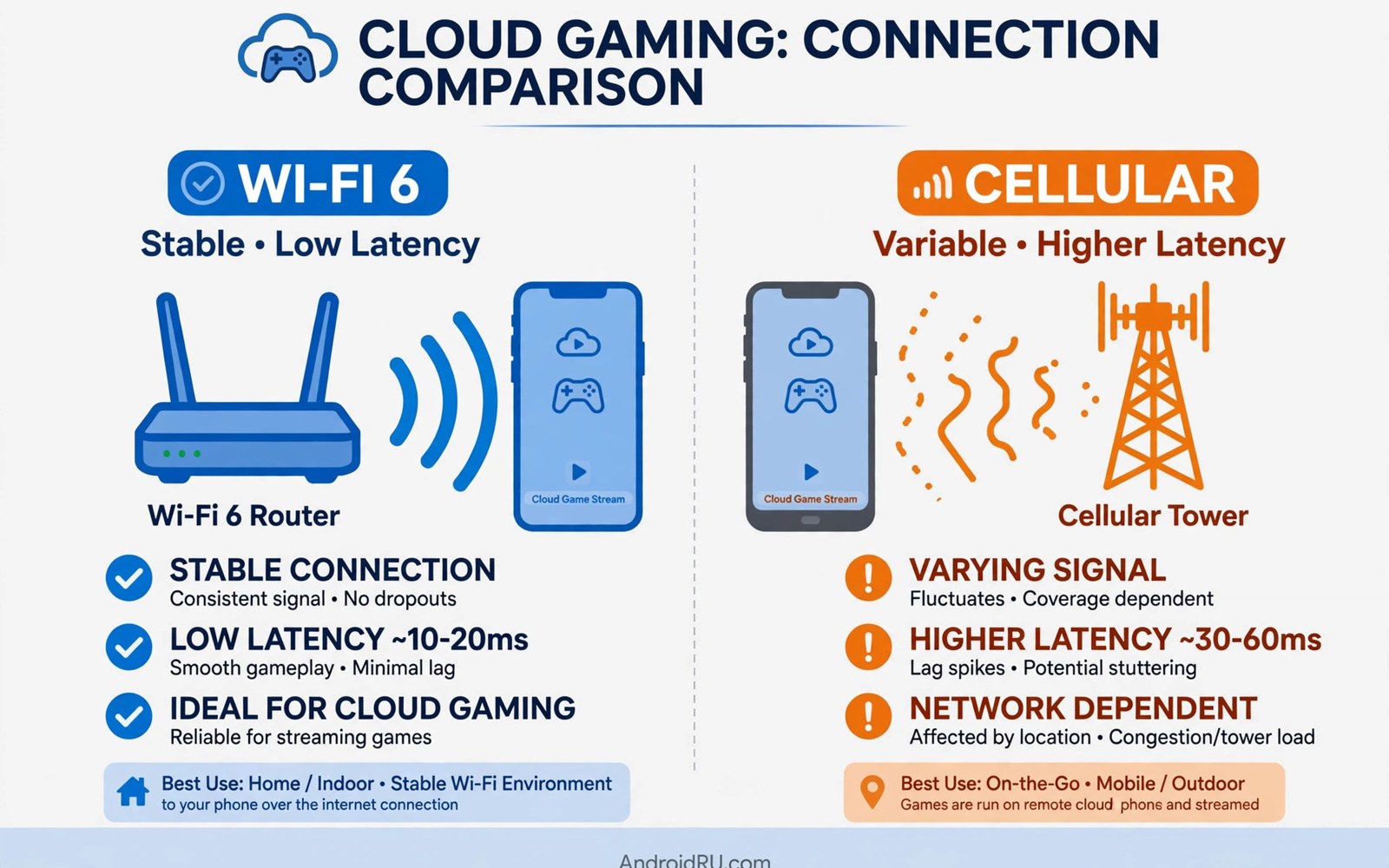
Wi-Fi 6 vs cellular cloud gaming is a daily choice for players. Both links can stream games well. They fail in different ways. Wi-Fi 6 offers fast stable local wireless with low latency. Cellular data offers freedom anywhere with a signal. Your best link depends on where you play and what your plan allows. This comparison gives you a clear way to choose.
Wi-Fi 6 improves on older Wi-Fi in crowded homes. It handles many devices at once with less delay. It uses the 5GHz and 6GHz bands for cleaner airwaves. Cellular data improves with 5G but still varies by location and tower load. Stability matters more than peak speed for cloud play. The steadier link usually wins.
How Wi-Fi 6 helps cloud gaming
Wi-Fi 6 manages many devices better than older Wi-Fi. It schedules airtime so one busy device harms others less. A home with phones and TVs and smart gadgets benefits a lot. Your game stream keeps its share even when others stream video. This scheduling is the biggest real gain for gamers.
Latency on Wi-Fi 6 stays low when the router sits nearby. A phone in the same room as a Wi-Fi 6 router often sees ping under 20 milliseconds to local servers. That low base leaves room for server delay without ruining feel. Walls still weaken the signal. Distance still hurts. Wi-Fi 6 improves the link but cannot defeat physics.
Cost also favors Wi-Fi 6. Home internet usually has no per gigabyte gaming cost. Long sessions cost nothing extra. Families can share one link for many players. This freedom makes Wi-Fi the default for daily play at home.
How cellular data helps cloud gaming
Cellular data frees you from the house. You can play on a train or in a park or during a long wait. Modern 5G links rival home Wi-Fi speeds in good spots. Latency on strong 5G can match Wi-Fi for many games. Mobility is the one advantage Wi-Fi can never offer.
Cellular links vary more though. Tower load changes by hour. Moving between towers causes brief freezes. Buildings block signals. A cellular link that plays well at noon may struggle at rush hour. Test your route before you trust cellular for an important match.
Data caps limit cellular play most. A high quality stream burns gigabytes fast. Some plans throttle after a cap. Throttling destroys stream quality. Check your allowance before long cellular sessions. Short bursts suit cellular best.
Stability head to head
Wi-Fi 6 wins stability at home in most cases. The link stays put. The router stays close. No tower handovers interrupt play. Interference from neighbors exists but modern bands reduce it. A wired style access point near your play spot makes Wi-Fi nearly rock solid.
Cellular wins stability only where home Wi-Fi is weak. A rural home with slow broadband may lose to strong 5G. A crowded apartment block with congested Wi-Fi may also lose. Local facts beat general rules. Test both links in your exact play spot.
Jitter tells the stability story best. A link with steady ping feels good even at moderate speed. A link with jumping ping feels bad even at high speed. Run a minute long ping test on each link. Pick the link with lower jitter for fast games. Use the other link for slow games or downloads.
A script to compare both links
The script below tests a host and reports mean latency and jitter. Run it on Wi-Fi and then on cellular data to compare with real numbers from your play spot.
import subprocess
import re
import statistics

def check(label):
    host = "8.8.8.8"
    proc = subprocess.run(
        ["ping", "-c", "50", host],
        capture_output=True, text=True
    )
    times = [float(x) for x in re.findall(r"time=([0-9.]+)", proc.stdout)]
    if not times:
        print(label, "no replies")
        return
    mean = statistics.mean(times)
    jitter = statistics.pstdev(times)
    print(label, "mean ms:", round(mean, 1))
    print(label, "jitter ms:", round(jitter, 1))
    print(label, "max ms:", round(max(times), 1))
    if mean < 40 and jitter < 12:
        print(label, "stable enough for fast games")
    else:
        print(label, "better for slow games only")

check("Wi-Fi 6")
check("Cellular")
This snippet is an original adaptation of a common ping test pattern. It is included here so you can compare your own links with numbers rather than signal bars.
Common mistakes
Many players pick a link by speed test peak alone. Peak speed says little about jitter. A slower steady link plays better than a faster jumpy link. Test for a full minute at your real play hour. Another mistake is gaming on a crowded 2.4GHz band while a clean 5GHz band sits unused. Move your phone to the cleaner band.
Some players forget that other household traffic shares Wi-Fi. A big download during play hurts everyone. Pause heavy tasks or set router priority for your phone. Others play on cellular while roaming or on a weak tower signal. Roaming and weak signals add latency and cost. Wait for a strong signal or switch to Wi-Fi.
A final mistake is never retesting. Networks change as neighbors join and carriers upgrade towers. Retest each link monthly. A link that won last season may lose this season. Fresh numbers keep your choice honest.
Mesh Wi-Fi and access points
Mesh Wi-Fi systems solve dead zones by placing nodes around the home, but they help cloud gaming only when nodes connect well to each other. A node linked by cable to the main router delivers full speed to nearby devices. A node linked wirelessly shares airtime with your phone and halves effective speed in busy homes. Place nodes with care and prefer wired backhaul whenever running a cable is possible. A single wired access point near your gaming chair often outperforms a three node mesh that talks wirelessly through walls.
Node placement follows simple rules that many owners ignore. Nodes belong in open spots at shelf height with clear lines toward the main router. A node hidden in a cabinet or behind a TV loses signal before it serves your phone. Test each node location with a speed test from your play spot before finalizing placement. Move a node one room closer to the router when speeds disappoint. Small moves change results dramatically because walls and floors attenuate signals unevenly.
Separate network names for gaming bands can help in crowded homes. A dedicated 5GHz network name for your phone keeps it off the crowded band that guests and smart gadgets use. Some routers let you reserve a band for one device through simple settings. This reservation prevents a guest video stream from stealing your game bandwidth. Router manuals explain these settings in plain language, and ten minutes of setup protects every session that follows.
Cellular failover setups
Cellular failover keeps play alive when home internet drops, because a phone can switch to mobile data automatically or manually during an outage. Automatic switching helps for browsing but hurts gaming, because the switch itself freezes the stream. Manual switching works better for games. Pause the game first, switch links deliberately, then reconnect cleanly. A planned switch loses seconds. An automatic switch mid match loses progress and patience.
Hotspot failover from a second phone adds another option for households with spare devices. A spare phone on a different carrier can serve as backup internet during outages. Test this setup before you need it, because hotspot speeds and latency vary by carrier and signal. A tested backup plan rescues a gaming night. An untested plan adds confusion during an outage when tempers already run short.
Data budgeting for failover matters because backup links usually carry caps. Reserve failover data strictly for important sessions rather than routine play. A short competitive match justifies failover data. A casual story session can wait for home internet to return. Clear rules about failover use prevent surprise bills. Write the rules down for household members so everyone follows the same plan during outages.
Router settings checklist
A router settings checklist fixes most home gaming problems without new hardware. Start by enabling the 5GHz band with a distinct network name. Separate names prevent your phone from drifting to the crowded 2.4GHz band automatically. Next check for firmware updates in router settings. Updates fix bugs that hurt real time traffic. Then enable quality of service rules that prioritize your phone during play hours.
Channel selection matters in apartment blocks where neighbors crowd the same airwaves. Router auto channel selection usually works, but manual selection helps in dense buildings. Use a Wi-Fi analyzer app to find the least crowded channel for your band. Switch to that channel and retest gaming performance. A cleaner channel cuts jitter noticeably in crowded environments.
Guest network isolation protects gaming bandwidth from visitor devices. Guests streaming video can steal airtime silently. A separate guest network with modest limits keeps visitor traffic contained. Enable guest isolation so guest devices cannot reach your gaming phone directly. Security and performance both improve with isolation enabled.
Restart schedules keep routers healthy over months of uptime. Set an automatic weekly restart during night hours when nobody plays. Fresh restarts clear memory leaks and stale states that degrade performance slowly. A router that restarts weekly performs more consistently than one running for months untouched. Automation removes the need to remember manual restarts.
Ethernet adapters for phones offer a wired option that many players overlook, because USB-C to Ethernet adapters connect Android phones directly to routers. A wired phone link removes Wi-Fi interference entirely and delivers the lowest possible latency. Adapters cost little and work with most modern phones through simple plug and play setup. Docked desk play benefits most from wired links, since the phone stays stationary anyway. Try a wired adapter for competitive sessions at your desk.
FAQ
Is Wi-Fi 6 always better than cellular for cloud gaming?
No. Wi-Fi 6 usually wins at home for stability and cost. Strong cellular can win where home broadband is weak. Test both links in your exact spot before you decide.
Does Wi-Fi 6 need a new router?
Yes for Wi-Fi 6 features. Your phone must also support Wi-Fi 6. Older routers still work but lack the scheduling gains. Upgrade the router only if your home has many devices or congestion.
Can I switch links during a cloud session?
Switching often breaks or freezes the stream. Start a session on the link you will keep. If you must move then pause the game first and reconnect cleanly.
Link comparisons only make sense beside real speed targets and latency facts. The explainer on how 5G transforms mobile cloud gaming covers where mobile gains are real. The guide to bandwidth needs for lag free cloud gaming lists the numbers each quality level demands. The study of input latency across cloud platforms breaks down every stage that adds delay.
Conclusion
Wi-Fi 6 vs cellular data is a choice of stability versus freedom. Wi-Fi 6 wins daily home play on stability and cost. Cellular wins play on the move where Wi-Fi cannot reach. Test both links with a minute long ping test from your play spot. Pick the steadier link for fast games. Your next step is clear. Run the comparison script on both links tonight. Then set your default link for home sessions and your backup link for travel before your next game.

