

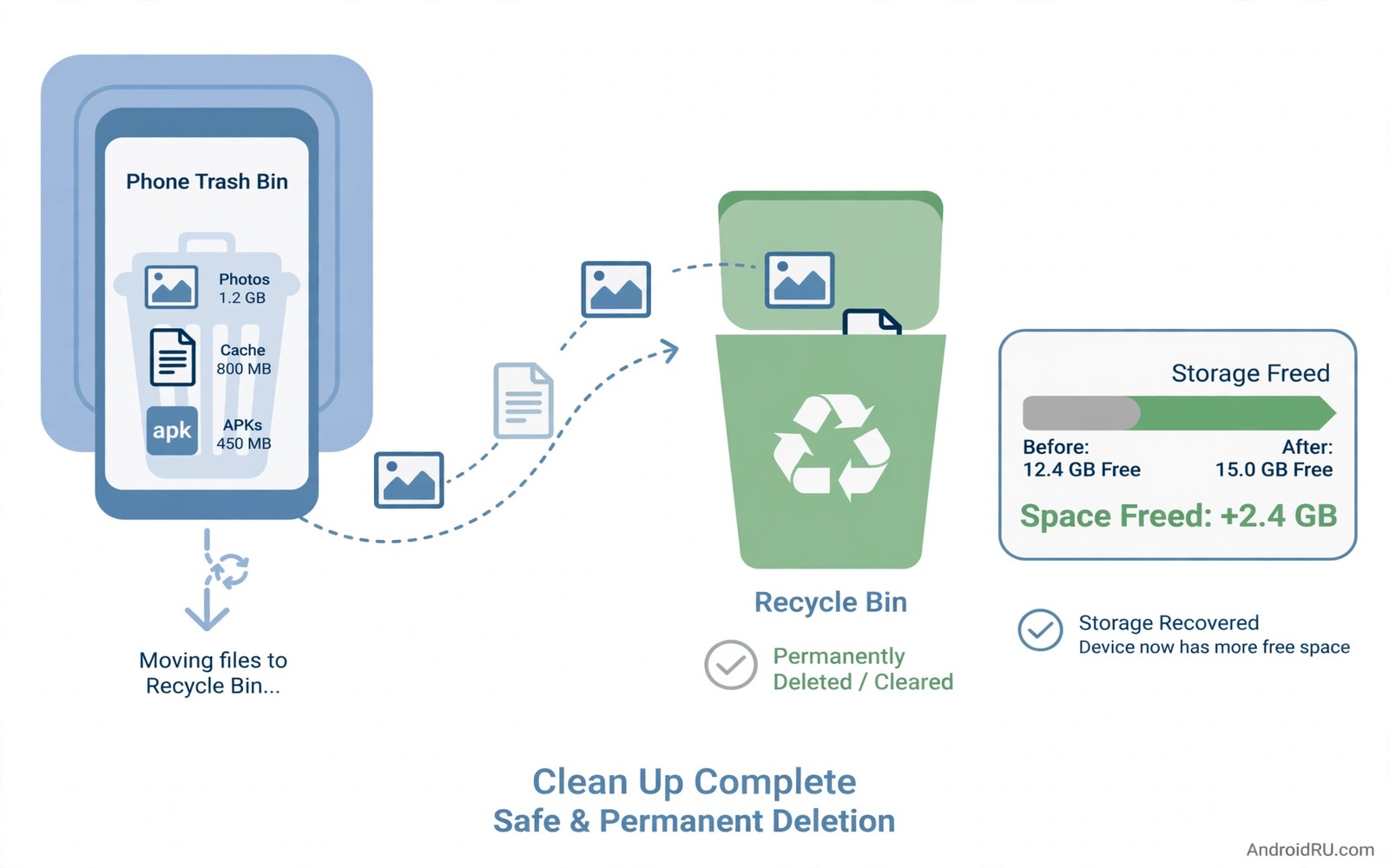
Deleted files rarely leave a phone at once. Gallery apps keep a trash folder for thirty days. File managers keep a recycle bin for a similar period. Cloud apps keep their own deleted items folder. That safety net protects against mistakes yet it also keeps storage full after a cleanup. Emptying trash properly finishes the job.
Trash systems differ by brand and by app. One maker calls it trash and another calls it recycle bin and a third hides it inside a file manager menu. The idea stays the same across brands. Deleted items wait in a holding folder until a timer expires or until the user empties it by hand. Knowing each location matters more than knowing one brand menu.
Empty gallery trash first
Open your gallery app and open its library or albums section and look for a trash or recently deleted album. Preview the items inside before emptying them. A photo that you deleted by accident may still wait there. Restore any item that you want to keep and then empty the rest.
Check the trash retention period inside gallery settings. Some apps let you shorten the period from thirty days to seven days. A shorter period frees space sooner while still offering a safety window. A seven day window suits most users who notice mistakes quickly.
Empty file manager recycle bins
Open your file manager and open its menu and look for a recycle bin or trash entry. File managers from different makers place this entry in different menus. Search inside the app for trash if the entry hides. Preview the contents and restore documents that you deleted by accident.
Empty the recycle bin after a large cleanup. A cleanup that moves files to trash frees no space until trash empties. That fact explains why storage totals sometimes stay flat after a big deletion session. Readers who clean downloads can explore cleaning up the downloads folder automatically every week to prevent repeat build-up.
Check cloud and messaging trash
Cloud apps keep deleted files in their own trash folders. Open each cloud app that you use and check its trash section. A photo deleted from the phone may still occupy cloud storage until cloud trash empties. Empty cloud trash after you confirm that the phone copy is gone for good.
Messaging apps also keep deleted media in some cases. Check the storage settings of messaging apps after a media cleanup. A media file deleted from a chat may still sit in a cache folder. Clearing that cache after a chat cleanup completes the freeing process.
Set a trash routine that fits your habits
Choose one day each month for a trash review. Open gallery trash and file manager trash and cloud trash in one short session. Restore mistakes and empty the rest. A monthly routine takes five minutes and it keeps trash from silently consuming gigabytes.
Turn on automatic trash emptying where an app offers it. Automatic emptying after seven days suits users who rarely need a long safety window. Keep manual control for work folders where a deleted document could matter weeks later. The right setting depends on how quickly you notice mistakes.
A small check for trash folders
List trash-related folders in a file manager by size to see which trash holds the most data. Gallery trash often dominates because photos measure large. File manager trash may hold documents and installers. A size check directs the cleanup to the largest trash first.
du -sh /sdcard/.Trash* /sdcard/Android/data/*/files/.trash 2>/dev/null | sort -rh | head -20
The snippet above was written for this article to show one safe way to list possible trash folders by size. It reads folder sizes and it changes nothing on the phone. Paths vary by brand so use the file manager view when a path does not exist on your model.
Understand trash retention across brands
Trash retention periods vary by brand and by app in ways that surprise users. One gallery app may keep deleted photos for thirty days while another keeps them for fifteen days. One file manager may keep deleted files until manual emptying while another empties trash automatically after seven days. Knowing the retention period for each app prevents a false sense of safety. A file that you expect to recover after three weeks may already be gone from a short retention trash.
Check retention settings inside each app that you use for important files. Shorten retention when storage pressure matters more than recovery safety. Lengthen retention when you work with irreplaceable files and when storage allows it. A retention setting that matches your risk tolerance beats a default that you never examined.
Handle trash in messaging and email apps
Messaging apps and email apps maintain their own trash systems separate from gallery trash. A deleted message may sit in a trash folder inside the messaging app for weeks. A deleted email may sit in a trash folder inside the email app for a similar period. Emptying gallery trash does not touch those app-specific trash folders. A complete trash cleanup must visit each app that holds deleted items.
Review messaging trash before emptying it because a deleted conversation may contain important information. Restore any message that holds an address or a code or a confirmation. Empty the rest to free the space that deleted media still occupies. A careful review prevents a permanent loss disguised as a routine cleanup.
Automate trash emptying where safe
Automatic trash emptying suits apps where deleted files rarely matter after a week. Gallery trash with a seven day automatic emptying rule frees space reliably without manual effort. File manager trash with manual emptying suits work documents where a longer safety window matters. Choose automation per app rather than applying one rule to every trash folder.
Test automatic emptying with unimportant files first to confirm that the rule works as expected. Delete a test photo and check that it disappears from trash after the retention period. A successful test proves the automation before real files depend on it. An automation that behaves unexpectedly deserves manual control instead.
Recover files from trash before it empties
Trash recovery works best when you act quickly after realising a mistake. Open the relevant trash folder immediately and restore the file to its original location. Avoid saving new large files before restoring because new writes can overwrite deleted data on some storage systems. A quick restore from trash succeeds far more often than a delayed recovery attempt.
Check backup locations when trash no longer holds a file. A cloud backup may retain a copy even after trash empties on the phone. A computer backup may retain an older copy that still serves the purpose. Trash represents only the first recovery chance and backups represent the second chance. Both chances deserve a check before declaring a file lost.
Clean trash on shared devices carefully
Shared devices complicate trash cleanup because one user trash may contain files that another user wants to keep. A family phone with multiple profiles keeps trash separate per profile in many cases. Check which profile owns a trash folder before emptying it. Emptying another profile trash without permission can delete files that the other user still needs. Respect for profile boundaries matters as much as storage savings on shared devices.
Agree on a trash routine for shared devices so that every user knows when trash empties. A shared routine prevents surprises and arguments about deleted files. A routine that empties trash monthly with a preview step gives every user a chance to restore mistakes. Shared routines turn individual cleanup into a cooperative habit.
Understand trash behaviour in file managers from different makers
File managers from different makers implement trash differently and those differences affect cleanup results. One maker trash may hold files for thirty days while another maker trash may hold files until manual emptying. One maker may place trash inside a hidden folder while another may show trash as a regular album. Knowing the specific behaviour of your file manager prevents assumptions that lead to incomplete cleanup. Open the file manager help or settings to learn its trash retention rule. A file manager that empties trash automatically needs less attention than one that requires manual emptying. Matching your routine to the actual trash behaviour ensures that deleted files actually free space when you expect them to do so.
Common mistakes
One common mistake is emptying trash without previewing it. A valuable photo deleted by accident can still be saved from trash. Preview first and restore before emptying. Another mistake is assuming that emptying one trash empties all trash. Each app keeps its own trash and each one needs its own empty action.
People also delete files and then wonder why storage stays full. Trash explains that mystery in most cases. Empty trash after every large deletion session. Readers who hunt hidden waste can explore finding hidden thumbnail files that waste space for another hidden storage source.
Frequently asked questions
Does emptying trash delete files permanently?
Yes in most cases. Trash emptying removes the holding copy from the device. A cloud backup may still hold a copy if backup ran before deletion. Check backups before emptying trash for important files.
Why does my phone have several trash folders?
Each app manages its own deletions for safety. Gallery trash and file manager trash and cloud trash operate independently. That separation prevents one app from deleting another app data by accident.
Can I recover files after emptying trash?
Recovery becomes difficult after trash empties. A backup offers the best chance. File recovery tools sometimes help when no new data overwrote the old files. Act quickly and avoid saving new files first.
Conclusion
Trash folders protect against mistakes yet they also delay real space savings. Gallery trash and file manager trash and cloud trash each need a preview and an empty action. A monthly trash routine finishes every cleanup properly.
Your concrete next step is to open gallery trash today and restore any accidental deletion. Empty the rest and check the storage total afterwards. Readers who want a full cleanup plan can next explore the ultimate Android storage cleanup guide for freeing gigabytes and keeping Android internal storage under seventy percent capacity as follow-ups.

