

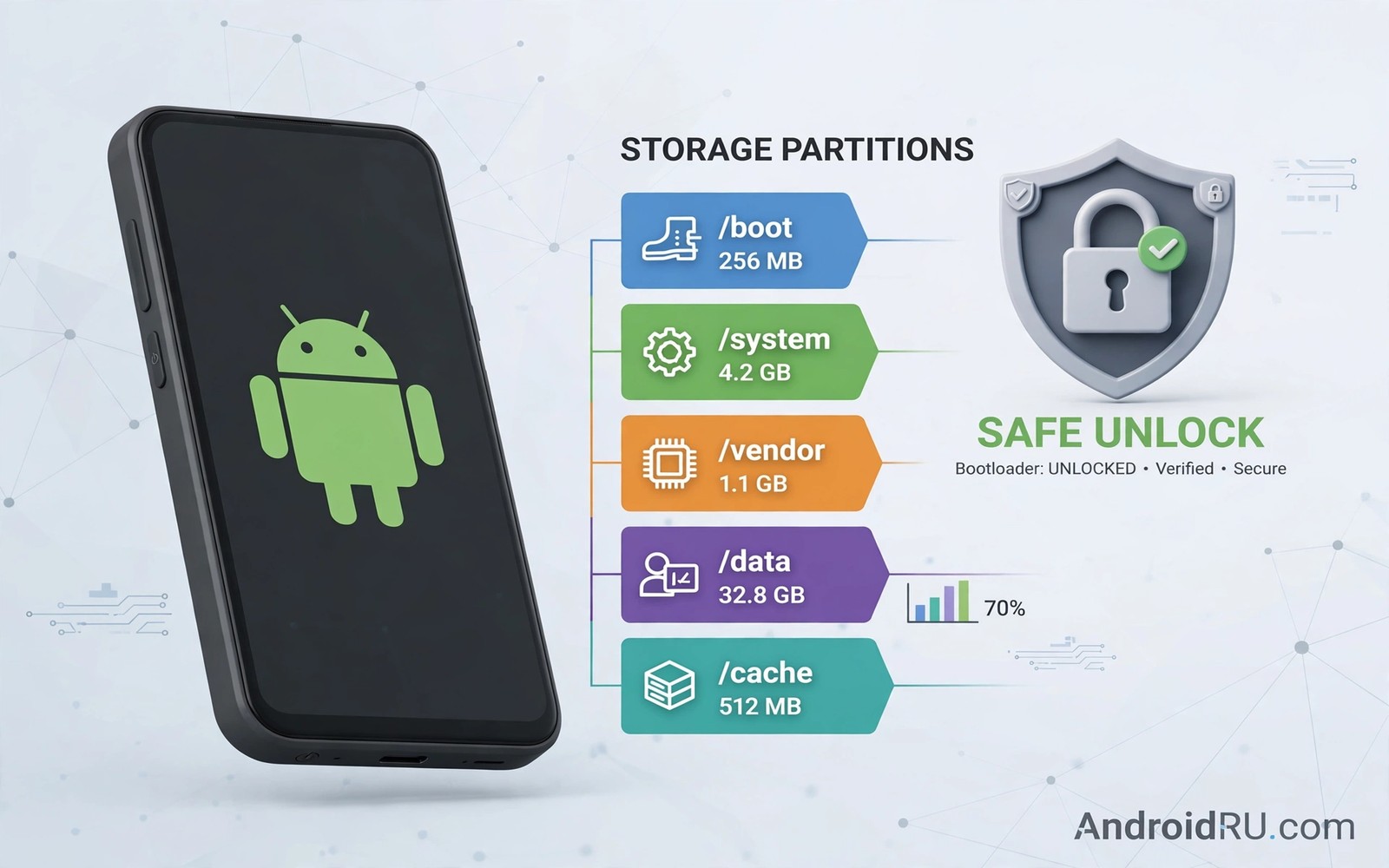
System storage looks like a locked room that keeps growing. The phone reports a large system total yet no app explains what sits inside it. Users feel trapped because system files sound untouchable. In truth much of that total comes from safe items like update leftovers and logs and caches that the system allows you to clear.
Reserved partitions protect the operating system from user mistakes. The system partition holds the OS itself and a vendor partition holds maker software. A data partition holds your apps and files. You cannot shrink the system partition without deep modification yet you can reclaim the waste that accumulates around it. That distinction keeps the phone safe while freeing real space.
Measure system storage honestly first
Open Settings and open Storage and read the breakdown for system and other categories. The system number includes the OS and preinstalled apps and update files. The other category often holds logs and temporary files and leftover data from uninstalled apps. A large other total usually signals the easiest wins.
Compare the total with the advertised storage of the phone. A 128 gigabyte phone never offers 128 gigabytes to the user because the OS reserves part of it. That reservation is normal and it should not trigger risky partition edits. Focus on the waste above the reservation rather than on the reservation itself.
Clear update leftovers after a major update
Major updates download large packages and sometimes keep old files for rollback. Open storage settings after an update settles and look for temporary files and cached update data. A cache cleanup after a week of stable use often frees a noticeable amount. Wait that week so a rollback remains possible if the update misbehaves.
Restart the phone after clearing update leftovers. A restart lets the system rebuild caches cleanly and lets the storage meter report an accurate total. Check the storage breakdown again after the restart. A stable lower total confirms a successful cleanup.
Remove logs and dump files safely
System logs and crash dumps accumulate silently during normal use. Some phones expose a cleanup option for logs inside storage or device care settings. Use that built-in option rather than hunting for system folders by hand. A built-in cleaner knows which logs are safe to remove.
Avoid deleting files from system folders with a file manager. A single wrong deletion can break an app or destabilise the OS. Built-in cleaners and app cache tools offer a safe path. Readers who want a log-focused cleanup can explore deleting system log dump files taking up space without root for step-by-step guidance.
Trim preinstalled apps without root
Many preinstalled apps cannot be uninstalled yet they can be disabled. Disabling stops updates and background work and frees the space that updates would consume. Open app info for a preinstalled app that you never use and choose disable where available. The app icon leaves the drawer and its update files stop growing.
Uninstall updates for a disabled app to reclaim the update space as well. That action returns the app to its factory version which sits inside the system partition. The factory version costs no user space. Re-enable the app later if you ever need it.
A small check for large system folders
List user-accessible folders by size to separate user waste from true system files. Downloads and media folders often hide inside the other category. Clearing those folders frees space without touching system partitions. A size ranking keeps the cleanup honest and safe.
du -sh /sdcard/* 2>/dev/null | sort -rh | head -20
The snippet above was written for this article to show one safe way to list user folders by size. It reads folder sizes and it changes nothing on the phone. Use the output to find user waste before considering any system change.
Understand what counts as system storage
System storage on Android includes more than the operating system image alone. It includes preinstalled apps and their updates and system caches and security files. It also includes a safety reserve that the system keeps for updates. That reserve explains why a phone never offers its full advertised capacity to the user. Understanding the composition prevents unrealistic expectations about reclaiming space.
Different phone makers report system storage differently because they bundle different components into that category. One maker may count preinstalled app data inside system storage while another counts it inside app storage. That reporting difference explains why two phones with the same capacity show different system totals. Compare system totals only between phones from the same maker for a fair view.
Use device care tools built into the phone
Most phones include a device care or storage cleaner tool built by the maker. That tool knows which caches and logs are safe to remove on that specific model. Run the built-in tool before trying any third-party cleaner. A built-in tool respects system protections while a third-party cleaner may delete files that the system needs. Maker tools also receive updates that match new Android versions.
Run the built-in tool after each major update and after each month of heavy use. A regular run prevents a slow accumulation of temporary files. Check the tool report after each run to learn which categories freed the most space. That report guides future cleanup priorities better than guesswork.
Manage preinstalled app updates wisely
Preinstalled apps receive updates that consume user storage even though the original app lives in system storage. Disabling an unused preinstalled app stops its updates and frees update space. Uninstalling updates for a disabled app returns it to factory size. That combination offers the largest safe gain from preinstalled apps without root access.
Re-enable a preinstalled app only when you truly need it. A re-enabled app will download updates again and consume space again. Keep a list of disabled apps so that you can re-enable one quickly when a need arises. A list prevents a forgotten disabled app from causing confusion later.
Prepare for major updates with free space
Major Android updates need substantial free space for download and installation. A phone with tight storage may fail an update even when the update itself is not large. Free several gigabytes before a major update by clearing caches and moving media. A prepared phone updates smoothly while an unprepared phone fails repeatedly and wastes download data.
Check update size in the system update screen before downloading. A large update deserves a storage check first. Delay the update by a day if storage looks tight and clean the phone in that interval. A one-day delay costs nothing while a failed update costs time and frustration.
Monitor system storage after each update cycle
Monitoring system storage after each update cycle reveals whether an update permanently increased the system total or only temporarily used space during installation. Check the storage breakdown before an update and again a week after the update settles. A temporary increase during installation should resolve after a restart and a cache cleanup. A permanent increase signals new system features or larger preinstalled apps that now consume more space. Monitoring turns update anxiety into measurable data.
Record system totals in a simple note after each major update. A recorded history shows trends across years and it helps predict when a phone will outgrow its storage. A trend that rises steadily suggests a future need for a larger phone or for stricter cleanup habits. Data-driven planning beats surprise warnings every time.
Distinguish user storage from system storage clearly
User storage and system storage confuse many phone owners because Settings combines them in different ways on different phones. User storage holds apps and media and downloads that the owner controls directly. System storage holds the operating system and preinstalled software that the owner cannot remove without deep modification. A large system total does not mean that the owner wasted space. It means that the phone reserves space for its own operation. Understanding that distinction prevents risky attempts to reclaim system space that should stay untouched. Focus cleanup efforts on user storage where safe gains exist. System storage deserves monitoring rather than aggressive intervention. A clear mental model of both categories guides every storage decision toward safe and effective actions.
Common mistakes
One common mistake is chasing partition resizing guides that require root and custom tools. Those guides can brick a phone and void support. A non-root user gains far more from cache and log cleanup than from risky resizing. Another mistake is deleting system files found through a file manager. The system protects many of those files for a reason.
People also clear every cache at once and then complain about slow app launches. Caches rebuild on next use and a full clear costs time. Clear only large caches and update leftovers. Readers who clean broadly can explore the ultimate Android storage cleanup guide for freeing gigabytes in this same wave for a balanced routine.
Frequently asked questions
Can I shrink the system partition without root?
No. Partition resizing needs deep system access that standard Android does not grant. Focus on caches and logs and disabled apps instead. Those safe steps free real space without risk.
Why does system storage grow over time?
Updates and logs and app data contribute to growth. Preinstalled app updates also add to the user side of the total. Regular cleanup after updates keeps growth under control.
Will disabling apps free system space?
Disabling frees update space and stops future growth. It does not shrink the factory system partition itself. The gain still matters on a phone with tight storage.
Conclusion
Reserved OS space includes a normal system reservation plus removable waste around it. Update leftovers and logs and preinstalled app updates form the safe cleanup target. Partition resizing stays off limits for a non-root user and the safe path still frees useful space.
Your concrete next step is to clear cached update files today and restart the phone. Note the storage total before and after the restart. Readers who want a deeper cleanup can next explore cleaning the Android other storage category instantly and deleting hidden files right now to reclaim system storage as follow-ups.

