

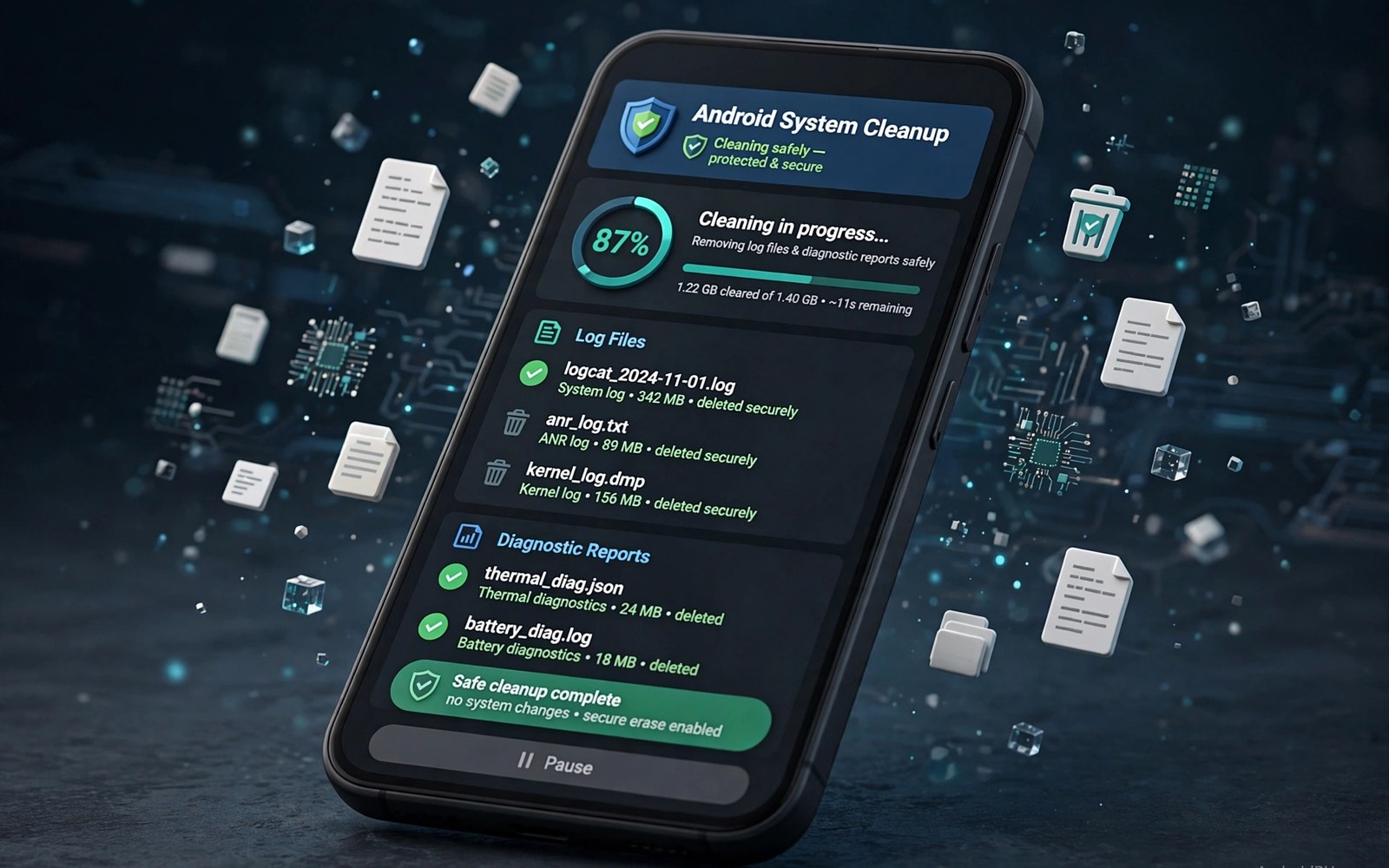
System logs record what the phone and its apps did during normal use. Crash dumps record details when an app fails. Those records help developers fix problems. They also accumulate when apps crash often or when a system service logs heavily. A phone with frequent crashes can collect a surprising amount of log data. Most owners never see those files because they live outside the usual folders.
Without root you cannot delete every system log directly. You can still clear many log related caches through normal settings. You can also reduce future log growth by fixing the app that crashes most. A log cleanup that ignores the crashing app will fill up again quickly. A cleanup paired with an app fix lasts longer. Owners who chase hidden waste may also like steps to remove hidden files that eat system storage for a broader pass.
Start by checking whether logs are actually your problem. Open storage settings and look for a large Other or System category. Logs are only one part of that category. A large category does not prove that logs are the cause. Check crash frequency in app settings for the apps that you use most. A single crashing app often explains a growing log pile.
Clear logs safely through app settings
Clear cache for the app that crashes most often. A cache clear can remove some temporary log data that the app holds. Update that app to the latest version available. An update may fix the crash that creates new logs. Restart the phone after the update so old log processes close cleanly. A restart also lets the system rotate logs in an orderly way.
Use the built in storage cleaner when your phone offers one. A system cleaner knows which temporary files are safe to remove. It should not delete user documents or photos. Run the cleaner once and note how much space it frees. A small gain means logs were not your main problem. A larger gain means the cleaner found real temporary waste. The same careful tool choice matters when you find hidden thumbnail files taking up gigabytes without touching originals.
Reduce future log growth
Disable or uninstall an app that crashes daily and that you no longer need. A removed app stops creating new crash dumps. Report the crash through the app store when the app matters to you. A report with a clear description helps the developer fix the cause. A fixed cause beats repeated log clearing.
Keep the phone system updated when updates are available. System updates often fix logging bugs and crash loops. An outdated system can log the same error repeatedly. A current system logs less noise and it handles errors more cleanly. Update on Wi-Fi and on a charger to avoid an interrupted install.
List large temporary files with a short script
import os
base = "/sdcard/Download"
for name in os.listdir(base):
    path = os.path.join(base, name)
    print(name, os.path.getsize(path))
The snippet above follows a standard pattern for listing files with their sizes in a test folder. It only prints names and sizes and it deletes nothing. You can adapt the base folder for a temporary folder on your own test system.
A size listing helps you see whether temporary files dominate a folder. Large files with log like names deserve a closer look. Small files in huge numbers can also add up to real waste. Use the listing to decide whether a system cleaner or an app fix is the better next step.
Spot apps that log excessively
Some apps log far more than others due to a bug or a debug setting left enabled. An app that logs every tap creates a large log pile quickly. An app that logs network requests in detail also grows logs fast. Identifying such an app helps you target the fix. Check battery and storage usage for an app that behaves oddly. An app with high background activity and frequent crashes is a prime suspect.
Update an excessively logging app as soon as an update appears. A developer may have fixed the logging bug in the new version. Read update notes for mentions of crash fixes or logging fixes. An update that mentions stability often reduces log growth as a side effect. A stable app logs less because it fails less often.
Contact app support with a clear description when an app logs excessively and updates do not help. Describe the crash frequency and the storage growth that you observe. A clear report helps support reproduce the issue. A vague report such as the app is bad gives support nothing to fix. A specific report with dates and sizes is far more useful.
Use safe mode to test log growth
Safe mode runs the phone with only system apps active. A safe mode test can reveal whether a third party app causes log growth. Restart into safe mode and use the phone lightly for a day. Check storage after that day and compare it with a normal day. A much smaller growth in safe mode points to a third party app. A similar growth in safe mode points to a system issue.
Exit safe mode and disable recently installed apps one by one. A one by one test isolates the culprit without guesswork. Re-enable apps slowly and watch storage after each re-enable. A sudden growth after one re-enable identifies the app clearly. That methodical test beats deleting many apps at once and losing track of the cause.
Keep a note of the culprit app and the fix that worked. A note helps you avoid reinstalling the same problematic app later. A note also helps you warn a friend who uses the same app. A documented fix turns a frustrating investigation into a reusable lesson.
Advanced log awareness for developers
Developers who use a phone for testing need log awareness beyond normal cleanup. A test phone may generate logs from debug builds and test apps. Those logs can grow far faster than normal user logs. A test phone therefore needs a log rotation habit. A rotation habit deletes old logs automatically before they fill storage. A test phone without rotation can fill up during a single long test session.
Separate test logs from personal logs by using a dedicated test device when possible. A dedicated test device keeps test logs away from personal photos and messages. A separate device also prevents a test app from interfering with daily use. A test device does not need to be new. An older phone makes an excellent test device for log heavy work.
Export logs that you need for debugging before you clear them. A log export to a computer preserves evidence for a bug report. A log that is cleared without export is lost evidence. A bug that cannot be reproduced without its log may remain unfixed. An export habit turns log cleanup into a safe step rather than a destructive one.
Use log filtering to focus on relevant entries rather than reading whole logs. A filter by app name or by error level narrows thousands of lines to a handful. A handful of relevant lines is easier to understand than a wall of text. Filtering also reduces the time needed to diagnose a problem. A focused log review is more productive than a broad log dump.
Report log related bugs with a concise summary and a filtered log excerpt. A concise report helps a developer fix the issue faster. A huge unfiltered log dump can hide the relevant lines. A filtered excerpt with context lines around each error is ideal. A good report respects the developer time as well as your own.
A practical log checklist for support calls
A support call about a crashing app benefits from a log checklist prepared in advance. Note the app name and the crash time and the action that triggered the crash. A precise note helps support reproduce the problem. A vague description such as it crashes sometimes gives support little to work with. Precision saves time for both sides.
Capture a screenshot of any error message that appears during a crash. A screenshot preserves exact wording that you might forget later. Exact wording helps support search for known issues. A screenshot also proves that an error occurred at a specific time. Visual evidence strengthens a support request.
List recent changes to the phone before the crash started. A recent app update or a system update may have triggered the crash. A recent settings change may also be relevant. A change list helps support isolate a cause quickly. A cause isolated quickly leads to a fix sooner.
Keep a support case number and a summary of advice received. A case number lets you follow up without repeating the whole story. A summary of advice prevents repeating steps that already failed. A documented support history makes a second call far more productive. Documentation turns a frustrating call into a structured process.
Common mistakes
One common mistake is deleting files inside a system folder without understanding them. A second mistake is installing a cleaner that promises to delete all system logs on a non rooted phone. A third mistake is clearing logs to hide a crash instead of fixing it. Each mistake either risks stability or wastes effort on a symptom.
Another mistake is assuming that a large System category means logs alone. System files and reserved space also live in that category. Chasing logs when the real issue is app data will disappoint you. Check per app storage before you target logs.
Frequently asked questions
Can I delete system logs without root?
You can clear many temporary logs through app cache and system cleaner tools. You cannot delete protected system logs directly without root. A system cleaner handles the safe portion for you. Fixing a crashing app reduces future logs more than any manual delete.
Will deleting logs speed up my phone?
Log deletion frees a modest amount of space in most cases. It rarely speeds up a phone on its own. Speed gains come from fixing a crashing app or freeing a critically full store. Treat log cleanup as housekeeping rather than as a speed fix.
Are crash dumps private?
Crash dumps can contain app state details that feel private. Avoid sharing dump files publicly. Send a crash report only through the official app channel when you choose to report it. Delete local dumps after a report when the system allows it.
Conclusion
System log cleanup without root works best through cache clearing and system cleaners and crash fixes. Protected logs stay protected for good reasons. A single crashing app often explains log growth. Fixing that app gives a lasting result that repeated clearing cannot.
Your concrete next step is to identify your most crashing app today and update it and clear only its cache. Then restart the phone and check storage again. Readers who need a wider tidy can follow methods to clear the vague Other storage category quickly after this log pass.

