

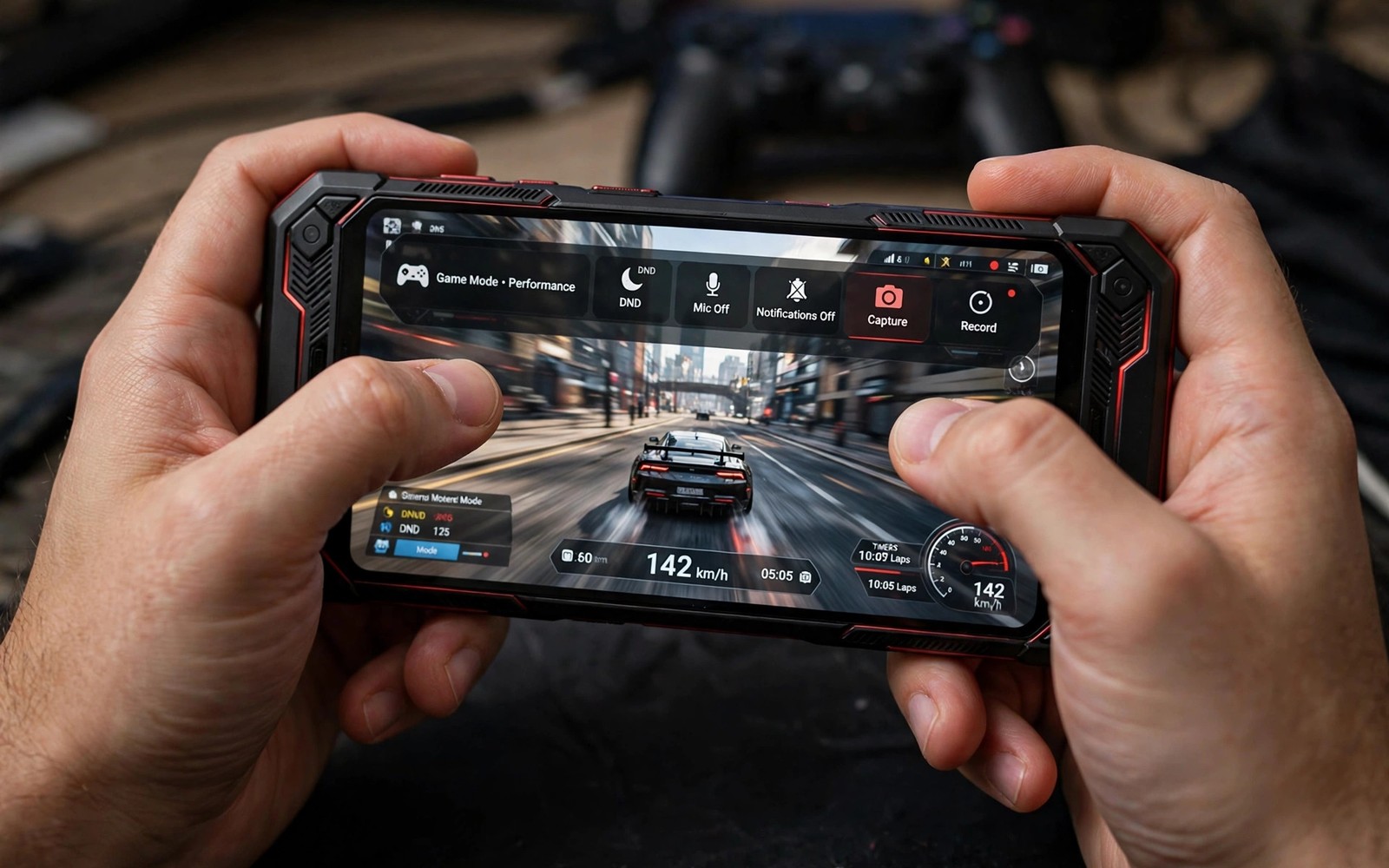
Game mode on Android is more than a do not disturb switch. It can boost performance and it can give you quick shortcuts for capture and recording. Many players never open the game mode panel. They miss a floating toolbar that can start a recording or take a screenshot without leaving the game. This guide shows you how to enable game mode and how to set up shortcuts that actually help during play.
Start by finding the game mode on your phone. Some brands call it Game Space and some call it Game Turbo and some call it Game Launcher. The name differs but the idea is the same. Open Settings and search for the word game. Open the game app that appears. Add your games to its list. A game that is not on the list may not get the performance profile or the toolbar. Add every game you play often. Remove apps that are not games so the list stays clean.
Open a game from the game app rather than from the home screen for a test. A floating icon or a side toolbar should appear during play. Swipe from a corner or tap the floating icon to open the panel. The panel may show a performance mode and a recording button and a screenshot button. Test each button in a practice mode. A button that works in practice will work in a real match. A button that you never tested may hide behind a permission prompt at the worst moment. The secret game booster setting hidden inside Android explains the booster side of this setup in more detail.
Enable Game Mode Step By Step
Open the game app and open its settings. Turn on game mode for all listed games. Turn on a performance profile that favours frame rate over battery for action games. Turn on a balanced profile for slow games where battery matters more. A single profile for every game wastes battery in slow titles and starves fast titles of power. Match the profile to the game type. Save the profile per game if your phone allows it. Per game profiles are the key to a setup that lasts.
Turn on do not disturb for games but allow calls from favourite contacts. A full block can hide an urgent call. A smart block silences game invites and social alerts while it lets important calls through. Test the block with a friend who sends a message during a practice match. If the message stays silent then the block works. If it pops up then check the notification rules again. A working block protects focus without cutting you off completely.
Grant screen recording permission before your first real capture. Android asks for permission the first time an app records the screen. Grant it in a practice session so the prompt does not appear during a ranked match. Test a ten second recording and play it back. Check sound and frame rate in the playback. A recording with no sound often means a mic permission is missing. A choppy recording often means the recording quality is too high for your phone. Lower recording resolution until playback stays smooth.
Set Up Shortcuts For Capture And Boost
Place the screenshot button where your thumb can reach it without moving your aim hand. A button in a far corner forces an awkward stretch during a fight. Place the recording button near the screenshot button but not so close that you tap the wrong one. Practice both buttons in a casual match. Muscle memory matters for capture. A great play that you fail to record is lost forever. A quick tap that starts recording before a fight is better than a perfect tap after the fight ends.
Set a shortcut for performance boost if your game mode offers one. Some panels offer a boost button that clears memory and raises clock speed for a short time. Use boost before a heavy scene rather than during it. A boost during a fight can cause a brief stutter while the system shifts gears. A boost before a boss fight or a final circle gives the phone time to settle. Test boost in practice and watch the frame rate for a full minute after you tap it.
Use a voice or gesture shortcut only if it never triggers by accident. A voice command that starts recording during a call can record private audio. A gesture that triggers during normal play can open a panel at a bad moment. Test gestures for a full match before you rely on them. Disable any shortcut that triggers more than once by accident. A reliable shortcut is worth more than a clever shortcut that misfires.
Record Clean Clips Without Hurting Performance
game_mode = on
performance = high
recording_resolution = 1080p
recording_fps = 30
mic = off
notifications = blocked
The snippet above is an original example written for this guide. It shows generic settings that you can adapt to your own device. It does not copy code from any outside source.
Use the settings above as a starting point for recording. A 1080p recording at 30 frames per second is smooth on most phones and it keeps file size manageable. Turn the mic off for gameplay clips unless you want commentary. A mic on can pick up room noise and fan sound. Block notifications during recording so a pop up does not ruin a clip. Raise recording frame rate only if your phone stays smooth during a test. A 60 frame recording looks better but it costs more performance.
Tune Game Mode For Battery And Heat
Game mode boost can raise heat quickly. Watch temperature during a long session. If the phone gets hot then lower the performance profile one step. A cooler phone holds a stable frame rate longer than a hot phone at maximum boost. Remove a thick case during a recording session if heat builds up. A case can trap heat and trigger a throttle that ruins both gameplay and recording. A short cooling break between matches can restore full speed.
Battery drain rises with boost and recording together. Plan a charging strategy for long sessions. A low battery warning during a match can distract you and it can trigger a power saving cap. Charge to a comfortable level before a tournament. Use a charger that keeps up with gaming drain if you play while charging. A weak charger may not keep up and the battery can still fall during play. Bypass charging while gaming explains a charging method that can reduce heat during plugged in play.
Review your game list once a month. Remove games you no longer play. A bloated list can slow the game app and it can apply profiles to apps that do not need them. Add new games as soon as you install them. A new game that is not on the list will miss the toolbar and the boost. A clean list keeps game mode fast and predictable. It also makes it easier to find a game when you want to play.
Use Game Mode With Streaming And Sharing
Game mode can help when you stream a match to friends. A clean screen without pop ups looks more professional. A recording without notification sounds sounds cleaner. Test streaming in a casual match before a public stream. Check that the stream shows the game clearly and that voice chat stays audible. A stream that hides the game behind a panel will frustrate viewers. Adjust panel position before you go live.
Save clips with clear names right after a match. A clip named with the game and the date is easy to find later. A clip with a default name gets lost among dozens of files. Create a folder for clips per game. Move the best clips there at the end of a session. A curated folder makes sharing easy. It also makes it easy to delete weak clips and free storage.
Check clip file size before a long recording session. High quality clips can fill storage fast. A 1080p clip uses far less space than a 4K clip. A long session at high quality can exceed free space and stop recording early. Free space before a session and set a quality that fits your storage. A complete clip at medium quality beats a truncated clip at maximum quality.
Review game mode settings after a system update. Updates can reset game lists and profiles. Open the game app after an update and confirm your games are still listed. Confirm profiles are still set per game. A quick check after an update prevents a surprise during the next match. A setup that you verify regularly will stay reliable.
Keep a checklist on your phone for pre match setup. List game mode on and recording permission granted and notifications blocked. A checklist takes ten seconds to read. It prevents a forgotten permission from ruining a match. A player who follows a checklist will capture more great plays than a player who relies on memory alone.
Common Mistakes
One mistake is to enable game mode but never add games to its list. An empty list means no game gets the benefits. Another mistake is to record at maximum quality on a midrange phone. Maximum quality can cause stutter in both gameplay and recording. A third mistake is to leave the mic on for every clip. Room noise can ruin an otherwise great play. Turn the mic off unless you plan to add commentary.
Do not ignore permission prompts until a real match. Grant recording and overlay permissions in practice. A prompt during a match can cost a fight. The complete mobile gaming optimization bible for Android ties game mode into a wider optimisation routine. A routine that you follow before every session beats a one time setup that you forget.
Frequently Asked Questions
Where is game mode on my Android phone?
Search Settings for the word game. Brands use different names such as Game Space or Game Turbo or Game Launcher. Open the game app that appears. Add your games to its list. Open a game from that app to see the floating toolbar during play.
Why does my recording have no sound?
A recording may need mic permission or internal audio permission. Grant both permissions in a practice session. Test a ten second clip and play it back. If game sound is missing then check the audio source setting in the recorder. Set it to internal audio for game sound.
Does game mode really boost performance?
Game mode can limit background apps and favour the game for processor time. The gain depends on your phone and the game. A phone with many background apps gains more than a clean phone. Test frame rate with game mode on and off in the same practice scene.
Conclusion
Open your game app today and add one game to its list. Enable a performance profile and test the screenshot and recording buttons in practice mode. Save that setup for the game. That one tested setup will make every future match easier to capture and smoother to play.

