

How to Change MAC Address on Android to Protect Privacy on Wi-Fi
Every time your Android phone joins a Wi-Fi network, it introduces itself with a hardware identifier called a MAC address. That string of twelve hex characters is printed on the Wi-Fi chip at the factory, and by default it stays the same everywhere you go. A coffee shop router, a hotel portal, a shopping mall network and an airport hotspot can all log the same identifier, and over weeks and months those logs can be joined up into a record of where you were and how often you came back. I first noticed this on my own phone when a mall network greeted me by name on a captive portal I had only used once, months earlier. The network had not remembered my face. It had remembered my address.
Android has shipped a built-in answer since Android 10: a randomized MAC address that is different for each network you join. Turn it on, and the coffee shop sees one address while your home router sees another, so the easy cross-network trail breaks. That change takes about a minute per network, costs nothing, and needs no extra app. This guide walks through exactly where the setting lives on Samsung, Pixel and other phones, how to check that it worked, when a fixed device address is still the right call, and what this setting cannot do. You will also see how it compares with a VPN and private DNS, and what to do when a network refuses to connect after you switch.
What a MAC Address Actually Is on Android Wi-Fi
A MAC address, short for Media Access Control address, is a 48-bit identifier tied to your phone Wi-Fi radio. It looks like 5A:3C:9E:41:7B:02, six pairs of hexadecimal digits separated by colons. The first three pairs identify the chip maker, and the last three are unique to your device. Routers use it at the lowest layer of the network, before any password or IP address is involved, to tell one connected device from another. That is why a router can recognise your phone the moment it comes into range, even before you open a browser.
Your phone actually has more than one such identifier. The Wi-Fi radio has one, Bluetooth has another, and mobile data uses a different system entirely. This guide is only about the Wi-Fi address, because that is the one public and shared networks log most often. The Wi-Fi hardware address never changes on its own. It survives factory resets, SIM swaps and new Google accounts, which is exactly why it is such a convenient tracking handle for network operators.
Tracking through this identifier works quietly. A venue network logs the address, the time and the access point you joined. Do that across several visits and the operator can count repeat visitors, measure dwell time and even estimate which shops you passed. None of that needs your name or your Google account. The address alone is enough to link the visits. Randomized addresses break that link, because each network receives a different value that means nothing to any other network.
Hardware address versus randomized address on Android 10 and later
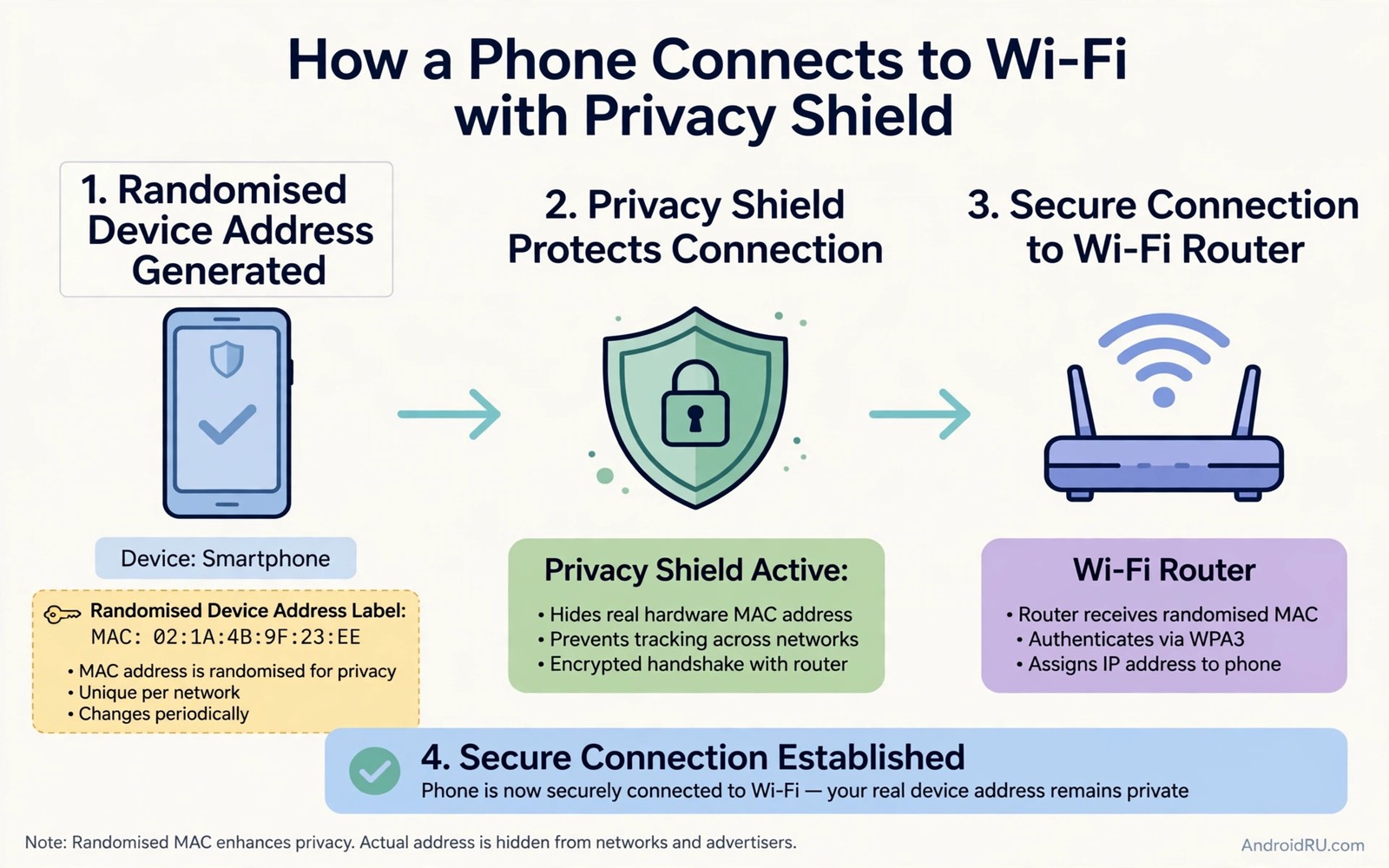
Android 10, released in 2019, made per-network randomization the default for new networks on most phones. Android 11, 12, 13 and 14 kept that behaviour and made the control easier to find. When you join a network with randomization on, Android generates a fresh address for that network and stores it alongside the saved network profile. Join the same network again and you present the same randomized value, so the router still recognises you as a returning device on that one network. Join a different network and you present a different value. That is the key detail: randomization is per network, not one new address for everywhere.
A single random address shared across all networks would be little better than the hardware address, because it would still link your visits together. Android avoids that mistake by design. Each saved network keeps its own value, and forgetting a network and joining it again generates a new one. That behaviour also gives you a simple reset: if you ever want a fresh address for a network you no longer trust, forget the network and reconnect.
How to tell which type your phone is using right now
Open Settings, tap Network and internet, tap Wi-Fi, then tap the gear icon beside a connected network. Look for a line labelled Privacy or MAC address type. If it says Randomized MAC or Use randomized MAC, the network is already protected. If it says Device MAC or Use device MAC, the network sees your factory hardware address. Check this for every saved network, not just the one you are on now, because older networks saved before Android 10 may still sit on the device address.
How to Turn On Randomized MAC on Android 10, 11, 12, 13 and 14
The steps below cover how to change MAC address on Android without root using the built-in privacy control. No third-party app is needed, and nothing here touches the factory address itself. You are only telling Android which address to present to each network. Work through your saved networks one at a time, starting with the public ones you use most.
Step 1: Open the Wi-Fi settings for one saved network
Open Settings and go to Network and internet, then Wi-Fi. You will see the network you are connected to at the top and a list of saved networks below it. Tap the gear icon or the network name for the network you want to protect. On Samsung phones the path is Settings, then Connections, then Wi-Fi, then the gear icon beside the network. On Pixel phones and most stock Android phones it is Settings, then Network and internet, then Internet, then the gear icon. The names differ slightly, but the gear icon beside a network is the same idea everywhere.
Step 2: Find the Privacy or MAC address type option
Scroll down in the network details until you see Privacy or MAC address type. Some phones show it near the bottom, below the IP address and signal strength. Tap it and you will see two choices: Randomized MAC and Device MAC. A few older Samsung builds label the same choices as Use randomized MAC and Use device MAC. Pick Randomized MAC. If the option is greyed out, the network may be managed by your employer or by a device admin policy, and you will need to ask the admin or use a different network.
Step 3: Reconnect so the new address takes effect
Save the change, then disconnect and reconnect to the network. The quickest way is to toggle Wi-Fi off and on, or tap Forget on the network and join it again with the password. A fresh join forces the phone to present the new randomized value to the router. If you join networks often with a code instead of typing a password, the guide to sharing Wi-Fi passwords by QR code can speed up a fresh join after you change the privacy setting.
Step 4: Repeat the check for every saved network
Go back to the Wi-Fi list and open each saved network in turn. Public networks, hotel networks, airport networks and mall networks should all use the randomized setting. Home networks can use it too, unless your router uses an allow list, which is covered in the section on fixed addresses below. Networks you joined years ago are the most likely to still use the device address, because they were saved before randomization became the default. A five-minute saved networks audit of the full saved list is the single most useful privacy step in this whole guide.
Randomized MAC on Samsung Galaxy phones
On Samsung Galaxy phones running One UI 3 or later, the control sits under Settings, Connections, Wi-Fi, then the gear icon, then Advanced, then MAC address type on some models. Newer One UI versions show Privacy directly in the network details. Samsung also offers a separate Randomize MAC option under Wi-Fi Advanced settings on some builds, which applies to new networks. If you cannot find the per-network option, update One UI and check again, because Samsung has moved this control between releases.
Randomized MAC on Pixel phones and stock Android
Pixel phones running Android 12, 13 or 14 show the option as Privacy in the network details, with the choices Randomized and Device. Stock Android on Motorola, Nokia and similar phones uses the same wording. Pixel phones also randomize the address used during network scanning, which is a separate protection: your phone does not broadcast its real address while it looks for networks. That scanning protection is on by default and has no toggle in settings.
How to Check Which Address Your Phone Is Showing a Router
Changing a setting means little until you verify it. There are three quick checks, and you only need one of them to confirm the change worked. The fastest check is on the phone itself: open the network details again after reconnecting and read the MAC address line. It should show a value that differs from your factory hardware address. To find the factory address for comparison, go to Settings, About phone, and look for the Wi-Fi MAC address entry, or check the label on the phone box.
The second check is on the router. Log into your home router admin page and open the list of connected devices. Find your phone by its name and read the address shown. With randomization on, the router will list the randomized value, not the factory value. With the device setting on, the two values will match exactly. This is the most convincing proof, because it shows what the network actually sees.
The third check is a habit worth building: after you change the setting on a network, forget that network and join it again, then look at the address line once more. A fresh join should show the same randomized value as before for that network, because Android stores one randomized value per saved network. If the value changes on every join, something is resetting the network profile, and you should check whether a VPN app or a device management profile is interfering.
When to Use Device MAC Instead of Randomized MAC on Android
Randomization is the right default for almost every network, but there are real exceptions. Some networks grant access only to known hardware addresses. A school, an office, a parental-control router or a smart-home hub may keep an allow list built from factory addresses. On those networks a randomized value will be refused, and the Wi-Fi will show connected without internet, or it will keep asking for a password that never works. The fix is to switch that one network back to Device MAC, and only that one.
To do it, open the network details, tap Privacy or MAC address type, and choose Device MAC. Reconnect, then give the address shown on that screen to the network administrator so they can add it to the allow list. Keep randomization on everywhere else. This selective approach gives you privacy where it matters and access where it is required. A coffee shop gains nothing from your factory address, so never set a fixed address for a public network just because it is convenient.
Smart-home gear creates a similar exception. Some routers assign a fixed local IP address to a device based on its hardware address, and a changed address can break a rule that points at your phone. The same applies to some parental-control schedules and time limits that are keyed to the factory address. If a home automation rule stops working after you switch, check whether the rule is tied to the old address, and either update the rule to the new randomized value or switch that home network back to the device address.
Enterprise Wi-Fi and certificate networks
Work and university networks often use enterprise authentication with certificates or usernames rather than a single shared password. On those networks the address type rarely matters for login, because the certificate does the identifying, not the hardware address. That said, some enterprise networks also run MAC filtering as an extra layer, and a few use the address to bind a session to a device. If your work network worked yesterday and fails today after a privacy change, switch that network to Device MAC and tell the IT desk what changed. For the login side of these networks, the guide to connecting to enterprise Wi-Fi safely covers certificates, EAP methods and the settings that actually protect you there.
Hotel and captive portal networks that remember devices
Hotels, airports and conference venues often remember a device for the length of a stay so you do not have to log in again at every access point. That memory is usually keyed to the address your phone presented at login. With a randomized address, the memory still works, because Android presents the same randomized value each time you join that network. The problem only appears if you forget the network and rejoin, which generates a fresh value and forces a new login. That is a minor inconvenience, not a failure, and it is the price of the extra privacy.
Randomized MAC vs VPN vs Private DNS: What Each One Hides
People often ask whether a randomized address replaces a VPN. It does not, and the table below shows why. Each tool hides a different thing from a different observer. The address setting hides your device identity from the local network. A VPN hides your traffic and destination from the local network and your internet provider. Private DNS hides your DNS lookups from the local network. Used together they cover far more than any one of them alone.
| Tool | What it hides | Who it hides it from | What it cannot hide |
|---|---|---|---|
| Randomized MAC | Your factory hardware address | Local Wi-Fi operator | Your traffic, your accounts, your location |
| VPN | Traffic content and destinations | Local network and provider | Your VPN provider sees traffic |
| Private DNS | Domain name lookups | Local network resolver | IP addresses you connect to |
| Device MAC | Nothing extra | Nobody | Stable identifier across visits |
The practical takeaway is simple: turn on the per-network randomization first, because it is free and built in, then add a VPN when you use public Wi-Fi for anything sensitive, and set private DNS to a provider you trust. The three together are the standard privacy stack for public networks, and none of them requires root. A randomized address on its own still leaves your traffic visible to the network operator, so never treat it as a cloak that makes you invisible.
One more honest limit matters. A network operator can still fingerprint a device by other means, such as the list of networks your phone probes for, the timing of its requests, or the combination of apps and services it contacts. Randomization removes the cheapest and most reliable identifier, which is a real gain, but it does not remove every signal. If you need stronger protection on a hostile network, combine the address change with a VPN and avoid logging into personal accounts there.
How to Change MAC Address on Android Without Root, and What Needs Root
The built-in setting changes the address your phone presents to a network. It does not change the factory address burned into the chip. That distinction matters, because many guides online promise a full spoof of the hardware address and then quietly require root. On a phone without root, you cannot rewrite the factory value, and you do not need to. The per-network randomized value gives you the privacy benefit that most people actually want.
Full spoofing, where you pick an arbitrary address and force the Wi-Fi chip to use it everywhere, needs root access and usually a terminal command or a root app. It also breaks things: some networks and some apps check that the address is stable, and a manually spoofed value can trigger blocks or duplicate-address errors on a busy network. Root spoofing also has to be reapplied after reboots on many phones. For almost every reader, the built-in per-network option is the safer and more reliable path, and it survives reboots and updates.
Why random addresses use a locally administered bit
If you look closely at a randomized address, its second hex digit is usually 2, 6, A or E. That is not a coincidence. Those values set the locally administered bit, which tells routers that the address was generated locally rather than assigned by a chip maker. Routers treat such addresses as normal, and the bit also prevents a randomized value from ever colliding with a real factory address. Knowing this helps you recognise a randomized value at a glance when you check the network details screen.
Does changing the address hide you from your internet provider or Google?
No. Your internet provider sees your account and your public IP address, not your Wi-Fi hardware address. Google sees your account when you sign in, and your apps see their own identifiers. The Wi-Fi address only matters to the local network and to anyone who can read its logs. That is still worth fixing, because local networks are the place where a stranger can watch you, but do not expect this one setting to cover tracking that happens higher up the stack.
Troubleshooting: Wi-Fi Will Not Connect After You Switch MAC Type
The most common failure after a switch is a network that connects and then shows no internet, or a network that keeps looping back to the password prompt. The first step is always the simplest: forget the network, rejoin it fresh, and check the address type again before you type the password. A stale saved profile can hold the old setting, and a fresh join clears it. If the network uses an allow list, that is the moment to switch back to Device MAC for that network alone.
If the phone connects but pages do not load, check whether the network has a captive portal waiting in a notification. Some portals tie the login session to the address presented at first contact, and a changed address can leave an old session hanging. Tap the sign-in notification and complete the portal again. If there is no notification, open a browser and visit any plain web page, which usually triggers the portal redirect.
A rarer failure is an address conflict, where two devices on the same network present the same value. Randomized addresses are generated from a large space, so a collision is unlikely, but it can happen on a network that assigns addresses manually. Forgetting the network and rejoining generates a new value and clears the conflict. If the problem returns on the same network, the network itself may be misconfigured, and the operator needs to know.
When a phone keeps reverting to the device address
Some phones, especially older Samsung and Xiaomi builds, have a bug where a network saved before an update keeps the device address even after you change it. The reliable fix is to forget the network, restart the phone, and join again with the randomized option chosen before you type the password. Some device-management profiles installed by an employer or a school can also force the device address, and in that case no setting on your side will override it. Check Settings, Security, Device admin apps, to see whether such a profile is installed.
Wi-Fi keeps dropping after the change on older Android versions
Android 10 and 11 had early randomization bugs on a few chipsets where the phone would drop the connection when roaming between access points with the same network name. If you see drops on a mesh network or a large office network, try switching that one network to Device MAC and see whether the drops stop. If they do, the fault is the roaming behaviour on that build, not your settings. Updating to a newer security patch usually resolves it, and mesh vendors have also fixed their side in firmware updates.
MAC Privacy Checklist for Home, Work, Hotel and Public Wi-Fi
A checklist beats good intentions, because this setting is per network and easy to forget. Run through it once a month, and again after any phone update, since updates can reset network profiles. Start with public networks, because those are the ones that log strangers. Then do hotels and airports, then work, then home. Five minutes a month keeps the whole list honest.
- Public Wi-Fi: randomized address on, VPN on for anything sensitive, forget the network when you leave town.
- Hotel and airport Wi-Fi: randomized address on, complete the captive portal once, expect a fresh login if you forget and rejoin.
- Work and school Wi-Fi: randomized address on unless IT uses an allow list, in which case use the device address for that network only.
- Home Wi-Fi: randomized address on unless a router rule or parental control is keyed to the factory address.
- Saved networks you no longer use: delete them, because each one holds an address and a password you no longer need.
One more habit helps on public networks: turn off auto-join for networks you do not trust. A phone that rejoins a slow or suspicious network on its own will present its address and start background traffic before you notice. If your phone keeps joining a weak hotspot in a mall or a station, the guide to stop auto-connecting to slow Wi-Fi shows the exact toggle that stops that behaviour, and it pairs naturally with the privacy steps in this guide.
Deleting stale networks also matters for a second reason. Your phone probes for saved networks by name when it scans, and that probe list can reveal places you visit. A short saved list means a short probe list. Go to the saved networks screen, remove anything you have not joined in months, and keep only the networks you actually use. That single tidy-up improves both privacy and battery life, because the phone spends less time hunting for networks that no longer exist.
Frequently Asked Questions About Changing MAC Address on Android
Is it legal to change the MAC address on an Android phone?
Using the built-in randomized setting is legal in most places, because it is a privacy feature shipped by Google and the phone maker. Full spoofing to impersonate another device or to bypass an access control is a different matter and can break a network acceptable-use policy or, in rare cases, a law. The distinction is intent: protecting your own privacy on a public network is normal use, while pretending to be a different device to gain access you do not have is not. When in doubt, use the built-in option and leave manual spoofing alone.
Does a randomized MAC address stop a network from knowing who I am?
It stops the network from recognising your device by its factory address across visits. It does not hide your identity if you log into an account, because the account identifies you directly. It also does not hide your traffic from the network operator. Think of it as removing a name tag, not putting on a disguise. Combined with a VPN and careful account use on public networks, it is a meaningful layer, but on its own it is only one layer.
Will changing the MAC address break my home Wi-Fi or smart devices?
It can break a router rule that is keyed to the factory address, such as a fixed IP assignment, a parental-control schedule or a MAC allow list. The fix is to update the rule to the new randomized value or to switch the home network back to Device MAC. Most homes have no such rules, so most people will notice nothing at all. Test one network at a time and keep a note of which networks use the device address, so a future reset does not surprise you.
Why does my MAC address change every time I reconnect?
On a correctly working phone it should not change on every reconnect to the same saved network. Android stores one randomized value per network and reuses it. If the value changes each time, the network profile is being reset, often by a cleaner app, a VPN app or a device-management profile. Check whether an app is clearing network settings, and stop it from doing so. If the behaviour continues, forget the network, rejoin it, and watch the address line across two reconnects.
Can a randomized MAC address improve Wi-Fi speed?
No, it has no effect on speed. The address is an identifier, not a performance setting. If your connection feels faster after a change, the improvement came from the fresh reconnect, which may have moved you to a less crowded access point or channel. Do not expect a speed gain, and do not switch the setting in search of one. Its value is privacy, and that is worth having on its own.
Wrapping Up: A One-Minute Change Worth Making on Every Network
The factory Wi-Fi address is a stable handle that any network you join can use to recognise you again. Android built a fix for that into the system years ago, and turning it on takes about a minute per network. Audit your saved networks, set the randomized option on every public network, keep the device address only where an administrator genuinely requires it, and pair the change with a VPN on networks you do not trust. That is the whole job, and it is one of the highest-value privacy steps on Android precisely because it is so small.
Do it today, starting with the network you are on right now. Open the network details, check the Privacy line, and switch it if it still says Device MAC. Then work down the saved list while you have a spare five minutes. Your phone will keep working exactly as before, and the next network you join will meet a stranger instead of a familiar face.

