

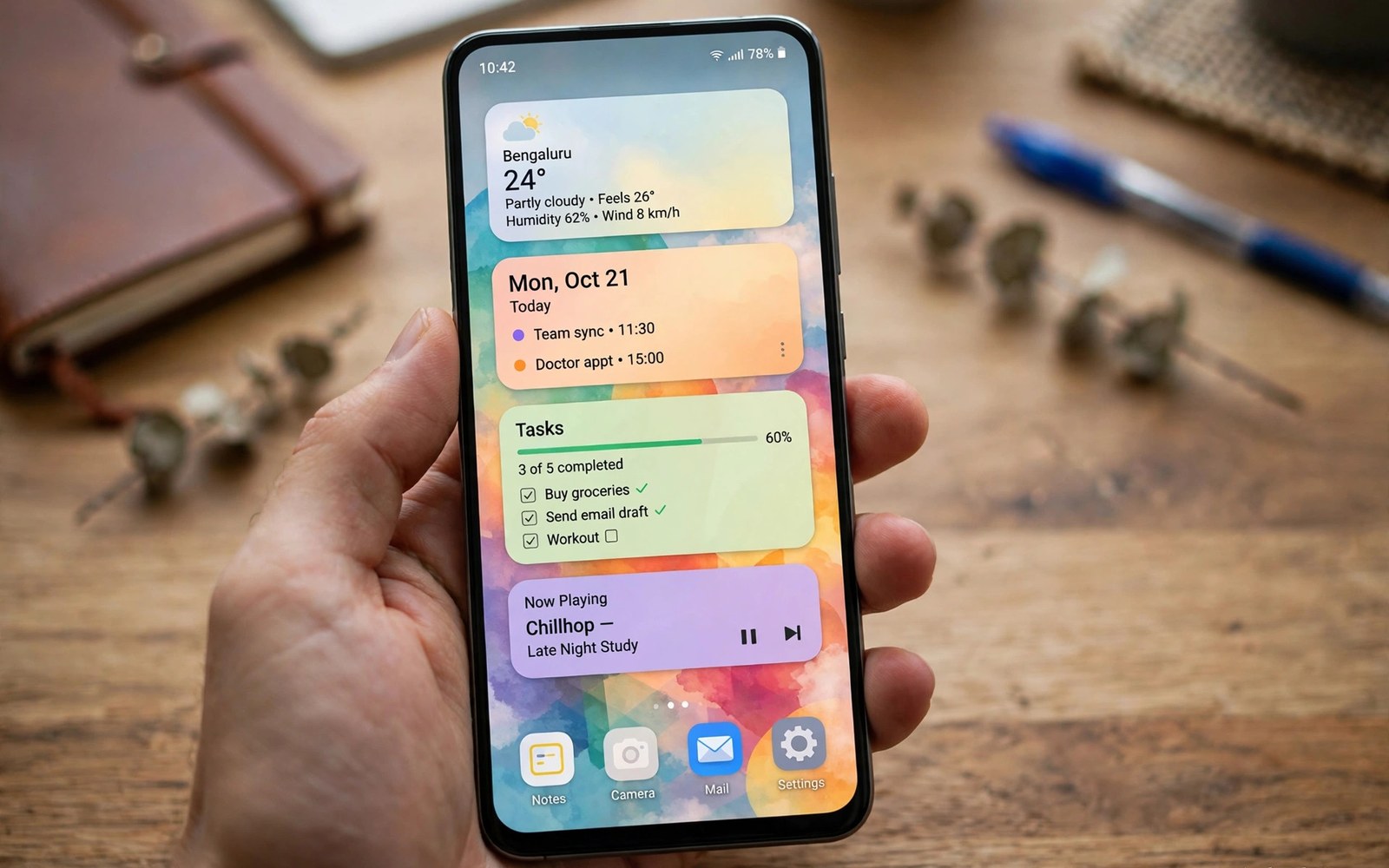
Android lets you shape a phone until it feels personal. You can change the home screen in minutes. You can change icons and fonts and colors. You can add widgets that show live info. You can even replace the whole launcher. No other mainstream phone system gives you this much room.
iOS has opened up in recent years. You can add widgets now. You can tint icons and arrange screens. But the core grid stays fixed. The system still guides your layout. This article shows where Android pulls ahead. It also shows how to use that freedom well.
Launchers Change Everything
A launcher controls your home screens and app drawer. Android lets you install a new launcher in minutes. Each launcher brings its own gestures and grid options. Some focus on speed and minimal looks. Others focus on dense info and smart folders. You can try several and keep the one you love.
Switching launchers is safe and reversible. Your apps stay put. Your data stays put. Only the shell around them changes. If you dislike a launcher then remove it. Your old layout returns at once. This freedom to experiment is rare on phones.
Widgets That Work for You
Widgets put live info on your home screen. You can see weather and calendar at a glance. You can control music without opening an app. You can track tasks and notes in place. Android widgets come in many sizes. You can resize most of them by dragging a corner.
Stack widgets by task to keep screens tidy. Put morning tools on one screen. Put work tools on another. Put media controls near the bottom for easy reach. A good widget layout saves taps every day. It turns the home screen into a dashboard.
Icons, Fonts and Themes
Icon packs change the look of every app icon at once. Some packs are flat and clean. Others are playful and round. You can mix packs if a launcher allows it. Fonts change the feel of menus and messages. Themes tie colors and shapes together in one tap.
Start with one theme and live with it for a week. Notice what feels calm and what feels loud. Then adjust one element at a time. Small tweaks beat a full rebuild. Your phone should look good and stay easy to read. For a sense of the wider system, read the ecosystem breakdown first.
Lock Screen and Always On Display
The lock screen is prime personal space. Android lets you add widgets and shortcuts there. You can pick clock styles and colors. You can show notifications in your own order. Some phones add an always on display. It shows time and alerts without waking the phone.
Keep the lock screen useful and not noisy. Show only the alerts that need instant action. Hide the rest until you unlock. A calm lock screen helps focus. A busy one pulls your eyes all day. Tune it like you tune the home screen.
Gestures, Buttons and Shortcuts
Android lets you remap how you move around. You can use gestures or classic buttons. You can double tap to wake the screen. You can set a shortcut for the camera. Some phones let you squeeze or tap the back panel. These small moves save time all day.
Pick gestures that match your hand size. Large phones suit swipe gestures well. Small phones suit button bars well. Test each option for a full day. A gesture that feels odd at first may feel natural by night. If it still feels wrong then change it. The split-screen multitasking tools pair well with custom gestures.
Folders, Drawers and App Order
Folders group apps by use and not by brand. Make a travel folder and a money folder. Make a read folder and a create folder. Hide apps you rarely open in the drawer. Pin the apps you open daily to the dock. Order by task and not by alphabet.
Review your layout once a month. Delete apps you never open. Move rising apps to the front screen. A tidy layout grows with your habits. It also makes a new phone feel familiar fast. Export your launcher backup before big changes.
A Simple Theme Setup You Can Copy
Begin with a calm wallpaper. Add a weather widget at the top. Add a calendar widget below it. Place four daily apps in the dock. Put the rest in folders on screen two. This base suits most people. It stays clean and fast.
theme_setup = [
  "wallpaper",
  "widgets",
  "icon pack",
  "dock apps"
]
for step in theme_setup:
    print("Set: " + step)
The snippet above is a simplified illustration of a theme setup order. It shows the idea in plain form. Change the order to suit your own taste and phone.
When Customization Goes Too Far
Too much tweaking can slow you down. Ten widgets can crowd a screen. Neon colors can strain your eyes. Constant theme changes can waste evenings. Set a limit for setup time. Thirty minutes is plenty for a fresh look.
Performance matters too. Heavy live wallpapers drain battery faster. Some icon packs load slowly on old phones. If the phone lags then strip back one layer. Speed beats style when you need the phone in a hurry. You can always add flair later. For file control to match your style, see the file system comparison as well.
Always On Display and Live Info
The always on display shows time without waking the phone. It can show date and battery too. It can show music controls and calendar events. Android lets you shape this screen deeply. Pick a clock style that suits your eyes. Pick colors that stay calm at night. Add a widget for the next meeting. Add a widget for the weather ahead. The screen sips power on modern panels. It lights only the pixels it needs. Check battery use after a week of use. If drain feels high then trim the widgets. A simple clock costs almost nothing. A busy display costs more but informs more.
Live info widgets turn the home screen into a briefing. A calendar widget shows the next three events. A task widget shows what remains today. A news widget shows headlines you chose. A music widget controls playback at once. Arrange them by time of day. Morning tools belong at the top. Evening tools belong near the thumb. Resize widgets until the screen breathes. Crowded widgets slow your eyes. Clean widgets speed your day. Try one new widget each week. Keep the ones that save taps. Remove the ones that only decorate. Your home screen should work for you.
Sound and Haptics Personalization
Sound shapes how a phone feels in hand. Android lets you set tones per contact. Family can ring with one tone. Work can ring with another. Unknown numbers can stay silent. You can set vibration patterns too. A long buzz can mean family. A short double buzz can mean work. These patterns inform you without a glance. They help in meetings and in loud rooms. Test patterns for a day before you rely on them. A pattern that feels clear at home may blur in a crowd. Adjust strength until it feels right.
Haptics add touch feedback to taps and swipes. Strong haptics feel crisp and sure. Soft haptics feel calm and quiet. Android lets you tune strength in settings. Some launchers add haptics to gestures too. Keyboard haptics help typing accuracy. A tiny buzz per key confirms each press. Turn haptics off at night for silence. Turn them on for alarms that must wake you. Sound and touch together build a personal feel. They make the phone feel like yours in the dark. Tune them once and enjoy them daily.
Backing Up Your Layout
A great layout deserves a backup. Launchers offer export to a file. Save that file to cloud storage. Save it to a local folder too. If the phone resets then import takes minutes. Your screens return as you built them. Widgets may need sign in again. Apps must be installed first. But positions and folders return fast. Note your icon pack name in the backup note. Note your wallpaper source too. Small notes speed a rebuild a lot. A layout backup turns disaster into a short chore.
Theme changes also deserve snapshots. Screenshot each home screen you love. Save the shots in a theme album. When a new idea fails then restore from the shot. You can rebuild a loved screen in minutes. Share layouts with friends who ask how you did it. A screenshot explains more than words. Keep only the best three layouts in the album. Old shots clutter the album fast. A tidy album inspires future tweaks. Your phone style can grow without losing past wins.
Dark Mode and Eye Comfort
Dark mode changes how a phone feels at night. White screens glare in dark rooms. Dark screens glow softly instead. Android lets you schedule dark mode by sunset. It can switch on at dusk and off at dawn. Apps follow the system setting in most cases. Some apps need their own dark toggle. Check your top five apps for dark support. A bright app in a dark system jars the eyes. It also breaks the calm of night reading. Eye comfort goes beyond dark mode alone. Screen brightness should match room light. Auto brightness handles this well on most phones. Blue light filters warm the screen at night. Warm screens may help sleep for some people. Evidence varies but comfort clearly improves. Test warm filters for a week of evenings. If sleep feels better then keep them on. Comfort settings are personal and worth tuning.
Font size and contrast matter for eye comfort too. Android lets you scale fonts system wide. Larger fonts ease reading for tired eyes. They also help older users a lot. Bold text options sharpen menus further. High contrast modes help in bright sunlight. Sunlight washes out low contrast screens fast. A high contrast theme keeps text readable outdoors. Combine dark mode with larger fonts at night. Combine bright mode with high contrast outdoors. Your phone should adapt to rooms and streets. It should not force one look everywhere. Save two looks if your phone allows profiles. One look for night and one for day works well. Small comfort tweaks compound into less eye strain.
One Handed Use and Reach
Large phones strain thumbs every day. One handed mode shrinks the screen to reach. Android offers one handed modes on many phones. Swipe down to shrink the display. Tap outside to return to full size. The mode suits buses and shopping bags. It suits parents holding a child too. Reach settings also move keyboards down. A low keyboard suits short thumbs well. Split keyboards suit wide screens better. Try each option for a full day of use. A mode that feels odd at first may feel natural later. If it still feels wrong then change it again. Comfort has no single right answer. It has a right answer per hand and per day.
App layout can help reach as much as system modes. Move daily apps to the bottom rows. Move rare apps to upper screens. Bottom rows sit under the thumb naturally. Top rows demand stretches and grip shifts. A grip shift risks drops on stairs. Keep the dock full of daily tools. Keep the top screen for widgets you only read. Reading needs no reach. Tapping needs reach above all. Review your layout after a month of use. Apps rise and fall in daily importance. A layout that follows use stays comfortable. A layout frozen at setup grows awkward fast. Reach is a daily comfort, not a setup checkbox.
Seasonal Themes and Fresh Looks
Fresh looks keep a phone feeling new. Seasonal themes change colors with the year. A spring theme can use soft greens. A winter theme can use deep blues. Android theme stores offer seasonal packs. Some launchers auto change wallpapers daily. A fresh wallpaper each morning feels like a gift. It costs nothing and lifts mood slightly. Change icon packs with seasons too. A new pack refreshes every screen at once. Keep the layout stable while colors change. Stable layout plus fresh colors balances novelty and habit. Too much change confuses muscle memory. Too little change bores the eye. Seasonal change hits the sweet spot.
Holiday themes suit families and kids well. A festive wallpaper delights children. A calm theme suits work weeks better. Match themes to life, not just to seasons. Exam weeks deserve calm screens. Holiday weeks deserve playful screens. Save favorite themes in a theme album. Screenshots preserve looks you love. Rebuild a loved look from a screenshot fast. Share themes with friends who admire your screen. A shared theme starts conversations. It also teaches friends new tricks. Personalization grows richer when shared. Your phone style can inspire others without preaching. Show, do not tell, when friends ask how.
Personalization as Daily Comfort
A personal phone feels like a good room. Everything you need sits within reach. Nothing shouts for attention. The colors calm you and the layout guides you. That comfort builds over weeks of small tweaks. It is hard to give up once you feel it.
Start small and keep what works. Change one screen this week. Change one widget next week. Soon your phone will reflect your life. That is the real win of Android freedom. It is not about showing off. It is about a tool that fits your hand and your day.

