

Phones are work tools now. You read notes while you watch a video. You copy an address while you chat. You compare prices across two apps. Multitasking decides how smooth that feels. Android built split screen into the core. iOS built fast switching and overlays instead.
This comparison shows both models at work. It covers split screen and floating windows. It covers app switching and gestures. It also covers tablets and large screens. By the end you will know which model fits your work.
Split Screen: Two Apps at Once
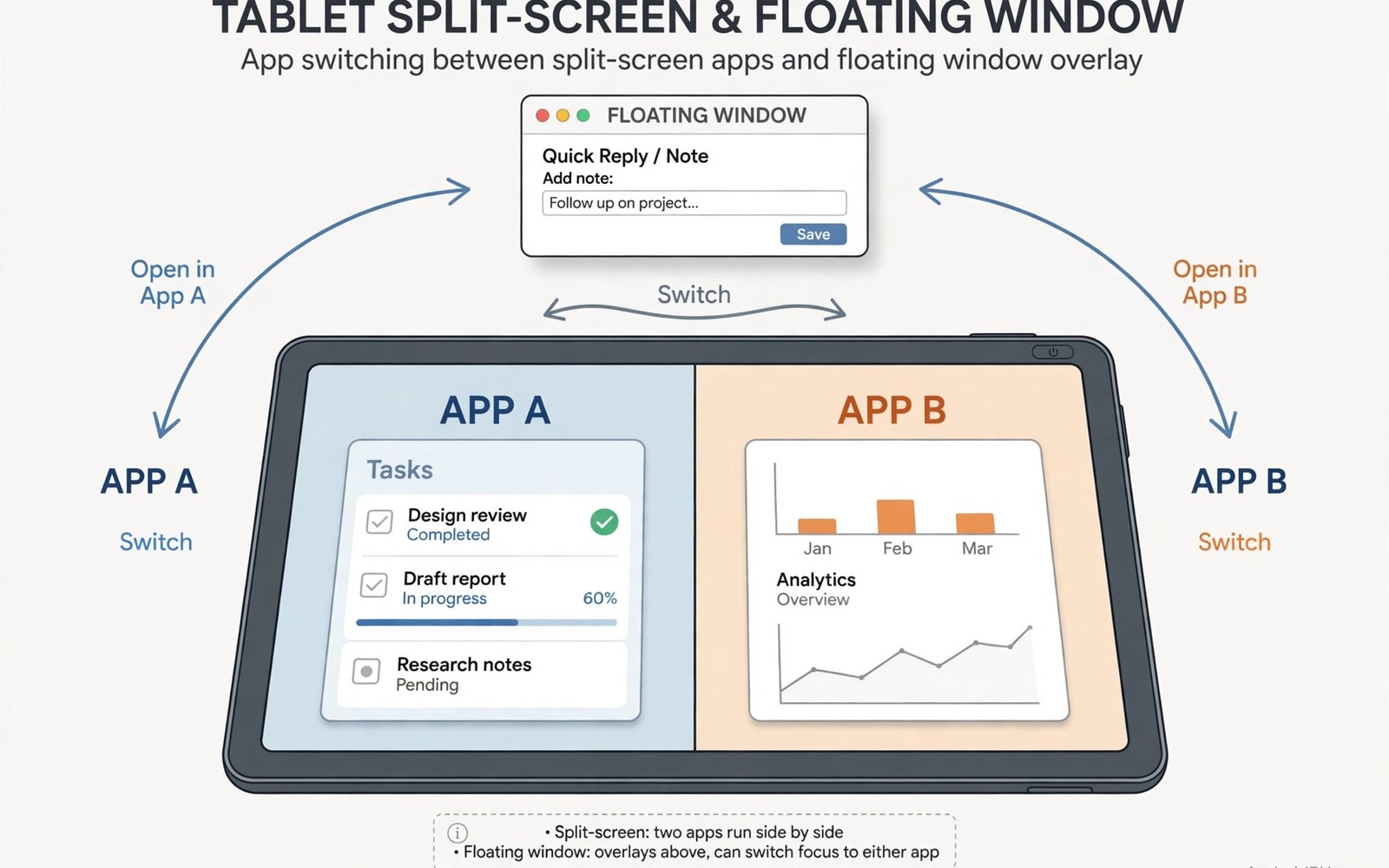
Split screen puts two apps side by side. Read a document on the left. Take notes on the right. Drag text from one side to the other. Resize the split by dragging the divider. This layout suits research and planning well.
Most Android phones support split screen today. Some apps refuse to resize. Games and camera apps often opt out. But browsers and notes and chats work well. Save common pairs for fast launch. A saved pair opens both apps in one tap.
Floating Windows and Pop Up Views
Floating windows sit above your main app. A chat bubble can float over a map. A calculator can float over a budget sheet. Move the window with a drag. Shrink it when you need space. This trick suits quick checks without losing place.
iOS offers picture in picture for video. It also offers slide over on tablets. Slide over parks an app at the edge. Swipe it in when you need it. The tool is neat but narrower. Android floating windows cover more app types.
App Switching Speed and Gestures
Fast switching matters when you juggle three apps. Android gestures swipe along the bottom bar. A quick swipe jumps to the last app. A longer swipe opens the full switcher. The switcher shows live previews of each app. Pick with a tap and you are back.
iOS switching feels fast and fluid too. Swipe up and hold to open the switcher. Swipe along the bottom edge to jump back. Previews look polished and clear. The motion feels smooth on every model. For alert triage while you switch, see the notification controls that keep the shade tidy.
Tablets and Large Screens
Large screens reward true multitasking. Android tablets support split screen and floating windows. Some add a desktop style mode. That mode opens apps in free windows. A keyboard and mouse turn a tablet into a light laptop.
iPad multitasking uses stage manager on newer models. Windows can overlap and resize. The system feels more desktop like than before. App support varies by app. Some apps still prefer full screen. Check your key apps before you rely on stage tools.
Copy, Drag and Share Between Apps
Drag and drop saves taps across apps. Drag a photo into a chat. Drag text into a note. Drag a link into a browser tab. Android supports this in many apps. The gesture feels natural after a day of use.
iOS drag and drop works well on tablets. It works in fewer places on phones. Share sheets fill the gap. Pick a file and pick a target. The flow is simple but slower. For cross app work, Android drag tools win on phones.
A Workflow You Can Try Today
Open your notes app in split screen. Open your browser beside it. Research a topic on one side. Write key points on the other side. Drag quotes across when you need them. Save the pair for next time.
work_pair = [
  "browser",
  "notes"
]
for app in work_pair:
    print("Open: " + app)
The snippet above is a simplified illustration of a split screen pair. It shows the idea in plain form. Swap in the apps you use for your own daily work.
Limits, Battery and Focus Costs
Two apps use more power than one. Video plus maps drains battery fast. Heavy games in split screen may stutter. Close the pair when the task ends. Your battery will thank you.
Multitasking can also split focus. Two streams of info compete for attention. Use split screen for tasks that truly pair. Use single app focus for deep reading. A tool should serve the task. It should not scatter your mind. The default app choices help each pair open in the right app.
Keyboard and Mouse on Tablets
A keyboard turns a tablet into a work machine. Split screen plus a keyboard feels like a laptop. Type notes while a video plays beside them. Use shortcuts to jump between apps fast. A mouse adds precise selection for docs. Drag text with a mouse beats finger selection. Check keyboard shortcuts for your key apps. Many apps support copy and paste shortcuts. Some support tab switching too. Learn five shortcuts and work speeds up. A trackpad adds gestures for switching. Swipe with three fingers to change apps. The combo suits writers and planners well.
Not every tablet supports desktop modes well. Check your model before buying a keyboard. A cheap keyboard may lag or drop keys. A good keyboard costs more but lasts years. Test the keyboard in a shop if you can. Type a full paragraph and feel the keys. Check the weight for bag carry. A heavy keyboard kills tablet portability. A light keyboard bends under hard typing. Balance weight and feel for your travel style. The right pair makes a tablet a true second computer.
Video Calls While You Work
Video calls pair well with split screen work. Keep the call in a floating window. Keep notes beside it on the main screen. Mute fast when you need to think. Share a doc without leaving the call. This layout suits remote meetings well. It also suits study groups and tutoring. Keep the call window small but visible. Faces matter for tone and turn taking. A hidden call feels like a phone call. A visible call keeps manners intact. Test mic and camera before key calls. A failed mic wastes the first five minutes.
Battery drains fast during video plus work. Plug in for calls over thirty minutes. Close unused apps before the call starts. A cool phone holds performance longer. A hot phone throttles video quality. Use Wi-Fi for stable video when you can. Mobile data works but may stutter. Tell the group if your link is weak. Honesty beats frozen faces. Video plus work is a power feature. Use it with power and net in mind.
Saving Pairs and Layouts
Saved pairs turn setup into one tap. Pair a browser with a notes app. Pair a chat app with a maps app. Pair a mail app with a calendar app. Launch the pair when the task starts. Close the pair when the task ends. Saved pairs reduce daily setup friction. They also teach good task habits. Each pair serves one job well. Review saved pairs monthly. Delete pairs for dead projects. Rename pairs by task, not by app. A name like trip plan beats browser plus notes. Clear names speed the morning start.
Layouts on tablets can go further. Some tablets save window groups. Open a group for work each morning. Open a group for study each evening. Groups keep work and play apart. A play group should never leak into work hours. Set groups on Sunday for the week ahead. Monday starts with one tap, not ten. Small setup rituals compound into calm weeks. Multitasking serves you best when it starts fast.
Reading and Research Workflows
Reading on a phone suits short bursts best. Long articles strain eyes on small screens. Split screen helps research reading a lot. Open the article on one side. Open notes on the other side. Capture quotes as you read. Paraphrase quotes at once in your words. Paraphrase beats copying for memory. A copied quote fades fast. A paraphrased idea sticks longer. Save sources with each note. A note without a source is useless later. Use a notes app that syncs to all devices. Sync lets research continue on a laptop. A phone starts research. A laptop finishes it well. Respect that division for hard topics.
Reference managers help serious researchers. Save articles to a reading list daily. Tag articles by topic at save time. Tags beat folders for cross topic work. An article can carry many tags. It can live in only one folder. Review tags weekly and prune dead ones. Dead tags clutter search results. Export notes before exams or deadlines. Exports protect against app loss. A lost app should never lose research. Research workflows reward steady habits. Ten minutes of tagging daily beats a weekend of sorting. Small habits compound into a clean library.
Shopping Across Two Apps
Shopping compares prices across apps fast. Split screen puts two shops side by side. Compare the same item in both shops. Check total price, not shelf price. Shipping and tax change totals a lot. A cheap item with pricey shipping loses. Check delivery dates too. A fast delivery beats a slow bargain sometimes. Read return rules before paying. A strict return rule can trap a bad buy. Screenshot prices before checkout. Screenshots prove prices in disputes. Price drops after purchase may earn refunds. Some shops refund differences on request. Ask politely with proof attached. Polite proof wins more refunds than anger.
Wish lists tame impulse shopping well. Save items to a list for a week. A week of waiting kills most impulses. Items that still matter after a week deserve purchase. Items forgotten in a week never mattered. Review wish lists monthly and prune. Pruning feels like saving money. It is saving money in slow motion. Set a monthly shopping budget in advance. Track spending against the budget weekly. A budget that lives in memory fails. A budget written down guides choices. Split screen shopping plus a budget beats ads. Ads push speed. Budgets push thought. Thought wins for wallets.
Note Taking While Watching
Video learning pairs well with note taking. Watch a lesson in a floating window. Take notes on the main screen. Pause the video for hard ideas. Rewind a confusing section twice. Notes taken during video stick better than passive watching. Write questions as they arise. Questions guide later review. Answer questions after the video ends. Unanswered questions become study tasks. Keep notes short during video. Long notes miss the next idea. Short phrases capture ideas fast. Expand phrases after the video ends. Expansion turns phrases into knowledge. A video plus notes beats video alone clearly.
Live events suit split notes too. Watch a talk while noting key points. Note speaker names and book titles. Note links mentioned on screen. Links vanish after live events end. Capture them in the moment. Share notes with friends after the event. Shared notes fill gaps each person missed. One person notes quotes well. Another notes data well. Together they capture the whole talk. Note taking during video is a skill. Practice it weekly with short videos. Skill grows fast with practice. Soon notes flow without missing content.
Which Model Fits Your Work Style
Pick Android if you split screens daily. You get true dual apps and floating windows. You get saved pairs and drag tools. Large phones and tablets shine here. Power users will feel at home fast.
Pick iOS if you switch fast and rarely split. You get smooth gestures and a clean switcher. You get video overlays that just work. The model is simpler to learn. For a wider view, read the hardware choices that shape screen size and multitasking comfort.

