

Acer Chromebook Tab 10 Review: Design, Software and Storage
Chrome OS arrived on a tablet for the first time with this device, and that single fact still shapes how it should be judged. This Acer Chromebook Tab 10 review for students and teachers looks at a machine built for classrooms first and living rooms second: a 9.7-inch touch tablet with a sharp screen, a pen in the box, and none of the moving parts of a laptop. It was announced on 26 March 2018, and the Acer Chromebook Tab 10 release followed in April 2018 in North America and in May 2018 across Europe, the Middle East and Africa, priced at $329 in the United States and 329 euros in Europe. That timing matters, because the hardware, the software support window, and the price all belong to 2018, and any honest buying guide for education and home use has to weigh them against what a buyer can get today.
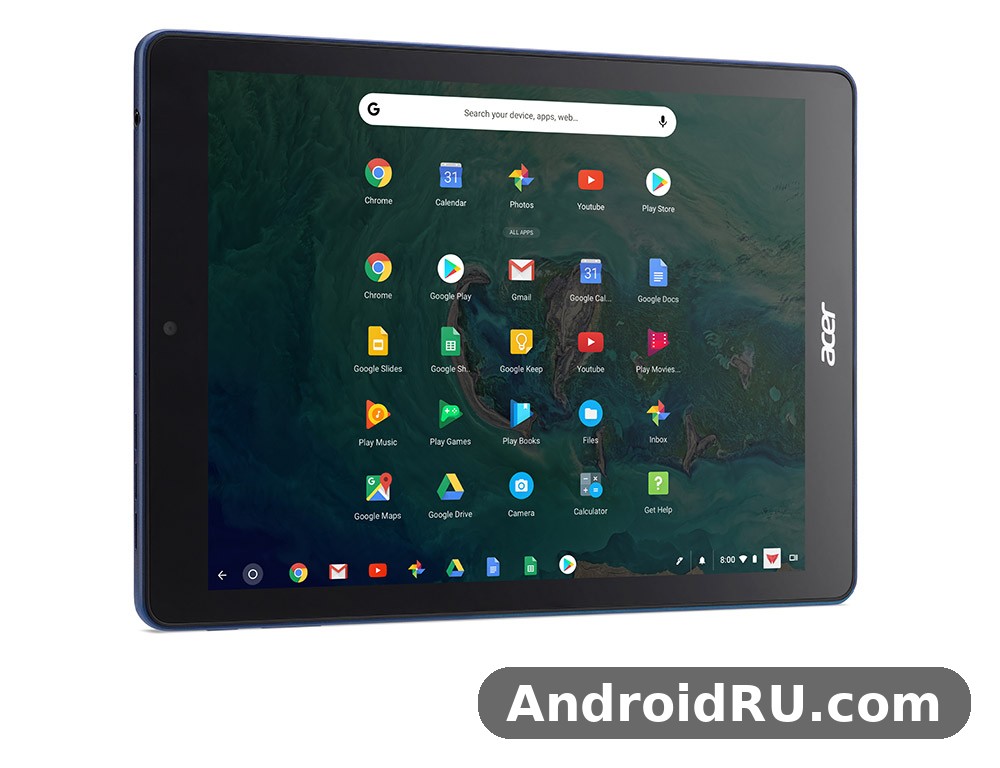
The short version is that the hardware was thoughtful and the idea was sound. A bright, high-resolution display, a battery-free pen, a full day of classroom use on paper, and the management tools schools already used for Chromebooks made a convincing package. The trade-off is just as clear: modest processing power, only 32GB of built-in storage, cameras meant for video calls rather than photography, and software support that has now ended. This Acer Chromebook Tab 10 review for students and teachers works through the design, the screen, the software, the performance, and the full specification list, so a parent, a teacher, or a second-hand buyer can decide with open eyes. Readers comparing other Acer devices may also like A Closer Look at the Acer Acerone Liquid S162E4: Review, Specs and Real-World Use, which shows how differently Acer approaches a budget Android handset.
What the Chromebook Tab 10 Is and Who It Was Built For
The Chromebook Tab 10, model number D651N, was the first tablet designed to run Chrome OS from the start. Google and Acer aimed it squarely at schools: K-12 classrooms where Chromebooks already dominated, where teachers managed fleets of devices from a web console, and where a tablet form could do things a clamshell laptop could not, such as handwriting practice, drawing, reading in portrait, and passing a device around a table. It was never pitched as a flagship media tablet or a laptop replacement for heavy work. It was pitched as a shared classroom tool that turns on fast, stays out of trouble, and survives being handled by children.
The Acer Chromebook Tab 10 specs tell the same story in numbers: a sharp 9.7-inch QXGA display, a modest hexa-core chip, 4GB of memory, and 32GB of storage. As a Chromebook tablet, it behaves more like a managed school device than like a personal media slate. The Acer Chromebook Tab 10 tablet experience is built around signing in, opening the browser, and working in the cloud, while the Acer Chromebook Tab 10 education pitch was always about fleets of devices that a school could manage from one console. The pen is included rather than sold separately, because a school cannot manage a drawer full of pens that need charging. The storage is small by modern standards, because the expectation was that files would live in Google Drive rather than on the device. And the management story is the Chrome story: sign in with a Google account, pick up your files and settings, and hand the device to the next student. The Acer Chromebook Tab 10 full specifications and features list reads like a checklist written by a school IT manager, and that is exactly the point.
For home buyers, the same traits cut both ways. A parent buying one second hand gets a simple, locked-down device that is hard for a child to break with bad downloads, but also a device whose official updates have finished. A student gets a good reading and note-taking screen, but a slow companion for anything heavier than browser tabs and Android apps. The Acer Chromebook Tab 10 buying guide for education and home use therefore starts with the same question in both settings: will this tablet be used for reading, writing, classroom apps, and video calls, or is it expected to behave like a modern mid-range tablet? If the answer is the first list, it still has something to offer. If it is the second, the age shows quickly.
Design and Build: A Classroom Tablet That Takes Knocks
Pick the tablet up and the first thing you notice is its density. The Acer Chromebook Tab 10 design is plain and practical, and at 550 grams it feels solid rather than light. The Acer Chromebook Tab 10 weight of 550 grams and a thickness of just under 10 millimetres make it heavier than the 2018 iPad it was priced against, and that weight is honest: a rigid frame, a glass front, and a back built to resist flex. The Acer Chromebook Tab 10 dimensions and weight for daily carrying work out at 172.2 mm wide, 238.2 mm tall, and 9.98 mm thick, which is a comfortable two-hand hold for reading and a stable slab on a desk. It fits a school bag easily, but it is not a device you forget you are holding during a long reading session. A case helps, and the Acer Chromebook Tab 10 screen protector and rugged case recommendations later in this article are worth reading before a child carries one without protection.
The finish is plain and practical: a dark, matte rear panel that hides fingerprints better than glossy plastic, with the camera lens in one corner and the Acer badge kept small. There is no fingerprint reader, no home button, and no flashy trim. The power and volume buttons sit on one edge where they can be found by touch, and the USB-C port sits where a cable will not fight a hand holding the tablet in landscape. That restraint is part of the design brief. A classroom tablet should look the same after a term of use as it did on day one, and this one was built with that in mind rather than with showroom appeal.
The Wacom EMR Stylus in the Box
The included pen is the feature that most separates this tablet from other budget tablets of its era. Acer Chromebook Tab 10 Wacom stylus for handwriting and drawing uses Wacom EMR technology, which means the pen needs no battery and no charging, draws power from the screen itself, and slots into the body of the tablet when it is not in use. Lose the pen and you lose one of the main reasons to choose this tablet; keep it docked and it is always there when a worksheet or a sketch needs it.
In use, the pen is best at the jobs schools actually assign: handwriting practice, annotating a PDF, circling an answer, sketching a diagram, and signing into a form. Pressure sensitivity is present, so a light stroke is thin and a firm stroke is thicker, though this is a note-taking pen rather than a professional drawing tool. Palm rejection works well enough that a child can rest a hand on the glass while writing, which is the detail that decides whether a classroom pen gets used or left in its slot. The Acer Chromebook Tab 10 stylus is the part of the package that still feels generous years later, because rival tablets of the same price usually charged extra for a pen or left it out entirely.
What the Stylus Does Well
Handwriting feels natural on the 9.7-inch glass with the Wacom EMR stylus, and the pen is light enough for long writing sessions. Because it needs no battery, there is no weekly ritual of charging a pen, no dead pen on exam day, and no small battery to replace. Notes written in Google Keep or a classroom app sync with the same account as the rest of the work, so a page started on the tablet can be finished on a Chromebook later.
Where the Stylus Falls Short
The pen is small and slim, sized for the tablet rather than for an adult hand, so long drawing sessions can feel cramped. There is no eraser end and no side button for shortcuts, and the tip is a firm nib rather than a soft one, so it glides more than it grips. Artists who want tilt support and a full range of brushes should treat this as a capable classroom pen, not as a studio tool.
Ports, Buttons and the Headphone Jack
Connectivity on the body is deliberately simple. A single USB-C port handles charging and data, a 3.5 mm headphone jack serves headphones and headsets for language work and video calls, and a microSD slot sits under a small cover for storage expansion. There is no full-size USB port, no HDMI output, and no SIM tray, because this is a Wi-Fi-only tablet. The Acer Chromebook Tab 10 USB-C port charging and accessories guide in the later sections covers what to buy: a standard USB-C charger, a USB-C hub for a mouse and a flash drive, and a case that leaves the pen slot open.
The dual speakers sit where they can project sound in landscape, which is how video is usually watched, and the microphone is placed for video calls rather than for recording a lecture from across a room. Nothing here is luxurious, but nothing important is missing for the jobs the tablet was built to do. A school buying a fleet would have valued exactly this: one cable type, one pen type, and no ports a student can break by forcing the wrong plug into them.
Display: A Sharp 9.7-Inch QXGA Screen for Reading and Video
The screen is the strongest single reason to take this tablet seriously. Acer Chromebook Tab 10 screen quality for reading and video starts with the numbers: a 9.7-inch IPS panel at 2048 x 1536 pixels, marketed as QXGA, with a density of about 264 pixels per inch and ten-point touch. Text looks crisp at normal reading distance, with none of the softness that cheaper 1280 x 800 tablets of the same era showed, and the 4:3 aspect ratio gives a page-like shape that suits books, worksheets, and web pages far better than a long, narrow video-shaped screen.
Colour and viewing angles are good for the class it was sold in. The IPS panel keeps colours steady when the tablet is tilted toward a neighbour or laid flat on a desk, which matters more in a classroom than peak brightness on a specification sheet. Acer Chromebook Tab 10 display brightness outdoors and in bright classrooms is adequate rather than outstanding: it is comfortable indoors and near a window, but direct sunlight will wash it out, as it does with most tablets of this generation. That is a fair limitation to name, because a device meant for schools will be used near windows, in halls, and on buses.
Video playback is a pleasant surprise. The 4:3 screen leaves bars above and below widescreen video, but the resolution is high enough that the picture stays sharp, and the dual speakers are loud enough for one viewer or a small group. Reading is where the display earns its keep: long documents, comics, and textbooks look clean, and the high pixel density means small print stays legible without constant zooming. For a buyer weighing a second-hand purchase, the screen is the part most likely to still feel good years after launch, provided the glass is free of deep scratches.
Reading, Video and Brightness in Real Rooms
In a normal room the display is easy on the eyes, with enough brightness for daytime use and a night mode in Chrome OS for evening reading. The touch layer tracks ten fingers at once, so pinch-to-zoom and two-player touch games work, though the processor sets the real limit on how smooth those games feel. The screen is also the surface the pen writes on, and the combination of a sharp panel and a battery-free pen is what makes annotation feel direct: what you write appears where the nib is, without a distracting gap or delay.
Software and Chrome OS: Apps, Classroom Tools and Updates
Chrome OS is the heart of this device, and it is also the reason the tablet behaves so differently from an Android tablet. Acer Chromebook Tab 10 Chrome OS apps and Google Play support means two worlds in one device: the Chrome browser with its extensions, web apps, and cloud files, plus the Google Play Store with Android apps for everything from reading and drawing to classroom quizzes. Sign in once and the account brings its bookmarks, its Drive files, and its installed apps with it. For a school, that is the whole management model: no imaging, no per-device setup, just accounts and policies pushed from the admin console.
Google Classroom sits naturally at the centre of that model. The Acer Chromebook Tab 10 Google Classroom setup for first time users is short: sign in with the school account, open Classroom in the browser or the Android app, join the class with the code the teacher gives, and the assignments, attached documents, and due dates appear in one place. Docs, Sheets, and Slides work in the browser and as Android apps, and Acer Chromebook Tab 10 offline mode for Docs Sheets and Slides covers the bus ride home, provided the files were opened once while online and offline access was switched on in Drive settings. The Acer Chromebook Tab 10 split screen multitasking tips for study sessions are simple too: drag a window to one side, or use the overview key gesture, and keep a textbook open beside a notes app instead of flipping back and forth.
Parental controls deserve a clear paragraph, because this tablet often ends up in a child’s hands. Acer Chromebook Tab 10 parental controls and managed user accounts explained in plain terms: a supervised or managed account can limit which apps install, which sites open, and how long the device can be used, and those rules follow the account rather than the tablet. A family can also set up a separate account per child, so one child’s apps and history do not spill into another’s. These controls are a genuine strength of the Chrome OS approach, and they are one of the few areas where this older tablet still matches the behaviour of a new Chromebook.
Android Apps, Linux Apps and Everyday Software
Android app support was a headline feature at launch, and it still defines what the tablet can do. Reading apps, drawing apps, video players, and many classroom apps install from the Play Store and run in windows that can be resized. Not every Android app is polished on a 4:3 tablet screen — some phone apps stretch awkwardly — but the most-used classroom and media apps behave well. Acer Chromebook Tab 10 Linux apps support and limitations for advanced users is a narrower story: Linux containers arrived on some Chrome OS devices of this era, but the OP1 chip and the 4GB of memory limit what runs comfortably, so a buyer should not choose this tablet as a cheap Linux workstation. Check the current Chrome OS version on the device itself before assuming any particular Linux feature is present.
Software Updates and the End of Support
This is the section a buyer must read twice. Acer Chromebook Tab 10 software updates and end of support date is a fixed fact: the device reached its Auto Update Expiration in August 2023, and it no longer receives Chrome OS feature updates or security updates from Google. That does not make the tablet stop working — the browser, the installed apps, and the files all keep functioning — but it does change the risk. A device without security updates should not be a child’s unsupervised route to the open web, and it should not hold sensitive accounts without care. The Acer Chromebook Tab 10 update story is therefore a caution: if the price is low and the use is supervised, offline, or on a trusted network, the end of support is manageable; if the plan is daily unsupervised browsing for years to come, a newer device with years of updates left is the safer buy.
Performance and Storage: Rockchip OP1, 4GB RAM and 32GB Storage
Acer Chromebook Tab 10 performance with Rockchip OP1 processor hardware is best described as calm rather than quick. The OP1 is a Rockchip RK3399, a hexa-core chip with two Cortex-A72 cores for heavier work and four Cortex-A53 cores for lighter tasks, running at up to 2.0 GHz, with Mali-T860 MP4 graphics. In practice that means the browser, a document, and a video call run acceptably together, while heavy web pages with many trackers, large spreadsheets, and 3D games ask more than the chip wants to give. The tablet rarely feels broken; it feels deliberate, with a short pause where a newer device would have none.
Memory is 4GB of LPDDR3 RAM, which was a reasonable amount in 2018 and is the minimum a buyer should accept today. It is enough for a handful of tabs, a document, and a classroom app, but it is not enough for twenty tabs plus a video call plus a drawing app without the system starting to reload pages. The Acer Chromebook Tab 10 RAM limit is therefore a habit-shaper: close what is not being used, keep tab counts small, and prefer the Docs web app over a heavy Android office suite. The Acer Chromebook Tab 10 processor and memory combination rewards tidy use and punishes the habit of leaving everything open.
Acer Chromebook Tab 10 storage expansion with microSD card slot is the answer to the smallest number on the specification sheet: 32GB of eMMC storage, of which the system takes a share before the user stores a single file. A microSD card adds room for offline videos, books, and documents, and Google Drive adds effectively unlimited room for files that can wait for a connection. The Acer Chromebook Tab 10 storage picture is workable if the buyer treats the internal storage as a workspace and the card and the cloud as the library. It is not workable if the plan is to load the tablet with large games and offline video and never manage it. The Acer Chromebook Tab 10 file manager tips for USB drives and cloud storage are straightforward: use the Files app to move downloads to the card, keep the internal storage clear for updates, and plug in a USB-C flash drive through a hub when a large transfer is needed.
Storage Expansion and Everyday Speed
Day-to-day speed depends as much on the storage as on the processor. eMMC storage is slower than the flash in a modern tablet, so installing a large app or opening a big file takes a visible moment. Once an app is open, the experience smooths out. The Acer Chromebook Tab 10 keyboard case options for typing longer documents matter here too: the tablet has no keyboard in the box, so anyone writing essays will want a Bluetooth keyboard or a keyboard case, and that accessory changes the device from a reading slate into a workable writing tool. Budget for it when comparing prices with a laptop.
Full Specifications
The table below gathers the published specifications in one place. Figures are the launch specifications as published by Acer and recorded in specification databases; regional variants can differ slightly, and the battery figure is a capacity in watt-hours rather than a promise of a fixed number of hours in every kind of use.
| Feature | Acer Chromebook Tab 10 (D651N) |
|---|---|
| Announced | 26 March 2018 |
| Release | April 2018 (North America); May 2018 (Europe, Middle East, Africa) |
| Operating system | Chrome OS (Google Play Store Android apps supported) |
| Display | 9.7-inch IPS QXGA touch display, 2048 x 1536 pixels, about 264 ppi, 10-point touch |
| Chipset | Rockchip OP1 (RK3399), hexa-core: 2x Cortex-A72 + 4x Cortex-A53, up to 2.0 GHz |
| Graphics | Mali-T860 MP4 |
| RAM | 4GB LPDDR3 |
| Storage | 32GB eMMC, expandable with microSD card |
| Rear camera | 5 megapixels, 720p video recording |
| Front camera | 2 megapixels, 720p video recording |
| Battery | 34 Wh (8,860 mAh), 2-cell lithium-polymer, up to 9 hours claimed |
| Charging and ports | USB-C, 3.5 mm headphone jack, microSD slot |
| Connectivity | Wi-Fi 802.11ac 2×2 MIMO, Bluetooth 4.1, Wi-Fi only (no mobile data) |
| Stylus | Wacom EMR stylus included, battery-free, stored in the body |
| Audio | Dual speakers, microphone |
| Sensors | Accelerometer, gyroscope |
| Dimensions | 172.2 x 238.2 x 9.98 mm |
| Weight | 550 g (1.21 lb) |
| Launch price | $329 in the United States; 329 euros in Europe |
| Software support | Auto Update Expiration August 2023; no further Chrome OS updates |
Camera Quality and What the Cameras Are For
Acer Chromebook Tab 10 camera quality for video calls and photos is the weakest part of the specification sheet, and it helps to set expectations honestly. The rear camera is 5 megapixels and the front camera is 2 megapixels, and both record video at 720p. For a video lesson, a family call, or scanning a worksheet, that is enough: faces are recognisable, the image is stable in good light, and the front camera is positioned for landscape calls. For photography as a hobby, it is not enough: detail is soft, low light brings noise quickly, and there is no flash, no portrait mode, and no reason to choose this tablet as a camera. The Acer Chromebook Tab 10 camera should be judged as a classroom webcam that can also take a quick photo, not as a phone camera.
Battery Life and Charging in Daily Use
Acer Chromebook Tab 10 battery life in real classroom use is where the published claim and daily life meet. Acer claimed up to 9 hours from the 34 Wh battery, and that figure matches a school day of mixed reading, writing, and light browsing with the brightness at a sensible level. Continuous video at high brightness, or a video call running for hours, will bring that figure down, as it does on every tablet. The battery is a 2-cell lithium-polymer unit rated at 8,860 mAh, charged over USB-C, and the Acer Chromebook Tab 10 charger is a standard USB-C charger, so a replacement is easy to find and cheap. A second-hand buyer should check the battery in person: a tablet of this age can hold far less than its original capacity, and the Acer Chromebook Tab 10 replacement battery options and repair costs in 2026 are limited, because parts are scarce and a shop may charge more than a used tablet is worth. Ask for a full charge and a half-hour of video playback before paying.
Connectivity, Audio and Sensors
The Acer Chromebook Tab 10 connectivity package is Wi-Fi only, and Acer Chromebook Tab 10 WiFi and Bluetooth connectivity options explained without jargon are: Wi-Fi 802.11ac with 2×2 MIMO gives a solid connection to a home or school network, and Bluetooth 4.1 pairs a keyboard, headphones, or a speaker without fuss. There is no mobile data and no SIM slot, so the tablet is offline the moment it leaves Wi-Fi unless a phone hotspot is shared with it. Acer Chromebook Tab 10 audio quality from dual speakers and headphone jack is clear for speech and fine for video, though bass is thin and loud rooms will overwhelm the small speakers; headphones are the better choice for lessons. The accelerometer and gyroscope handle screen rotation and the simple motion features in apps and games, and that is the full sensor story — there is no fingerprint reader, no compass claim worth leaning on, and no NFC.
Chromebook Tab 10 vs Apple iPad and Other School Tablets
Acer Chromebook Tab 10 vs Apple iPad for school use was the comparison that defined this tablet at launch, and it still frames the choice today. The 2018 iPad matched it on screen size and resolution, cost the same $329 at launch, and offered a faster chip and a longer app ecosystem, but it charged extra for the Apple Pencil and managed school fleets through a different system. The Chromebook Tab 10 answered with the pen in the box, Chrome OS management, and a browser-first approach that schools already understood. Neither device wins on every count, and the table below keeps the comparison to the facts that matter to a school or a family.
| Feature | Acer Chromebook Tab 10 | Apple iPad 9.7-inch (2018) | Samsung Galaxy Tab A 10.1 (2019) |
|---|---|---|---|
| Display | 9.7-inch IPS, 2048 x 1536 | 9.7-inch Retina IPS, 2048 x 1536 | 10.1-inch, 1920 x 1200 |
| Operating system | Chrome OS with Android apps | iOS (now iPadOS lineage) | Android |
| Processor | Rockchip OP1 hexa-core | Apple A10 Fusion | Exynos 7904 octa-core |
| RAM and storage | 4GB RAM, 32GB + microSD | 2GB RAM, 32GB, no microSD | 2GB RAM, 32GB + microSD |
| Stylus | Wacom EMR pen included | Apple Pencil supported, sold separately | No pen in the box |
| Rear camera | 5 megapixels | 8 megapixels | 8 megapixels |
| Battery claim | Up to 9 hours, 34 Wh | Up to 10 hours | Up to 13 hours video (6150 mAh) |
| Launch price | $329 | $329 ($299 for schools) | Around $230 at launch |
| Best for | Chrome OS classrooms, handwriting | App choice and media | Budget Android media use |
The comparison also shows why the Chromebook Tab 10 still gets mentioned in education discussions. Its management story and its included pen were genuinely ahead of the price, even if its chip and cameras were behind. Against modern budget tablets the gap is wider: a current tablet of the same price brings a faster chip, a bigger battery, and years of updates. That is the honest context for any second-hand price. A buyer comparing this tablet with another Acer device can also read Acer Iconia Talk S Review: Battery Life, Storage and Everyday Use to see how Acer balanced battery and storage in a very different kind of device.
Pros and Cons and Who It Suits Best
The balance sheet for this tablet is short and clear, and it has barely changed since launch. On the strong side, the screen is sharp and well suited to reading, the pen is included and needs no charging, Chrome OS is simple to manage and hard to break, the battery covers a school day of light use, and the build feels made for handling rather than for display. On the weak side, the processor is slow by modern standards, the 32GB of storage fills quickly, the cameras are basic, there is no keyboard in the box, and official software updates ended in August 2023. A buyer who accepts that list knowingly will not be disappointed; a buyer who misses the last item may be.
Who it suits best is a narrow but real group. It suits a school or a family that needs a supervised reading, writing, and classroom device at a low second-hand price, and it suits a student who writes by hand and works mostly in Google Docs and Classroom. It suits a parent who wants a locked-down device for homework rather than an open-ended entertainment tablet. It does not suit a buyer who wants a fast general tablet, a good camera, heavy gaming, or years of security updates. It does not suit anyone who needs mobile data, because there is no SIM slot and no cellular radio at all.
Acer Chromebook Tab 10 second hand value and what to check before buying comes down to four checks: the screen for scratches and dead pixels, the pen present and writing smoothly, the battery holding a charge through a video test, and the device signing in cleanly without a previous owner’s management lock. A managed school device that was never released from its organisation can be unusable, so confirm it is fully reset and unenrolled before paying. The Acer Chromebook Tab 10 price at launch in the United States was $329, but a used example today should cost a small fraction of that; if the asking price approaches the cost of a new budget tablet with years of updates, the new tablet is the better buy. Readers weighing a different Acer tablet can compare notes in A Closer Look at the Acer Acerone Liquid S272E4: Review, Specs and Real-World Use, and those curious about another Acer handset can read Acer Liquid Z6 Plus Review: Key Features Tested and the Complete Specs.
Accessibility and Everyday Comfort
Chrome OS brings accessibility tools that matter for younger students, and the Acer Chromebook Tab 10 accessibility features for younger students with dyslexia include a screen reader, large text and high-contrast options, dictation, and font and display scaling that make a page easier to follow. A teacher can set a larger default text size, turn on spoken feedback for a student who needs it, and keep the interface simple by limiting the apps on the shelf. These features do not replace specialist support, but they make the tablet usable for a wider range of learners than its price suggests.
Care, Cases and a Sensible Setup
A few cheap accessories change how long this tablet lasts. The most useful Acer Chromebook Tab 10 accessories are a rugged case, a screen protector, and a Bluetooth keyboard. An Acer Chromebook Tab 10 case with a raised edge protects the glass from a desk drop, a screen protector guards against keys in the same bag, and a Bluetooth keyboard turns it into a writing station. Acer Chromebook Tab 10 factory reset steps before selling or handing down are worth knowing in both directions: sign out of the account, open Settings, choose Advanced and then Reset settings, and select Powerwash, which wipes local data and returns the tablet to its first-run screen. Do this before handing the tablet to someone else, and ask the seller to do it before you pay.
Frequently Asked Questions
Is the Acer Chromebook Tab 10 still worth buying in 2026?
It can be worth buying at a low second-hand price for supervised reading, handwriting, and classroom work, because the screen and the pen still work well. It is not worth buying at a price close to a new budget tablet, because official updates ended in August 2023 and the processor and 32GB of storage are far behind current devices. Check the battery, the pen, and the management lock before paying, and buy it for the jobs it still does well rather than as a general-purpose tablet.
Does the Acer Chromebook Tab 10 run Android apps?
Yes. It runs Android apps from the Google Play Store alongside Chrome OS web apps, which covers reading apps, drawing apps, video players, and many classroom tools. Some phone-shaped apps look stretched on the 4:3 screen, and heavy apps can feel slow: Acer Chromebook Tab 10 performance with Rockchip OP1 processor is modest, with 4GB of RAM, but the everyday classroom and media apps most buyers need run acceptably.
How long does the battery last on the Acer Chromebook Tab 10?
Acer claimed up to 9 hours from the 34 Wh battery, and that figure fits a school day of mixed reading, writing, and light browsing at moderate brightness. Video streaming and long video calls shorten it, and an older battery in a used tablet may hold noticeably less than a new one. Charge it overnight over USB-C and test a used example with half an hour of video before buying.
Can the storage be expanded on the Acer Chromebook Tab 10?
Yes, with a microSD card, and cloud storage through Google Drive is the other half of the answer. The built-in 32GB of eMMC storage is small once the system is counted, so move offline videos, books, and documents to the card and keep the internal storage clear for updates and apps. A USB-C flash drive through a hub works for larger transfers.
What happened to software updates for the Acer Chromebook Tab 10?
The tablet reached its Auto Update Expiration in August 2023, so Google no longer sends it Chrome OS feature or security updates. The device keeps working, but it should be used with care: supervised use, a trusted network, and no sensitive accounts left signed in without thought. For daily unsupervised browsing over the coming years, a newer device with updates remaining is the safer choice. Anyone still deciding between Acer options can also read Everything About the Acer Super ZX: Review, Storage and Full Specifications for a very different take on Acer storage and everyday use.
The final judgement is a narrow one, and it is better for being narrow. This was the first Chrome OS tablet, and it got the important things right for its audience: a sharp reading screen, a pen that never needs charging, simple management, and a battery that covers a school day. Its limits — a slow chip, small storage, basic cameras, and finished software support — are real, and they are the reason it should only be bought cheaply, checked carefully, and used for the jobs it still handles well. Bought on those terms, it remains a useful classroom and homework companion. Bought as a modern all-round tablet, it will disappoint, and the buyer will have ignored the clearest facts in its specification sheet.

