

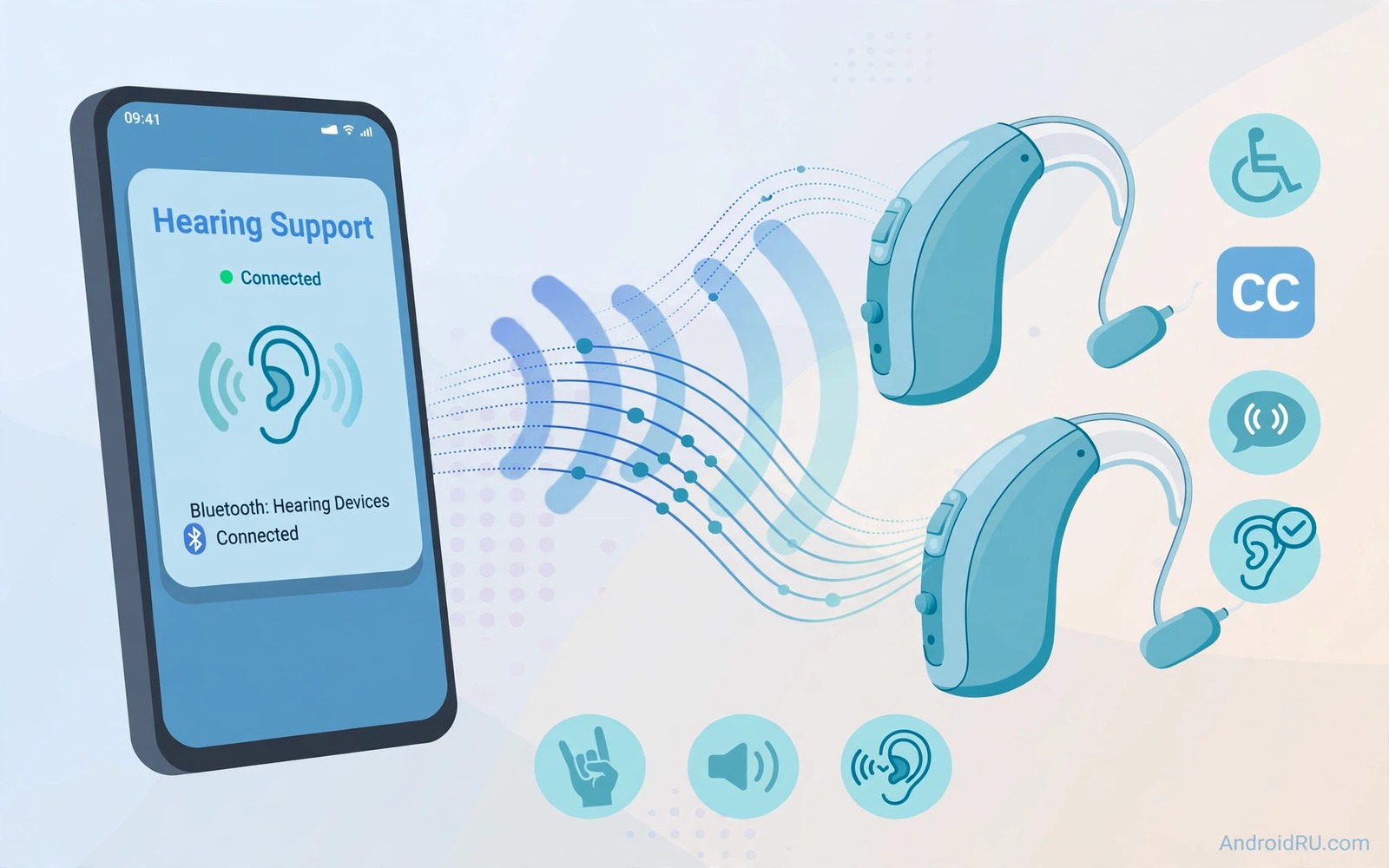
Modern hearing aids can receive phone sound directly through wireless protocols. That direct streaming beats holding a phone to an ear. It reduces feedback and it improves clarity in calls and media. Android support for these protocols varies by phone and by hearing device. This guide explains the main protocols and the setup steps. It focuses on practical pairing and testing rather than technical jargon.
Start by identifying which protocol your hearing devices support. Some devices use classic Bluetooth audio streaming. Others use a newer low energy audio protocol designed for hearing aids. The newer protocol offers lower power use and better synchronisation between ears. Check the hearing device manual or ask your audiologist for the protocol name. That name determines which phone setting to enable. Using the wrong protocol path leads to confusing pairing failures.
Check Phone Support First
Open Settings and then open Accessibility and look for hearing aid options. Many Android phones list supported hearing devices in that menu. If your device model appears then the phone supports its protocol. If your model does not appear then check for a system update. Updates sometimes add support for new hearing device models. A missing model does not always mean permanent incompatibility.
Check Android version as well because newer protocols need newer system versions. A phone on an old system version may lack low energy audio support. Update the system if an update is available and your phone supports it. Note that some older phones cannot gain new protocol support through updates alone. Hardware limits can block protocol support regardless of software.
Pair Hearing Devices Correctly
Put hearing devices into pairing mode following the manufacturer instructions. Open Bluetooth settings on the phone and search for new devices. Select the hearing device entry that appears. Some devices appear as two separate entries for left and right ears. Pair both entries if your phone shows them separately. Confirm pairing with a test sound from the phone.
If pairing fails then restart both phone Bluetooth and hearing devices. A restart clears stuck pairing states. Move the phone close to the hearing devices during pairing. Distance and interference can cause pairing failures that look like incompatibility. Try pairing in a quiet room away from other Bluetooth devices. That controlled environment improves success rates.
Enable Streaming For Calls And Media
After pairing open hearing aid settings and check streaming toggles. Enable call streaming first and test with a short call. Ask the other person whether your voice sounds clear. Then enable media streaming and test with music. Some phones offer separate toggles for calls and media. Enable both only after each works separately. That staged approach isolates problems quickly.
Check volume controls for streaming because they may differ from normal phone volume. Streaming volume often has its own slider in hearing aid settings. Set streaming volume to a comfortable level during a test call. Note that setting for future use. A comfortable streaming volume prevents sudden loud bursts during calls.
Test Synchronisation Between Ears
Low energy audio protocols aim to keep left and right ears synchronised. Test synchronisation with stereo music that has distinct left and right elements. Note whether sound feels centred or shifted to one side. A shifted image can indicate a pairing or synchronisation issue. Re-pair both devices if the image stays shifted. A balanced stereo image confirms that both ears receive sound together.
Test synchronisation during calls as well because calls use different processing. A call that sounds balanced confirms that streaming works for speech. A call that sounds one sided needs further pairing checks. Report persistent one sided sound to your audiologist. Hardware or fitting issues can also cause one sided perception.
Handle Battery And Connection Drops
Direct streaming uses battery on both phone and hearing devices. Monitor hearing device battery during the first week of streaming. Note whether battery life drops significantly compared with non streaming use. Adjust streaming use if battery drain becomes impractical. Use streaming for important calls and media rather than all day background sound if battery is limited.
Connection drops can happen in crowded Bluetooth environments. A busy street or a crowded room can interfere with streaming. Move the phone closer to hearing devices during drops. Keep the phone in a front pocket rather than a bag. That proximity improves link stability. Note drop patterns to discuss with support if they persist.
Plan Protocols For Different Situations
Calls and media and public announcements need different streaming priorities. Calls need low latency and clear speech. Media needs balanced stereo and good bass. Public announcements in venues may use a separate broadcast protocol. Learn which protocol your venues support if you attend theatres or lectures. Ask venue staff about hearing support options before visiting.
Create a routine for switching between streaming and normal hearing aid microphone mode. Streaming mode suits phone calls. Microphone mode suits face to face conversation. Switching quickly between modes takes practice. Practise switching at home before relying on it in public. That practice prevents awkward pauses during real conversations.
Keep Settings Stable After Updates
System updates can reset hearing aid pairings and streaming toggles. Check hearing aid settings after every major update. Re-pair devices if they disappear from the list. Make a test call after the update ahead of an important meeting. That short check prevents a silent failure during a critical call.
Hearing device firmware updates can also change protocol behaviour. Ask your audiologist about firmware updates before installing them. Test streaming after any firmware update. Note changes in sound quality or battery life. A short post update test keeps streaming reliable.
Test Streaming Realistically
Test streaming during real calls and real media sessions rather than only with test tones. Real content reveals latency and comfort issues that tones hide. Ask callers for feedback about your voice. Their feedback shows whether streaming truly improves communication. Adjust settings based on real feedback.
Test streaming in noisy places as well as quiet rooms. A quiet room test overstates benefit. A noisy street test reveals whether streaming handles interference well. Adjust noise settings based on noisy tests. Realistic testing gives confidence for daily use.
Organise Hearing Support Information
Keep a short document of your hearing device model and protocol and phone settings. Pass that document to relatives who assist with setup. A common document avoids confusion when another person changes the phone. Refresh the document following any major change. An up to date document is a useful support aid.
Note support contacts for your audiologist and your phone manufacturer. A contact list saves time when pairing fails. Store the list alongside your settings document. That arrangement makes fault finding quicker and calmer.
Protect Hearing Devices And Phone
Keep hearing devices dry and clean because moisture affects streaming reliability. Wipe devices gently after use in humid conditions. Store devices in their case overnight. A dry clean device pairs more reliably. Follow manufacturer cleaning guidance carefully.
Keep the phone software updated for protocol security and stability. Updates often fix Bluetooth issues that affect hearing streaming. Check for updates monthly. An updated phone supports hearing devices more reliably over time.
adb shell dumpsys bluetooth_manager
adb shell settings list system | grep -i hearing
The snippet above shows a standard Android Bluetooth and hearing check and it was adapted for this hearing aid guide so you can verify the device setting safely.
Review Hearing Streaming Monthly
Hearing streaming needs change with seasons and routines. Review hearing aid settings once a month in a short session. Check pairing status and streaming toggles and volume levels. That monthly audit finds quiet resets following updates. It also lets you adjust for new routines or new venues. A short review keeps streaming reliable across the year.
Record any setting changes together with the reason for them. That record assists restoring settings after a reset. It also helps your audiologist understand your daily use. A brief monthly note is a small habit with lasting benefit for hearing support.
Common Mistakes
The biggest mistake is pairing only one ear device and expecting stereo sound. Pair both devices when they appear separately. Another mistake is enabling all streaming toggles at once and then not knowing which one failed. Enable calls first and media second. A third mistake is testing only in a quiet room. Noisy tests reveal real performance.
People also forget that updates can reset pairings. Check settings after updates. For a related hearing topic explore sound amplification tools for hearing impaired users and how amplification complements streaming.
Frequently Asked Questions
Do all Android phones support hearing aid streaming?
Support varies by phone model and Android version. Newer phones support more protocols than older phones. Check accessibility settings for hearing aid options on your phone. Ask your audiologist about compatibility before buying a new phone for streaming.
Why does streaming drain hearing aid battery faster?
Streaming uses wireless radios continuously while normal hearing aid use relies on microphones. That radio use consumes extra power. Use streaming for important calls and media rather than all day. Carry spare batteries or a charger for long streaming days.
Can I use streaming and microphone mode together?
Many hearing devices offer a mixed mode that blends streaming with ambient microphone sound. That mode helps you hear both phone sound and nearby voices. Check your device settings for a mix control. Adjust the mix to suit each situation.
Before your next call pair both hearing devices and test a short conversation. For another audio topic explore systemwide graphic sound equalizers and how tuning interacts with streaming.
For a related accessibility topic explore audio settings tweak after getting phone and how volume paths affect hearing devices.
Conclusion
Hearing aid compatibility protocols turn a phone into a direct audio source for hearing devices. Check support and pair both ears and test calls and media separately. Your concrete next step is a pairing test today. Open accessibility hearing settings and check whether your device model appears. If it appears then pair it and make a short test call. That test confirms whether direct streaming is ready for daily use.

