

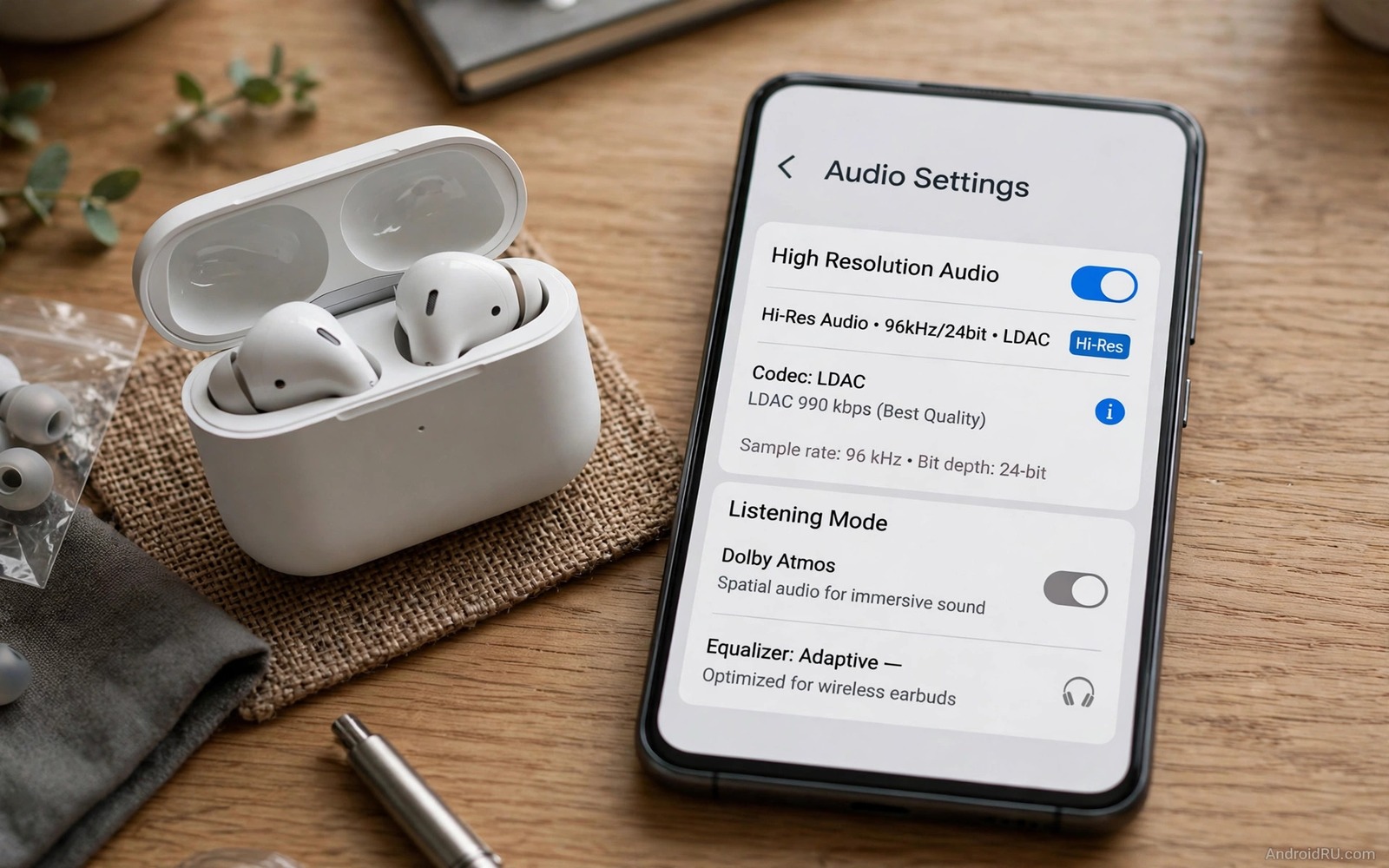
Bluetooth music can sound flat even with expensive headphones because the phone may choose a low bitrate mode. Low bitrate modes throw away detail to keep the link stable. High resolution modes preserve detail but they need a strong link. Forcing high resolution transmission is a trade between detail and stability. This guide shows how to force the best mode your gear supports. It also shows when to accept a lower mode for reliability.
Start by understanding bitrate in simple terms. Bitrate measures how much audio data travels per second. Higher bitrate usually means less compression loss. Low bitrate modes can sound dull on cymbals and thin on bass. High resolution modes aim to preserve the original recording more faithfully. The difference is clearest with well recorded music and capable headphones. A low quality stream will not gain detail from a high bitrate mode alone.
Check Support On Phone And Headphones
Open Bluetooth device details and check which codecs your headphones support. Check phone developer options for the list of codecs your phone supports. The intersection of those two lists determines what you can force. If both sides support LDAC then LDAC is a strong high resolution choice. If both sides support aptX HD then that codec is a strong choice. If the lists do not overlap then the pair falls back to a basic codec. That fallback explains many flat sounding setups.
Update phone software and headphone firmware before forcing a new mode. Updates sometimes add codec support that was missing at launch. Check for updates in phone settings and in the headphone companion app. Test codec options after updates. A missing codec before an update may appear after it. That simple check prevents unnecessary hardware purchases.
Force High Resolution Mode Step By Step
Open developer options on your phone and find the Bluetooth audio codec setting. Select the high resolution codec that both devices support. Find the Bluetooth audio sample rate setting and choose the highest rate your headphones support. Find the bits per sample setting and choose the highest depth available. Play a familiar track after changing those settings. Note whether sound improves and whether dropouts appear.
Some phones hide codec settings behind a Bluetooth audio LDAC playback quality option. Choose the optimised for audio quality option for home listening. Choose the balanced option for commuting where stability matters. Test both options in your daily environments. A quality option that drops out on a train is worse than a balanced option that plays steadily. Choose based on real use rather than maximum numbers.
Test Stability In Real Environments
Test forced high resolution mode at home first with the phone close to headphones. Play a full album and note any dropouts. Then test on a walk outside with the phone in a pocket. Note dropouts when you pass crowded areas. Then test on public transport where many Bluetooth devices compete. That staged test reveals where high resolution mode fails. A mode that survives all three tests is reliable for daily use.
If dropouts appear only in crowded places then keep high resolution mode for home use. Switch to a balanced mode for commuting manually. Some phones remember codec choices per device but not per location. Manual switching takes seconds in developer options. That manual habit gives you quality at home and stability outside.
Optimise Source Quality First
High resolution transmission cannot improve a low quality source. Check streaming quality settings in your music app. Set streaming quality to high or lossless when your data plan allows it. Download high quality files for offline listening when possible. A high quality source plus a high resolution codec gives the clearest result. A low quality source plus a high resolution codec still sounds limited.
Test source quality with the same track at different streaming settings. Play the track at normal quality and then at high quality. Note differences in cymbal clarity and bass definition. That test shows whether source quality limits your current setup. For a related codec topic explore LDAC versus aptX HD audio codecs and how each codec handles detail.
Reduce Interference For High Bitrate Links
High bitrate links are more sensitive to interference than low bitrate links. Keep the phone close to headphones during high resolution playback. Remove other Bluetooth devices from the immediate area when testing. A smartwatch and a fitness band can compete for Bluetooth bandwidth. Test with those devices disconnected to see if dropouts improve. That test reveals hidden interference sources.
WiFi interference also affects Bluetooth because both use similar frequencies. A crowded WiFi environment can degrade Bluetooth stability. Move away from a busy router during testing if possible. Note whether dropouts correlate with WiFi activity. That correlation helps you decide when high resolution mode is practical.
Plan Modes For Different Listening Sessions
Home listening and commuting need different transmission modes. Home listening can use maximum quality because the link is short and stable. Commuting needs balanced quality because movement and interference challenge the link. Create a mental routine for switching modes. Switch to quality mode when you arrive home. Switch to balanced mode before leaving home. That switching habit takes moments once it feels familiar.
Work listening sits between home and commuting in stability needs. An office with many Bluetooth devices may need balanced mode. A quiet home office can use quality mode. Test both modes in your actual workplace. Choose the mode that plays steadily for a full workday. Stability over a full day matters more than peak quality for a few minutes.
Keep Settings Stable After Updates
System updates can reset Bluetooth codec choices to defaults. Check developer options after every major update. Confirm that your forced codec still appears as active. Test a familiar track after the update. That short check prevents a silent return to low bitrate mode. Headphone firmware updates can also change codec behaviour. Test after firmware updates as well.
Write down your winning codec and sample rate and bit depth settings. A short note lets you restore forced mode quickly after a reset. Keep the note with your headphone information. That record saves repeated developer options navigation. A written record is especially useful when helping family members with similar setups.
Test Transmission With Familiar Tracks
Test forced transmission with tracks you know extremely well. Familiar tracks reveal detail changes immediately. Choose tracks with acoustic instruments and clear vocals and deep bass. Play each track fully at forced high resolution. Note improvements in each frequency range. A complete track trial exposes issues that a brief clip conceals.
Test at normal volume rather than maximum volume. Maximum volume masks subtle detail differences with loudness. Normal volume reveals whether high resolution mode truly improves clarity. If a mode only sounds better at maximum volume then it is not a good daily mode. A good mode sounds better at the volume you actually use.
Organise Headphone Profiles
Many users own several Bluetooth headphones with different codec support. Create a short list of each headphone and its best codec. Check the list when you switch headphones. That check prevents forcing a codec that a new headphone does not support. A forced unsupported codec falls back silently to basic mode. A list prevents that silent fallback confusion.
Update the list when you buy new headphones. Delete entries for headphones you no longer own. A tidy list keeps daily switching smooth. Share the list with family members who share headphones. That sharing prevents repeated codec confusion.
Protect Battery While Using High Resolution
High resolution transmission uses more battery on phone and headphones. Monitor battery during the first week of forced mode. Note whether listening time drops significantly. If battery loss is large then use high resolution mode selectively. Use it for focused listening and balanced mode for background listening. That selective use balances quality and battery life.
Charge headphones fully before long high resolution sessions. A low battery headphone may drop to a lower mode automatically. A fully charged headphone maintains high resolution mode more reliably. Keep a charging routine for listening days. That routine prevents mid session quality drops.
adb shell dumpsys bluetooth_manager
adb shell settings get global bluetooth_audio_codec
The snippet above shows a standard Android Bluetooth codec check and it was adapted for this transmission guide so you can verify the forced codec safely.
Common Mistakes
The biggest mistake is forcing maximum quality everywhere and then blaming headphones for dropouts. High resolution modes need strong links. Another mistake is ignoring source quality entirely. A low quality stream cannot gain detail from a high bitrate mode. A third mistake is forgetting that updates reset codec choices. Check settings after updates.
People also force a codec that headphones do not support and wonder why nothing changes. Check both sides first. For a related topic explore systemwide graphic sound equalizers and how tuning interacts with transmission.
Frequently Asked Questions
Will forcing high resolution drain battery quickly?
High resolution transmission uses more power than basic modes. The increase is usually modest for short sessions. Long sessions may show a noticeable battery difference. Use high resolution selectively for focused listening. Balanced mode saves battery during background listening.
Why does high resolution mode drop out on trains?
Trains combine movement and many competing Bluetooth devices. That environment challenges high bitrate links. Balanced mode handles interference better. Switch to balanced mode for commuting. Keep high resolution mode for stable home listening.
Can I force high resolution on any Bluetooth headphone?
Forcing works only when both phone and headphones support the codec you choose. Check support lists on both sides first. If support does not overlap then the pair uses a basic codec. No setting can invent support that hardware lacks.
Before your next listening session check the active codec in Bluetooth details. For another audio topic explore individual app audio to Bluetooth speakers and how routing affects codec choice.
Conclusion
Forcing high resolution Bluetooth transmission improves detail when gear and link support it. Check support on both sides and force the best codec and test in real environments. Your concrete next step is a five minute check today. Open Bluetooth device details while music plays and note the active codec. If the codec is basic and your headphones support better then force the better mode now.

