

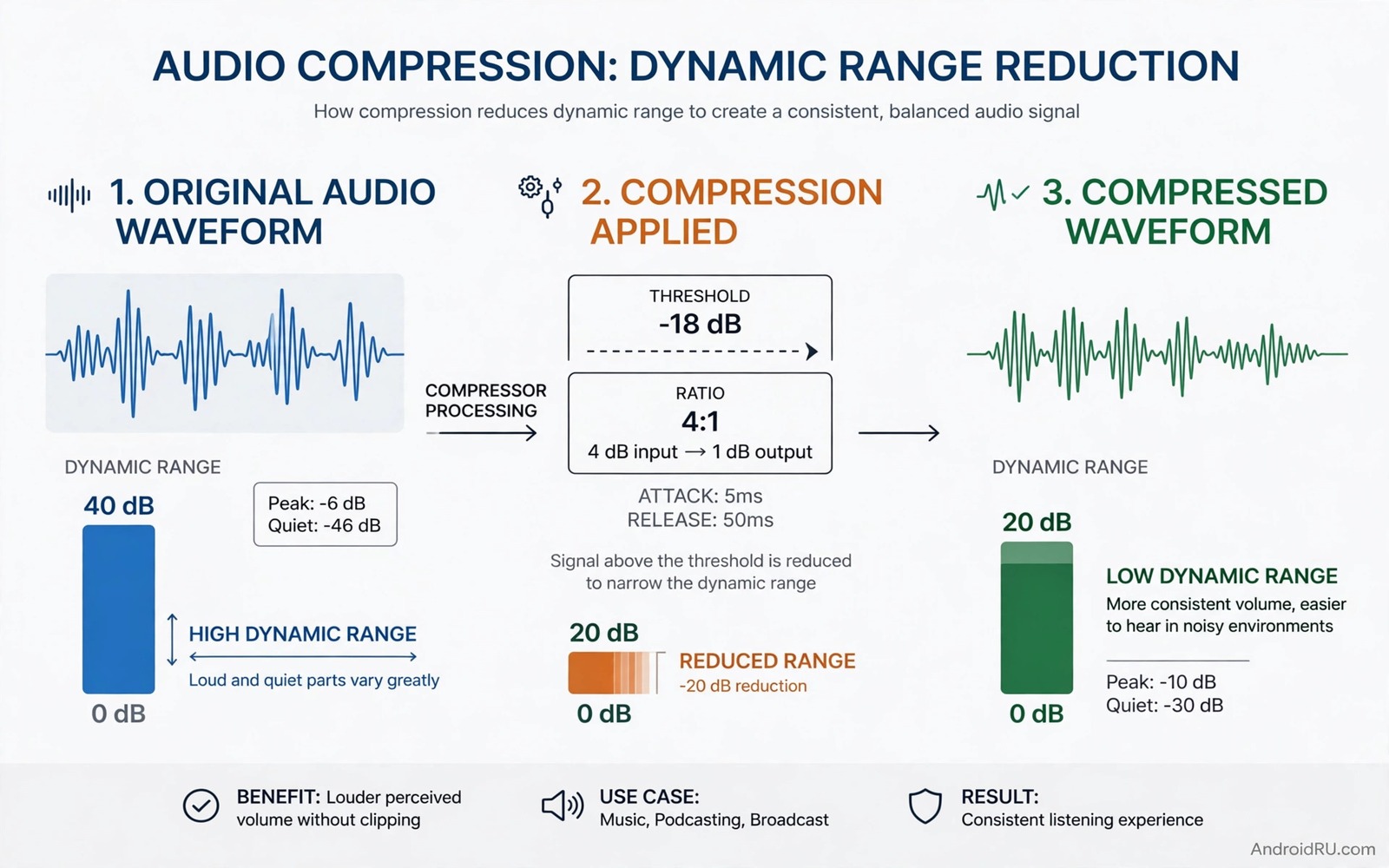
Dynamic range is the difference between the quietest and loudest sounds in a recording. A wide dynamic range sounds natural in a quiet room. The same range can make quiet dialogue inaudible in a noisy car. Dynamic range compression reduces that gap by boosting quiet sounds and limiting loud peaks. Android system sound engines apply compression in several places. This guide explains how that processing works and how it affects daily listening.
Compression is not the same as file compression for music storage. File compression reduces file size by removing data. Dynamic range compression changes loudness relationships within audio. It makes soft sounds louder and loud sounds slightly softer. The result is a more even listening level. That even level helps in noisy environments where quiet sounds would otherwise disappear. Understanding that distinction prevents confusion when reading audio settings.
How System Engines Detect Loudness
A sound engine measures loudness continuously as audio plays. It tracks short term peaks and longer term average levels. Peaks trigger limiting when they exceed a threshold. Average levels guide gentle compression over time. The engine adjusts gain smoothly to avoid sudden jumps. Smooth adjustment sounds natural while abrupt adjustment sounds pumping. Good engines favour smoothness over aggressive control.
Threshold and ratio control how strongly compression applies. Threshold sets the level where compression starts. Ratio sets how much loud sound is reduced above that threshold. A low threshold with a high ratio creates strong compression. A high threshold with a low ratio creates gentle compression. System engines usually choose gentle settings for general media. Aggressive settings suit noisy environments but they can sound flat.
Compression In Music Playback
Music playback on Android passes through several processing stages. The music app may apply its own loudness normalisation. The system engine may apply additional compression for speaker protection. The headphone or speaker may apply further processing. Each stage changes dynamic range slightly. Stacked stages can over compress music and remove its natural punch. That stacking explains why some tracks sound flat on phones despite good headphones.
Disable app loudness normalisation for a test if music sounds lifeless. Play the same track with normalisation on and off. Note whether drums regain punch when normalisation is off. That test reveals whether app processing over compresses your music. Keep normalisation on for shuffled playlists where track volumes vary widely. Turn it off for album listening where dynamic range matters.
Compression In Calls And Videos
Calls benefit from compression because voices vary in volume naturally. A soft speaker and a loud speaker should both be audible without constant volume adjustment. System call processing compresses voice range to achieve that balance. That compression helps understanding in noisy places. It can also make voices sound less natural in quiet rooms. The trade favours intelligibility over naturalness for calls.
Videos use compression differently because dialogue and effects share one track. Dialogue must stay audible while effects must not overwhelm. System video processing often compresses effects peaks while boosting dialogue range. That balance improves movie watching on small speakers. It can also reduce the impact of dramatic loud scenes. A movie watched on a phone therefore sounds different from the same movie in a cinema.
Speaker Protection And Limiting
Small phone speakers need protection from loud peaks that could damage drivers. System engines limit peaks before they reach the speaker. That limiting is a form of fast compression with a very high ratio. It prevents distortion and driver damage during loud passages. Limiting can also make loud music sound slightly squashed at maximum volume. Lowering volume slightly often restores natural dynamics because limiting engages less.
Headphones need less peak protection than phone speakers. System engines may still limit peaks for hearing safety. Hearing safety limits protect users from sudden loud bursts. Those limits are especially important for children and for long listening sessions. Respect safety limits rather than disabling them for louder sound. A safe listening level preserves hearing for future enjoyment.
Compression And Hearing Accessibility
Compression helps hearing impaired listeners by bringing quiet speech into audible range. A compressed voice track keeps soft consonants audible without making loud vowels painful. That benefit makes compression a valuable accessibility tool. Accessibility settings may offer stronger compression for speech. Enable those settings if standard playback leaves quiet words inaudible. Test with real conversation to judge benefit.
Compression can also hurt accessibility when it over processes music. A heavily compressed music track loses the cues that help listeners distinguish instruments. Balance compression strength to the content type. Use stronger compression for speech and gentler compression for music. For a related hearing topic explore sound amplification tools for hearing impaired users and how amplification complements compression.
Plan Compression For Different Environments
Quiet rooms need little compression because natural dynamics sound best there. Noisy cars need more compression because quiet sounds disappear under road noise. Offices need moderate compression because sudden loud sounds disturb colleagues. Create a mental profile for each environment. Adjust system sound effects or app normalisation to match the profile. That environment aware approach keeps audio pleasant everywhere.
Test each environment profile with the same content. A dialogue heavy video works well for testing. Note whether quiet dialogue stays audible in each environment. Adjust compression strength based on those tests. Real environment testing beats theoretical settings every time.
Keep Settings Stable After Updates
System updates can change sound engine behaviour without announcement. A compression setting that worked last month may behave differently after an update. Test familiar content after every major update. Note changes in loudness balance. Reapply app normalisation settings if an update resets them. That short check keeps sound predictable.
Write down your preferred normalisation and sound effect settings. A short note lets you restore them quickly after a reset. Keep the note with other audio settings. That record saves repeated trial and error after updates.
Test Compression With Familiar Content
Test compression with content you know well because familiar dynamics reveal processing clearly. Choose a track with quiet verses and loud choruses. Play it with processing on and off. Note whether quiet verses become louder and whether loud choruses lose punch. That comparison shows compression strength directly. A familiar track is a better test than a new track.
Test with a film scene that has quiet dialogue and loud effects. Note whether dialogue stays clear without effects becoming overwhelming. That film test reveals video compression behaviour. Adjust settings based on film results if you watch many videos. A balanced film setting serves daily video use well.
Organise Audio Processing Settings
Audio processing settings live in several places on Android. System sound effects sit in settings. App normalisation sits in each music app. Headphone apps may add their own processing. List each processing location you use. Check that list when troubleshooting flat sound. A complete list prevents hidden double processing.
Disable processing in all but one location during troubleshooting. That isolation reveals which stage over compresses sound. Re-enable stages one at a time after identifying the culprit. That methodical approach solves flat sound faster than random changes.
Protect Hearing With Compression Awareness
Compression can make loud listening feel less loud than it actually is. A compressed track at high volume can still damage hearing even though peaks feel controlled. Monitor overall volume rather than peak loudness alone. Use volume limits for long sessions. Take breaks during loud listening. Those habits protect hearing regardless of compression settings.
Teach children about compression and volume safety if they use phones for media. A compressed cartoon at high volume can be deceptively loud. Set volume limits on child profiles. Check limits periodically. That protection matters more than any sound quality tweak.
adb shell dumpsys audio
adb shell settings list system | grep -i audio
The snippet above shows a standard Android audio and system check and it was adapted for this compression guide so you can verify the audio setting safely.
Common Mistakes
The biggest mistake is stacking compression in several apps and then blaming headphones for flat sound. Use one processing path at a time. Another mistake is disabling all compression and then missing quiet dialogue in noisy places. Compression helps in noise. A third mistake is tuning compression only in a quiet room. Noisy environment tests reveal true needs.
People also confuse dynamic range compression with file compression. They are different processes. For a related topic explore force high resolution Bluetooth transmission and how transmission affects dynamics.
Frequently Asked Questions
Does compression ruin music quality?
Gentle compression preserves most music quality while improving audibility in noise. Heavy stacked compression can remove punch and life. Use one gentle compression stage for music. Disable extra normalisation for album listening. That balance protects dynamics.
Why does dialogue sound louder than effects on phones?
System video processing often boosts dialogue range while limiting effect peaks. That balance helps small speaker listening. It changes the cinema mix intentionally for phone use. The result favours intelligibility over dramatic impact. That trade suits mobile viewing.
Can I disable system compression completely?
Some system compression for speaker protection cannot be disabled safely. App normalisation can usually be disabled in app settings. Disable app processing first when testing. Keep speaker protection active to avoid driver damage. That approach gives control without risk.
Before your next film test dialogue clarity with normalisation on and off. For another audio topic explore systemwide graphic sound equalizers and how equalizer tuning interacts with compression.
Conclusion
Dynamic range compression makes quiet sounds audible and loud peaks safe on Android. System engines apply it gently for music and more strongly for calls and small speakers. Your concrete next step is a ten minute comparison today. Play a familiar track with app normalisation on and then off. Note which setting preserves punch while keeping quiet passages audible. That test tells you how much compression your daily listening needs.

