

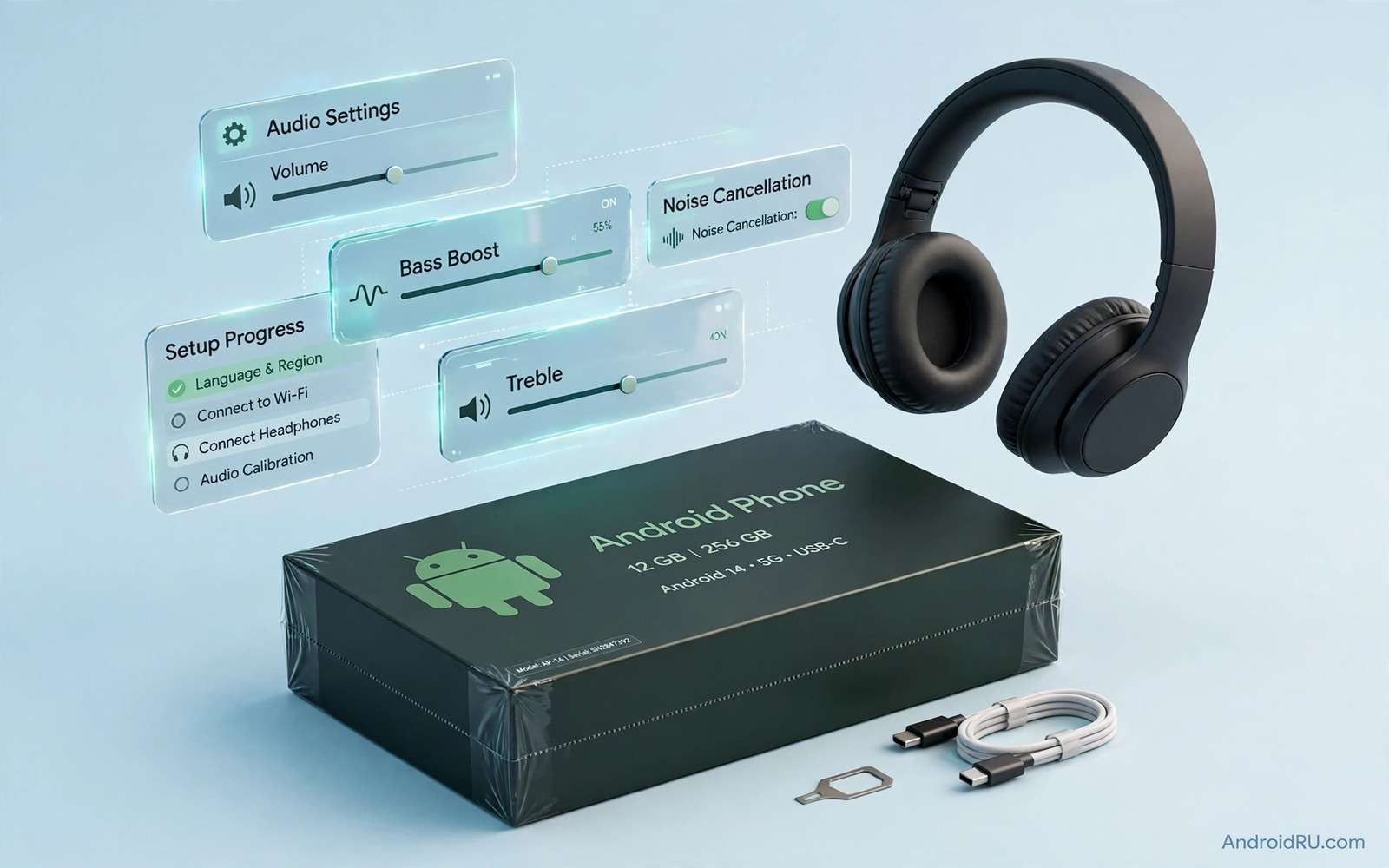
A brand new phone often sounds less impressive than expected because default audio settings suit an average user. Manufacturers choose safe defaults that avoid distortion on any headphone. Those defaults leave bass soft and voices slightly recessed. Seven small tweaks can transform that safe sound into a personal sound. This guide walks through the tweaks in a logical order. It starts with volume paths and ends with long term habits. Work through them once and your new phone will sound like it was tuned for you.
Begin with a baseline test before changing anything. Play a familiar track and note how bass and voices and highs sound. Make a test call and note how clear the other caller sounds. That baseline gives you a reference for every change that follows. Without a baseline you may change settings randomly and lose track of what helped. A short baseline note takes two minutes. It saves confusion later when you compare several tweaks.
Separate Media Call And Notification Volumes
Android keeps separate volumes for media and calls and notifications and alarms. Many new phone owners raise only the media volume and wonder why calls stay quiet. Open volume settings and adjust each slider separately. Set media volume to a comfortable music level. Set call volume during a real call rather than from settings alone. Set notification volume low enough to avoid startling you. Separate control prevents one loud notification from ruining a quiet music session.
Check whether your phone offers a separate volume for Bluetooth devices. Some phones remember Bluetooth volume separately from speaker volume. That memory can surprise you when headphones sound loud after speaker use. Adjust Bluetooth volume while headphones are connected. That adjustment applies only to that output path. Repeat the adjustment for each output you use regularly. A consistent volume across outputs makes daily use smoother.
Enable High Quality Bluetooth Audio
Open developer options or Bluetooth device details and check the active audio codec. Many phones default to a basic codec even when headphones support a better one. Select the highest codec that both phone and headphones support. Test playback after changing the codec and note any dropouts. A higher codec that drops out constantly is worse than a stable basic codec. Choose stability for commuting and quality for home listening if your phone allows per device settings.
Check absolute volume settings as well because they affect how headphone volume controls behave. Absolute volume links phone volume and headphone volume into one control. Disabling it gives separate controls but it can also change maximum loudness. Test both modes with your main headphones. For a related codec comparison explore LDAC versus aptX HD audio codecs and how codec choice shapes Bluetooth sound.
Tune Sound Effects And Equalizer
Open sound effects settings and disable any effect you do not understand yet. Virtual surround and bass boost can distort sound on a new phone. Test music with all effects off first. That clean baseline reveals the true headphone sound. Enable one effect at a time and listen for at least a minute. Keep only effects that clearly improve sound for your headphones. Remove effects that add harshness or muddiness.
If your phone offers a built in equalizer then start from a flat curve. Raise bass slightly only if music sounds thin. Cut a harsh high frequency slightly if cymbals sound sharp. Save the result as a named preset for your main headphones. A named preset lets you restore tuning after an update. Avoid dramatic curves that boost many sliders at once. Gentle tuning sounds better over long sessions.
Set Default Apps For Audio Playback
Choose a default music app that supports the audio formats you use. A default app that cannot play high resolution files will downsample them silently. Check format support in the app settings before settling. Choose a default podcast app with good playback speed controls. Set a default video app that respects your equalizer settings. Default choices affect daily sound more than most users realise. A thoughtful default setup prevents constant app switching.
Check audio permissions for each default app. Some apps need microphone permission for voice search that can interfere with playback. Review permissions in app info and remove unnecessary microphone access. That review also improves privacy. Restart apps after permission changes so new rules apply cleanly. Test playback after the review to confirm nothing broke.
Optimise Call Audio Settings
Open call settings and look for voice clarity or noise reduction options. Test a call with each option on and off. Ask the other caller to rate clarity because you cannot judge your own microphone sound. Choose the setting that gives the clearest voice in a quiet room. Test the same setting in a noisy room before settling. A setting that helps indoors can hurt outdoors if it over processes voice.
Check hearing aid compatibility options if you use hearing devices. Those options change call audio routing and volume behaviour. Enable them only if you actually use compatible devices. Unnecessary compatibility modes can alter normal call sound. Test calls after any compatibility change. That test prevents a hidden setting from degrading everyday calls.
Plan Settings For Different Outputs
Headphones and speakers and car audio need different settings on a new phone. Create a mental profile for each output you use. Headphones may need a gentle bass lift. A phone speaker may need a middle frequency boost for voices. Car audio may need a higher overall volume and less high frequency sparkle. Switching profiles manually takes seconds once you know your preferences. Note each profile in a short list for reference.
Test each output profile with the same track. A consistent test track reveals differences between outputs clearly. Note which profile sounds best for each output. Update the list when you buy new headphones or a new car speaker. A maintained list keeps new phone tuning useful over time.
Keep Settings Stable After Updates
System updates can reset audio settings without warning. A codec choice or an equalizer preset can revert after a major update. Check your audio settings after every major update. Confirm that codec and equalizer and volume settings still match your notes. Test a familiar track after the update. That short check prevents a confusing day where a familiar phone suddenly sounds different.
Back up your tuning notes in a place outside the phone. A cloud note or a computer file survives a factory reset. A note inside the phone alone disappears with the phone. Keep the note short and clear. A short note is more likely to be used than a long manual.
Test Settings In Real Daily Use
A setting that sounds good in a quiet room may fail during a commute. Test your new phone audio during a walk and during a bus ride. Note dropouts and clarity changes in each environment. Adjust codec or volume settings based on real use rather than ideal tests. Daily use is the true test of any audio setting. A setting that survives a commute deserves to stay.
Test during a workout as well if you exercise with music. Movement and sweat affect earbud fit and Bluetooth stability. A profile that works at a desk may fail during a run. Adjust fit and codec settings for exercise separately if needed. That separate exercise profile improves a common daily use case.
Organise Audio Apps And Files
A new phone often ships with several audio apps that compete for defaults. Remove or disable audio apps you will not use. A shorter app list reduces confusion about which app plays which file. Keep one music app and one podcast app as defaults. That simplicity makes daily playback predictable. Check defaults after installing any new audio app because installers can change defaults silently.
Organise music files into clear folders if you store local files. A tidy folder structure makes searching faster. Use consistent naming for albums and artists. That organisation helps any music app display your library correctly. A tidy library is part of good audio setup on a new phone.
adb shell dumpsys audio
adb shell settings list system | grep -i volume
The snippet above shows a standard Android audio and volume check and it was adapted for this new phone guide so you can verify the volume paths safely.
Review Settings Monthly
Audio preferences evolve as you change headphones and apps. Review your audio settings once a month to keep them aligned with current use. Check codec and equalizer and volume settings in one short session. That monthly review catches silent resets from updates. It also lets you adjust for new headphones promptly. A short review keeps a new phone sounding personal over time.
Note any setting that you changed during the month and why you changed it. That note explains your current setup to your future self. It also helps you restore settings after a reset. A brief monthly note is a small habit with lasting benefit.
Share Tuning Tips With Care
Audio tuning tips that work for your headphones may not work for a friend with different headphones. Share settings as a starting point rather than a universal answer. Encourage friends to test with their own gear. That caution prevents disappointment when a copied curve sounds wrong. Personal tuning is personal for a reason.
When you help a friend tune a new phone start from their baseline sound. Ask what they listen to most and which output they use most. Tailor the first tweaks to those answers. That personal approach beats a generic checklist. It also builds trust in the advice you give.
Common Mistakes
The biggest mistake is changing many settings at once and then not knowing which one helped. Change one setting at a time and test after each change. Another mistake is tuning at maximum volume where distortion hides subtle differences. Tune at normal volume. A third mistake is ignoring Bluetooth codec settings entirely. A basic codec can limit even excellent headphones.
People also forget to test call settings with a real caller. Self judgement of microphone sound is unreliable. For a related topic explore wireless earbuds mic audio sounding muffled and how microphone setup affects calls.
Frequently Asked Questions
Should I change audio settings immediately on a new phone?
Yes a short tuning session on day one improves daily sound for the life of the phone. Start with volumes and codec and effects. That core set takes under twenty minutes. Refine equalizer settings later once you know your headphones well.
Will tuning void my warranty?
Normal settings changes in menus do not void warranty. Developer options changes for codec selection are also normal user settings. Avoid root modifications if warranty matters to you. Menu tuning alone gives most of the benefit without risk.
Why does my new phone sound different from my old phone?
Different phones use different audio chips and default tunings. Headphones also interact differently with each phone. A new phone needs its own tuning rather than a copy of old settings. Test fresh and tune for the new combination.
Before your next music session apply the volume and codec tweaks in this guide. For another tuning topic explore systemwide graphic sound equalizers and how global tuning works.
Conclusion
Seven tweaks transform a new phone from average to personal. Separate volumes and choose a good codec and tune effects gently and test calls properly. Your concrete next step is a twenty minute session today. Open volume settings and Bluetooth details and note your current codec. If the codec is basic and your headphones support better then change it now. That single change often gives the largest immediate gain.

