

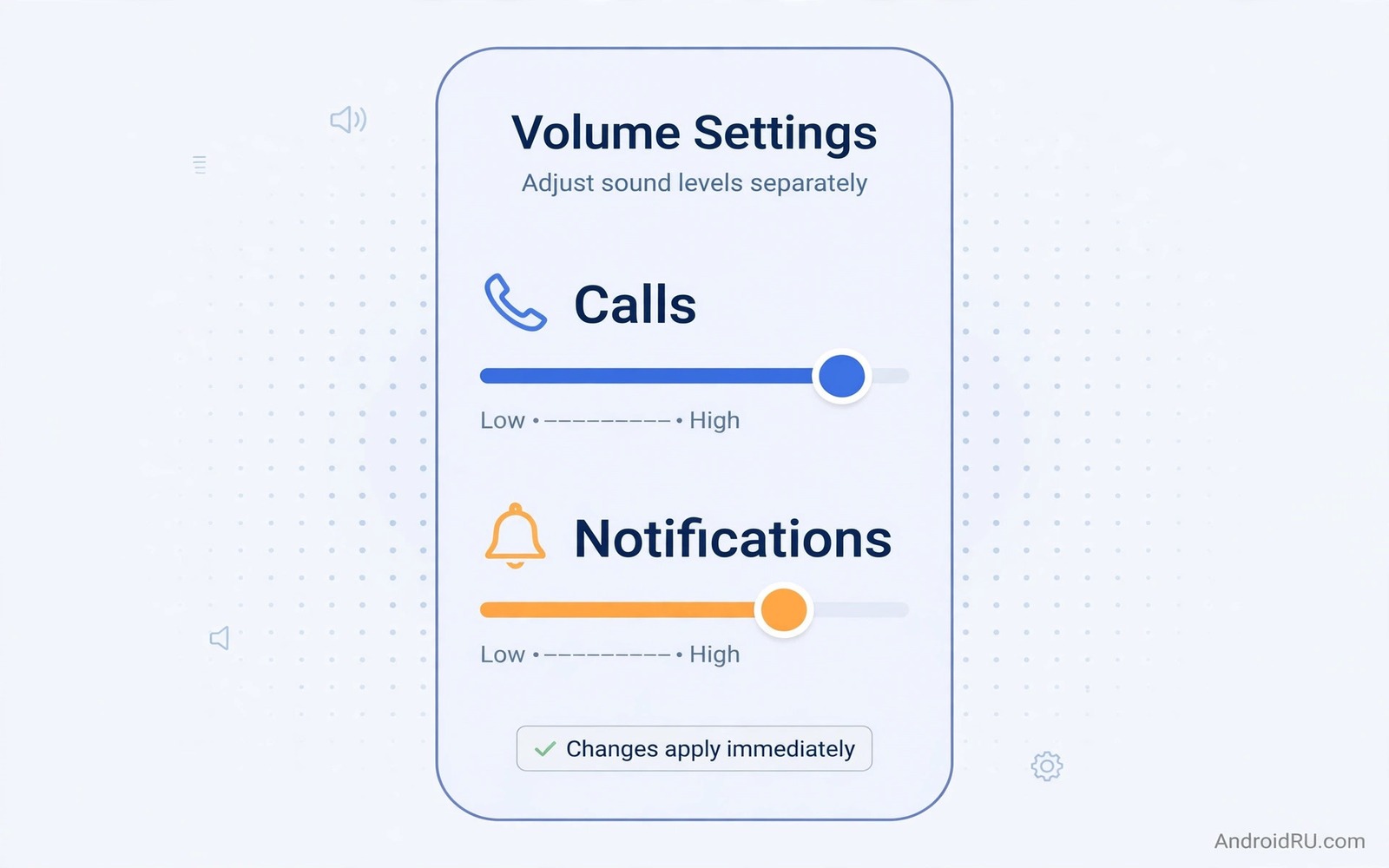
A loud notification during a quiet meeting can feel embarrassing and disruptive. Many Android users assume notifications must share volume with calls. Android actually keeps several volume paths separate. Learning those paths gives you quiet notifications and loud calls at the same time. This guide shows how to separate notification tones from call ringtones. It also shows per app sound choices for finer control.
Start by understanding the main volume categories on Android. Ring volume controls incoming call sound. Notification volume controls app alerts on many phones. Media volume controls music and video. Alarm volume controls alarms separately. Some phones merge ring and notification volume into one slider. That merging confuses users who expect separate control. Check your phone volume panel first to see which sliders exist.
Separate Volumes In System Settings
Open Settings and then open Sound and vibration. Look for separate sliders for ring and notification if your phone offers them. Lower notification volume while keeping ring volume high. Test by asking a friend to send a message while you keep the phone nearby. The message tone should sound softer than a call ring. If both still sound equal then your phone may merge the two paths. A third party volume app can sometimes separate them on merged phones.
Use Do Not Disturb schedules to control notification sound by time. Set a quiet schedule for work hours and a louder schedule for evenings if needed. Do Not Disturb can allow calls while silencing notifications. That combination is ideal for focused work. Test the schedule with a message during a scheduled quiet period. Adjust exceptions if an important app needs to break through.
Customise Sounds Per App
Open app info for an important app and look for notification settings. Many apps allow a custom sound for their notifications. Choose a soft tone for social apps and a distinct tone for work apps. That distinction lets you judge importance by sound alone. A soft tone for low priority apps reduces disruption without silencing them entirely. Test each custom sound after setting it.
Some apps offer notification channels that separate different alert types. A messaging app may separate direct messages from group messages. Set a louder tone for direct messages and a softer tone for group messages. That channel control gives precise sound management. Explore channel settings for your most noisy apps. Channels are the most powerful notification tool on modern Android.
Use Vibration And Visual Alerts
Vibration can replace sound for notifications when silence matters. Set vibration for notifications while keeping sound low. A gentle vibration alerts you without disturbing others. Visual alerts such as a blinking light or screen flash can also help. Combine vibration with a soft tone for important apps. That combination catches attention without loud sound.
Check vibration intensity settings if your phone offers them. A strong vibration can be as disruptive as a loud tone in a quiet room. Choose a gentle pattern for routine notifications. Reserve strong vibration for calls and alarms. That hierarchy matches alert strength to importance.
Control Notification Sounds At Night
Night notifications deserve special care because they disturb sleep. Use a bedtime schedule that silences notifications but allows calls from starred contacts. That schedule protects sleep while keeping emergency calls audible. Test the schedule before relying on it. Ask a starred contact to call during the schedule to confirm it breaks through. Adjust the starred list if needed.
Disable notification sounds for social apps entirely at night if schedules feel complex. A simple off switch for night hours works well. Re-enable sounds in the morning manually or with a schedule. Consistency matters more than complexity for night settings. Choose a night routine you can maintain every day.
Handle Work And Personal Sounds Separately
Work profiles on Android can separate work notifications from personal notifications. Enable a work profile if your phone and workplace support it. Set work notification sounds differently from personal sounds. Pause work notifications outside work hours with one toggle. That separation protects personal time. It also prevents work tones from interrupting family evenings.
If work profiles are unavailable then use per app tones to create a similar separation. Give work apps a distinct tone that you recognise instantly. Give personal apps a softer tone. That audible distinction helps you decide whether to check the phone immediately. It reduces the urge to check every notification.
Plan Sound Profiles For Different Places
Home and office and public transport need different notification profiles. Home can allow louder tones because disruption matters less. Office needs softer tones and more vibration. Public transport needs tones that you can hear over engine noise without disturbing neighbours. Create a mental profile for each place. Switch profiles when you change location. That habit keeps notification sound appropriate everywhere.
Test each profile in its real location. An office tone tested at home may still be too loud at work. A transport tone tested at home may be inaudible on a bus. Real location testing reveals those differences. Adjust profiles based on real tests rather than guesses.
Keep Settings Stable After Updates
System updates can reset notification sounds and volume links. Check notification settings after every major update. Confirm that custom per app tones still exist. Test a message tone after the update. That short check prevents a loud surprise during a meeting. App updates can also reset notification channels. Revisit channel settings for noisy apps after updates.
Write down your custom tones for important apps. A short list helps you restore settings after a reset. Note the app and the tone name and the volume level. That list saves time when rebuilding notification settings. Keep the list in a place you can find quickly.
Test Notification Sounds Realistically
Test notification sounds while doing normal activities rather than only in settings. A tone preview in settings sounds different from a tone during a busy task. Ask a friend to send test messages while you work. Note whether tones distract you or go unnoticed. Adjust volume and tone choice based on that realistic test. Real use reveals the true impact of a tone.
Test with the phone in a pocket and on a desk. Pocket muffling changes perceived loudness. Desk placement makes tones sound louder. Choose a tone and volume that work in both positions. That balanced choice prevents missed alerts and loud surprises.
Organise Notification Channels Regularly
Notification channels accumulate as apps add new alert types. Review channels monthly for your noisiest apps. Disable channels you never need. Silence channels that only carry promotions. That monthly cleanup keeps notification sound manageable. A tidy channel list also speeds future adjustments.
Remove notification permission entirely for apps that only send promotions. A promotion notification rarely deserves sound. Keep sound only for apps that carry personal or work importance. That ruthless filter improves daily calm dramatically. Review permissions quarterly to catch new noisy apps.
adb shell dumpsys notification
adb shell settings list system | grep -i notification
The snippet above shows a standard Android notification and system check and it was adapted for this notification guide so you can verify the alert setting safely.
Review Notification Sounds Monthly
Notification needs change as apps and routines change. Review notification sounds once a month for your noisiest apps. Check custom tones and channel settings in one short session. That monthly check reveals quiet resets caused by updates. It also lets you silence new noisy apps promptly. A short review keeps notification sound calm over time.
Note any tone changes you made during the month and why you made them. That record clarifies your current setup for your future self. It also aids restoring settings following a reset. A concise monthly record is a modest habit with durable value.
Help Family With Notification Settings
Family members often struggle with loud notifications on new phones. Help them separate ring and notification volumes first. Show them per app tone settings for their noisiest apps. That simple help reduces disruption for the whole household. Encourage them to test with real messages after setup. Real tests confirm that settings work as intended.
Share a simple night schedule setup with family members who struggle with sleep disruption. A bedtime schedule that allows calls but silences notifications helps many people. Show them how to add starred contacts for emergencies. That setup gives peace of mind without missing important calls. Simple help spreads calm notification habits.
Common Mistakes
The biggest mistake is assuming ring and notification volumes are always linked. Many phones separate them in settings. Another mistake is silencing all notifications to fix one noisy app. Per app tones solve the noisy app without hiding important alerts. A third mistake is choosing a loud tone for every app. Distinct soft tones work better than uniform loud tones.
People also forget that updates reset custom tones. Check tones after updates. For a related topic explore audio settings tweak after getting phone and how volume paths work.
Frequently Asked Questions
Why do notifications still sound loud after I lower media volume?
Media volume does not control notifications on most phones. Notifications use their own volume path or the ring path. Lower notification or ring volume in sound settings. Test with a real message after changing the slider. That test confirms which path controls your notifications.
Can I set different sounds for different contacts?
Many messaging apps allow custom sounds per conversation. Open the conversation settings and look for a notification tone option. Choose a distinct tone for important contacts. That per contact control helps you recognise urgent messages by sound alone.
Will Do Not Disturb silence alarms?
Do Not Disturb normally allows alarms to sound by default. Check alarm exceptions in Do Not Disturb settings to confirm. Alarms are treated separately from notifications. That separation protects wake up times during quiet schedules.
Before your next meeting set a soft tone for social apps and test it. For another audio topic explore systemwide graphic sound equalizers and how tone choices interact with volume.
For a related hearing topic explore hearing aid compatibility protocols and how accessibility settings shape alerts.
Conclusion
Independent notification tones give you quiet alerts and audible calls at the same time. Separate volumes and customise per app tones and use schedules for night and work. Your concrete next step is a ten minute setup today. Open sound settings and lower notification volume while keeping ring volume high. Send yourself a test message and confirm the tone is soft. That single change improves daily calm immediately.

