

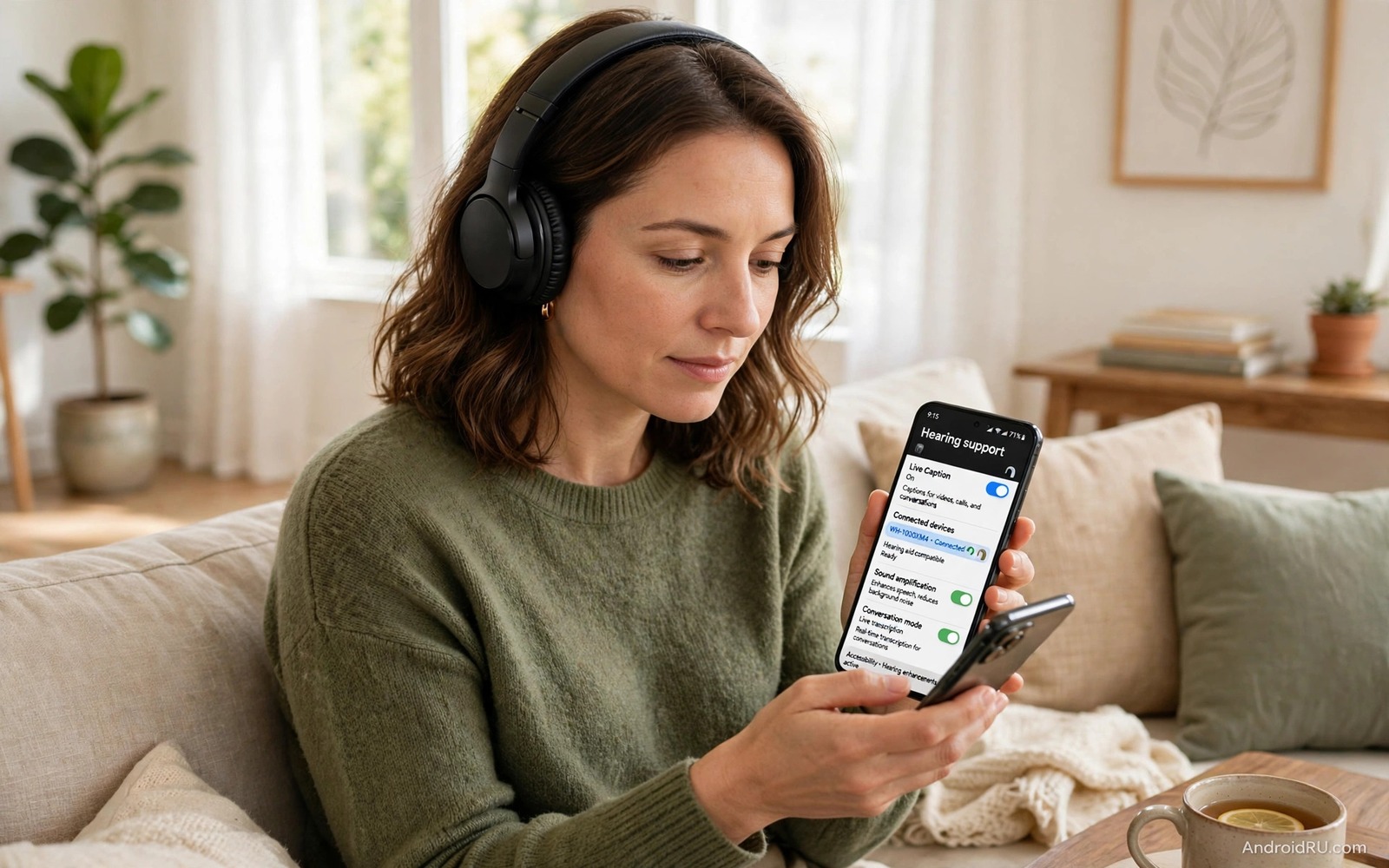
Hearing loss changes how phone sound should be tuned. A louder phone is not automatically a clearer phone because amplification can also amplify noise. Good amplification tools boost speech frequencies while controlling background sound. They also offer personal controls for left and right ears. This guide explains built in Android options and companion apps. It focuses on safe volume habits and realistic expectations. The goal is clearer communication rather than simply louder sound.
Start with a hearing baseline from a professional assessment if possible. An assessment shows which frequencies are affected and by how much. That information guides amplification settings far better than guesswork. Share the assessment pattern with a family member who helps with setup if needed. A written pattern also helps you explain needs to support staff. Professional guidance is especially important for children and for sudden hearing changes.
Use Built In Android Hearing Features
Open Settings and then open Accessibility and look for hearing enhancements. Many Android phones offer live caption and sound amplifier options. Live caption shows spoken words as text on screen during calls and videos. That text support helps when amplification alone is not enough. Sound amplifier boosts microphone input and lets you adjust frequencies. Enable sound amplifier and test it with a conversation in a quiet room first.
Adjust left and right balance in accessibility settings if hearing differs between ears. A balance control can shift sound toward the stronger ear or toward the weaker ear depending on need. Test balance with headphones and with the phone speaker separately. Note the balance setting that gives the clearest speech. Keep that setting written down for future reference. Balance tuning is a simple change with a large impact.
Choose A Sound Amplifier App
Companion amplifier apps offer finer control than built in options on some phones. Choose an app with clear privacy practices and simple controls. Grant microphone permission only to the app you actually use for amplification. Test the app in a quiet room with a familiar voice. Adjust frequency sliders slowly and listen for speech clarity rather than loudness. A clear voice at moderate volume beats a loud distorted voice.
Check latency when using an amplifier app because delayed sound feels unnatural. Speak and listen for echo or lag in your own voice feedback. A small delay is acceptable for media listening. A large delay makes conversation difficult. Choose an app with low latency for live conversation. Use a different app for media if one app cannot serve both needs well.
Tune Frequencies For Speech Clarity
Speech clarity lives mainly in middle and high frequencies. Boosting bass alone rarely helps speech understanding. A gentle boost in the middle range can reveal consonants that carry meaning. A small high frequency boost can reveal sibilants that distinguish similar words. Change one frequency range at a time and test with a spoken sentence. Ask a conversation partner whether your responses show better understanding.
Avoid boosting all frequencies equally because that simply raises volume and noise together. Targeted boosts help speech while broad boosts hurt comfort. If sound becomes harsh then reduce the highest slider first. Harshness causes listening fatigue quickly. A comfortable setting that you can use all day beats an impressive setting that tires you in an hour.
Use Amplification With Headphones And Speakers
Headphones give the most controlled amplification because they limit room noise. Choose headphones that fit comfortably for long use. A comfortable fit matters because amplification tools are used for hours. Test headphone amplification in a quiet room first. Then test in a moderately noisy room to see how background sound behaves. Adjust noise reduction settings based on that second test.
Phone speakers are useful for group conversations where headphones feel isolating. Speaker amplification spreads sound and it also spreads noise. Place the phone closer to the speaker in group settings. That proximity improves the speech to noise ratio. For a related speaker topic explore speakerphone loudness and clarity and how position affects clarity.
Combine Amplification With Captions
Captions complement amplification by giving a visual backup for missed words. Enable live caption during video calls and media playback. Read captions when a word is unclear rather than raising volume further. That combination reduces listening effort. It also helps in noisy places where amplification alone struggles. Practice using captions together with amplification so the combination feels natural.
Caption accuracy varies with accent and background noise. Do not rely on captions alone for critical information. Ask speakers to repeat key details when captions look uncertain. That habit prevents misunderstandings in important conversations. Captions are a support tool rather than a perfect transcript.
Protect Hearing While Amplifying
Amplification must never push volume to painful levels. Pain indicates that volume is too high for safe listening. Set a maximum volume limit in phone settings if the phone offers one. Take listening breaks during long amplified sessions. Breaks reduce fatigue and protect remaining hearing. A safe amplification setup prioritises long term hearing health over short term loudness.
Monitor volume across the day because gradual increases creep in unnoticed. A volume that felt loud in the morning can feel normal by evening. Reset to your baseline setting at the start of each day. That reset prevents slow volume creep. Keep a note of your safe baseline setting.
Plan Amplification For Different Places
Home and street and workplace need different amplification profiles. Home settings can favour comfort and natural sound. Street settings need stronger noise control and wind reduction. Workplace settings need clear speech for meetings. Create a mental profile for each place you visit regularly. Switch profiles when you change location. That switching habit keeps amplification effective across the day.
Test each profile in its real location before relying on it. A street profile tested indoors may fail outdoors. A workplace profile tested at home may fail in a meeting room. Real location testing reveals problems that indoor tests hide. Adjust profiles based on real tests.
Keep Settings Stable After Updates
System updates can reset accessibility settings without warning. Check hearing settings after every major update. Confirm that amplifier permissions and balance settings still match your notes. Test a conversation after the update. That short check prevents a confusing day where a familiar setup suddenly changes.
App updates can also change amplifier behaviour. Test a familiar voice after an amplifier app update. Compare clarity with your previous experience. Reapply personal adjustments if an update resets them. A short post update test keeps amplification reliable.
Test Amplification In Real Conversations
Test amplification during real conversations rather than only with recorded speech. Real conversation involves turn taking and interruptions. Those dynamics reveal latency and comfort issues that recordings hide. Ask conversation partners for honest feedback about your responses. Their feedback shows whether amplification truly improves understanding.
Test with different speakers because voices vary in pitch and speed. A setting that helps with a deep voice may not help with a high voice. Adjust frequency boosts to serve the widest range of voices you meet. That broad tuning serves daily life better than tuning for one voice.
Organise Support And Documentation
Keep a short document of your amplification settings and hearing baseline. Share that document with family members who help with setup. A shared document prevents confusion when someone else adjusts the phone. Update the document after any major change. A current document is a practical support tool.
Note support contacts for your amplifier app and your phone manufacturer. A contact list saves time when a setting fails. Keep the list with your settings document. That organisation makes troubleshooting faster and less stressful.
adb shell dumpsys audio
adb shell settings list system | grep -i accessibility
The snippet above shows a standard Android audio and accessibility check and it was adapted for this amplification guide so you can verify the accessibility setting safely.
Common Mistakes
The biggest mistake is raising all volume to maximum and accepting noise and distortion. Targeted frequency boosts help speech more than broad loudness. Another mistake is using amplification without captions when captions could help. Combined tools work better than one tool alone. A third mistake is ignoring fit and comfort for headphones. Uncomfortable headphones lead to short use and poor benefit.
People also forget to test amplification in real noisy places. Quiet room tests overstate benefit. For a related hearing topic explore hearing aid compatibility protocols and how phone standards support hearing devices.
Frequently Asked Questions
Can amplification replace a hearing aid?
Phone amplification can help in many situations but it does not replace a professionally fitted hearing aid. Hearing aids are tuned to an individual hearing pattern and they work all day. Phone tools are a useful supplement for calls and media. Seek professional advice for persistent hearing difficulty.
Is sound amplifier safe for daily use?
Sound amplifier is safe when volume stays comfortable and breaks are taken. Avoid painful volume levels. Use volume limits when available. If amplification causes discomfort or ringing then lower volume and seek advice. Safe use prioritises comfort over loudness.
Why does amplification sound harsh sometimes?
Harshness often comes from excessive high frequency boost or from background noise amplification. Reduce the highest slider slightly and increase noise reduction if available. Test in a quiet room first. A comfortable setting should sound clear without sharp edges.
Before your next call enable live caption alongside amplification. For another audio topic explore systemwide graphic sound equalizers and how tuning differs for speech.
Conclusion
Sound amplification helps hearing impaired users when it targets speech frequencies and combines with captions. Use built in features first and tune gently and protect hearing. Your concrete next step is a fifteen minute configuration today. Open accessibility settings and enable sound amplifier and live caption. Test them with a real conversation and note the settings that give clearest speech.

