

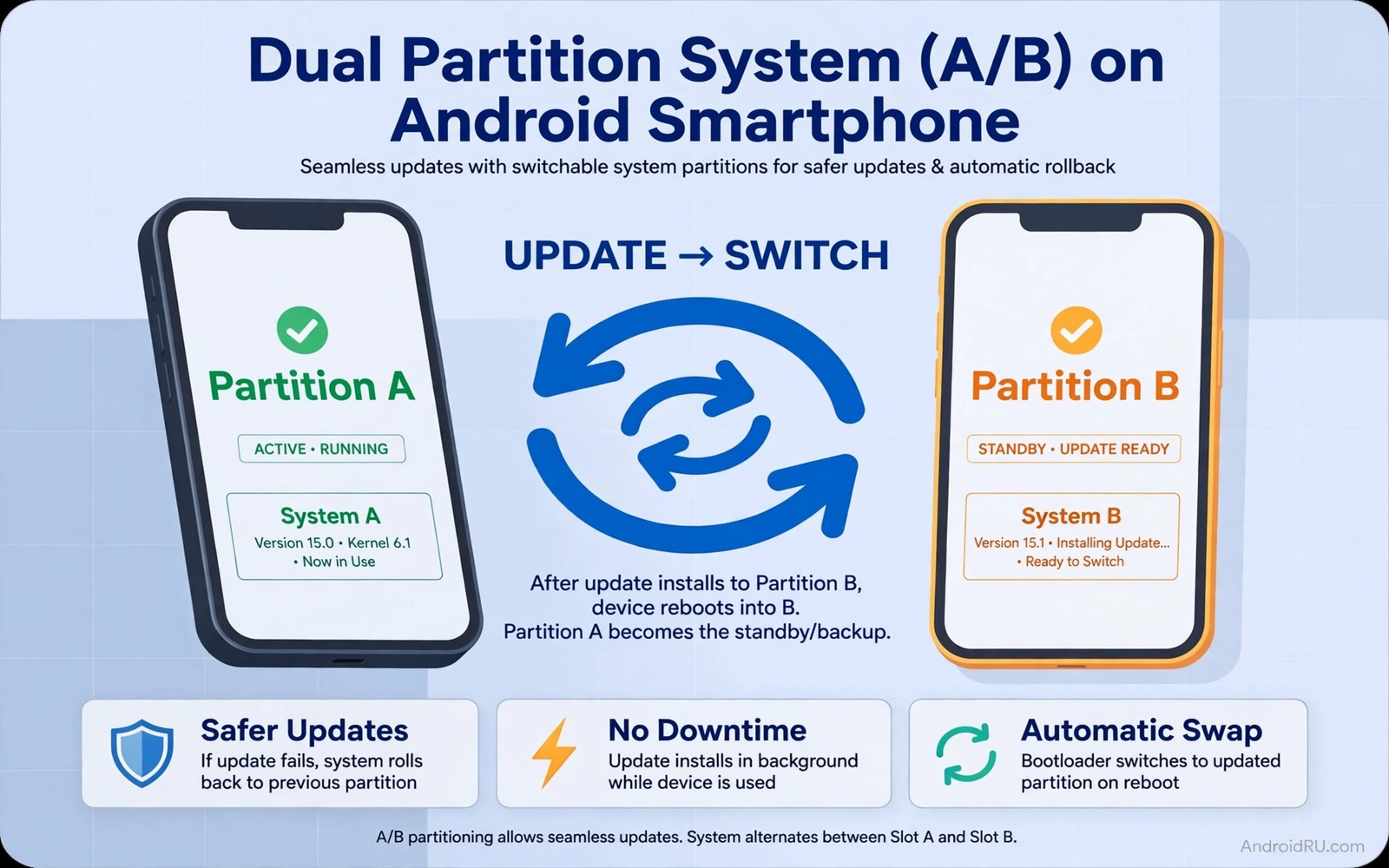
System updates used to require a long wait with a progress bar. The phone was unusable during installation. If power failed during the update then the phone could become unusable. Seamless updates solve these problems with a simple idea. The phone keeps two copies of the system. One copy runs today. The other copy receives the update in the background.
When the update finishes the phone switches to the new copy on the next restart. The restart is quick because the work already happened in the background. If the new copy fails to boot then the phone can return to the old copy. This fallback protects users from a bad update. It also makes updates less scary for people who depend on their phone daily.
Seamless updates are now standard on many Android devices. They change how users should think about updates. An update is no longer a risky event that needs a free afternoon. It is a background task that completes with a short restart. Understanding the mechanism helps users trust updates and install them promptly.
How A and B Partitions Work
A phone with seamless updates has two system slots called A and B. Only one slot is active at a time. The active slot contains the system that is running. The inactive slot is free to receive an update. The update engine writes the new system to the inactive slot while you continue using the phone.
When the write finishes the system marks the inactive slot as the next boot target. A restart loads the new system. The old system remains available as a fallback. If the new system boots successfully then it becomes the active slot. The old slot becomes the new inactive slot for the next update. This cycle repeats with each update.
Storage cost is the main trade off. Two system copies use more storage than one copy. Modern phones have enough storage that this cost is acceptable for most users. The safety benefit outweighs the storage cost for a device that holds personal data and payment tools.
What Happens When an Update Fails
Failure handling is the core strength of seamless updates. If the new system fails to boot several times then the bootloader can switch back to the previous slot. The user returns to a working phone with the old system. Data remains intact because user data lives in a separate partition. The update can be retried later after a fix.
Failure can also happen during download or writing. A corrupted download will fail verification before it is marked for boot. The phone will not switch to a corrupt system. It will keep running the old system and prompt for a retry. This verification step prevents many bricks that older update systems could cause.
Users may notice a failed update only as a message that an update did not complete. That message is not a crisis. It means the safety system worked. Check storage and battery and network before you retry. A retry after a fix is safer than forcing an update with low battery.
Why Seamless Updates Improve Security
Seamless updates reduce the friction that delays security patches. Users are more willing to install an update that needs only a short restart. Makers can deliver patches faster because the mechanism is reliable. Faster adoption closes the window during which a known flaw can be exploited.
Background installation also helps users with limited time. An update can download and prepare while the phone charges overnight. A short restart in the morning completes the process. This routine fits daily life better than a long installation window. Security improves when updates fit life rather than interrupting it.
Rollback protection adds another layer. A phone can refuse to boot an older system with known flaws after a secure update. This prevents an attacker from downgrading a phone to a vulnerable version. Rollback protection works with the partition system to keep the device on a safe version. This safety story is closely tied to how system updates managed by services change the operating system because both approaches make maintenance faster and less disruptive.
What Users Should Do During an Update
Keep the phone charged and connected to Wi-Fi during an update. Background installation uses data and battery. A low battery can pause the process. A stable connection prevents a corrupted download. These simple conditions help the update complete cleanly.
Do not force a restart during background installation unless the phone prompts you. A forced restart can interrupt a write to the inactive slot. The safety system should protect you but an interruption still wastes time. Let the system finish and then restart when prompted.
After a restart check that the update completed. Open settings and note the new version and security patch date. Test your most important apps quickly. If an app misbehaves after an update then clear its cache or reinstall it before you blame the system. Most post update issues are app issues rather than system issues.
Step 1: Charge phone and connect to Wi-Fi
Step 2: Allow background update to complete
Step 3: Restart only when prompted by system
Step 4: Verify new version and patch date
Step 5: Test calls messages and banking app quickly
The steps above are an original example written for this guide. They are not copied from a vendor document and they do not require a special app or a paid tool. Use them as a routine for every system update.
Common mistakes
One mistake is to delay updates for weeks because of fear of a long installation. Seamless updates need only a short restart. Delaying a security patch leaves a known flaw open longer than necessary. Install security updates promptly when they appear.
Another mistake is to update with low battery and no charger. Background installation can pause or fail when power is low. Charge the phone first. A failed update due to low power wastes time and creates confusion.
A third mistake is to assume that a fallback slot means data is always safe. User data is separate from system slots but it still needs a backup. A hardware failure can still cause data loss. Keep photos and documents backed up regardless of update safety.
A final mistake is to root or modify a phone without understanding partition effects. Modifications to the active slot may not carry over after an update switches slots. A modified system can also fail verification and trigger a fallback. Research partition behaviour for your exact model before you modify system files.
Frequently Asked Questions
Do seamless updates use twice as much storage?
They use extra storage for a second system copy. User storage is not doubled. Modern phones have enough space that the cost is acceptable for most users. Low storage phones may feel the impact more.
Can I switch back to the old system manually?
Generally no through normal settings. The system switches back automatically only after a boot failure. Manual switching requires advanced tools and can break security protections. Do not attempt it without expert guidance.
Why is the restart after a seamless update so quick?
The heavy work happened in the background before the restart. The restart only switches the active slot. That is why a seamless update restart takes seconds rather than many minutes.
Seamless Updates on Other Devices
Seamless updates are not limited to phones. Televisions and cars and home hubs also benefit from background installation and fallback slots. A television that updates in the background avoids a long wait before a show. A car system that can fall back after a failed update avoids a stranded driver. The same safety logic applies across devices.
Other devices face different constraints. A car system must never restart during driving. An update must wait for a safe parked state. A home hub must keep basic functions running during an update. Designers must adapt the partition model to each device context rather than copying the phone model exactly.
Users of other devices should apply the same habits as phone users. Keep the device powered during an update. Check the version after a restart. Test core functions after an update. A television that loses sound after an update may need an app update rather than a system rollback. The same troubleshooting logic applies.
As more devices adopt seamless updates the overall ecosystem becomes more reliable. A home with many updated devices is safer than a home with many neglected devices. Seamless design lowers the barrier to staying current. That lower barrier is the real security gain across all device types.
Update Failures Users Can Fix Themselves
Some update failures have simple user fixes. A download that fails repeatedly may succeed after freeing storage space. A background installation that stalls may resume after a restart and a Wi-Fi reconnection. A verification failure may resolve after deleting a corrupted download and retrying. These fixes do not require expert help.
Other failures need maker support. A phone that loops during boot after an update should fall back to the previous slot automatically. If it does not fall back then contact support before you attempt advanced recovery. Advanced recovery can erase data if done incorrectly. A support team can guide you through a safe recovery process.
Prevention reduces both types of failure. Keep at least several gigabytes free before an update. Keep the phone charged during installation. Avoid installing an update during a critical task. A calm update routine prevents most failures that users can fix and reduces the risk of failures that need support.
Update Failures Users Can Fix Themselves
A failed download is the most common fixable update failure. Free storage space and reconnect to Wi-Fi and retry the download. A corrupted download will usually succeed on a second attempt with a stable connection. Note the error message before you retry.
A stalled background installation can often resume after a restart. Restart the phone and check the update status in settings. If installation resumes then allow it to complete before you use heavy apps. Patience during a resumed installation prevents a second stall.
A post update app problem can often be fixed by clearing app cache. Clearing cache removes temporary data without deleting account data in most apps. Test the app after clearing cache. If the problem persists then reinstall the app from the store.
A battery drain after an update may resolve within a few days. A new system may index files and optimise apps in the background. That background work uses extra battery temporarily. If drain persists beyond a week then check battery settings for a rogue app.
Know when to stop fixing and seek support. A phone that loops during boot or that loses data needs professional help. Attempting advanced recovery without guidance can erase data. Contact support with a clear description of the failure and the steps you already tried.
Conclusion
Seamless A and B partition updates keep devices safe by installing in the background and by keeping a working fallback. They reduce downtime and reduce fear of updates. They also improve security by making prompt installation easy. Storage cost is the main trade off and it is acceptable on modern devices.
Your concrete next step is to enable automatic system updates and to check your current security patch date today. If an update is waiting then install it tonight while the phone charges. That single habit keeps the fallback system ready and the security window short. For more update context read about why manufacturers extend software support to seven years and features users want in the next major version to see how seamless updates support longer and better ownership.

