

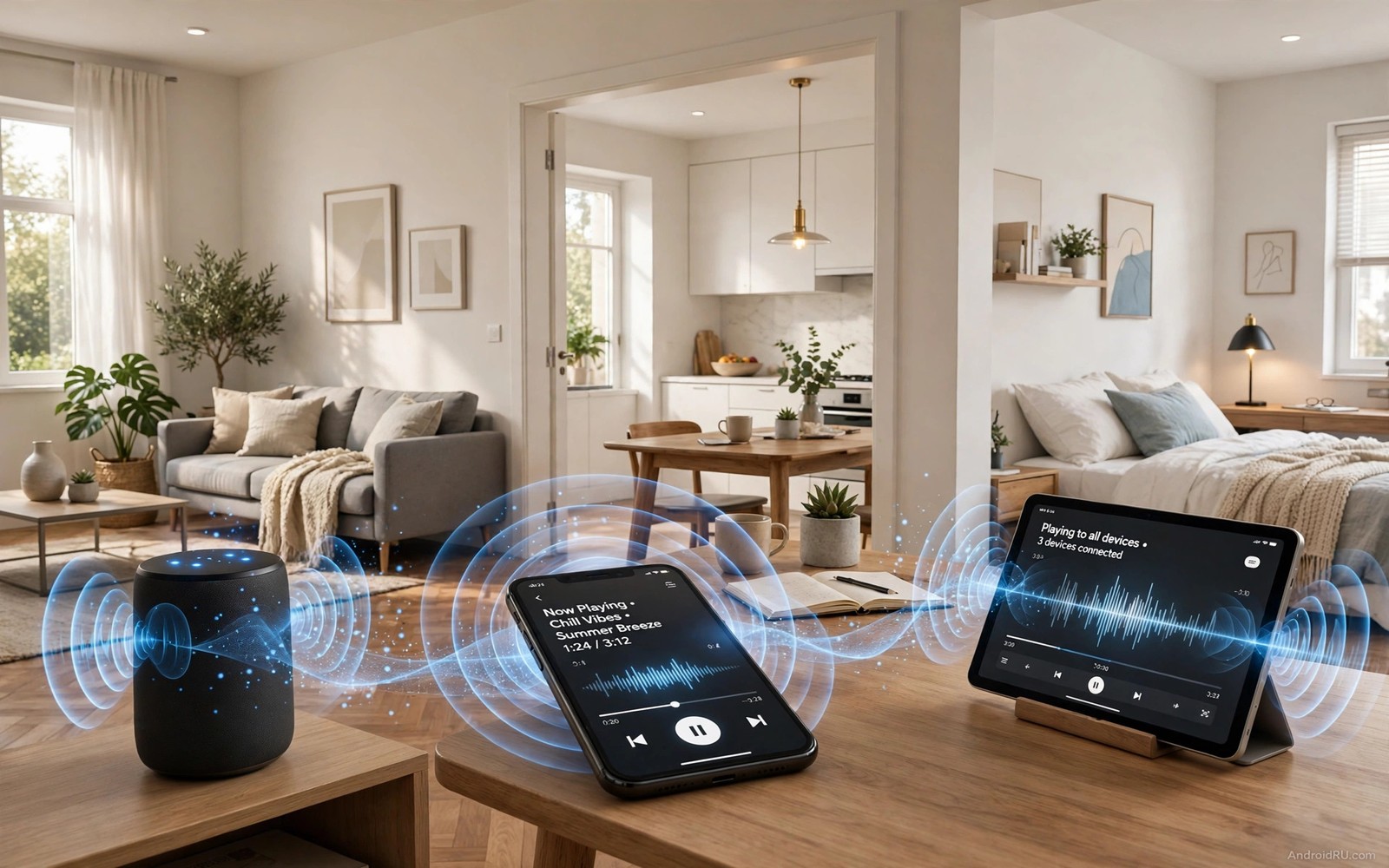
The Secret Hack to Play Spotify Audio across Multiple Android Devices
Music sounds better when it follows you from room to room instead of stopping at a doorway. A phone speaker in one room cannot fill a whole home, yet several Android devices can work together to carry the same song into the kitchen, the living room, and the bedroom. Spotify offers tools for that goal, but they work in different ways and suit different homes. Knowing which tool fits your devices saves a frustrating evening of trial and error.
Here is the secret most guides bury: there is no single Spotify button that plays one song on every phone at once. There are two different tools, and each solves a different problem. Group Sessions let several people control one queue. Speaker groups let one command play the same audio on several speakers at once. Confuse the two and you will spend an evening wondering why the music only comes from one device. This guide separates them clearly, then shows you how to set up both, so your home sounds the way you imagined.
The Secret: Two Tools, Two Different Jobs
A group session lets friends or family join one queue and add songs from their own phones. The host starts a session and shares a link or a code with others. Guests can pause, skip, and add tracks while the host device keeps playing. That shared control suits a party or a family evening where everyone wants a say. It does not by itself play audio on every guest phone at once, and that is the misunderstanding that trips up most people.
Speaker groups are the tool for true multi-room sound. A speaker group plays the same audio on several speakers at the same time through a home assistant system such as Google Home. You create a group in the home app, add every speaker you want to include, and cast Spotify to that group name. The system sends audio to each speaker together and keeps timing tight, because the group is synchronised by design. Bluetooth and casting can link a phone to a single speaker, but they do not create a true multi-room system on their own.
One Spotify account normally plays on one device at a time for personal listening. A group session lets guests control the host queue, but it does not start separate playback on each phone. A family plan allows separate accounts to play separately. Speaker groups are the correct tool for the same song in several rooms, and the rest of this guide focuses on building one properly.
How Spotify Group Sessions Actually Work
Use group sessions when the goal is shared control rather than multi-room sound. The host device provides the sound while guests shape the queue. To start one, open Spotify on the host phone, tap the speaker icon at the bottom of the Now Playing screen, and choose Start a Group Session. Share the link or the code with your guests. Each guest opens the link and joins, and from then on anyone can add songs, pause, or skip.
Keep the guest list small to avoid queue chaos during a gathering. Set a simple rule that each guest adds one song at a time. That rule keeps the evening fair and it keeps the music flowing without constant skips. Remember that the sound still comes from the host device, so the host phone should be connected to the best speaker in the room, not left on a table playing through its own tiny speaker. For TV audio context, see fixing audio sync lag on soundbars, because timing matters even more when sound comes from several places at once.
How to Set Up a Speaker Group for True Multi-Room Sound
A speaker group takes about ten minutes to build with devices you already own. Start by listing the devices you have before you buy new speakers. A television, a smart speaker, and a tablet may already form a useful group. Check that each device runs a current Spotify app or supports casting. A clear device list prevents buying a speaker you do not need.
Step 1: Create the group in your home app
Open the Google Home app, tap the plus icon, and choose Create speaker group. Add every speaker you want to include, then name the group clearly, such as Whole Home, so voice commands stay simple. A clear name is not a cosmetic choice: you will say it out loud every time you play music, and a name like Whole Home works far better than a name like Group 1. Save the group and wait a few seconds for the speakers to register.
Which speakers belong in a first group
Start with two or three speakers that are close to the router and in rooms you actually use. A group of three well-placed speakers beats a group of six struggling speakers every time. You can add more rooms later once the core group sounds tight.
Step 2: Cast Spotify to the group name
Open Spotify on your phone, start a song, tap the speaker icon, and choose the group name instead of a single speaker. The system sends audio to each speaker together, and timing stays tight because the system syncs playback across the group. You can also start playback by voice: saying the group name to a smart speaker starts the same synchronised stream. Test the group with a song that has a sharp beat, so timing errors are easy to hear.
Step 3: Walk the rooms and balance the volume
Walk between rooms and listen for echo or delay while the test song plays. If one speaker lags, move it closer to the router or remove it from the group. Wired speakers or speakers near an access point usually stay in sync best. Use the home app to adjust each speaker’s volume separately during the test song, so no single room dominates the home. That balance step turns a loud living room into a calm whole-home sound, and it is the step most people skip.
How to spot a lagging speaker quickly
Play a track with a sharp drumbeat and stand in the doorway between two rooms. If you hear a double beat or a smearing echo, one speaker is behind. The fix is almost always distance to the router, not the speaker itself, so move the speaker or add an access point before you buy anything new.
Use Your Phone, Tablet, and TV as Extra Speakers
A tablet or a television can join the music system as an extra playback point. Cast audio to the television for a living room session and let a tablet play in the kitchen through the same group. Keep volume balanced across rooms so no single room dominates. A wall-mounted tablet makes a handy control panel, too: see how to build a tablet as a smart home control display for a panel that can control playback from any room.
Bluetooth can fill a gap for a single speaker that lacks casting support. Pair the phone to that speaker and play Spotify directly to it. Bluetooth does not sync with a speaker group, so use it only for one room at a time. If you need that room in the group, consider a casting adapter for the speaker. A small adapter often costs less than a new speaker and it brings the old speaker into the modern system. A phone can also act as a remote for playback, and using a phone as a wireless TV remote explains that companion setup.
Fix Delay, Volume, and Dropouts
Delay between rooms usually comes from a weak wireless link to one speaker. Move the router or add an access point near the lagging speaker. Reduce the number of devices on the same wireless band during music playback. A wired connection for a television or a hub speaker stabilises the whole group. Test after each change with the same song so you can compare results fairly.
Dropouts often follow the same pattern as delay, because a struggling speaker loses packets. Check for interference from a microwave or a thick wall between router and speaker. Lower the audio quality one step in Spotify settings if dropouts persist on a slow connection. That trade keeps music playing smoothly instead of stopping. A stable wireless connection beats a perfect stream that keeps stopping, and a speaker behind a television or inside a closed cabinet will always struggle, because muffled sound and weak wireless signal follow. Give each speaker open air and a clear path to the router for best results.
Plan Music for Gatherings and Quiet Time
A gathering needs a playlist that suits background listening rather than intense focus. Choose a long playlist with steady volume and few abrupt changes. Set kitchen and living room volumes slightly higher than hallway volume. That gradient lets conversation flow in the living room while music still fills the kitchen. Test the gradient before guests arrive, and create named groups for common occasions such as Dinner, Party, and Quiet Evening. A named group saves time because you do not rebuild the room list each time, and a tested group becomes a reliable shortcut for daily life.
Quiet time needs the opposite approach, with music confined to one room at low volume. Remove other rooms from the group for that session instead of muting them. A removed room stays silent even if someone accidentally raises group volume, and that safety matters when a child naps in another room. A deliberate room choice prevents accidental noise. Owners who create one giant group and use it for every occasion, including bedtime, learn this lesson the hard way. A group should match the moment, not the whole house by default.
Keep Speakers Updated and Balanced
Speaker firmware updates can improve sync and fix dropout bugs. Check for updates monthly in the home app and install them during a quiet hour. An outdated speaker in a group can lag behind updated speakers, so update all group members together when possible. A uniformly updated group sounds tighter than a mixed-version group, and the update check takes less than a minute.
Essential apps for a television box can also improve the music experience in a living room. The list in essential apps for Android TV box owners includes media tools that complement a speaker group. Use the television as a visual now-playing display while speakers carry the sound. That pairing gives guests a clear view of the queue without touching a phone.
Rebalance volume after furniture changes, because a moved sofa or a new rug changes how sound travels. Walk the rooms again with a test song after a rearrangement. Adjust per-room volume until the sound feels even. A five-minute rebalance after a move keeps the group sounding intentional. Sound changes with the room, and settings should follow. After a week of multi-room listening, walk the rooms again with a familiar song and adjust per-room volume. A short rebalance after a rearrangement keeps the group sounding even, and if a speaker lags, move it closer to the router before you blame the group.
Play Spotify on Multiple Devices: Your Questions Answered
Can Spotify play on two phones at the same time on one account?
One account normally plays on one device at a time for personal listening. A group session lets guests control the host queue, but it does not start separate playback on each phone. A family plan allows separate accounts to play separately, each on their own device. Speaker groups are the correct tool for the same song in several rooms, because they play one stream through many speakers rather than many streams.
Why does one speaker lag behind the others?
Lag usually comes from a weak wireless connection to that speaker. Distance, walls, and interference can delay its audio packets. Move the speaker closer to the router or add an access point nearby. Removing the lagging speaker from the group and re-adding it can also resync playback. If the lag returns, the speaker may simply be too far from the router for reliable grouping.
Do I need new speakers for multi-room audio?
You may not need new speakers if your current speakers support casting or grouping. Check each speaker in the home app before you buy anything. A casting adapter can bring an older speaker into a group for far less than a new speaker costs. Buy a new speaker only for a room that has no compatible device at all, and start with the rooms you use most.
What is the difference between a Group Session and a speaker group?
A Group Session shares control of one queue among several people, while the sound still comes from one host device. A speaker group plays the same audio through several speakers at once, synchronised by the home system. Use a Group Session for a party where everyone wants to pick songs. Use a speaker group when you want music in several rooms at the same time. Whole-home Spotify audio is the speaker group, not the session.
Your First Group: A Ten-Minute Setup
Create a speaker group today with two speakers you already own. Name it clearly and cast one song with a sharp beat to the group. Walk between rooms and adjust volume per speaker until the sound feels even. If timing stays tight, add a third speaker tomorrow and enjoy music that follows you through the home. The secret was never a hidden setting. It was knowing which tool does which job, and now you do.

