

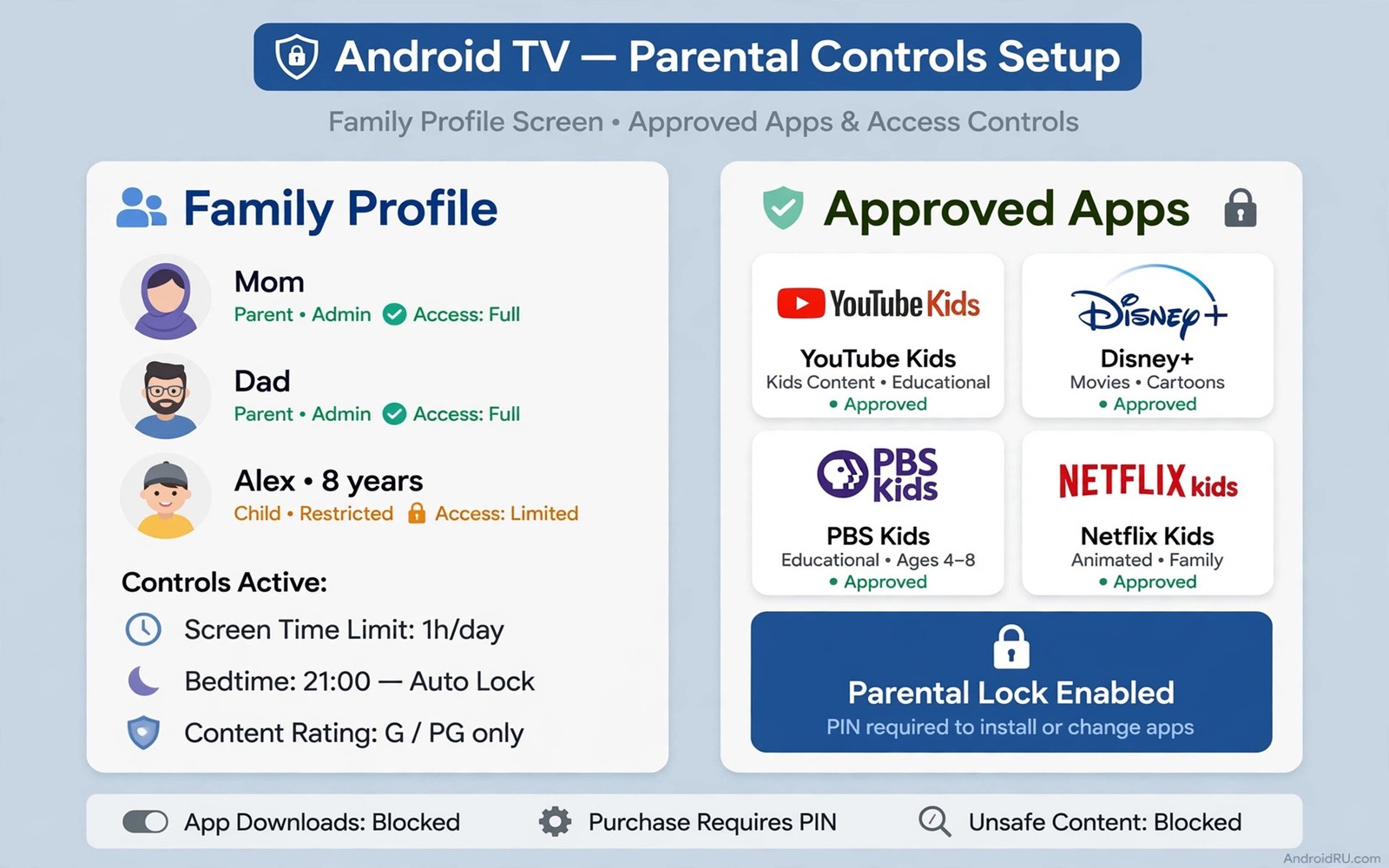
A television in a family room needs different rules from a phone in a pocket. Children can open a streaming app and reach mature content in a few clicks. Search suggestions and autoplay can surface titles that no parent chose. Parental controls put a clear boundary around what a child profile can open. They let children enjoy age appropriate shows without constant supervision.
Android TV offers several layers of control that work best together. A restricted profile limits apps and content to an approved list. A PIN locks settings and purchases and profile switching. Content ratings in each streaming app add a second filter for titles inside approved apps. No single layer is perfect so combining them gives the strongest result. A parent who sets all three layers spends less time policing the television.
Setup starts with a calm decision about what children may watch and for how long. Choose approved apps first and then set ratings and then test the profile as a child would. Try to open a blocked app and try to change a setting without the PIN. For a related family safety topic see phone as a smart home dashboard only after TV controls are settled because TV rules come first in a shared room. A tested profile beats an assumed profile.
Parental controls also help in homes where grandparents babysit and need a simple television. A restricted profile with a few large tiles is easier for a visitor to use than a full adult profile. A babysitter can start an approved show without navigating settings or stores. That simplicity reduces accidental purchases and accidental content exposure. A clear profile helps every adult in the house not just parents.
Create A Restricted Profile For Children
Open settings on the television and look for accounts or profiles depending on your launcher. Create a restricted profile and give it a clear name such as Kids. Add only the apps you approve for children and leave out browsers and stores and unrated video apps. Set the profile to require a PIN to exit so a child cannot switch to the adult profile alone. Test the new profile by opening each approved app and confirming that no other app appears.
Keep the adult profile protected with a different PIN that children do not know. Change that PIN if a child learns it and avoid simple patterns such as a birth year. Store the PIN in a password manager rather than on a note near the television. Review the approved app list once a month because app updates can add new content sections. A short monthly review keeps the profile aligned with your rules as children grow.
Set Content Ratings In Each App
A restricted profile alone does not filter titles inside an approved streaming app. Open each approved app and set its maturity rating to match the youngest viewer who will use it. Turn off autoplay for mature trailers when the app offers that option. Disable search inside apps that allow unrestricted search if you cannot filter results. Those app level settings close gaps that a profile alone cannot close.
# Kids profile checklist
profile = restricted_kids
approved_apps_only = yes
content_rating = youngest_viewer
purchase_pin = required
settings_pin = required
The snippet above is an original example written for this guide. It shows generic settings that you can adapt to your own device. It does not copy code from any outside source.
Check ratings after every major app update because updates can reset preferences. Open the app settings with the child profile active and confirm the rating still applies. If an app offers no rating control then consider removing it from the child profile. A smaller approved list with strong filters beats a large list with weak filters. Document the rating you chose for each app so a second parent can check it quickly.
Lock Purchases And Settings With A PIN
Purchases are a common surprise on a shared television because a child can rent a film with a few clicks. Turn on purchase approval and require a PIN for every transaction. Lock settings with the same PIN so a child cannot disable controls or change the network. Disable voice purchasing if your television supports it because voice commands can bypass on screen prompts. Those locks protect both content and your wallet.
Test every lock from the child profile before you declare setup complete. Try to buy a title and try to open settings and try to switch profiles. Each attempt should ask for a PIN and stop without it. If any attempt succeeds then find the missing setting and fix it at once. A lock that works in theory but fails in testing is not a lock at all.
Review Viewing And Adjust As Children Grow
Parental controls should grow with children rather than staying frozen at one age. Review viewing history together once a week and talk about shows that raised questions. That conversation teaches judgement that no filter can replace. Add a new app only after you preview its content and its rating controls. Remove apps that no longer suit the family or that changed their content policy.
Set viewing time rules outside the television when the system lacks a timer. Agree on a daily window and use a routine rather than a surprise cutoff. A predictable routine reduces arguments and it helps children plan their viewing. If the television offers a bedtime lock then use it as a backup rather than a punishment. Clear rules plus kind conversation build trust that lasts longer than any PIN.
Teach Children Why Limits Exist
Limits work better when children understand the reason behind them. Explain that some shows suit older viewers because they contain scary or complex themes. Invite a child to help choose approved apps within the safe list. That involvement gives the child ownership of the profile. A child who helped choose the list respects it more than a child who only sees a lock.
Review a blocked attempt calmly rather than treating it as misbehaviour. A child may have tapped a blocked title by curiosity rather than defiance. Use the moment to talk about age ratings and about asking before watching something new. That conversation builds judgement that lasts beyond the television. Filters are a bridge to judgement not a replacement for it.
Celebrate when a child asks before opening a new app or show. That question shows the system is working as a teaching tool. Add approved content gradually as the child demonstrates good judgement. Gradual expansion rewards trust and it keeps the profile aligned with growth. A profile that never grows feels like a punishment rather than protection.
Coordinate Controls Across Devices
Television controls should match phone and tablet controls in the same household. A show blocked on television but open on a tablet creates confusion and a loophole. Set similar ratings on every device a child uses. Use the same account family settings where the platform allows it. Consistency across devices makes rules clear and fair.
A phone remote can help a parent manage the television from another room. The setup for using a phone as a wireless TV remote lets a parent pause or switch profiles without walking to the television. Use that remote power to enforce bedtime rather than to spy on viewing. A parent who can act quickly can keep routines calm.
Hold a monthly family media meeting to review apps and shows together. Ask children which shows they enjoy and which they find boring. Remove apps nobody uses and add one new approved app as a reward for good habits. That meeting turns controls into a shared family project. Shared decisions last longer than secret settings.
Common Mistakes
The most common mistake is creating a child profile but leaving the adult profile unprotected. A child who can switch profiles without a PIN can bypass every other control in seconds. Another mistake is approving a video app without setting its internal rating. That app then shows mature titles inside a supposedly safe profile. A third mistake is using a PIN that a child can guess from family dates or simple sequences. Voice control needs the same PIN discipline and voice commands for Android TV control show how to keep it safe for children.
Parents also forget to test controls after app updates because updates can reset ratings or permissions. Check the child profile monthly and after any major update. Do not rely on a single control layer when three layers are available. Combine a restricted profile with app ratings and purchase locks for real protection. A layered setup survives a single failure without exposing mature content.
Parents also set controls on the television but forget the browser app that can open video sites. A browser in a child profile defeats app ratings entirely. Remove browsers from the child profile unless you can filter them strictly. Check the profile app list after every update because a browser can return with a system change. A complete app list matters more than a perfect rating in one app.
Frequently Asked Questions
Can children bypass parental controls with voice search?
Voice search can bypass some on screen limits if it is not restricted in the child profile. Turn off voice search in the child profile or set its content filter to the strictest level. Test voice search with a mature term from the child profile. If it returns mature results then disable voice control for that profile entirely.
Do parental controls work across every streaming app?
Controls vary by app because each app manages its own ratings and profiles. The television profile limits which apps open but app ratings filter titles inside each app. Set ratings in every approved app separately. Remove any app that offers no rating control if strict filtering matters for your family.
What happens if I forget the parental PIN?
Recovery usually requires signing into the main account on the television or resetting the profile. Keep the PIN in a password manager to avoid that disruption. A reset may remove the child profile settings so you would need to rebuild them. Store the PIN safely from the start and update it only when a child learns it.
Conclusion
Create a restricted kids profile today and approve only three apps to start. Set the rating in each app and lock purchases and settings with a strong PIN. Test the profile yourself by trying to open a blocked app and buy a title. If both attempts stop at the PIN prompt then your television is ready for family viewing.
After a month with the child profile review the approved app list together as a family. Remove apps that nobody watches and discuss one new app that the child requests. That review keeps the profile fair and it teaches the child to ask before adding content. A profile that grows with trust lasts longer than a profile that never changes. A monthly family check is part of the system not an extra chore.

